
All settings are on WooCommerce → VAT Number. Both editions store them in the same WordPress option, gmvat_settings, so switching edition keeps them.
The free edition has six settings. The full edition has those six plus three more, marked Full edition.
The field
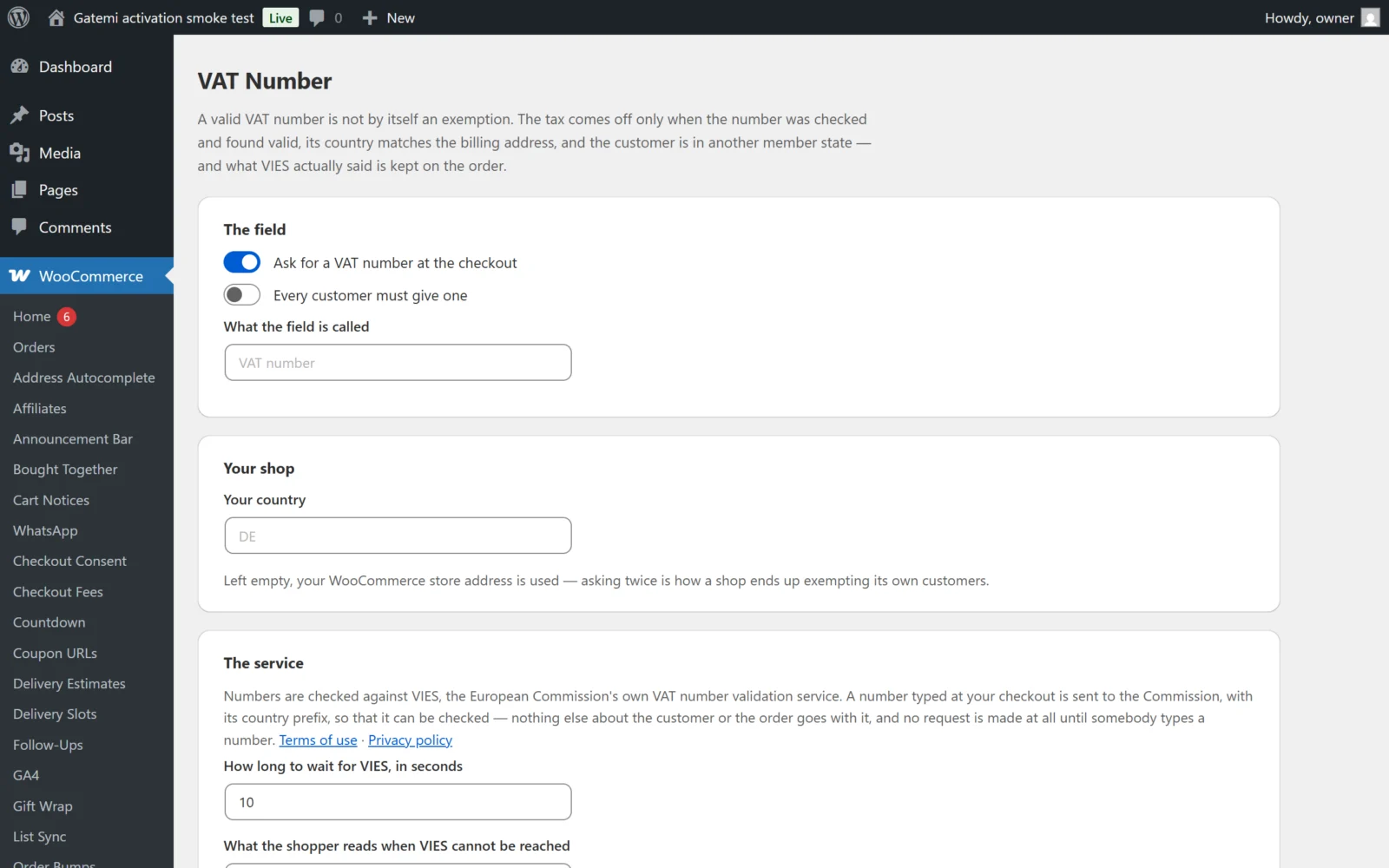
Ask for a VAT number at the checkout
- Key:
enabled· Default: on (yes) - Shows the VAT number field on the classic checkout and the Checkout block.
- Turned off, there is no field and nothing is exempted — the exemption rule requires it to be on.
Every customer must give one
- Key:
required· Default: off (no) - Makes the field required. On the classic checkout WooCommerce's normal required-field check applies; on the Checkout block WooCommerce enforces it through its Additional Checkout Fields API.
- Leave it off if you also sell to consumers.
What the field is called
- Key:
label· Default: empty, shown as "VAT number" - The field's label on both checkouts. Plain text.
Your shop
Your country
- Key:
own_country· Default: empty - Two-letter country code of your own country, for example
NL. Stored upper case, truncated to two characters. - Empty means your WooCommerce store address country is used (
wc_get_base_location()). This is the recommended setting. - Customers whose billing country equals this country are not exempted.
- The field is only shown when this resolves to a country — either set here or from the store address.
Your own VAT number — Full edition
- Key:
own_number· Default: empty - Your VAT number, stored cleaned up (spaces and punctuation removed, upper case).
- When filled in, every VIES check is sent with your number as the requester (
requesterMemberStateCodeandrequesterNumber), and VIES returns a consultation number, which is stored on the order. - Empty, checks still work but no consultation number is returned.
- If VIES rejects your number as a requester, its error (for example
INVALID_REQUESTER_INFO) is treated as "unavailable" for that check. Use the test lookup to catch this.
When the tax comes off — Full edition
The free edition has neither of these settings; it behaves as if both are off.
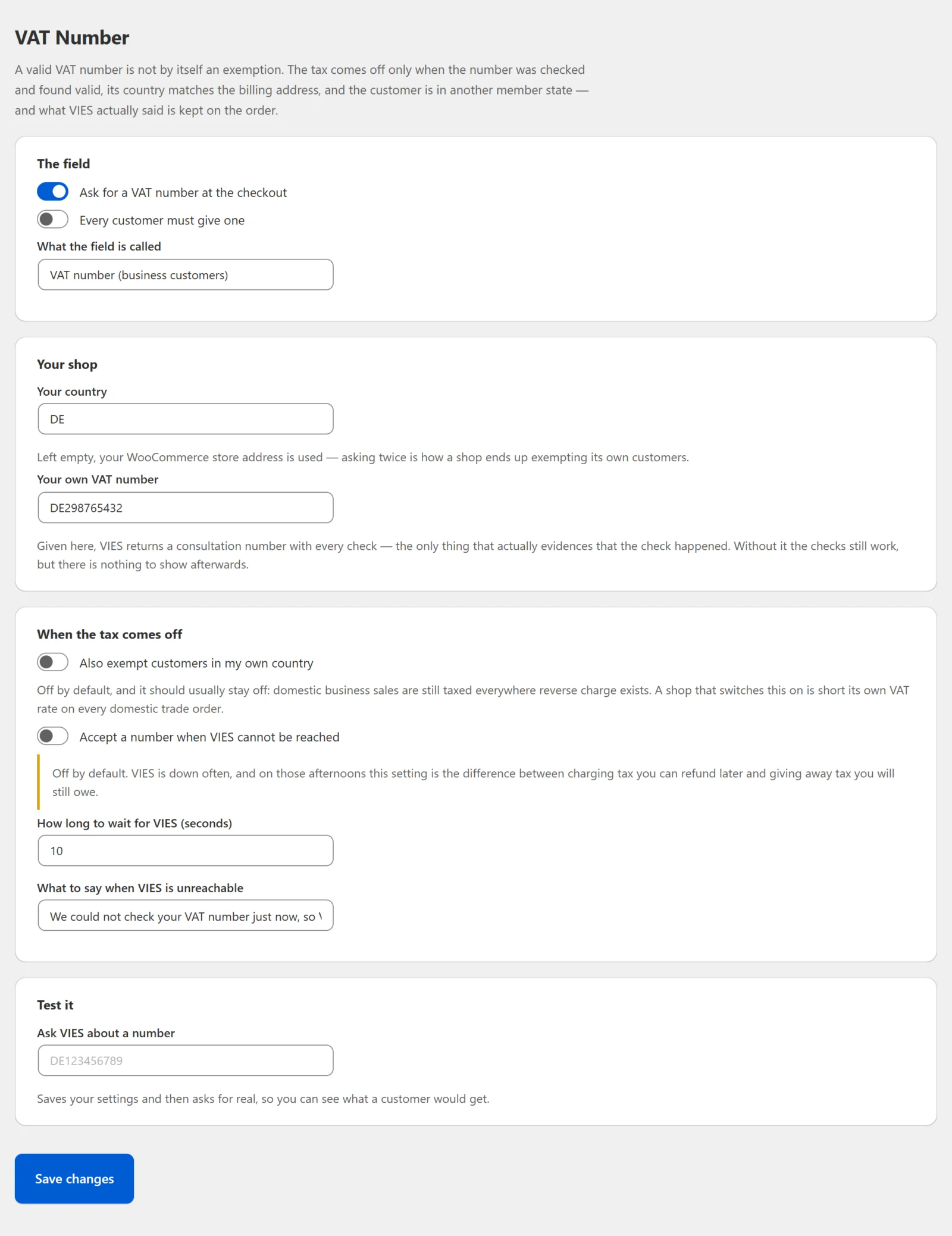
Also exempt customers in my own country — Full edition
- Key:
exempt_home· Default: off (no) - On: a customer in your own country with a valid, matching number is exempted too.
- Should usually stay off. Domestic business sales are still taxed in the general case — see Reverse charge in your own country.
Accept a number when VIES cannot be reached — Full edition
- Key:
trust_offline· Default: off (no) - On: when VIES is unavailable, a number that passes the basic shape check is treated as valid for the exemption. The order still records the VIES status as "unavailable".
- Off: an unavailable VIES never exempts (fail closed). See VIES is down: what your checkout should do.
The service
How long to wait for VIES, in seconds
- Key:
timeout· Default:10 - The HTTP timeout for each VIES request. Clamped to between 3 and 30 seconds. If VIES does not answer in time, the result is "unavailable".
What the shopper reads when VIES cannot be reached
- Key:
refused_text· Default: empty - Your wording for the "VIES could not be reached" message. Empty means the built-in sentence: "The EU VAT checking service could not be reached, so tax has been charged on this order. Contact us after ordering and we will refund it once your number is confirmed."
- Where it is shown: on the classic checkout, as a notice (not an error, so the order can still be placed) when the refresh gets an unavailable answer; and on the order-received page — classic or the block Order Confirmation template — for an order recorded as unavailable whose VAT was not removed. That page is where a block-checkout shopper reads it. The order box on the order screen records "VIES could not be reached, so the number was not confirmed."
Test it — Full edition
Ask VIES about a number
- Not a stored setting. Type a VAT number and press Save changes: the settings are saved first, then VIES is asked about the number, and the answer — including the consultation number, if you set your own VAT number — is shown on the screen.
License & updates — Full edition
Enter your gatemi.com licence key to activate one-click updates. The plugin works without a key. Licence state is kept in its own option, gmvat_license.
What uninstalling removes
- Free edition: deletes
gmvat_settingsonly if the full edition's licence record (thegmvat_licenseoption) does not exist on the site — so a shop that has used the full edition keeps its settings. Order data is never touched. - Full edition: deletes
gmvat_settings,gmvat_license, its update cache and its licence-check schedule. Order data is never touched.
The VAT evidence on your orders stays in both cases.