
These docs cover both editions:
- Gatemi EU VAT Number — free, on wordpress.org.
- Gatemi VAT Number for WooCommerce — the full edition, sold on gatemi.com.
Anything marked Full edition below is only in the paid plugin. Everything else is in both.
Requirements
| Free edition | Full edition | |
|---|---|---|
| WordPress | 6.4 or later | 6.4 or later |
| PHP | 7.4 or later | 7.4 or later |
| WooCommerce | 8.0 or later | 8.0 or later |
| Field on the Checkout block | WooCommerce 8.9 or later | WooCommerce 8.9 or later |
Both are compatible with WooCommerce's High-Performance Order Storage (HPOS) and declare compatibility with the Cart and Checkout blocks.
Your server must be able to make outgoing HTTPS requests to ec.europa.eu, where the VIES service lives.
1. Install
Free edition: in WordPress go to Plugins → Add New, search for "Gatemi EU VAT Number", install and activate.
Full edition: download the zip from your gatemi.com account, then go to Plugins → Add New → Upload Plugin, upload it and activate. Then enter your licence key on the plugin's settings screen to switch on updates. The plugin works without a key; the key is for updates and support.
You only need one. If both are active, the free edition stands down and says so in a row under its entry on the Plugins screen. You can then deactivate it — the full edition reads the same settings and the same order data.
2. Open the settings
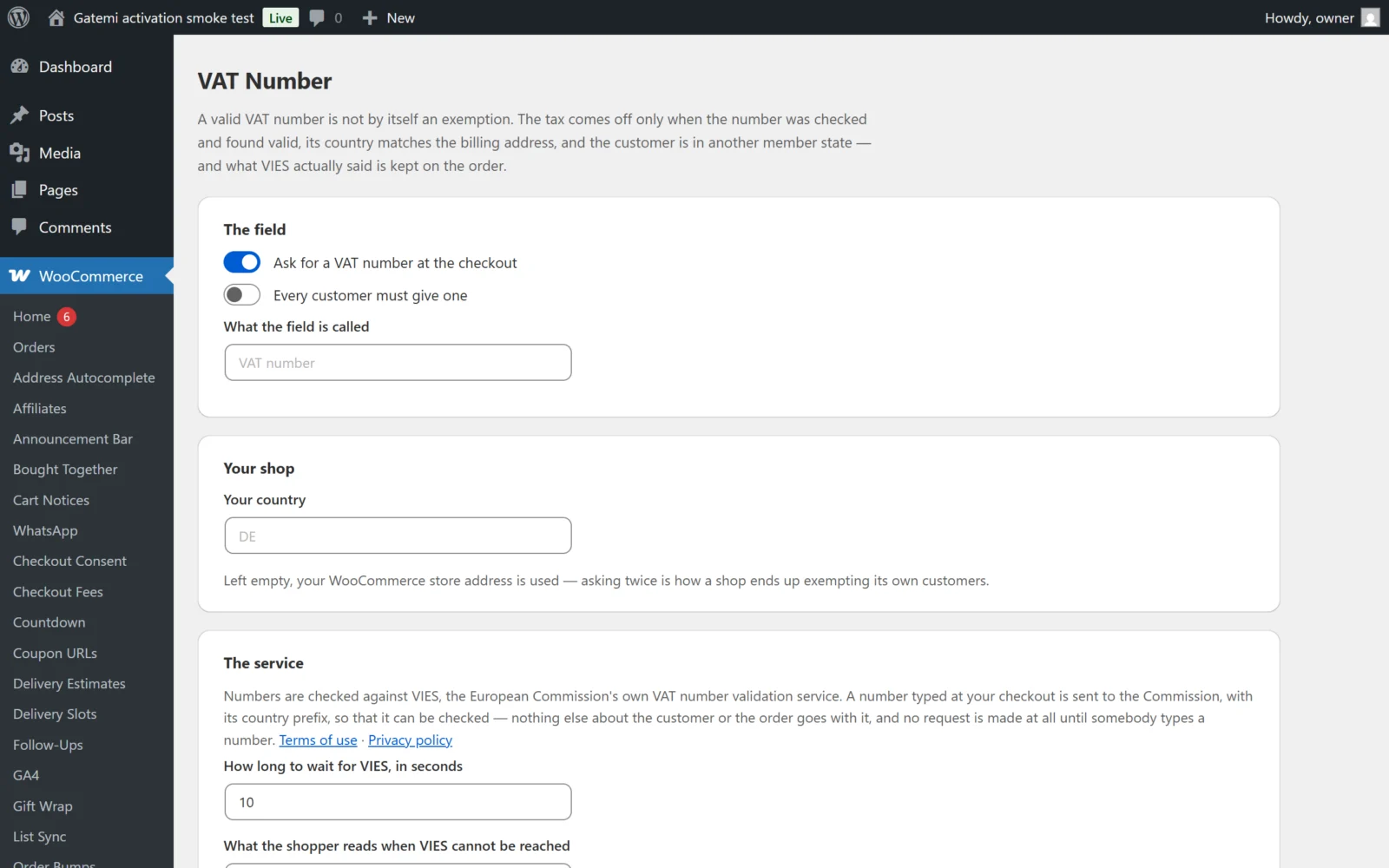
Go to WooCommerce → VAT Number. You need the manage_woocommerce capability (shop managers and administrators have it).
3. Check your country
Under Your shop, the Your country box is your country of establishment, as a two-letter code (for example NL).
Leave it empty and the plugin uses the country of your WooCommerce store address (WooCommerce → Settings → General). That is the recommended setting: it means there is only one place your country is defined.
The field does not appear at the checkout until the plugin knows your country, because without it the plugin cannot tell a domestic customer from a foreign one. If you see no field, this is the first thing to check.
4. Decide whether the field is required
Ask for a VAT number at the checkout is on by default. Every customer must give one is off by default — leave it off if you sell to consumers as well as businesses.
You can also rename the field (What the field is called). Empty means "VAT number".
Full edition: enter Your own VAT number under Your shop. Every check is then sent to VIES as a requester and VIES returns a consultation number, which is stored on the order. See What a VIES check proves.
Save.
5. Place a test order
Open your shop in a private window, add something to the cart and go to the checkout. You will see a VAT number field in the billing section (on the classic checkout) or in the billing address (on the Checkout block).
Try, with a billing country in another EU member state:
- No number — VAT is charged as normal.
- A real, valid VAT number of a business in that country (with its permission, or your own if you have a foreign registration) — the VAT comes off the totals.
- Some letters with no country prefix — the order is stopped with "That does not look like a VAT number…".
Then try a billing address in your own country with a valid number from your own country: the VAT stays on.
Full edition: you can try numbers without placing an order. Type one in Test it → Ask VIES about a number and save; the screen shows what VIES said, including the consultation number if you set your own VAT number.
6. Look at the order
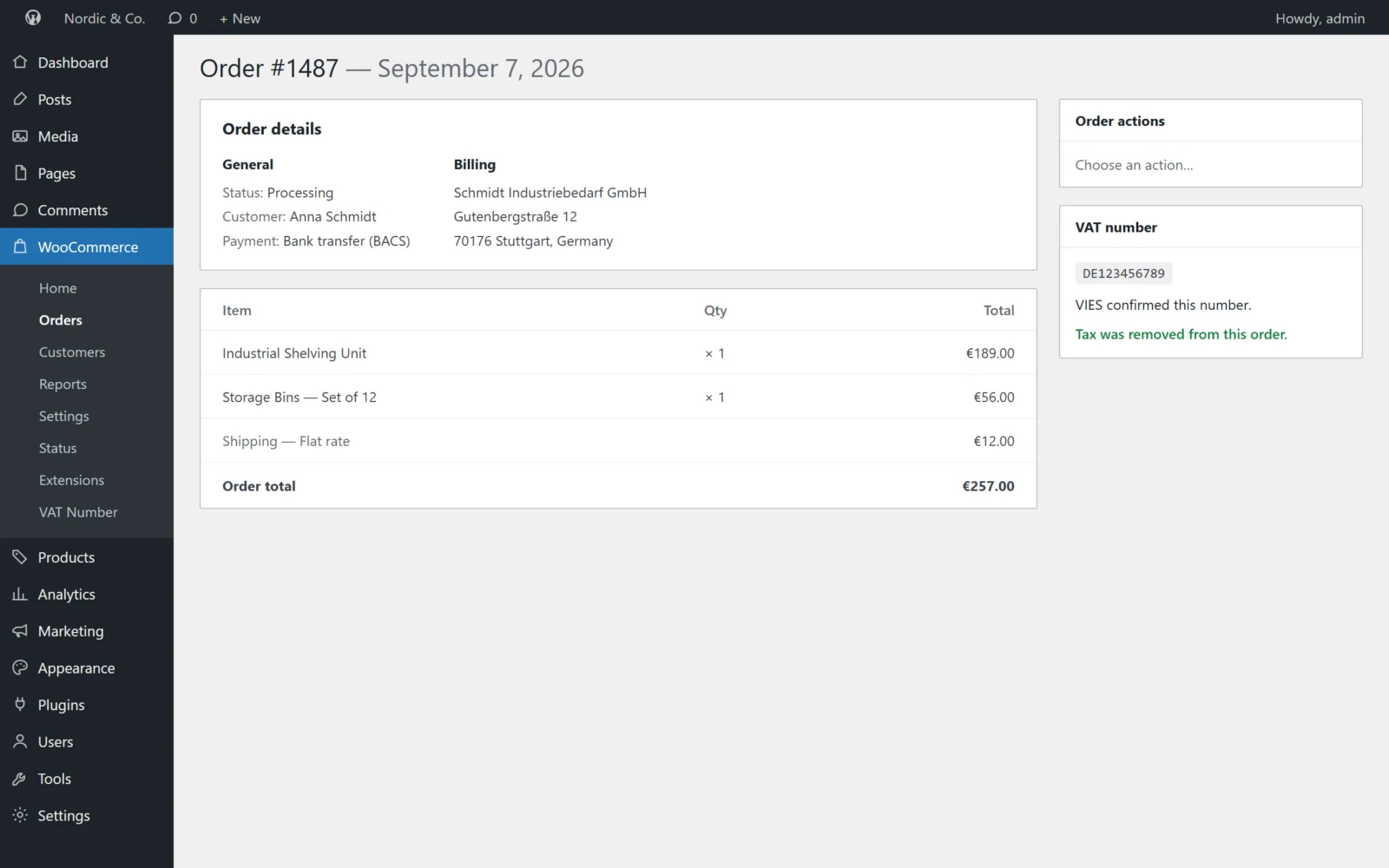
Open the test order in WooCommerce → Orders. In the sidebar there is a VAT number box showing the number, what VIES said, whether the VAT was removed, when it was checked, and the name and address VIES returned.
Next
- Settings — every setting and its default
- How it works — the four conditions and what is stored
- FAQ and troubleshooting