
This page covers both editions:
- Gatemi Sales by Country — the free edition, from wordpress.org.
- Gatemi Tax Reports for WooCommerce — the full edition, sold on gatemi.com.
Anything only the full edition does is marked Full edition.
Requirements
| Both editions | |
|---|---|
| WordPress | 6.4 or later |
| PHP | 7.4 or later |
| WooCommerce | 8.0 or later (tested up to 10.9), installed and active |
| Order storage | High-Performance Order Storage and the legacy posts store both work |
Neither edition adds database tables, writes to your orders, adds anything to your storefront, or (without a licence key) makes any outside request.
Install the free edition
- In WordPress, go to Plugins → Add New.
- Search for Gatemi Sales by Country.
- Click Install Now, then Activate.
If WooCommerce is not active, the plugin does nothing and says so in a line under its own entry on the Plugins screen.
Install the full edition
- Download the zip from your gatemi.com account.
- Go to Plugins → Add New → Upload Plugin, choose the zip, then Install Now and Activate.
- Open WooCommerce → Tax Reports, scroll to License & updates, paste your licence key (it looks like
GM-XXXXX-XXXXX-XXXXX-XXXXX-XXXXX) and press Activate. The key switches on one-click updates; the report works without it.
Moving from the free edition: you can leave the free edition installed. While the full edition is active, the free one stands down completely — it adds no menu and runs no code — and says so on the Plugins screen. You can then deactivate and delete it. Your settings are stored in the same place (gmtx_settings), so the full edition picks them up.
Run your first report
- Go to WooCommerce → Sales by Country (free) or WooCommerce → Tax Reports (full edition).
- The From and To dates start at the first of this month and today. Change them to the period you want — for a quarterly VAT return, the first and last day of the quarter.
- Press Show.
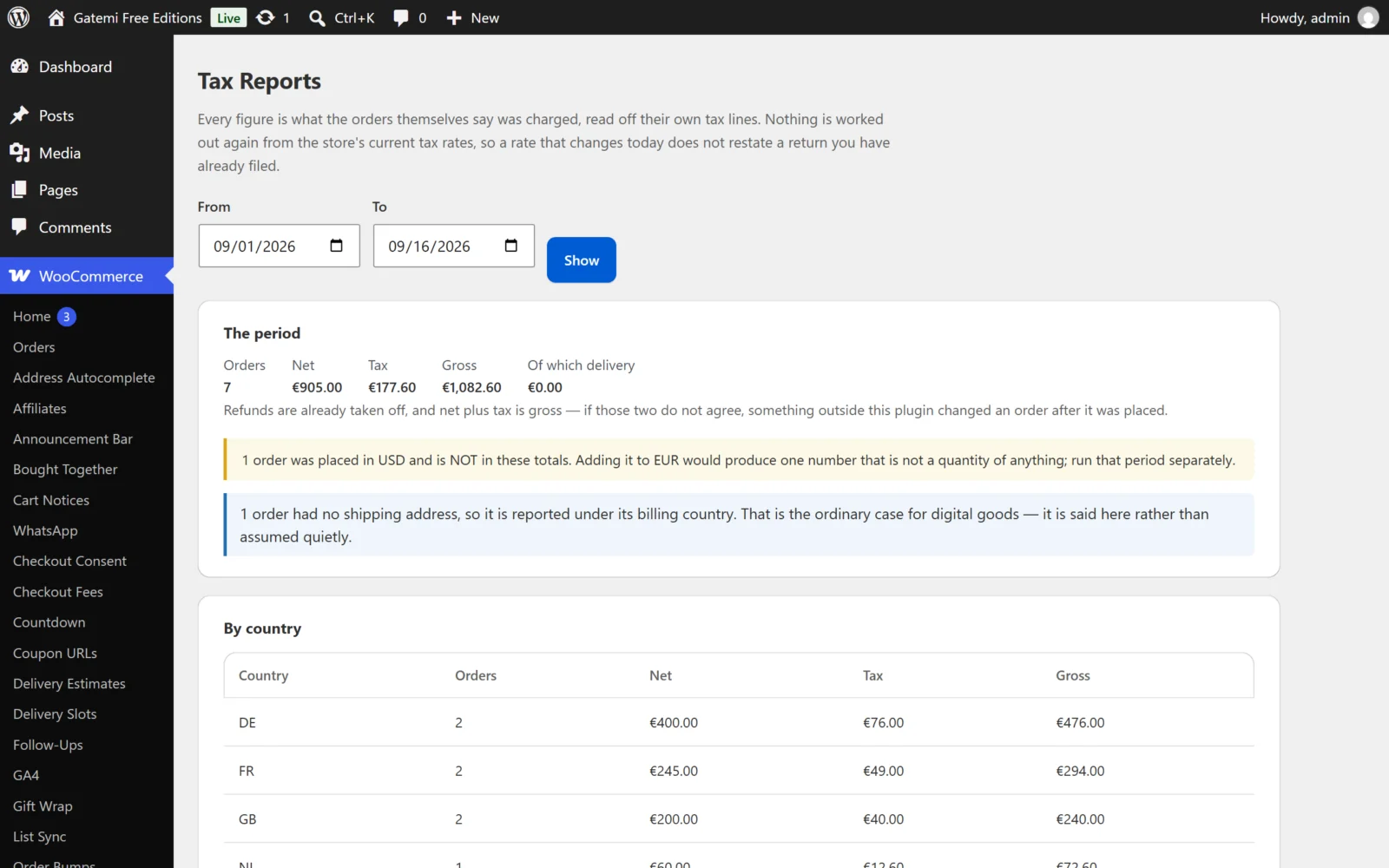
Read the report
The period
Five figures for the whole range:
- Orders — how many orders were counted.
- Net — what the orders came to after tax and refunds.
- Tax — the tax the orders charged, less tax refunded.
- Gross — the order totals after refunds. Net plus tax is always gross.
- Of which delivery — the delivery charged (excluding its tax), less delivery refunded. It is already inside Net; it is shown so you can see it.
The notes under it
These only appear when they apply:
- "N orders were placed in … and are NOT in these totals." Orders in a currency other than the store's are left out, because adding two currencies produces a number that is not a quantity of anything. Run those separately.
- "N orders had no shipping address, so they are reported under their billing country." Usually downloads or other digital products. In the full edition this note appears only while the place of supply is set to "Where the goods went".
By country
A row per country, in alphabetical order of the country code, with orders, net, tax and gross. With the state breakdown switched on (see Settings), a row per country and state instead.
By tax rate — Full edition
A row per country and tax rate: the country, the rate's label as the order carries it (for example "VAT"), its percentage, the number of orders, and the net, tax and gross under that rate, refunds taken off. See How it works for exactly how it is worked out. Download rates CSV under the table downloads it.
Download CSV — Full edition
The Download CSV button beside Show downloads the country table for the same date range; the rate table has its own Download rates CSV button. The columns are listed in the developer reference.
Who can see the report
Anybody with the manage_woocommerce capability — by default, administrators and shop managers.
Next
- Settings — every setting and its default.
- How it works — the arithmetic.
- FAQ and troubleshooting