
Both editions have one screen: WooCommerce → Sticky Add to Cart (capability manage_woocommerce). Press Save changes at the bottom.
The two editions keep their settings in separate options — gmsacf_settings (free) and gmsac_settings (full) — and share no data. There are only a handful of switches, so after upgrading you set them once on the full edition's screen.
Free edition
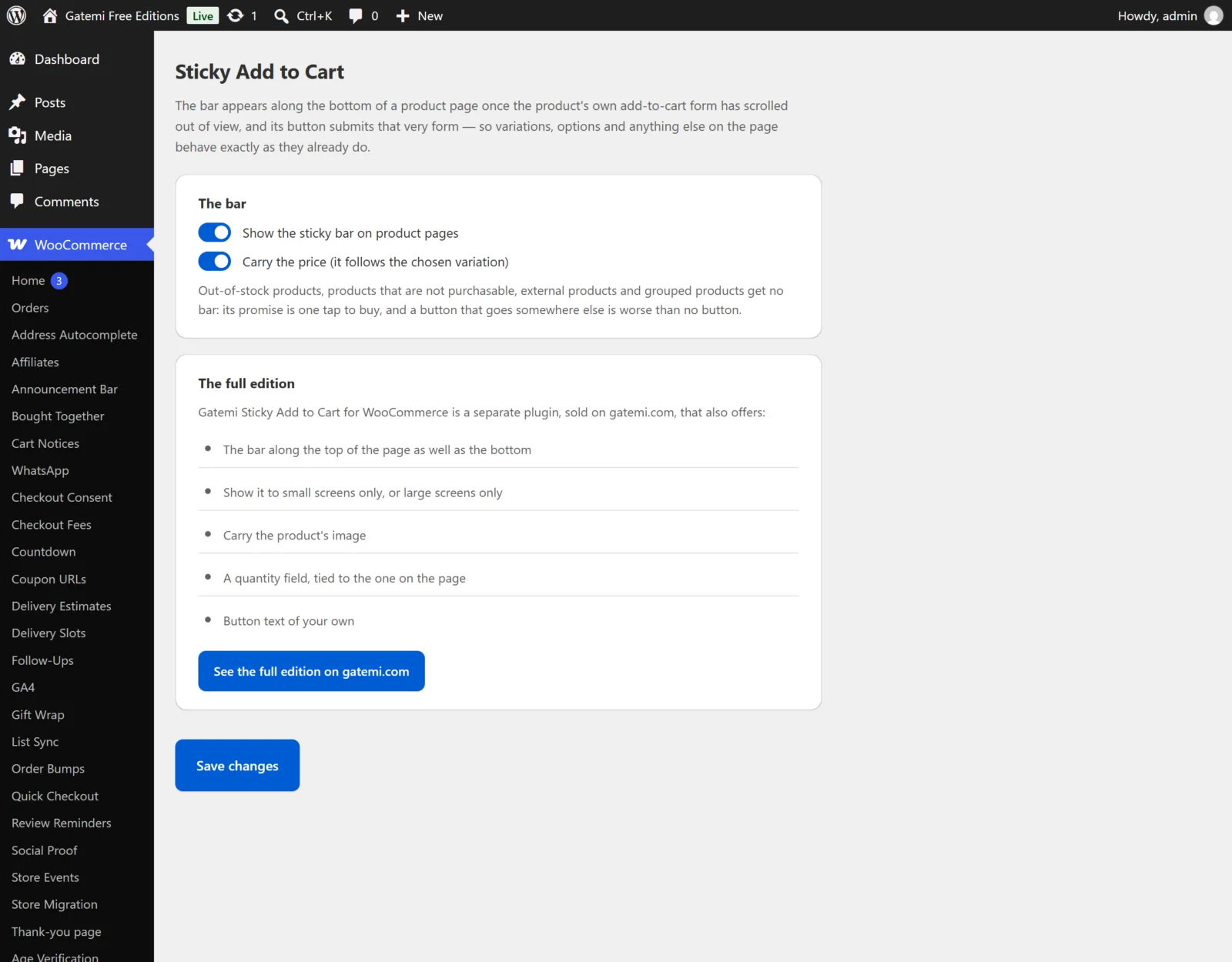
Show the sticky bar on product pages
- Key:
enabled· Default: on (yes) - Off: no bar, and the bar's script and stylesheet are not loaded.
Carry the price (it follows the chosen variation)
- Key:
price· Default: on - Shows the product's price beside the name. On a variable product it changes to the chosen variation's price.
Everything else is fixed in the free edition:
| Free edition | |
|---|---|
| Position | Along the bottom |
| Who sees it | Every screen size |
| Image | Not shown |
| Quantity field | Not shown (the page's own quantity is used) |
| Button text | The product's own add-to-cart text |
Full edition
The full edition's screen has two cards.
The bar
Show the sticky bar on product pages
- Key:
enabled· Default: on (yes)
Where it sits — Full edition
- Key:
position· Default:bottom - Along the bottom (
bottom) or Along the top (top).
Who sees it — Full edition
- Key:
devices· Default:all - Everyone (
all), Small screens only (mobile, below 782 pixels wide) or Large screens only (desktop, 782 pixels and wider). - Screen size is decided in CSS rather than by detecting the visitor, so a page cache can serve one page to everyone.
What it carries
The product's image — Full edition
- Key:
thumbnail· Default: on - The product image at WooCommerce's gallery thumbnail size. On a variable product it follows the chosen variation's image. On screens 480 pixels wide or narrower the image is hidden to leave room for the button.
The price (it follows the chosen variation)
- Key:
price· Default: on
A quantity field, tied to the one on the page — Full edition
- Key:
quantity· Default: off - Adds a number box to the bar. Changing it changes the page's own quantity field, and the other way round, so the form still decides what quantity is added. On a product sold individually there is no page quantity field, and the bar's box does nothing.
Button text — Full edition
- Key:
label· Default: empty - Left empty, the bar says whatever the product's own button says — a pre-order, a simple product and a variable product do not say the same thing, and the bar should not be the one place that disagrees.
Where no bar appears
Not a setting: the screen explains that out-of-stock, non-purchasable, external and grouped products get no bar. To switch it off for particular products, use the gmsac_enabled filter in the developer reference.
For developers — Full edition
A table of the filters the full edition applies.
License & updates — Full edition
Enter the GM-… key from your gatemi.com account and press Activate. The card shows the licence status, the renewal date and the number of sites in use. Deactivate on this site frees the slot. If gatemi.com cannot be reached during a check, your licence state is left unchanged and the check retries on its own.