
Gatemi Sticky Add to Cart keeps buying one tap away on long product pages. When the product's own add-to-cart form is out of view — while a shopper reads the description, the reviews or the questions — a slim bar along the edge of the screen carries the product's name, its price and the button.
The bar has no add-to-cart of its own. Its button submits the product page's own form, so variations, add-on fields, quantity rules and other plugins' checks work exactly as they do on the page.
These docs cover both editions:
- Gatemi Sticky Add to Cart — the free edition, coming to wordpress.org. The bar along the bottom with the name, the price and the button.
- Gatemi Sticky Add to Cart for WooCommerce — the full edition, sold on gatemi.com. It adds the bar along the top, showing it only on small or only on large screens, the product's image, a quantity field and button text of your own.
Anything marked Full edition is only in the paid plugin.
Requirements
| Free edition | Full edition | |
|---|---|---|
| WordPress | 6.4 or later | 6.4 or later |
| PHP | 7.4 or later | 7.4 or later |
| WooCommerce | 8.0 or later | 8.0 or later |
The bar needs the product page's add-to-cart form (form.cart), which WooCommerce prints on classic product templates and on block themes' product template.
1. Install
Free edition: coming to wordpress.org. Until it is listed, install the zip through Plugins → Add New → Upload Plugin and activate it.
Full edition: download the zip from your gatemi.com account, go to Plugins → Add New → Upload Plugin, upload and activate. Then open WooCommerce → Sticky Add to Cart and enter your licence key in the License & updates card. The plugin works without a key; the key switches on one-click updates and support. The full edition also lists its screen under the top-level Gatemi menu (Gatemi → Sticky Add to Cart), beside your other Gatemi plugins.
You only need one edition. If both are active, the free edition stands down and says so under its entry on the Plugins screen.
The bar is on as soon as the plugin is active. There is nothing to set up first.
2. Check the settings
Go to WooCommerce → Sticky Add to Cart (capability manage_woocommerce). In the free edition there are two switches, both on by default:
- Show the sticky bar on product pages
- Carry the price (it follows the chosen variation)
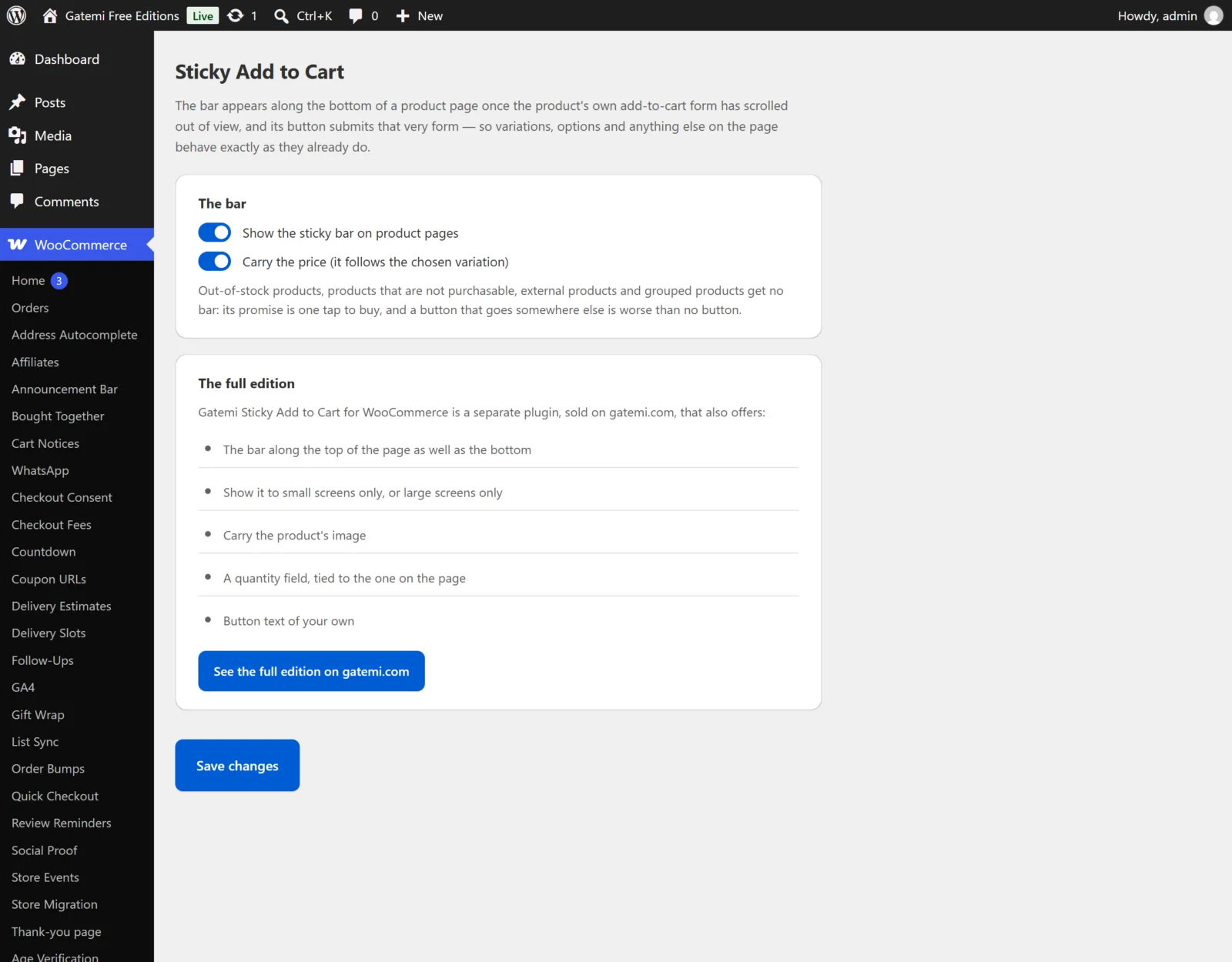
See Settings for the full edition's options.
3. Test it
- Open a simple, in-stock product with a long description.
- Scroll down past the Add to cart button. The bar slides in along the bottom with the product name, the price and the button.
- Scroll back up: as soon as the real form is on screen again, the bar hides.
- Press the bar's button. The product is added exactly as if you had pressed the page's own button — with Ajax add-to-cart if your theme uses it, otherwise with a page reload and WooCommerce's notice.
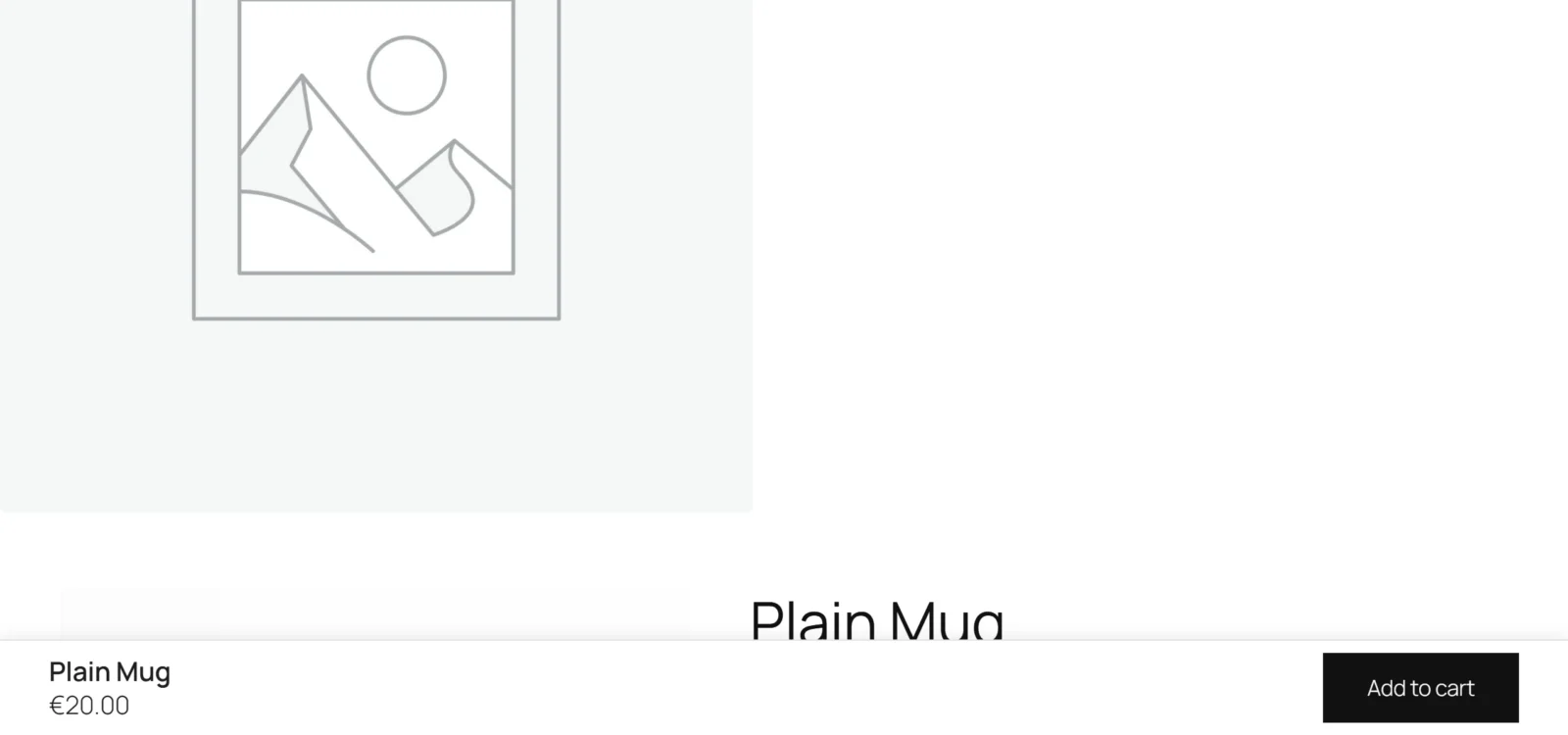
A variable product
- Open a variable product and scroll past the form without choosing anything. The bar's button is disabled: the real form would refuse an add without a variation.
- Scroll up, choose a size and colour, and scroll down again. The bar's price shows the chosen variation's price and the button is enabled.
- Press it. The chosen variation is added.
Products that get no bar
There is no bar on products that are out of stock, not purchasable (for example with no price), external/affiliate products, or grouped products. The bar's promise is one tap to buy, and a button that goes somewhere else is worse than no button.