
Gatemi Social Proof shows small "Sarah in Leeds bought a kettle" popups on your shop, built from orders that actually happened. There is no fake mode: a store with no recent orders shows nothing at all.
These docs cover both editions:
- Gatemi Social Proof — the free edition, coming to wordpress.org. Five rotating popups from the last seven days.
- Gatemi Social Proof for WooCommerce — the full edition, sold on gatemi.com. It adds more popups, a "14 sold in the last 7 days" counter on product pages, product and category exclusions, a choice of window, statuses and corner, and the product's picture in the popup.
Anything marked Full edition is only in the paid plugin.
Requirements
| Free edition | Full edition | |
|---|---|---|
| WordPress | 6.4 or later | 6.4 or later |
| PHP | 7.4 or later | 7.4 or later |
| WooCommerce | 8.0 or later | 8.0 or later |
The popups are built by WordPress cron, so cron must run (it does on any site that gets visits, unless DISABLE_WP_CRON is set without a server cron). The plugin makes no external requests.
1. Install
Free edition: coming to wordpress.org. Until it is listed, install the zip through Plugins → Add New → Upload Plugin and activate it.
Full edition: download the zip from your gatemi.com account, go to Plugins → Add New → Upload Plugin, upload and activate. Then open WooCommerce → Social Proof and enter your licence key in the License & updates card. The plugin works without a key; the key switches on one-click updates and support. The full edition also lists its screen under the top-level Gatemi menu (Gatemi → Social Proof), beside your other Gatemi plugins.
Use one edition at a time. Both store their settings in the same option, gmsp_settings, so moving from the free edition to the full one keeps them.
2. Look at the screen
Go to WooCommerce → Social Proof (capability manage_woocommerce).
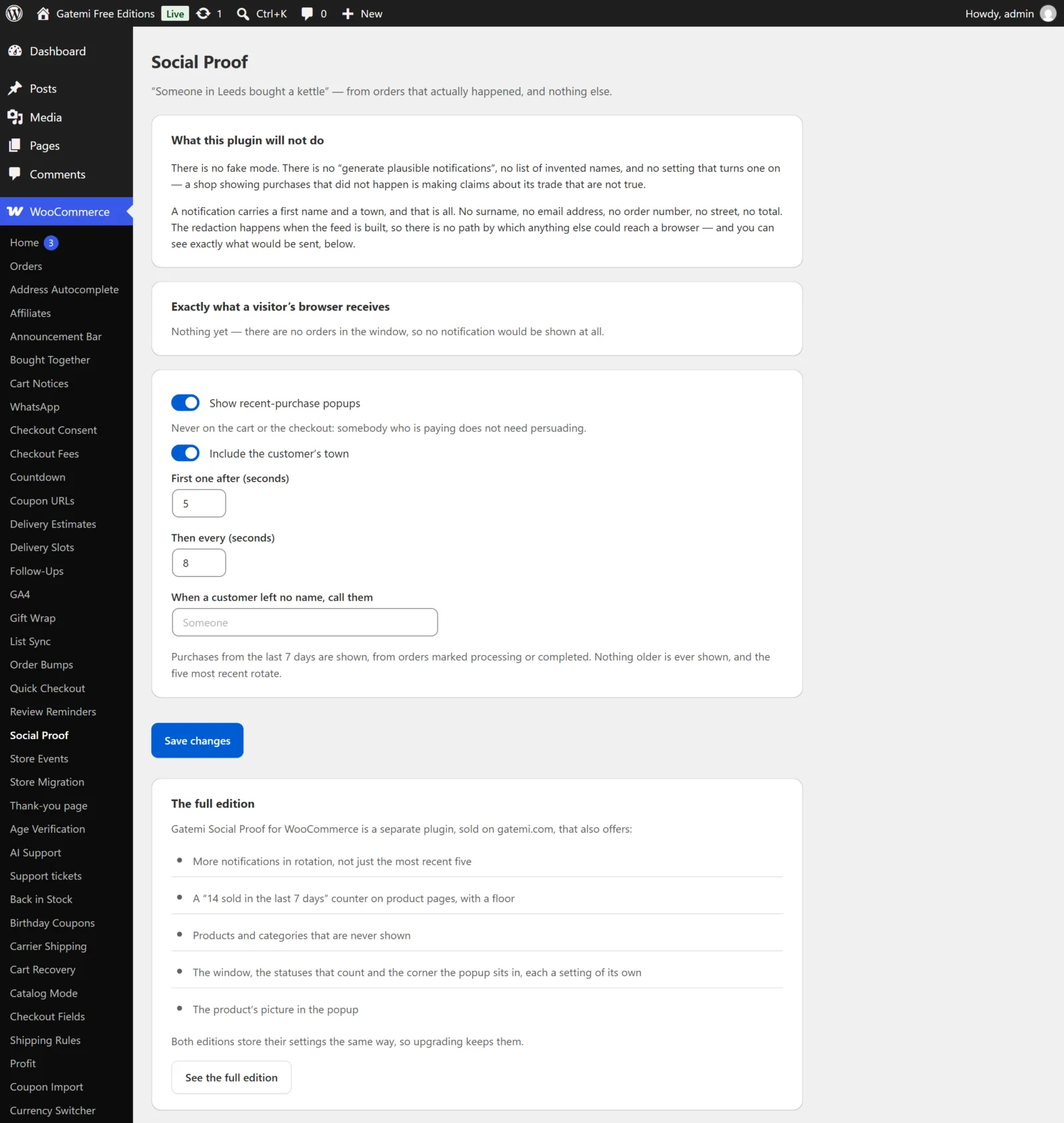
Near the top is Exactly what a visitor's browser receives: a table of the notifications in the current feed — Name, Town, Product — row by row. This is the whole of what is sent to a page. If it says "Nothing yet — there are no orders in the window", no popup will be shown.
Popups are on by default (Show recent-purchase popups).
3. Get the first notifications
The feed is built:
- every hour, and
- a minute after any order reaches a counted status (Processing or Completed in the free edition).
So on a store that already has orders from the last seven days, the first build happens within a minute or two of activation, as soon as the site gets a visit. To see it work from scratch:
- Place a test order with a first name and a town in the billing address.
- Mark it Processing or Completed.
- Wait a minute, load any page so cron runs, then reload WooCommerce → Social Proof. The order now appears in the table, as the first word of the billing first name, the billing town and the product.
- Open the shop in a private window. After five seconds a popup appears in the bottom-left corner: "Name in Town bought Product", with how long ago.
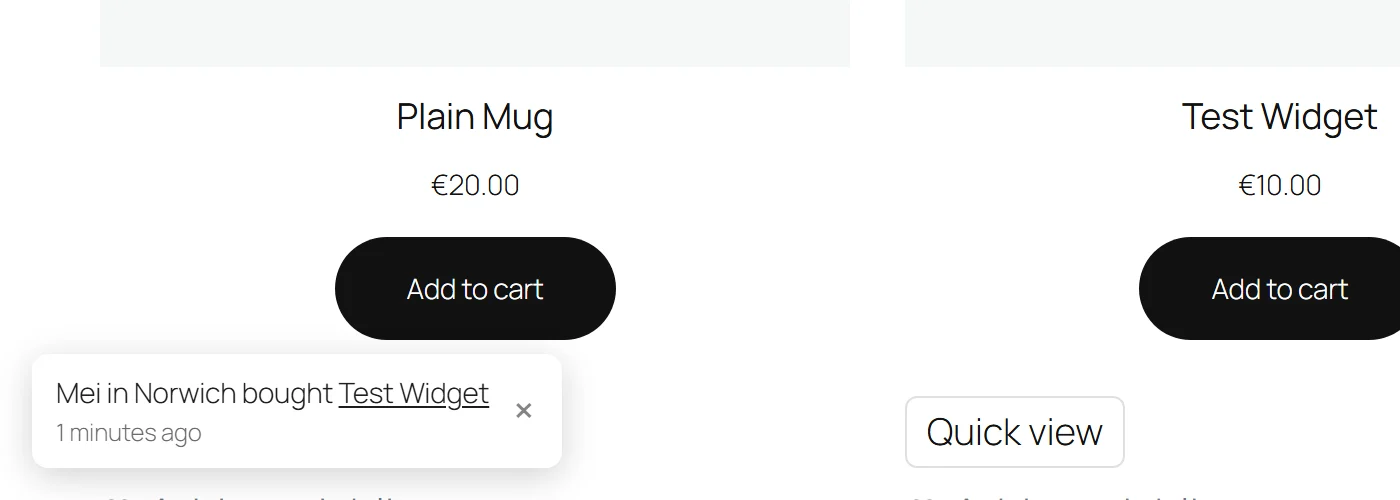
The popups appear on every storefront page except the cart and the checkout. A visitor who closes one is not shown another on that page.
Full edition: the counter
To show "14 sold in the last 7 days" on product pages:
- On WooCommerce → Social Proof, tick Show "14 sold in the last 7 days" on product pages.
- Set Only when it is at least (default 3).
- Save. The counts are built with the next feed rebuild.
The line appears in the product summary, just after the price, on products that sold at least that many in the window.
Next steps
- Settings
- How it works — the three rules and the schedule.
- FAQ and troubleshooting
- Developer reference