
The settings are on WooCommerce → Product Gallery (you need the manage_woocommerce capability). Press Save changes at the bottom.
The free edition stores them in the gmpgf_settings option, the full edition in gmpg_settings. They are separate, so the full edition starts from its own defaults.
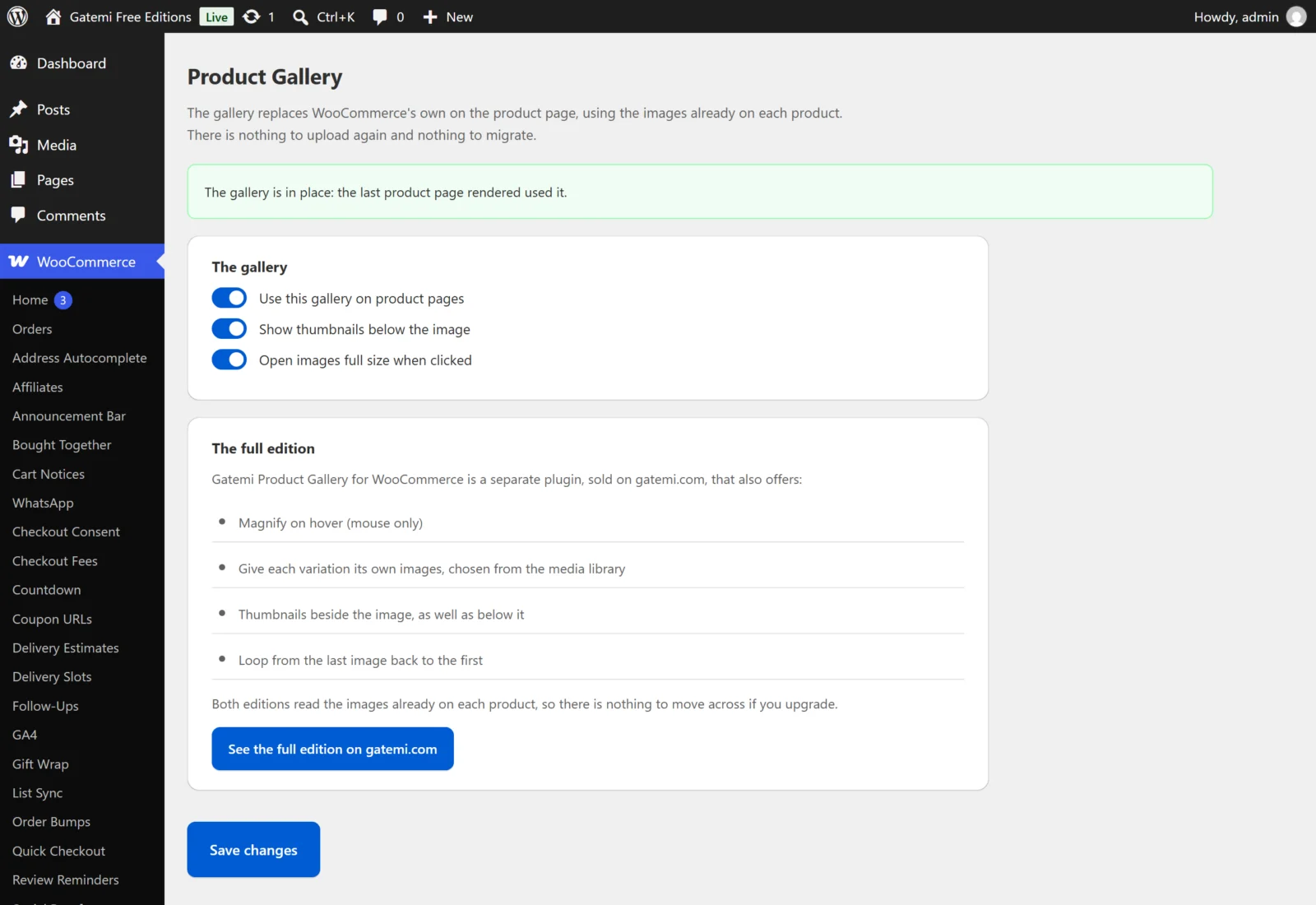
Status card
Above the settings, a card reports what happened on the last product page viewed: the gallery is in place, your theme renders its own gallery, or your Single Product block template draws its own gallery. It is not a setting. See How it works.
The gallery — free edition
| Label | Key | Default | What it does |
|---|---|---|---|
| Use this gallery on product pages | enabled |
on (yes) |
Off leaves WooCommerce's own gallery in place. |
| Show thumbnails below the image | thumbnails |
on (yes) |
A row of thumbnails under the main image, when the product has more than one image. |
| Open images full size when clicked | lightbox |
on (yes) |
Clicking a slide opens the full-size image over the page. |
The gallery — Full edition
| Label | Key | Default | What it does |
|---|---|---|---|
| Use this gallery on product pages | enabled |
on | As in the free edition. |
| Thumbnails | thumbnails |
Below the image (bottom) |
Below the image, Beside the image (left) or No thumbnails (none). |
| Open images full size when clicked | lightbox |
on | As in the free edition. |
| Magnify on hover (mouse only) | zoom |
on | Hovering a slide magnifies it. It is only applied when the device has a mouse — a hover effect on a phone is a tap that appears to do nothing. |
| Swap the images when a variation is chosen | variation_images |
on | When the shopper chooses a variation, the gallery shows that variation's images. |
| Loop from the last image back to the first | loop |
off | The next arrow on the last slide goes back to the first. |
For developers
The full edition's screen lists every filter it applies. See Developer reference.
License & updates
The License & updates card takes your gatemi.com licence key and shows its state. An expired licence keeps the plugin working; it only stops updates.
Per-variation images — Full edition
Where: edit a variable product, open Product data → Variations and expand one variation.
| Label | Meta key | Default | What it does |
|---|---|---|---|
| Gallery images for this variation — Choose images / Clear | _gmpg_images (on the variation) |
empty | The images this variation shows, in the order chosen from the media library. |
Leave it empty to show the product's own gallery. When it has images, they replace the product's gallery for that variation. A variation with no set of its own but with its own variation image shows that image first and the product's gallery after it, which is what WooCommerce itself does.
What the free edition's screen shows
Below its three switches the free edition describes, in plain text, what the separate full edition adds, with a link. Nothing there is a setting.