
Gatemi Product Compliance puts the information the EU General Product Safety Regulation asks for — manufacturer, responsible person, safety information — on every WooCommerce product page, above the add-to-cart button, and copies it onto each order line when an order is placed.
There are two editions:
- Gatemi Product Compliance (free) — three fields typed on each product. Coming to wordpress.org.
- Gatemi Product Compliance for WooCommerce (full edition, gatemi.com) — six fields, reusable records covering whole categories, EU and UK markets, a "Product safety" tab, conformity documents and CSV import.
Both write the same data on products and orders, so upgrading keeps everything. Features below marked Full edition are only in the full edition.
Requirements
- WordPress 6.4 or later
- WooCommerce 8.0 or later (the plugin requires WooCommerce and does nothing without it)
- PHP 7.4 or later
Both editions declare compatibility with WooCommerce's High-Performance Order Storage and the Cart and Checkout blocks.
1. Install
Free edition: once it is on wordpress.org, go to Plugins → Add New, search for "Gatemi Product Compliance", install and activate.
Full edition: download the zip from your gatemi.com account, then Plugins → Add New → Upload Plugin. Activate it. If the free edition is also installed, it stands down while the full edition is active (the Plugins screen says so under its row); you can deactivate and delete it — your data stays.
To get updates for the full edition, open WooCommerce → Product Compliance, scroll to License & updates, paste your license key and press Activate.
2. Read the report
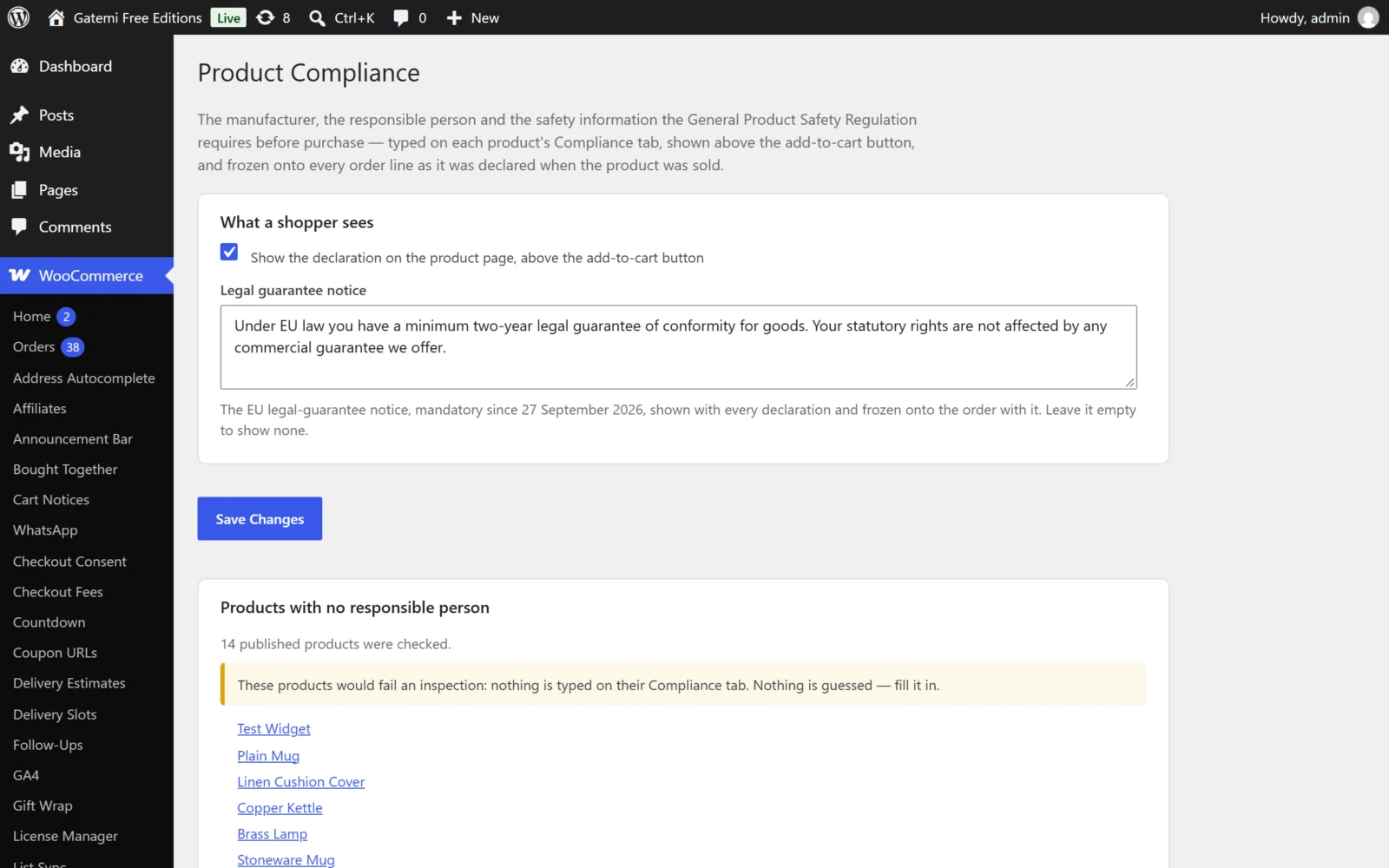
Go to WooCommerce → Product Compliance. Under Products that need a responsible person you will see every published product that has no responsible person yet — on a fresh install, all of them. Each name links to its editor. Once a product's manufacturer is typed with an address ending in an EU member state (for example "… 80331 Munich, Germany"), it leaves the list, because an EU manufacturer is itself the operator the GPSR asks for.
The report checks published simple and variable products: up to 200 in the free edition, up to 500 in the full edition. It says how many it checked and tells you if it stopped at the limit.
3. Declare your first product
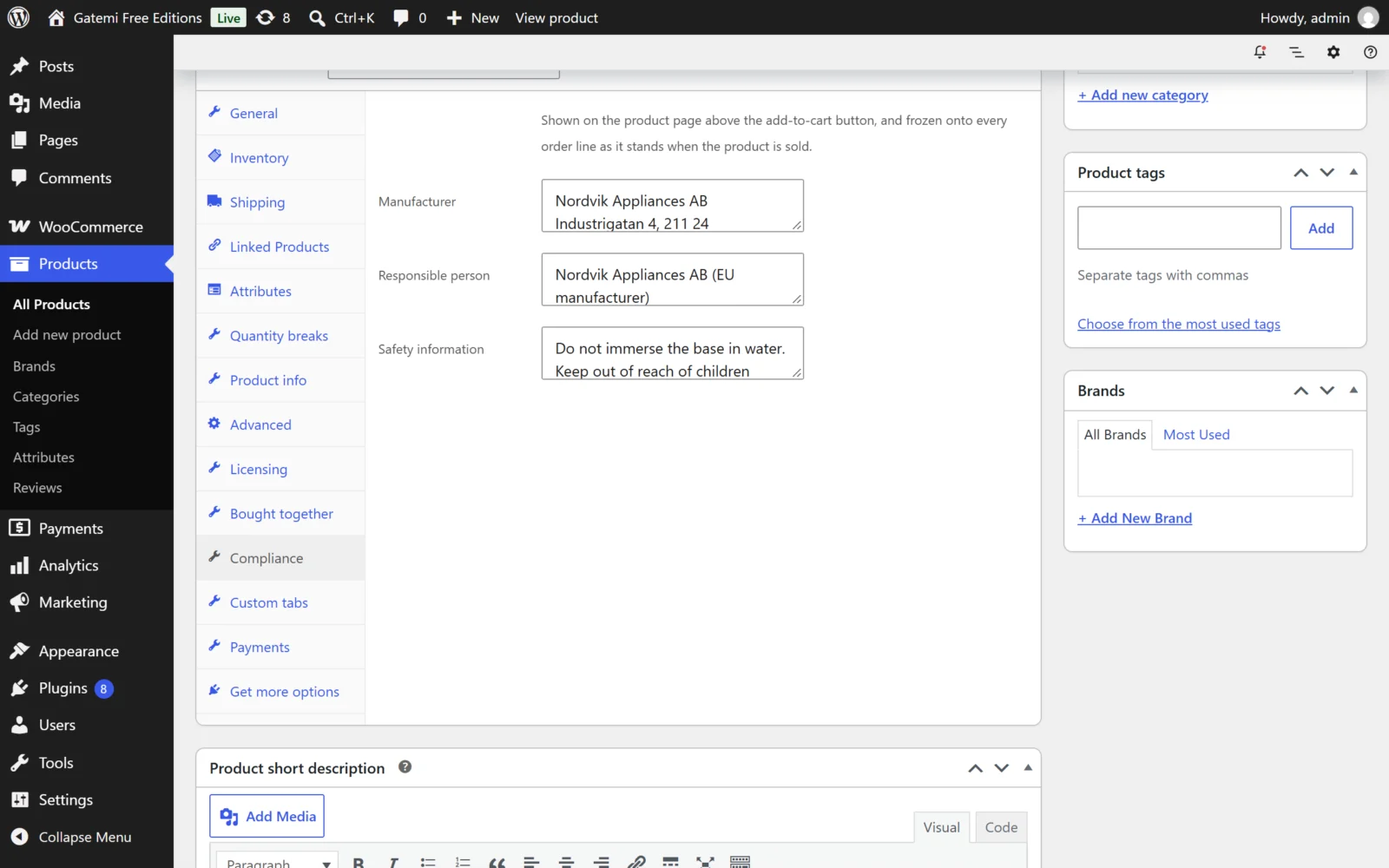
Open a product and, in the Product data box, choose the Compliance tab.
Fill in:
- Manufacturer — name, postal address and an email address that reaches someone.
- Responsible person — the economic operator in the EU responsible for the product (see Who is the GPSR responsible person?).
- Safety information — the warnings that come with the product.
Full edition also shows Importer, Distributor and Conformity documents (attachment ids of CE or UKCA declarations in your media library, separated by commas).
Each box keeps line breaks, so type addresses the way they are printed. Update the product.
Variations use their parent product's fields — you declare a variable product once, on the parent.
4. Check the product page
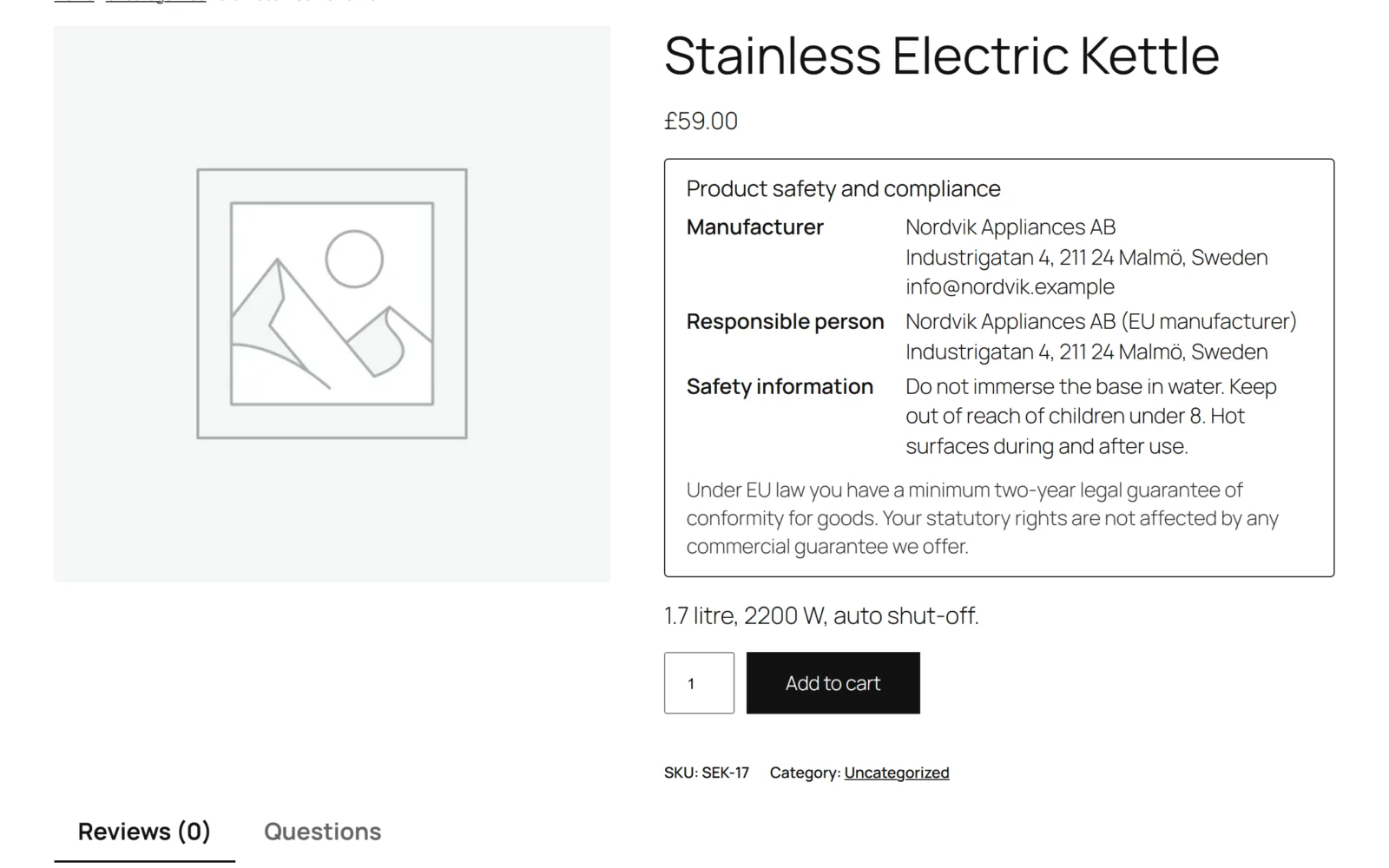
View the product. Above the add-to-cart button you will see a Product safety and compliance block listing only the fields you filled in.
5. (Full edition) Write a record instead of typing every product
Back on WooCommerce → Product Compliance, under Compliance records, fill in the empty Add a record row:
- Title — for you, e.g. "Holzwerk imports".
- Market — Every market, European Union or United Kingdom.
- Applies to — Every product, These categories (and their sub-categories), or These products.
- Category ids / Product ids — comma-separated ids for the scope you chose.
- The six declaration fields.
Press Save changes. Every product the record covers now shows its declaration, unless the product's own Compliance tab has something typed in a field — the product wins, field by field. The report updates to match.
6. Set a guarantee text (optional)
In What a shopper sees, the Guarantee text box takes a text of your own — for example, how to claim under the legal guarantee — shown with every declaration and copied onto orders. Leave it empty to show none. It is not the EU harmonised legal-guarantee notice required from 27 September 2026, which is a fixed coloured graphic with a QR code; show that separately. See Settings.
7. Place a test order
Buy the product on your store, then open the order in wp-admin. Under the line item you will see the declaration as it was copied onto the order. The same block appears on the order-received page, in My Account and in WooCommerce's order emails. From now on, editing the product or the record does not change that order.
Next
- Settings — every option and its default.
- How it works — resolution order, the order copy, markets.
- CSV import — Full edition.