
Everything lives on one screen: WooCommerce → Thank-you page. You need the manage_woocommerce capability to open it.
There are two stored options, and both editions use the same ones:
| Option | Holds |
|---|---|
gmty_settings |
The on/off switch |
gmty_layouts |
The layouts and their blocks |
Because the names and the shape are shared, a page written in the free edition is still there, unchanged, after you move to the full edition.
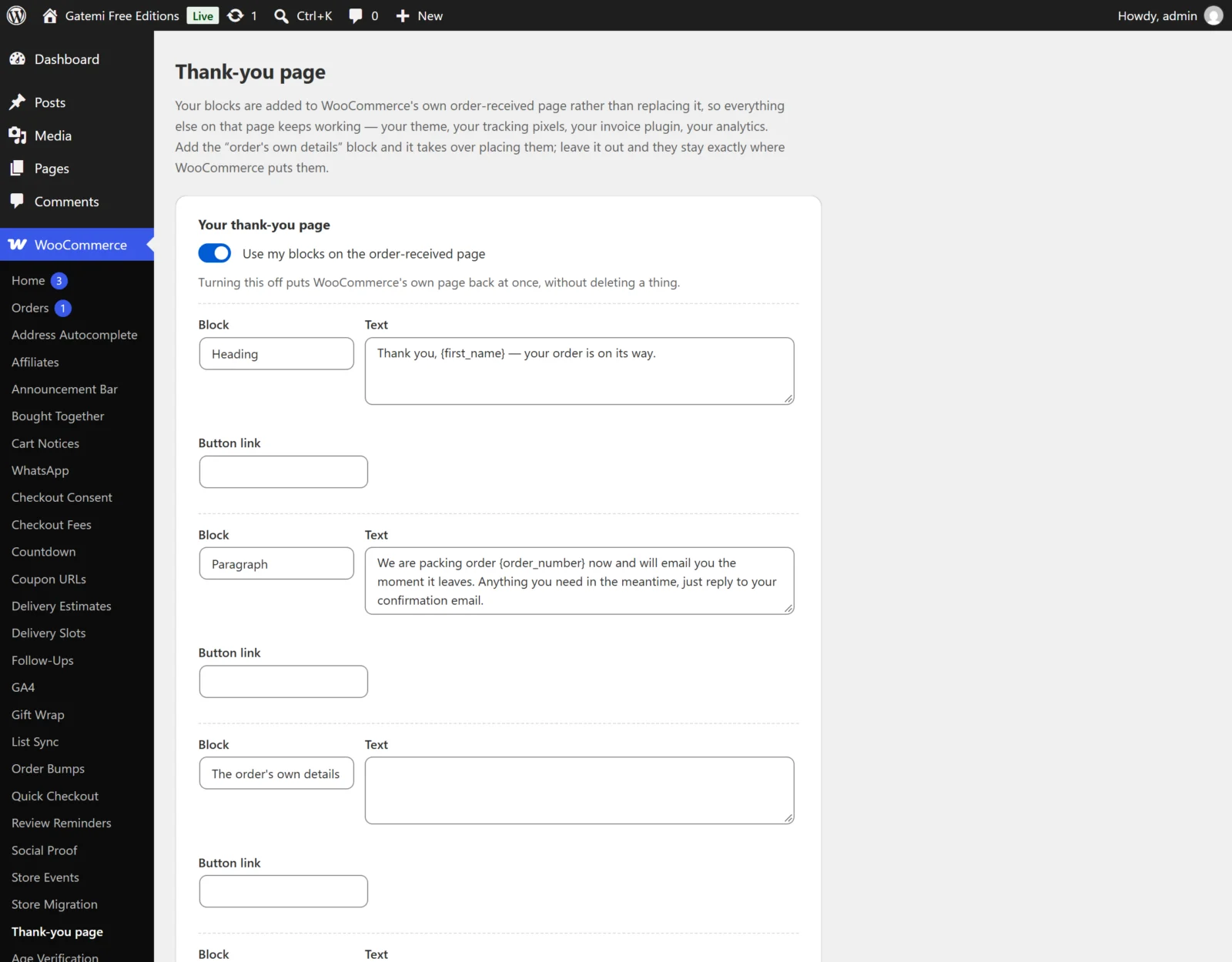
The switch
| Label | Key | Default |
|---|---|---|
| Use my blocks on the order-received page (free) / Use my layouts on the order-received page (full) | enabled in gmty_settings |
yes |
Turning it off puts WooCommerce's own page back at once, without deleting anything. Turn it on again and every block is still there.
Blocks
Each block has three parts:
| Field | Key | What it is for |
|---|---|---|
| Block | kind |
What sort of block it is. — none — means the row is not saved. |
| Text | text |
The words. May carry the markup a post may carry; placeholders are filled. |
| Button link (free) / Code, address or link (full) | value |
The extra value some kinds need: a button's address, a coupon code, a video address. |
Text is filtered with wp_kses_post() when it is saved and again when the page is drawn, so text that reaches the option some other way (an import, a restored backup) cannot put a script on the page. The value field is stored as plain text.
Block kinds in both editions
| Kind | Key | Uses | Renders |
|---|---|---|---|
| Heading | heading |
Text | An <h2> with the text, markup stripped. Nothing if the text is empty. |
| Paragraph | text |
Text | Your text, with paragraphs added the way the post editor adds them. Nothing if empty. |
| The order's own details | details |
— | WooCommerce's own order/order-details.php template, exactly as WooCommerce draws it. |
| A button | button |
Text and link | A link styled as a button. Nothing if either the text or a valid address is missing. |
A button's address goes through esc_url(). A javascript: address, or anything else a browser should not follow, makes the button disappear rather than become a link.
Adding The order's own details moves WooCommerce's order summary to where that block sits: the plugin takes WooCommerce's default copy off the page so it is not shown twice. Leave the block out and WooCommerce's details stay exactly where they were. See How it works.
Block kinds — Full edition
| Kind | Key | Uses | Renders |
|---|---|---|---|
| What happens next | steps |
Text | A numbered list, one step per line of text. Empty lines are skipped. |
| A code for next time | coupon |
Text (optional) and code | The text as a line, then the code in a <code> box. Nothing without a code. |
| A video | video |
Address | A YouTube or Vimeo player. Any other address renders nothing. |
The coupon code is not checked against your coupons. You can write the block first and create the coupon afterwards; if the code is wrong, the checkout says so when it is used.
A YouTube address is embedded from youtube-nocookie.com, so the thank-you page does not set YouTube's advertising cookies. Vimeo addresses need the numeric video id (vimeo.com/123456789).
How many blocks
- Free edition: four fixed rows, one layout. A row left on
— none —is not saved, and saving with every row empty removes the layout. - Full edition: Add a block adds a row, the remove button takes one away, and there is no limit.
Layouts — Full edition
A layout is a list of blocks plus the orders it applies to. The screen lists them under Layouts; Add another layout adds one.
| Label | Key | Default | What it does |
|---|---|---|---|
| Name (for your own reference) | name |
empty | Shown only to you. |
| Applies to | scope |
Every order | all (Every order), products (Orders containing certain products) or categories (Orders containing products in certain categories). |
| Product or category ids | targets |
empty | The ids, separated by commas, spaces or new lines. Only used when the layout is targeted. |
Rules the screen applies when you save:
- A layout with no blocks is not saved.
- A targeted layout naming no ids is not saved — it would match nothing.
- A scope the plugin does not recognise is read as products, the narrowest reading, so a damaged layout matches nothing rather than every order.
The first layout that covers an order is the one it sees. Layouts are never merged. Keep your specific layouts above your general Every order layout. The list keeps the order in which layouts were added; version 1.0 has no drag-and-drop reordering, so to move a layout up, re-create the ones that should sit below it.
A product id also covers every variation of that product. A category id also covers its sub-categories.
Placeholders
Write these anywhere in a block's text:
| Placeholder | Becomes | Edition |
|---|---|---|
{first_name} |
The billing first name | Both |
{last_name} |
The billing last name | Both |
{order_number} |
The order number as your store displays it | Both |
{order_total} |
What they paid, formatted, as plain text | Both |
{site_title} |
Your site's name | Both |
{payment_method} |
The payment method's title | Full edition |
{item_count} |
How many items they bought (quantities added up) | Full edition |
{account_url} |
The address of your My Account page | Full edition |
A placeholder an order cannot fill becomes nothing, never the literal {first_name}. The screen lists the placeholders your edition supports in What you can write in a block.
License & updates — Full edition
The card at the bottom takes your gatemi.com licence key (GM-XXXXX-XXXXX-XXXXX-XXXXX-XXXXX), shows its status and offers Deactivate on this site. A check that could not reach gatemi.com never changes the licence status.
The full edition's screen also ends with a For developers table listing every filter it applies — see the Developer reference.