
Gatemi Product Search puts a product search field on your shop. As a shopper types, matching products appear under the field with their thumbnail, name and price. Pressing Enter runs a normal product search, so the field works even before any JavaScript has loaded.
These docs cover both editions:
- Gatemi Product Search — the free edition, on wordpress.org. A search field: live suggestions through WordPress' own product search.
- Gatemi Product Search for WooCommerce — the full edition, sold on gatemi.com. A search engine: its own index with relevance ranking, SKU, brand, attribute and variation search, typo correction, AJAX filters and search reports.
Anything marked Full edition is only in the paid plugin.
Requirements
| Free edition | Full edition | |
|---|---|---|
| WordPress | 6.4 or later | 6.5 or later |
| PHP | 7.4 or later | 7.4 or later |
| WooCommerce | 8.0 or later | 9.5 or later |
Both editions declare compatibility with High-Performance Order Storage (HPOS) and with the Cart and Checkout blocks. Both need WooCommerce active; without it they do nothing and say so in a row under their entry on the Plugins screen.
1. Install
Free edition: go to Plugins → Add New, search for "Gatemi Product Search", install and activate. Or download it from wordpress.org.
Full edition: download the zip from your gatemi.com account, go to Plugins → Add New → Upload Plugin, upload and activate. Then open WooCommerce → Product Search and enter your licence key in the License & updates card. The plugin works without a key; the key switches on one-click updates and support.
You only need one edition. If both are active, the free edition stands down — it registers nothing — and says so on the Plugins screen. You can then deactivate it.
Full edition: on activation the plugin creates four tables and starts building its search index in the background. Progress is shown in the Index card under WooCommerce → Product Search. Searching works the whole time, against the index as it stands.
2. Open the screen
Go to WooCommerce → Product Search (capability manage_woocommerce).
- Free edition: one setting, Automatic placement, on by default.
- Full edition: nine settings in four groups, the index status, and a list of developer filters. See Settings. A second screen, WooCommerce → Search Reports, holds the reports.
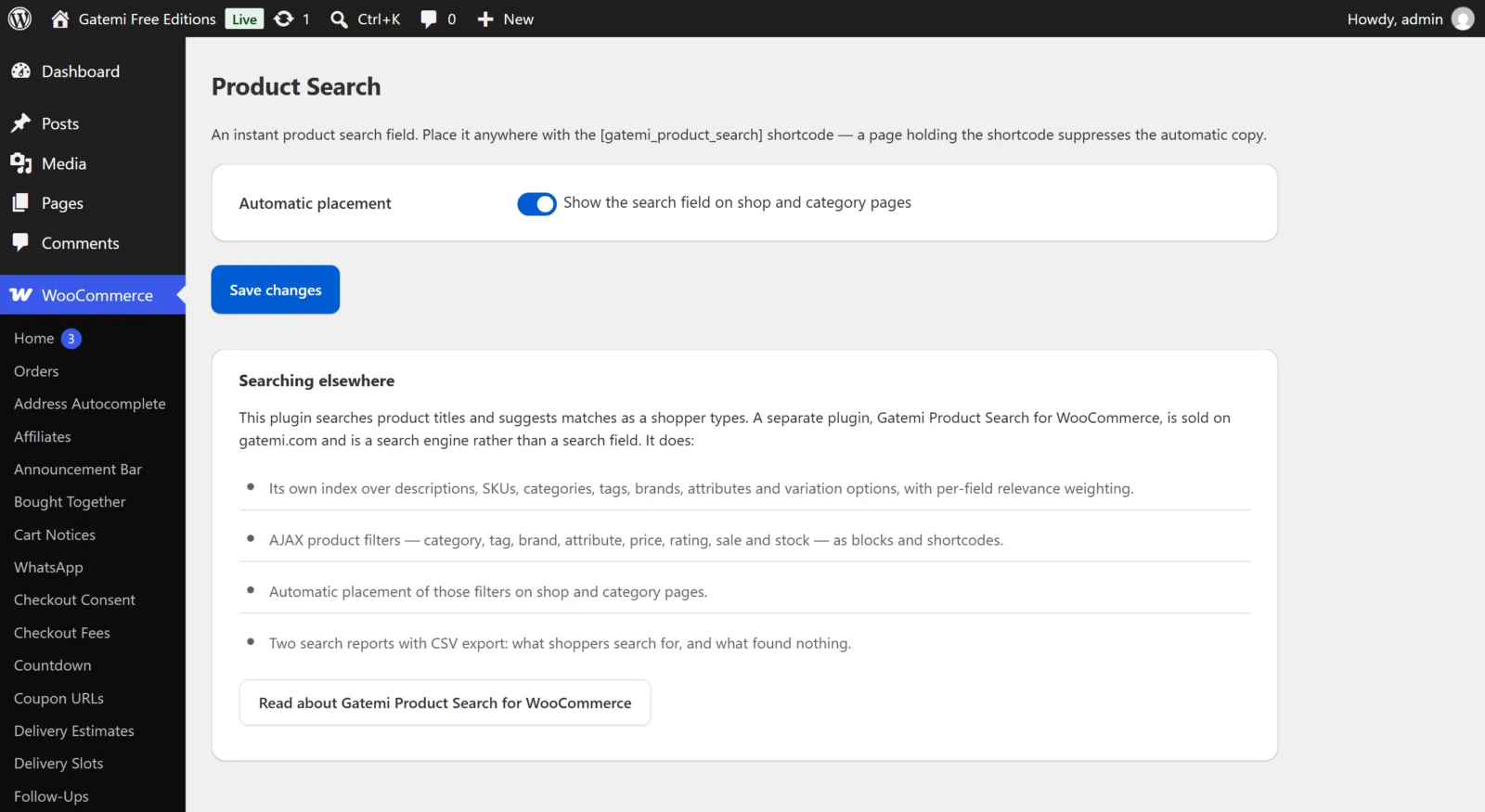
Nothing else needs setting up. With the defaults, the search field appears on your shop page and on category pages straight away.
3. Test it
- Open your shop page (WooCommerce → Settings → Products → Shop page says which page that is) in a private window.
- Above the products you should see a search field with a Search button.
- Type the first two letters of a product name. After a short pause a list of up to eight products (free edition) appears under the field, each with its thumbnail and price. Click one to open its page.
- Type a whole word and press Enter. You land on a normal product search results page.
- Full edition: also try a product's SKU, a brand name or a colour you use as an attribute. Then misspell a word of four or more letters ("sheos" for "shoes") and press Enter: the results page shows the corrected word.
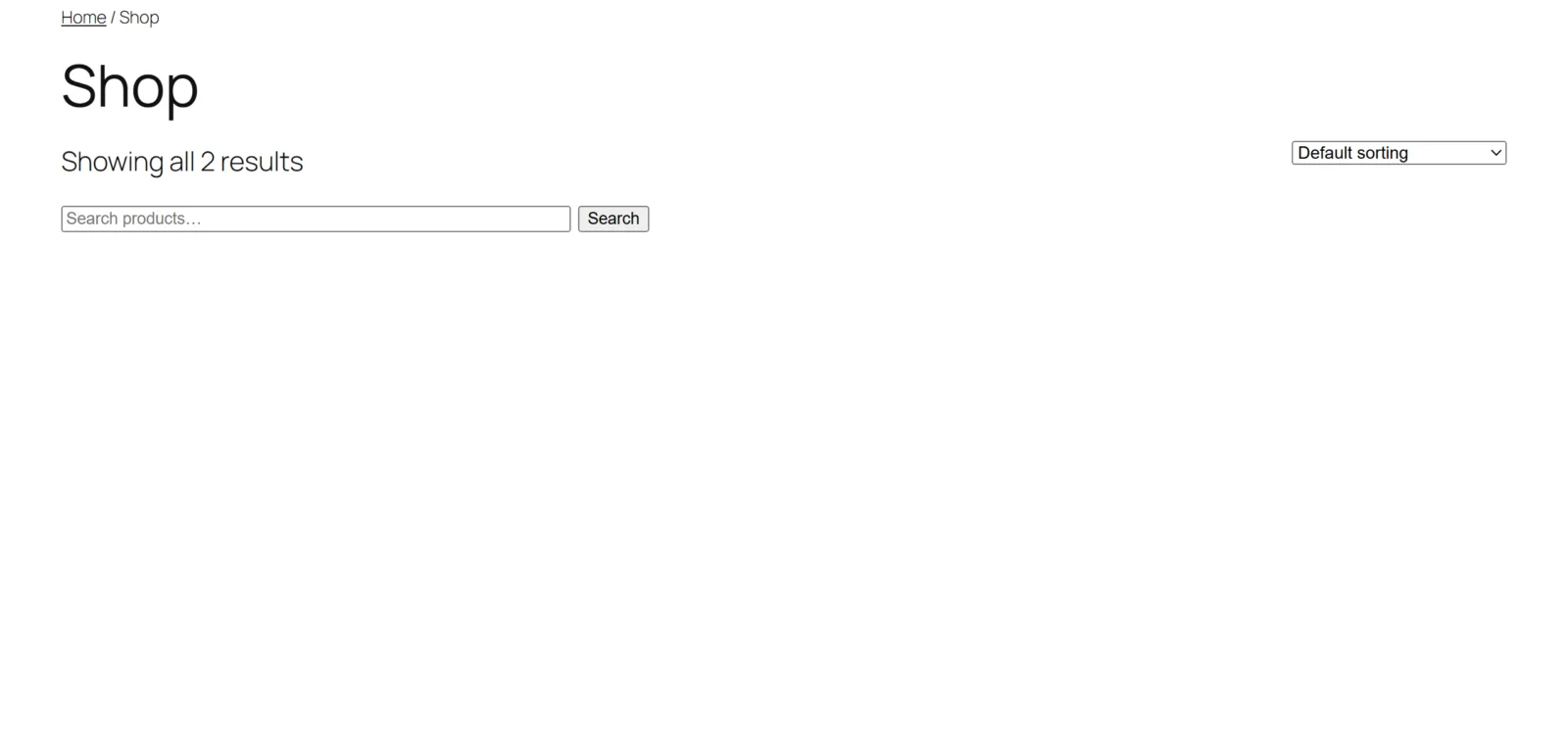
Placing the field yourself
Put the shortcode on any page, post or widget:
[gatemi_product_search]
A page holding the shortcode does not get the automatic copy as well, so you never see two search fields on one page.
Full edition: there are also blocks — Product Search and one Product Filter block per filter (categories, tags, brands, attributes, price, rating, on sale, in stock, active filters, and a product grid) — and matching shortcodes. See the developer reference.
Block themes
The automatic placement prints on WooCommerce's woocommerce_before_shop_loop hook. A classic theme always fires it. A block theme whose shop template uses the Product Collection block may not. On such a theme, add the shortcode (free edition) or the Product Search block (full edition) to the template or page yourself.
Next steps
- Settings
- How it works — what is searched, the index, filters and reports.
- FAQ and troubleshooting
- Developer reference