
Gatemi Product Questions adds a Questions tab to every product page. A shopper asks; you answer; the question and its answer appear together for the next shopper with the same doubt.
Three things are true from the first question:
- A question is a WordPress comment of its own type, so it goes through WordPress' moderation, spam checks and privacy tools.
- Nothing is shown until it is answered. An unanswered question never appears on the product page.
- Answered questions join the page's one FAQ structured data block, shared with Gatemi Product Info.
These docs cover both editions:
- Gatemi Product Questions — the free edition, coming to wordpress.org. Ask, moderate, answer, show and email the asker.
- Gatemi Product Questions for WooCommerce — the full edition, from gatemi.com. Adds asking past buyers, "helpful" votes with sorting, the unanswered report with waiting times, a CSV import, your own tab title and categories that take no questions.
Anything marked Full edition is only in the paid plugin.
Requirements
| Free edition | Full edition | |
|---|---|---|
| WordPress | 6.4 or later | 6.4 or later |
| PHP | 7.4 or later | 7.4 or later |
| WooCommerce | 8.0 or later (tested to 10.9) | 8.0 or later (tested to 10.9) |
Your site must be able to send email for the "your question was answered" message. The product page must show WooCommerce's product tabs.
1. Install
Free edition: coming to wordpress.org. Until it is listed, install the zip through Plugins → Add New → Upload Plugin and activate it.
Full edition: install the zip from your gatemi.com account through Plugins → Add New → Upload Plugin and activate it. Then open WooCommerce → Product Questions and enter your licence key in the License & updates card.
Use one edition at a time. If the full edition is active, the free edition stands down and says so in a row under its entry on the Plugins screen. Both editions use the same comment types and the same settings, so nothing is lost either way.
2. Check the settings
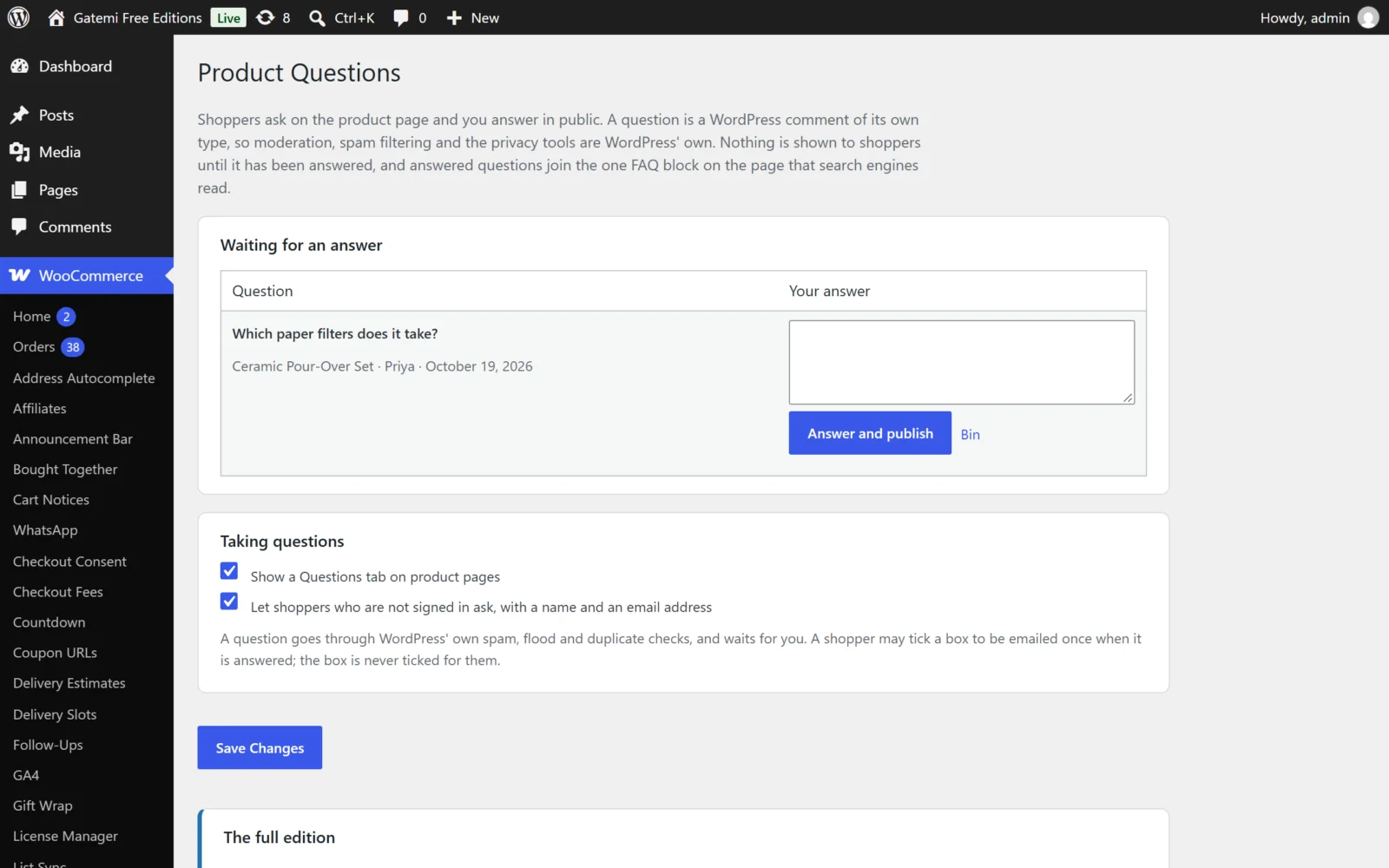
Go to WooCommerce → Product Questions. Under Taking questions:
- Show a Questions tab on product pages — on by default.
- Let shoppers who are not signed in ask, with a name and an email address — on by default. Untick it to take questions from signed-in customers only.
See Settings for the rest.
3. Ask a test question
- Open a product page in a private window.
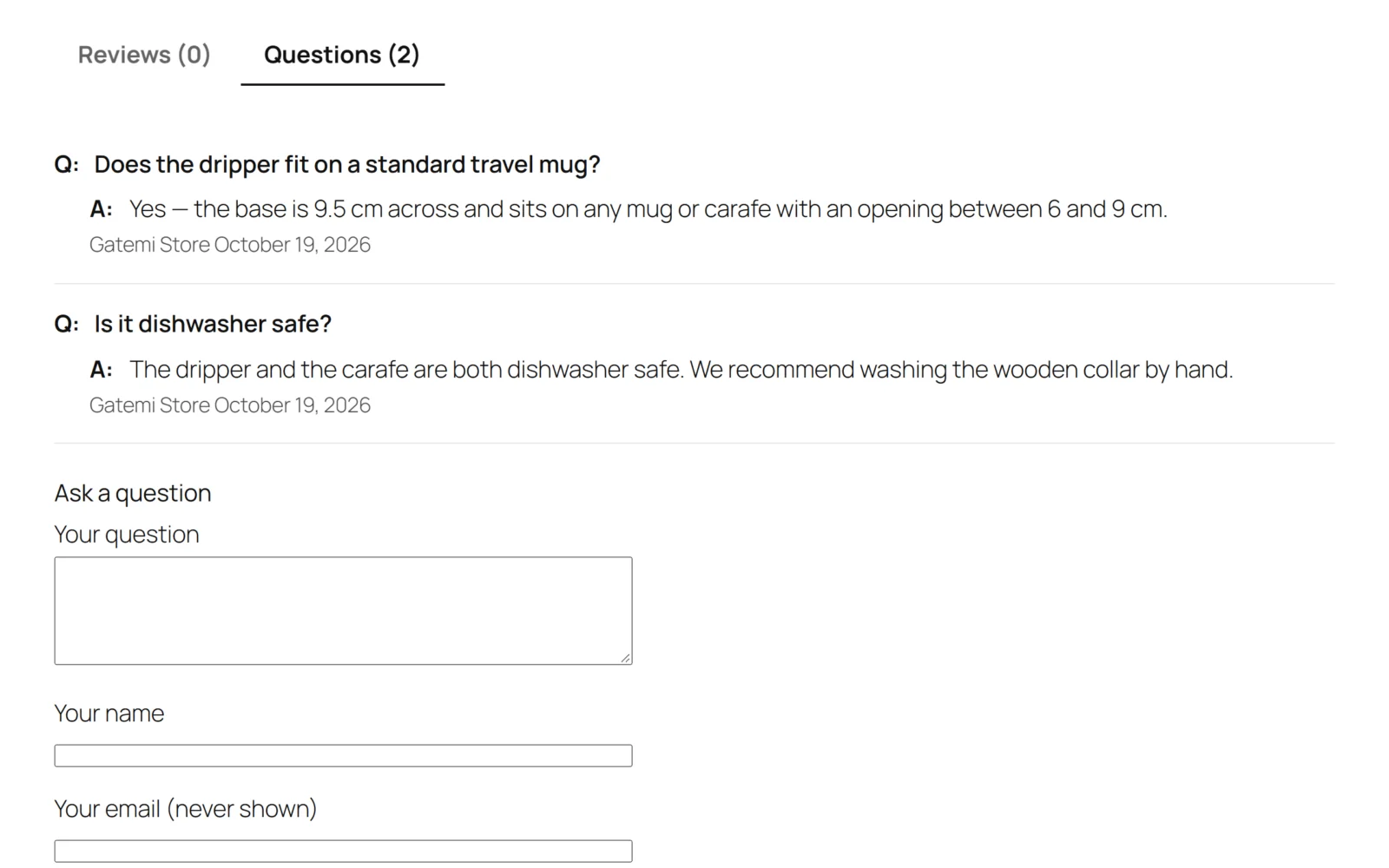
- Open the Questions tab. With no answered questions yet it says "No questions have been answered yet. Ask the first one below."
- Fill in Your question, Your name and Your email (never shown), tick Email me when my question is answered, and press Ask.
- The page answers "Thank you — your question has been sent. It will appear here once it has been answered." The question is not on the page yet.
4. Answer it
- Back in the admin, open WooCommerce → Product Questions. The question is under Waiting for an answer, oldest first.
- Type in Your answer and press Answer and publish.
- The question and the answer are published together, and the asker is emailed "Your question about product has been answered", because they ticked the box.
Open the product page again: the tab is now called Questions (1) and shows "Q:" and "A:". View the page source and search for FAQPage — the question is in the page's FAQ structured data.
You can also moderate in WordPress' own Comments screen; both comment types appear in its type filter as Product questions and Product answers.
Next steps
- Settings
- How it works — the comment rule, the public rule and the shared FAQ block.
- FAQ and troubleshooting
- Developer reference
- Gatemi Product Info — size charts and your own product FAQs, sharing the same FAQ block.