
Gatemi Product Info adds the three things a product page is usually missing:
- a size chart, as a product tab,
- questions and answers, as a product tab and as FAQ structured data for search engines,
- a product video from YouTube or Vimeo, under the product gallery.
These docs cover both editions:
- Gatemi Product Info — the free edition, coming to wordpress.org. You write a chart, questions and a video on each product.
- Gatemi Product Info for WooCommerce — the full edition, sold on gatemi.com. Adds reusable charts, question sets and videos you target at every product, chosen products or chosen categories, a popup size guide, and your own tab names.
Anything marked Full edition is only in the paid plugin.
Requirements
| Free edition | Full edition | |
|---|---|---|
| WordPress | 6.4 or later | 6.4 or later |
| PHP | 7.4 or later | 7.4 or later |
| WooCommerce | 8.0 or later (tested to 10.9) | 8.0 or later (tested to 10.9) |
The tabs use WooCommerce's standard product tabs, so the product page must show them (classic product template, or a block template with WooCommerce's Product Details block).
1. Install
Free edition: coming to wordpress.org. Until it is listed, install the zip through Plugins → Add New → Upload Plugin and activate it.
Full edition: download the zip from your gatemi.com account, upload it through Plugins → Add New → Upload Plugin and activate it. Then open WooCommerce → Product Info and enter your licence key in the License & updates card. The plugin works without a key; the key switches on one-click updates and support.
Use one edition at a time. If the full edition is active, the free edition stands down and says so in a row under its entry on the Plugins screen. Both editions keep what you type on a product in the same place, so nothing is lost either way.
2. Add information to a product
-
Edit a product and open Product data → Product info.
-
Size chart — paste a table. HTML a post may contain is kept, so a table copied from a spreadsheet or written as
<table>works. -
Questions — a question on one line, its answer on the lines under it, and a blank line before the next question:
Does it run small? Most customers order their usual size. Can I wash it at 40°? Yes, inside out, with similar colours. -
Video address — one YouTube or Vimeo address, such as
https://www.youtube.com/watch?v=abc123orhttps://vimeo.com/123456. -
Click Update.
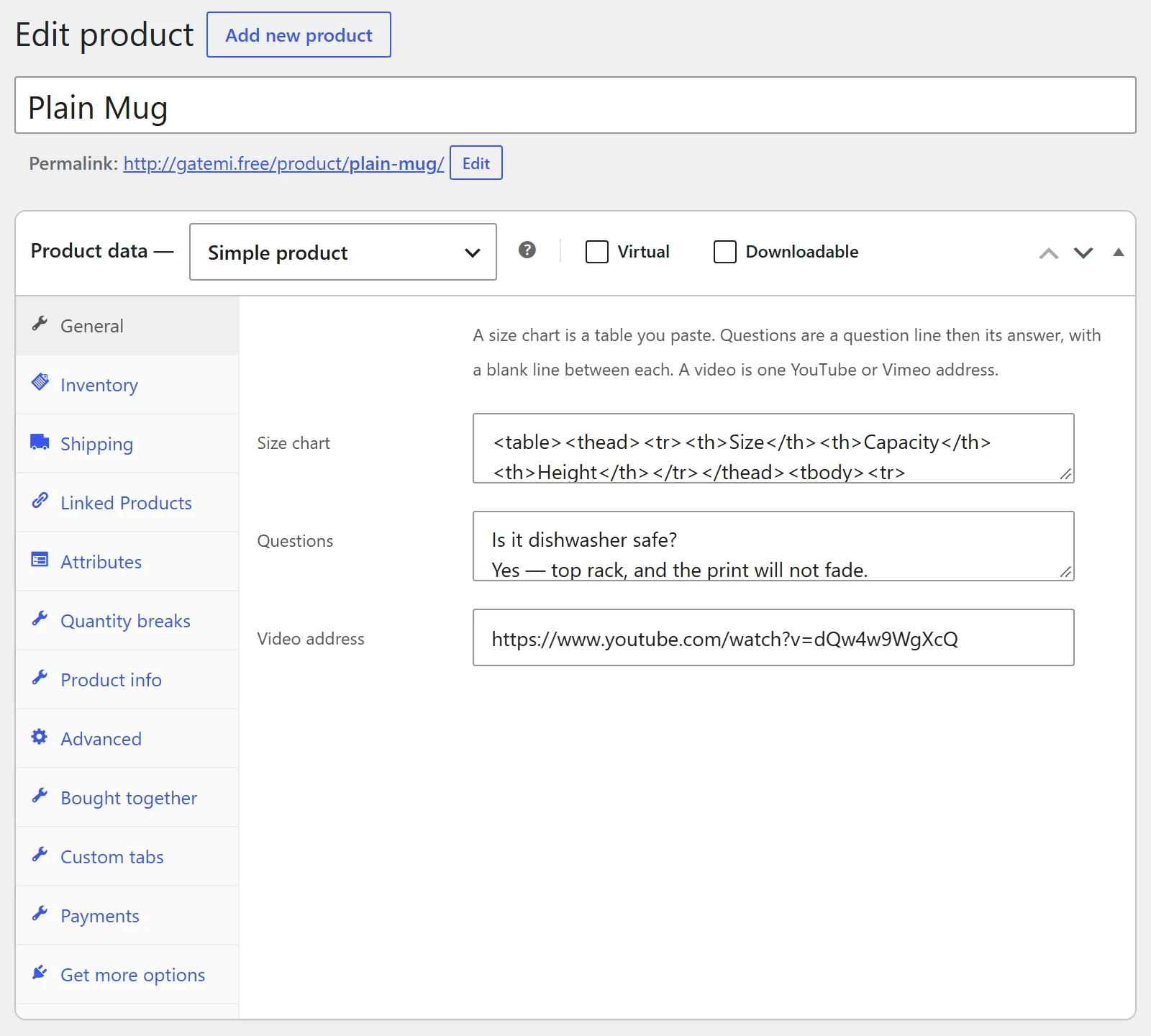
Leave a field empty and nothing is shown for it.
3. Check it works
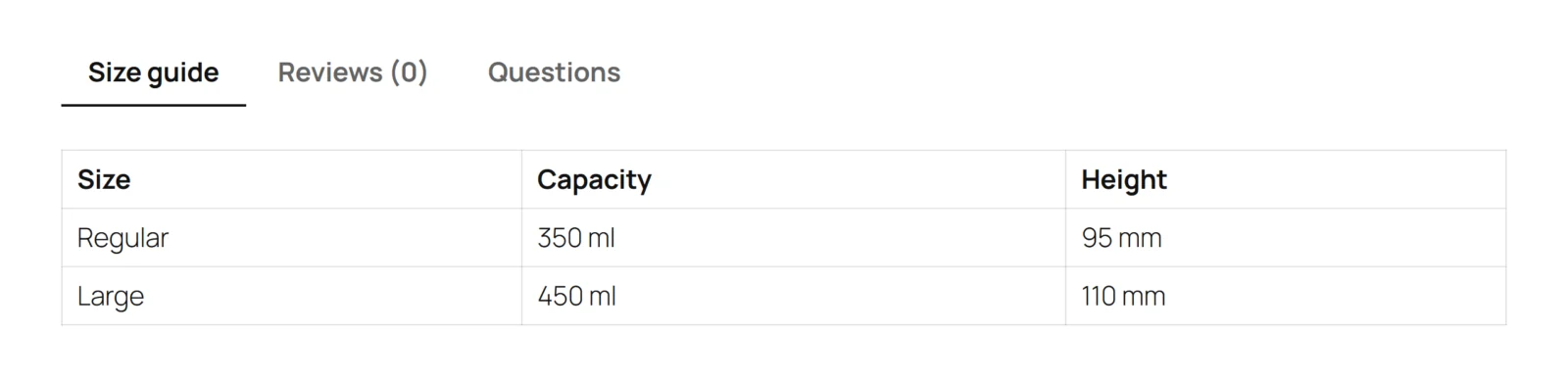
- Open the product page. Next to WooCommerce's own tabs there is a Size guide tab with your chart and a Questions tab with each question as an expandable item (the first one open).
- The video plays under the product gallery.
- View the page source and search for
FAQPage. There is one<script type="application/ld+json">block listing your questions.
Full edition: to use one chart for many products, go to WooCommerce → Product Info, press Add one, choose What it is, paste the content, choose what it Applies to and press Save changes. See Settings.
Gatemi Product Questions
If you also run Gatemi Product Questions, answered customer questions join the same FAQ structured data block as your own questions — one block, never two. See How it works.