
Everything happens on one screen, WooCommerce → Order Export.
The free edition stores nothing: you choose columns and filters each time you export. Only users who can manage WooCommerce (manage_woocommerce) can open the screen.
The full edition stores saved profiles in gmoe_profiles and two optional settings in gmoe_settings (see the end of this page).
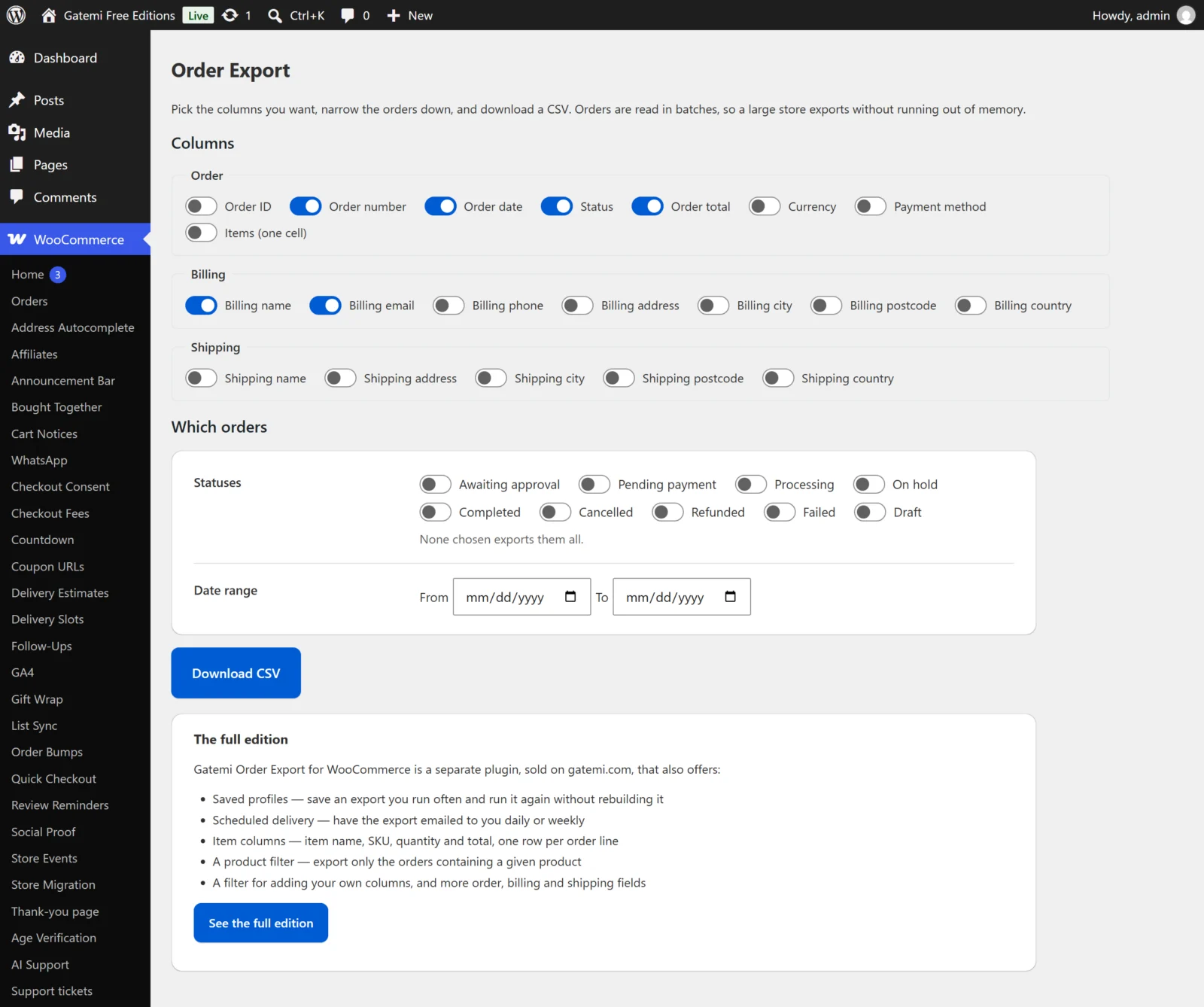
Columns
Tick the columns you want. They appear in the file in the order shown on the screen. Nothing ticked exports the default set. Values are written as WooCommerce stores them: amounts as plain numbers without a currency symbol (for example 49.90), the status without the wc- prefix (for example processing), the date as Y-m-d H:i:s in your site's timezone.
Order
| Column | Key | Contents | Edition |
|---|---|---|---|
| Order ID | order_id |
The internal id | Both |
| Order number | order_number |
The number customers see | Both — default |
| Order date | order_date |
When it was created | Both — default |
| Status | order_status |
e.g. completed |
Both — default |
| Order total | order_total |
The total paid | Both — default |
| Currency | order_currency |
e.g. EUR |
Both |
| Payment method | payment_method |
The method's title, e.g. "Credit card" | Both — default in the full edition |
| Items (one cell) | items_summary |
2 × Mug, 1 × Tea towel |
Both |
| Subtotal | order_subtotal |
Before shipping and tax | Full edition |
| Tax total | order_tax |
All tax | Full edition |
| Shipping total | shipping_total |
Shipping cost | Full edition |
| Discount total | discount_total |
Coupon discounts | Full edition |
| Customer note | customer_note |
The note at the checkout | Full edition |
Billing
| Column | Key | Edition |
|---|---|---|
| Billing name | billing_name (first and last name) |
Both — default |
| Billing email | billing_email |
Both — default |
| Billing phone | billing_phone |
Both |
| Billing address | billing_address (address lines 1 and 2) |
Both |
| Billing city | billing_city |
Both |
| Billing postcode | billing_postcode |
Both |
| Billing country | billing_country (two-letter code) |
Both |
| Billing company | billing_company |
Full edition |
Shipping
| Column | Key | Edition |
|---|---|---|
| Shipping name | shipping_name |
Both |
| Shipping address | shipping_address |
Both |
| Shipping city | shipping_city |
Both |
| Shipping postcode | shipping_postcode |
Both |
| Shipping country | shipping_country |
Both |
| Shipping method | shipping_method (the method names) |
Full edition |
Items — Full edition
| Column | Key |
|---|---|
| Item name | item_name |
| Item SKU | item_sku |
| Item quantity | item_quantity |
| Item total | item_total (the line total after discounts, before tax) |
Ticking any item column changes the shape of the file: one row per order line, with the order's other columns repeated on each row. Without item columns you get one row per order. An order with no lines still gets its row, because an order silently missing from an export is worse than empty item cells.
The full edition's screen has a Select all link for each group.
Which orders
Statuses
- Tick any of your store's order statuses, including statuses added by other plugins.
- None ticked exports every status.
From date / To date
- Both optional, both inclusive, in your site's timezone. Only From exports from that day on; only To exports up to and including that day.
- Dates are filtered on when the order was created.
Containing product ID — Full edition
- Exports only orders with at least one line for this product. A variation's id matches that variation; a parent product's id matches every line whose product is that parent.
Download CSV
Streams the file straight to your browser as orders-YYYYMMDD-HHMMSS.csv. Nothing is written to the server.
Save this as a profile — Full edition
| Field | Key in the profile | What it does |
|---|---|---|
| Name | name |
Shown in the list. Empty is saved as "Untitled export". |
| Email it to me | schedule |
Never — just save the columns and filters (empty), Every day (daily) or Every Monday (weekly). |
| Send to | email |
The address the CSV is emailed to. Left empty, it goes to the store's admin address (shown as the box's placeholder). |
Save profile stores the current columns and filters with it. A scheduled run does not use the saved dates: a daily profile covers yesterday and a weekly one the seven days before the Monday it runs. Each profile appears under Saved profiles with its column count, its schedule, and Download (export it now with its saved filters), Edit (load it into the form; the box becomes Update this profile and saving replaces it) and Delete buttons.
Start every export from these columns (button beside the columns) saves the ticked columns as default_columns, so the screen opens with them.
Stored settings — Full edition
The option gmoe_settings holds two settings:
default_columns· default empty — the column keys ticked when the screen opens. Empty means the default set. Set it with Start every export from these columns.capability· defaultmanage_woocommerce— the capability needed to open the screen and export. It has no field; change it with thegmoe_settingsfilter.
add_filter( 'gmoe_settings', function ( $settings ) {
	$settings['capability'] = 'view_woocommerce_reports';
	return $settings;
} );
License & updates — Full edition
Enter your gatemi.com licence key and click Activate; Deactivate on this site frees it. Stored in gmoe_license.