
Gatemi Order Alerts tells more people about your orders. A warehouse address, a business partner, a supplier or a drop-shipper is added to the people WooCommerce already emails about a new order. Your own admin address is never replaced.
There are two editions, and this manual covers both:
- Gatemi Order Alerts — the free edition. Up to three sets of recipients, each added to WooCommerce's own new-order email for every order.
- Gatemi Order Alerts for WooCommerce — the full edition, sold on gatemi.com. It routes by product, category or shipping class, sends a supplier a message of their own that lists only their lines (never your customer's full details or the order total), adds low-stock alerts, takes any number of rules and lets you write the wording.
Requirements
Both editions need:
- WordPress 6.4 or later
- PHP 7.4 or later
- WooCommerce 8.0 or later (tested up to 10.9)
Both declare compatibility with High-Performance Order Storage (HPOS) and the Cart and Checkout blocks. Order Alerts has nothing on the storefront at all — it works on order status changes and emails — so the kind of checkout you use makes no difference.
Install the free edition
The free edition is coming to wordpress.org. Once it is listed there:
- Go to Plugins → Add New.
- Search for "Gatemi Order Alerts".
- Click Install Now, then Activate.
Install the full edition
- Sign in to your gatemi.com account and download the plugin zip.
- Go to Plugins → Add New → Upload Plugin, choose the zip and click Install Now, then Activate.
- Go to WooCommerce → Order Alerts and find the License & updates card.
- Paste your licence key (
GM-XXXXX-XXXXX-XXXXX-XXXXX-XXXXX) and click Activate.
The key switches on one-click updates. The plugin works without one, and without a key it makes no requests to gatemi.com.
If the free edition is already installed, the full edition can be activated beside it. The free edition stands down on its own and the full edition reads the rules you already saved.
First setup (free edition)
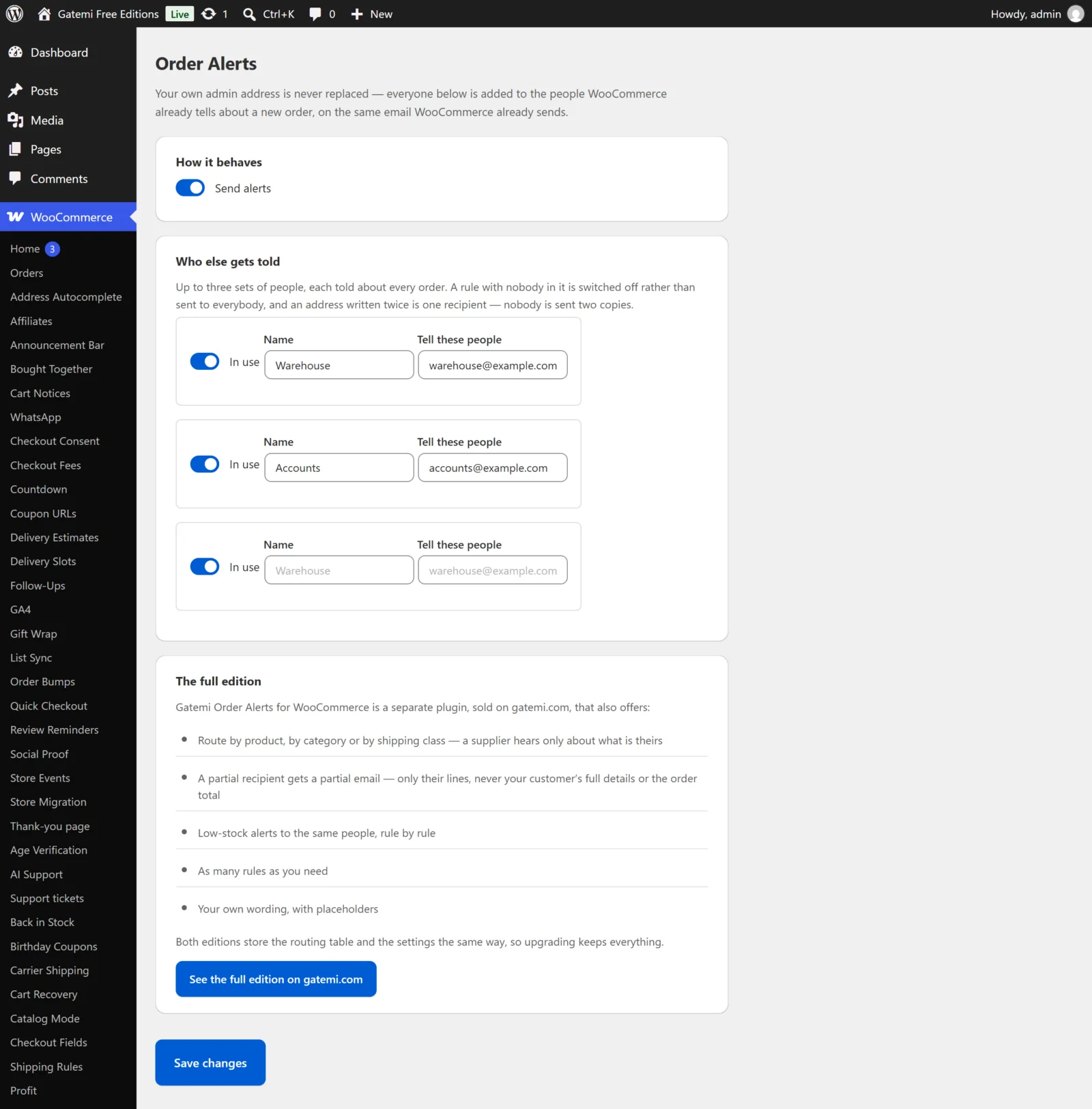
- Go to WooCommerce → Order Alerts.
- Leave Send alerts ticked.
- In the first row under Who else gets told, give it a Name (for example "Warehouse") — just for you.
- In Tell these people, type one or more addresses, separated by commas, for example
warehouse@example.com, partner@example.com. - Leave In use ticked.
- Click Save changes.
First setup (full edition)
- Go to WooCommerce → Order Alerts.
- Under How it behaves, leave Send alerts on and choose when a supplier's own message goes out: Processing (paid) (the default) or Completed.
- Under Who gets told, click Add a rule and fill it in:
- Name — for example "Frozen supplier". It can be used in the wording as
{rule}. - Tell these people — one or more addresses.
- About — Every order, These products, These categories or These shipping classes.
- Which ones — product or category ids separated by commas, or shipping-class slugs (for example
chilled-goods). - Send them — Only their own lines (the default for a narrowed rule) or The whole order email.
- Tell them about low stock too — tick if this supplier should hear when one of their products runs low.
- Name — for example "Frozen supplier". It can be used in the wording as
- Click Save changes.
Every setting is described in Settings.
Check it works
- Make sure WooCommerce's own New order email is enabled under WooCommerce → Settings → Emails — the whole-order recipients ride on it.
- Place a test order and pay for it (or create one in the admin and set it to Processing).
- The addresses in your rules should receive WooCommerce's normal New order email, alongside you.
- Full edition: for a rule set to Only their own lines, the recipient gets a separate plain-text message titled "Order #1042 — items to pick (Your Store)", listing only their lines and, if you left it on, the shipping address.
- Full edition: move the order back to Processing and complete it again. No second supplier message is sent.
Nothing arrived? See FAQ and troubleshooting.
Next
- Settings — every option, its key and its default.
- How it works — who gets what, and why a partial recipient gets a partial email.
- Developer reference — filters, options and meta keys.