
Gatemi Next Order Coupons emails a customer a coupon for their next order when this one is done. Every code is made for one person: it only works for the billing email address that earned it, it can be used once, and it cannot be combined with another coupon.
There are two editions, and this manual covers both:
- Gatemi Next Order Coupons — the free edition. One coupon on every completed order, with your choice of discount and expiry.
- Gatemi Next Order Coupons for WooCommerce — the full edition, sold on gatemi.com. It adds a separate welcome coupon for a customer's first order, a choice of the order status that earns the coupon, minimums for earning and for spending, your own code prefix and your own email wording.
Requirements
Both editions need:
- WordPress 6.4 or later
- PHP 7.4 or later
- WooCommerce 8.0 or later (tested up to 10.9)
Both declare compatibility with WooCommerce's High-Performance Order Storage (HPOS) and with the Cart and Checkout blocks. The coupons are ordinary WooCommerce coupons, so they work on the classic checkout, the Checkout block and the Store API with nothing to configure.
Without WooCommerce the plugin does nothing and says so: the free edition shows a line under its entry on the Plugins screen, the full edition shows an admin notice.
Install the free edition
The free edition is coming to wordpress.org. Once it is listed there:
- Go to Plugins → Add New.
- Search for "Gatemi Next Order Coupons".
- Click Install Now, then Activate.
Install the full edition
- Sign in to your gatemi.com account and download the plugin zip.
- Go to Plugins → Add New → Upload Plugin, choose the zip and click Install Now, then Activate.
- Go to WooCommerce → Next Order Coupons and scroll to License & updates.
- Paste your licence key (it looks like
GM-XXXXX-XXXXX-XXXXX-XXXXX-XXXXX) and click Activate.
The licence key switches on one-click updates. The plugin works without one; without a key it makes no requests to gatemi.com at all.
If you already run the free edition, you can install the full edition beside it. The free edition notices and stands down on its own, and the full edition reads the settings you already saved. See moving to the full edition.
First setup
- Go to WooCommerce → Next Order Coupons.
- Make sure the coupon switch is ticked. In the free edition it is Email a coupon when an order is completed; in the full edition it is Send coupons. It is on by default.
- Under Discount, type the amount and choose Percentage off or Fixed amount off the cart. The default is 10 percent.
- Under Expires after, type the number of days the code should work. The default is 30. Leave it empty (or 0) for a code that never expires.
- Click Save changes.
Full edition: you can also decide whether first orders, repeat orders or both earn a coupon, which status earns it (Completed or Processing), the minimum order value, the minimum next-order value, the code prefix and the wording of the two emails. Every one of these is described in Settings.
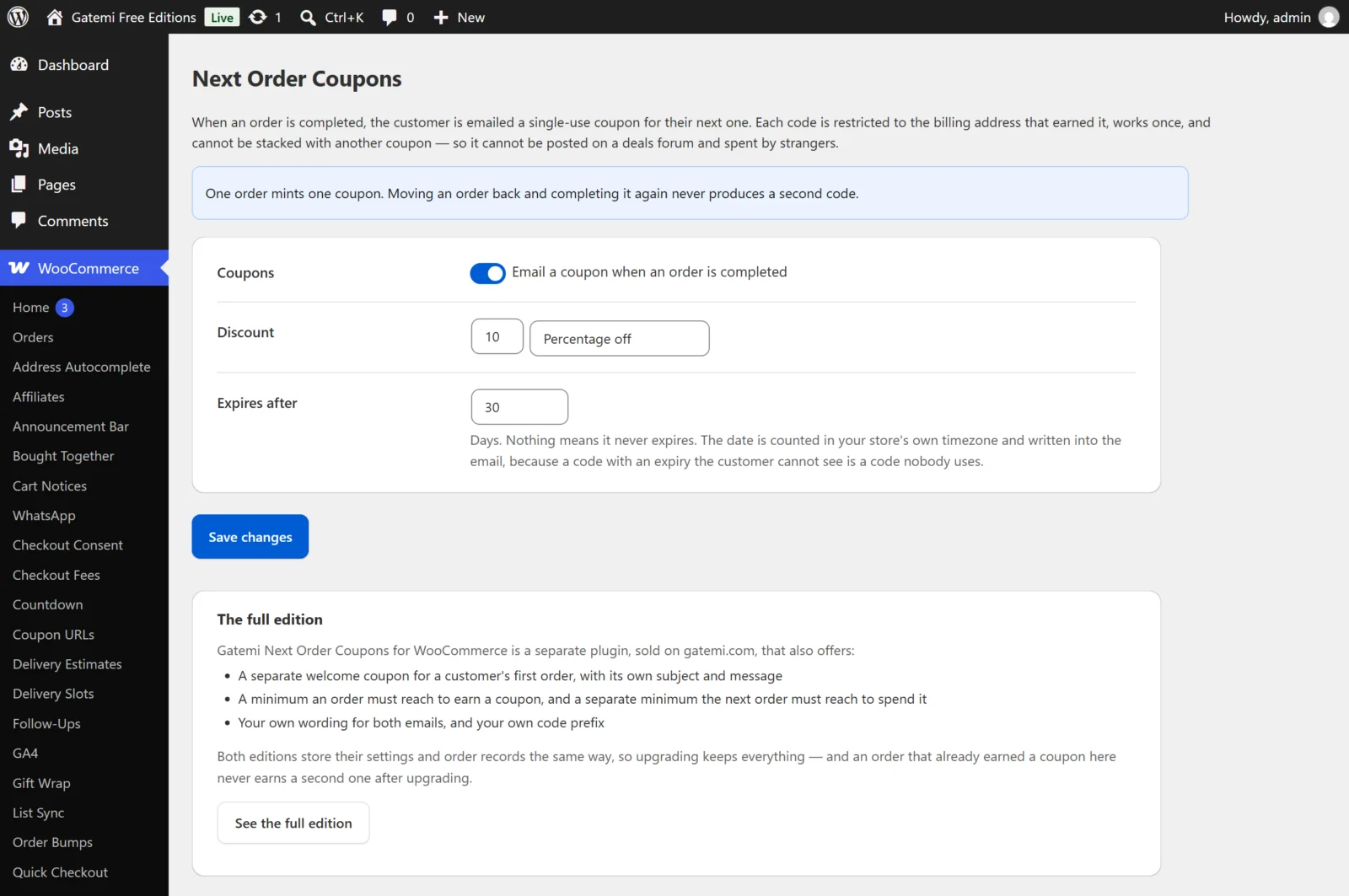
Check it works
- Place a test order with a real email address you can read, or open an existing order that has a valid billing email.
- In WooCommerce → Orders, set the order to Completed and save. (Full edition: use Processing instead if you chose that status.)
- Check the inbox of the billing email. The message has the code, what it is worth and the last day it works.
- Go to Marketing → Coupons (or WooCommerce → Coupons). The new coupon is there, with a description such as "Next-order coupon, earned by order 1042." Open it: under Usage restriction the allowed email is the customer's, and under Usage limits it is limited to one use.
- Full edition: open the order again. A Next-order coupon box in the side column shows the code that order earned.
- Set the order back to Processing and complete it again. No second coupon is created and no second email is sent.
If nothing arrives, see FAQ and troubleshooting.
Next
- Settings — every option, its stored key and its default.
- How it works — the claim, the binding and the email, step by step.
- Developer reference — filters, meta keys and options.