
Gatemi Min/Max Quantities lets you say how few or how many of a product a shopper may buy, and makes the product page, add-to-cart and the cart all say the same thing about it. There are two editions, and this manual covers both:
- Gatemi Min-Max Quantities — the free edition, on wordpress.org. A minimum and a maximum quantity on each product; variations follow their product, and quantities of the same product are added up across cart lines.
- Gatemi Min/Max Quantities for WooCommerce — the full edition, sold on gatemi.com. It adds "sold in multiples of", rules on individual variations, rules on product categories (inherited by sub-categories), rules for the whole order (items and value), per-product exclusions from those, and an importer for rules left by WooCommerce Min/Max Quantities.
Requirements
Both editions need:
- WordPress 6.4 or later
- PHP 7.4 or later
- WooCommerce 8.0 or later (tested up to 10.9)
Both declare compatibility with High-Performance Order Storage (HPOS) and the Cart and Checkout blocks.
Install
Free edition
- Go to Plugins → Add New and search for "Gatemi Min-Max Quantities".
- Click Install Now, then Activate.
Or download it from wordpress.org and upload the zip under Plugins → Add New → Upload Plugin.
Full edition
- Sign in to your gatemi.com account and download the plugin zip.
- Go to Plugins → Add New → Upload Plugin, choose the zip, click Install Now, then Activate.
- Go to WooCommerce → Min/Max Quantities, find License & updates, paste your licence key and click Activate. The key switches on one-click updates and support; the plugin works without it.
While the full edition is active, the free edition stands down and a line under it on the Plugins screen says so. The two editions store product rules under different keys, so read moving to the full edition before you switch.
First setup
Free edition
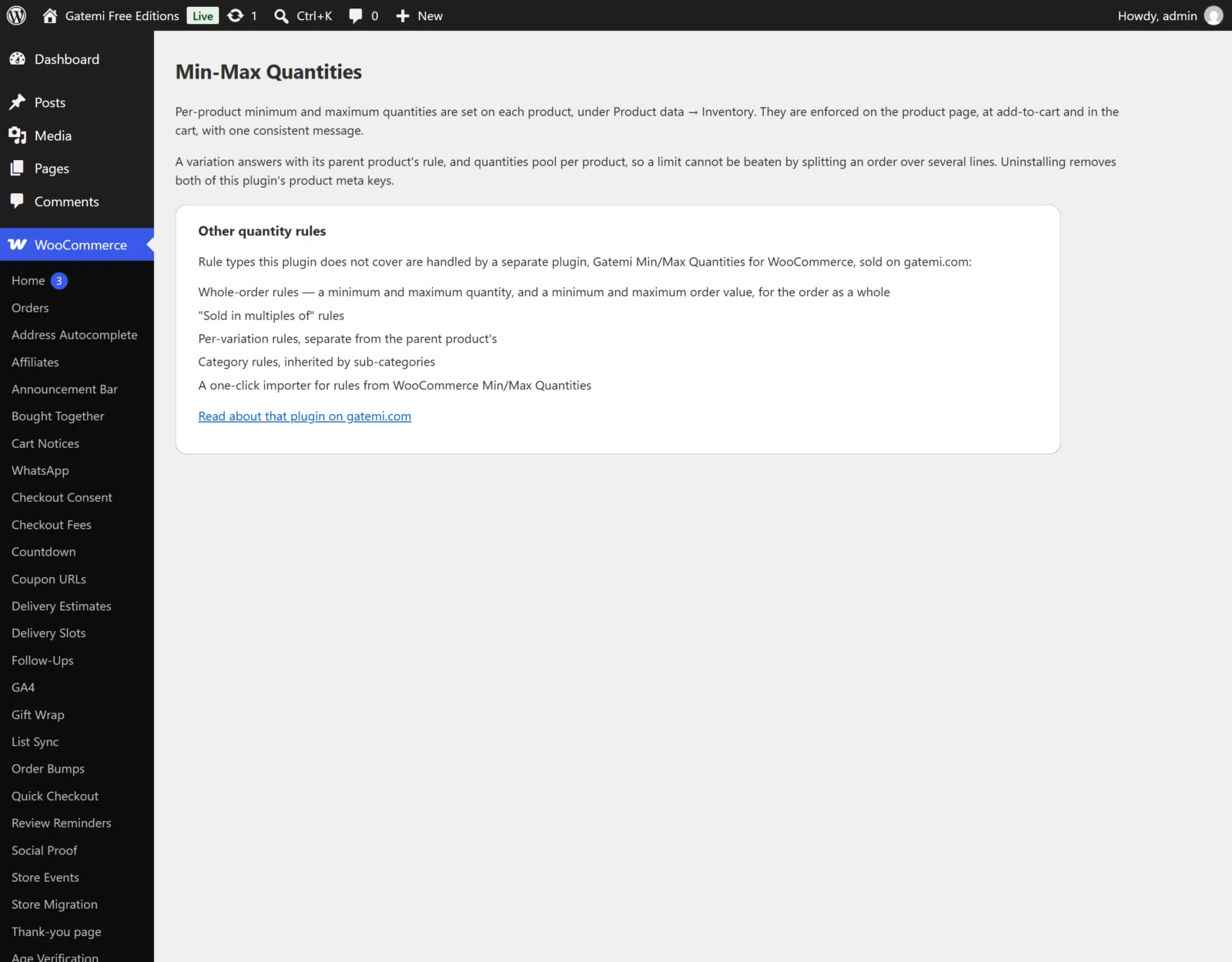
The free edition has no store-wide settings. Its screen, WooCommerce → Min-Max Quantities, explains where rules live. To set one:
- Go to Products → All Products and edit a product.
- In Product data → Inventory, fill in Minimum quantity and/or Maximum quantity. Leave a box empty (or 0) for no limit.
- Click Update.
Full edition
- Edit a product. In Product data → General, under the Quantity rules heading, fill in Minimum quantity, Maximum quantity and, if you sell in packs, Sold in multiples of.
- Click Update. If the three numbers did not fit together — say "at least 5, in multiples of 4" — the plugin adjusts them (here to at least 8) and the product screen tells you what it changed.
- Optional: give a whole category a rule under Products → Categories, or set order-wide rules on WooCommerce → Min/Max Quantities.
If you used WooCommerce Min/Max Quantities before, the settings screen shows Existing quantity rules found; click Import rules to bring them over. See Settings.
Check that it works
- Open the product in a private window. The quantity box starts at your minimum and will not go above your maximum.
- Add the maximum to the cart, then try to add one more. The addition is refused with a message such as "You can buy at most 10 of “Tea tin” (your cart already has 10)." (free edition) or ""Tea tin" is limited to 10 per order — that would bring your cart to 11." (full edition).
- In the cart, lower the quantity below the minimum and update. A message names the product, the minimum and how many to add, and the checkout is blocked until the cart is fixed.