
WooCommerce sends one low-stock email per product, at the moment an order takes it over the line. A shop that sells forty lines on a busy afternoon gets forty emails. Gatemi Low Stock replaces that with one scheduled digest: a single message listing everything at or below its threshold, built at the moment it is sent.
There are two editions, and this manual covers both:
- Gatemi Low Stock — the free edition. One daily digest, a store-wide threshold, and a live report of up to twenty products.
- Gatemi Low Stock for WooCommerce — the full edition, sold on gatemi.com. It adds thresholds per product category, a weekly digest, your own wording, a digest even when nothing is low, and every low product in one message.
Requirements
Both editions need:
- WordPress 6.4 or later
- PHP 7.4 or later
- WooCommerce 8.0 or later (tested up to 10.9)
Both declare compatibility with WooCommerce's High-Performance Order Storage (HPOS) and the Cart and Checkout blocks. Neither edition puts anything on the storefront, so your checkout type does not matter.
Install
Free edition
The free edition is coming to wordpress.org. When it is listed, install it from Plugins → Add New by searching for "Gatemi Low Stock", then click Activate.
Full edition
- Sign in to your account on gatemi.com and download the plugin zip.
- In WordPress, go to Plugins → Add New → Upload Plugin, choose the zip and click Install Now, then Activate.
- Go to WooCommerce → Low Stock, scroll to License & updates, paste your licence key and click Activate. The key switches on one-click updates; the plugin works without it.
If you already run the free edition, you can install the full edition beside it. The free edition stands down on its own as soon as the full edition is active, and the full edition reads the same settings — nothing has to be set up again. See moving between editions.
First setup
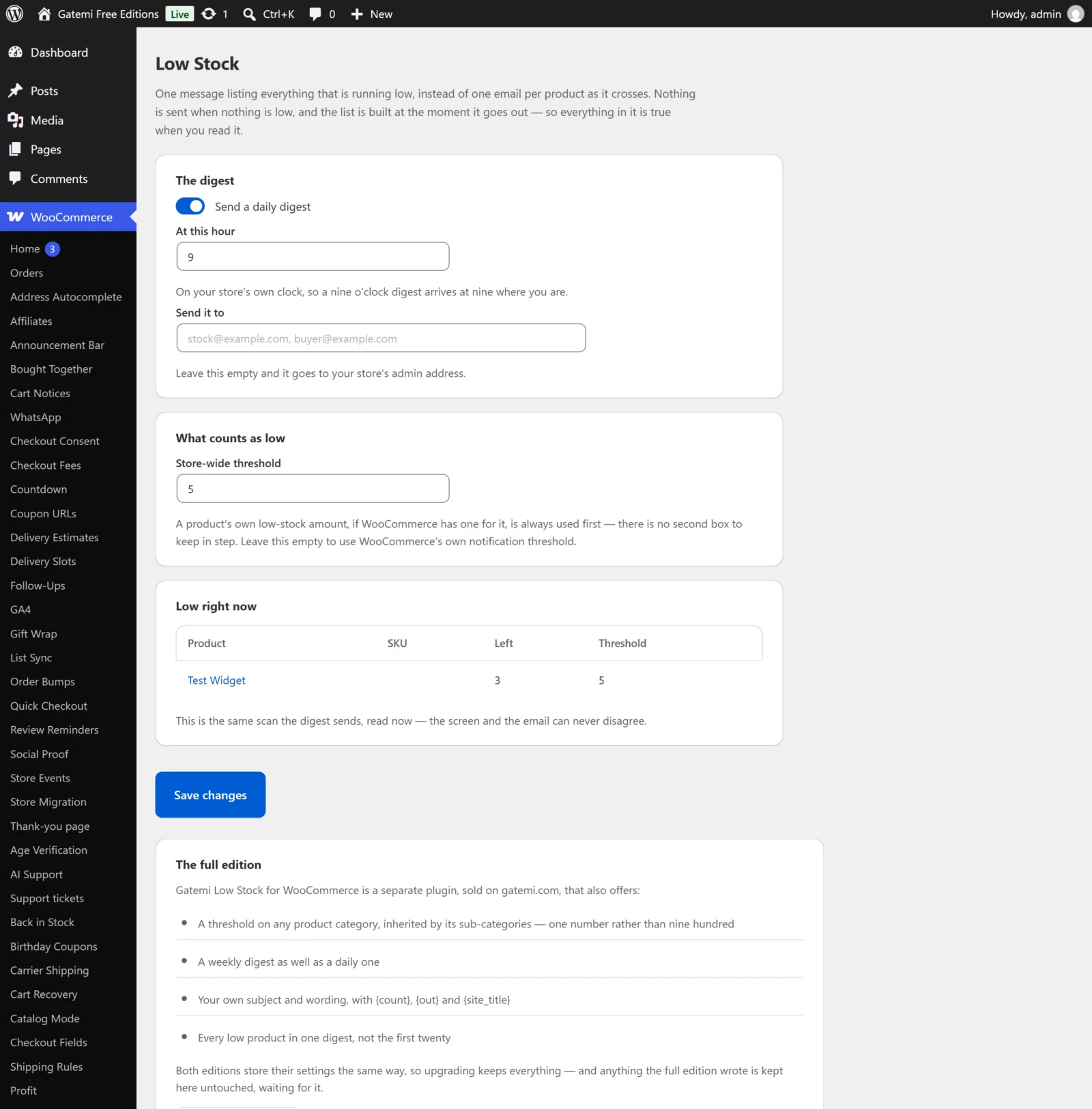
- Go to WooCommerce → Low Stock. (The full edition also adds it under the Gatemi menu.)
- Under The digest, leave Send a daily digest ticked (full edition: Email a digest, and choose Every day or Every week).
- In At this hour (full edition: At what hour), type the hour the email should arrive, from 0 to 23. It is read on your store's own clock — the timezone in Settings → General — not the server's. The default is 9.
- In Send it to, type one or more email addresses, separated by commas, spaces or semicolons. Leave it empty and the digest goes to the site's admin email address.
- Under What counts as low, decide on the Store-wide threshold. Leave it empty to use WooCommerce's own value (WooCommerce → Settings → Products → Inventory → Low stock threshold). Any product with its own Low stock threshold on its Inventory tab keeps that number.
- Click Save changes.
Full edition: to give a whole category its own threshold, go to Products → Categories, edit the category and fill in Low-stock threshold. Sub-categories inherit it. See how thresholds are chosen.
Check that it works
- Reload WooCommerce → Low Stock. The Low right now card (full edition: What is low right now) lists every product that is at or below its threshold at this moment — out of stock first, then fewest left. This is the same scan the digest sends, so what you see here is what the email will say.
- If the list says nothing is low, the digest will not be sent — that is by design. To test, pick a product that manages stock, set its stock to 1 and its own low-stock threshold to 2, and reload the screen. It should appear.
- The digest itself goes out through WordPress' scheduled tasks (WP-Cron) at the next occurrence of the hour you chose. WP-Cron runs when your site receives a visit, so a very quiet site may send a little after the hour.
Products that do not manage stock are never listed: WooCommerce has no quantity for them to compare.