
Gatemi GA4 sends your WooCommerce shop's ecommerce events to Google Analytics 4 — through Google's gtag.js, through a Google Tag Manager container, or both. It reports each purchase once per order, and it declares Google Consent Mode v2 defaults before the tag loads.
It is a free plugin with no paid edition.
Requirements
- WordPress 6.4 or later
- PHP 7.4 or later
- WooCommerce 8.0 or later (tested up to 10.9)
- Declared compatible with High-Performance Order Storage and the Cart and Checkout blocks
- A Google Analytics 4 property (for its Measurement ID,
G-…) and/or a Google Tag Manager container (its Container ID,GTM-…)
The header carries Requires Plugins: woocommerce. Without WooCommerce the plugin does nothing and says so in a row under its entry on Plugins.
The plugin needs a consent banner of your own if you sell where consent is required. It does not show one — see How it works.
1. Install
Gatemi GA4 is coming to wordpress.org. Until it is listed:
- Download the plugin zip.
- Go to Plugins → Add New Plugin → Upload Plugin, choose the zip and press Install Now.
- Press Activate.
Nothing is printed on your storefront until you enter an id. A shop with no id gets no tag and no dataLayer at all.
2. Find your id
- GA4 Measurement ID — in Google Analytics, Admin → Data streams → your web stream. It looks like
G-ABC1234567. - Tag Manager Container ID — at the top of your Tag Manager workspace. It looks like
GTM-ABC1234.
3. Connect
- Go to WooCommerce → GA4 (capability
manage_woocommerce). - Under Your tag, choose Load:
- GA4 only — the plugin loads gtag.js with your Measurement ID;
- Tag Manager only — the plugin loads your container; you configure GA4 inside Tag Manager;
- Both — both side by side.
- Type the Measurement ID and/or Container ID the mode needs.
- Decide What a conversion is worth. Leave it unticked to send the order total; tick Measure on the goods alone to take tax and shipping out.
- Leave Declare Consent Mode v2 defaults before the tag loads ticked unless another plugin already declares them.
- Press Save changes.
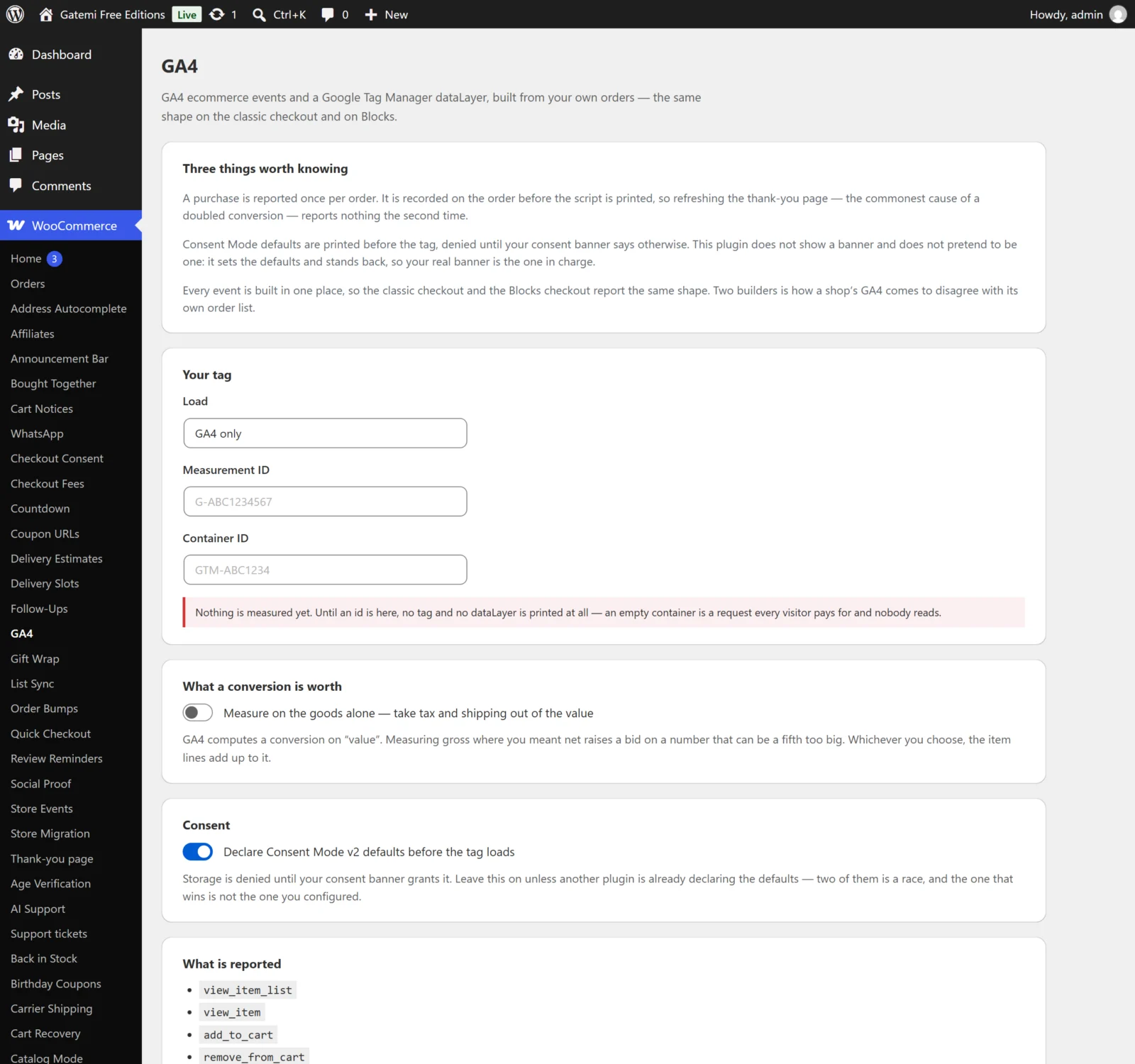
The id is checked against Google's own shape. If it does not match — a missing G-, a stray character — the screen says "… is not a shape Google uses, so it was not saved" and the field is left empty. The box under Your tag then reads Nothing is measured yet. When a valid id is saved it reads Measuring.
4. Check it works
The quickest check is GA4's DebugView or Tag Manager's Preview mode. Consent Mode starts with analytics storage denied, so either accept analytics in your consent banner first or check in a browser where you have granted it.
- Open a product page. You should see
view_item. - On a shop page, press an Add to cart button that adds without a page load. You should see
add_to_cart. - Open the cart:
view_cart. - Go to the checkout:
begin_checkout. - Place a test order. On the order-received page:
purchase, withtransaction_idset to the order number. - Refresh the order-received page. No second
purchaseis sent.
You can also see the events without Google: open the browser's developer console and type dataLayer. Each event is pushed as { event: "view_item", ecommerce: { … } }, preceded by { ecommerce: null } to clear the previous one, which is Google's recommended pattern.
What it sends today
In version 1.0.0 the plugin sends view_item, add_to_cart, view_cart, begin_checkout and purchase. The settings screen's list also names view_item_list and remove_from_cart; this version does not send either. See How it works for exactly when each event is sent.
Next steps
- Settings
- How it works
- FAQ and troubleshooting
- Developer reference
- Advertising too? Gatemi Product Feed publishes what is for sale; this plugin reports what happened.