
These docs cover both editions:
- Gatemi Birthday Coupons — the free edition, coming to wordpress.org.
- Gatemi Birthday Coupons for WooCommerce — the full edition, sold on gatemi.com.
Anything marked Full edition is only in the paid plugin. Everything else is in both.
What it does
You ask customers for their date of birth — at the checkout, in My Account, or both. Once a day, just after midnight in your store's timezone, the plugin looks for customers whose birthday is coming up and emails each of them a single-use WooCommerce coupon. The coupon only works for the email address it was sent to, can be used once, and cannot be combined with other coupons.
Each customer gets one coupon a year, however many times the daily job runs.
The free edition sends the coupon 7 days before the birthday. The full edition lets you choose the head start (0–60 days) and can also send a coupon on the anniversary of the day each customer created their account.
Requirements
| Free edition | Full edition | |
|---|---|---|
| WordPress | 6.4 or later | 6.4 or later |
| PHP | 7.4 or later | 7.4 or later |
| WooCommerce | 8.0 or later (tested up to 10.9) | 8.0 or later (tested up to 10.9) |
Both editions declare compatibility with WooCommerce's High-Performance Order Storage (HPOS) and the Cart and Checkout blocks.
The free edition makes no external requests at all. The full edition only contacts gatemi.com when you enter a licence key (for licence checks and updates).
The daily job runs on WP-Cron, so your site needs working cron — either ordinary page traffic or a real system cron calling wp-cron.php.
1. Install
Free edition: coming to wordpress.org. Until then it is not available to install from Plugins → Add New.
Full edition: download the zip from your gatemi.com account, go to Plugins → Add New → Upload Plugin, upload it and activate. Then open WooCommerce → Birthday Coupons and enter your licence key in the License & updates card to switch on one-click updates and support. The plugin works without a key; the key is for updates.
You only need one edition. If both are active, the free edition stands down and says so in a row under its entry on the Plugins screen. You can then deactivate it — the full edition uses the same settings, the same dates and the same "already sent" records.
WooCommerce must be active. Without it the plugin does nothing and explains why in a row under its own entry on the Plugins screen.
2. Open the settings
Go to WooCommerce → Birthday Coupons. You need the manage_woocommerce capability (shop managers and administrators have it). In the full edition the same screen is also listed under the Gatemi menu.
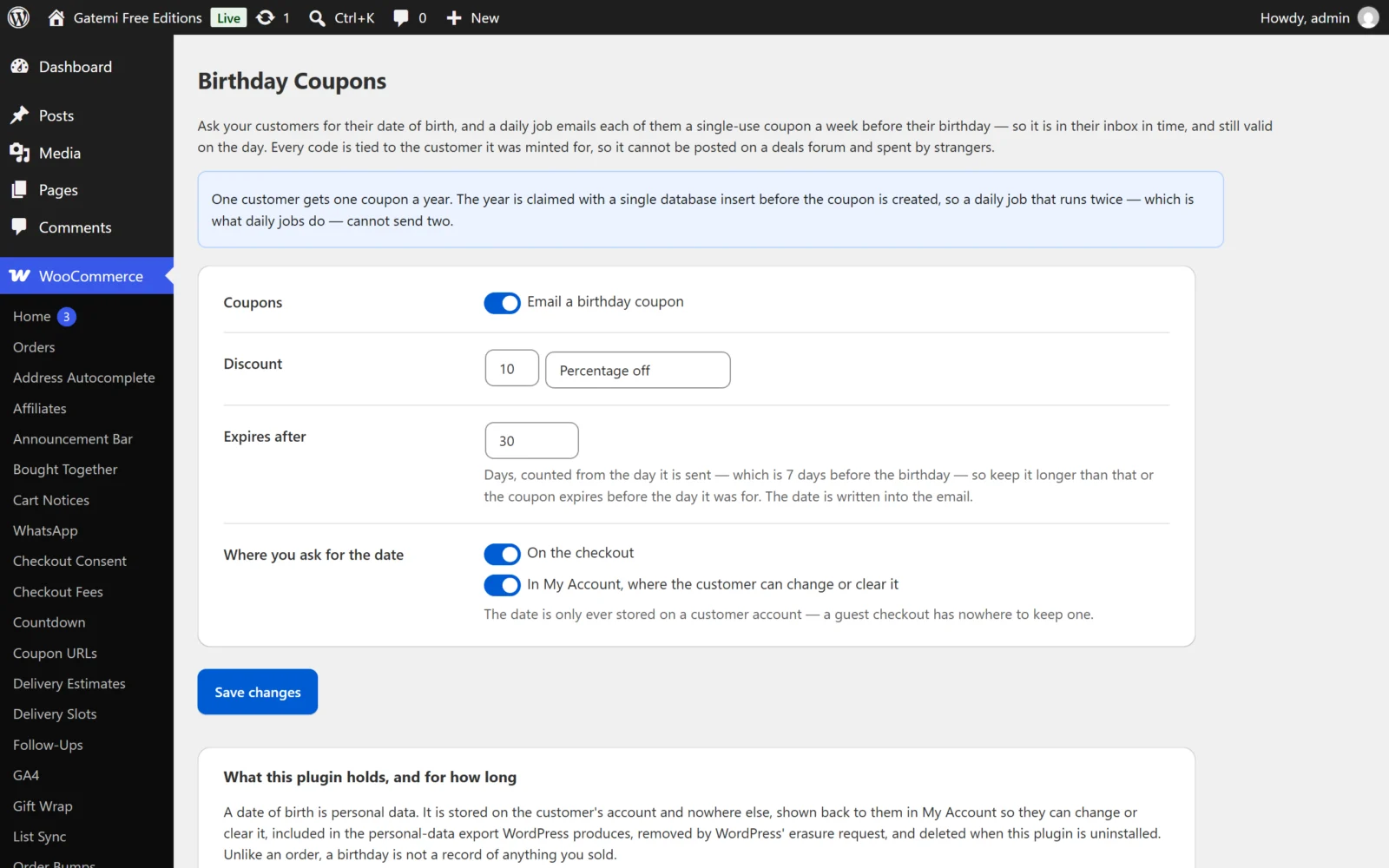
3. Set the coupon
- Make sure coupons are switched on (Email a birthday coupon in the free edition, Send coupons in the full edition — on by default).
- Under Discount, type the amount and choose Percentage off or Fixed amount off the cart. The default is 10% off.
- Under Expires after, set how many days the coupon lasts. The default is 30. The count starts on the day the email is sent, so keep it longer than the head start — otherwise the coupon expires before the birthday.
- Click Save changes.
4. Choose where you ask for the date
Under Where you ask for the date:
- On the checkout — adds a "Date of birth" field to the billing section of the classic (shortcode) checkout. On by default.
- In My Account, where the customer can change or clear it — adds the field to the account details form. On by default.
The date is only stored on a customer account. A guest who checks out without an account has nowhere to keep one, so nothing is saved for them.
Block checkout: the date field is added through WooCommerce's classic checkout fields, so it does not appear on the Checkout block. On a store using the block checkout, leave In My Account on — that is where customers can add their date. The coupons themselves work on every checkout.
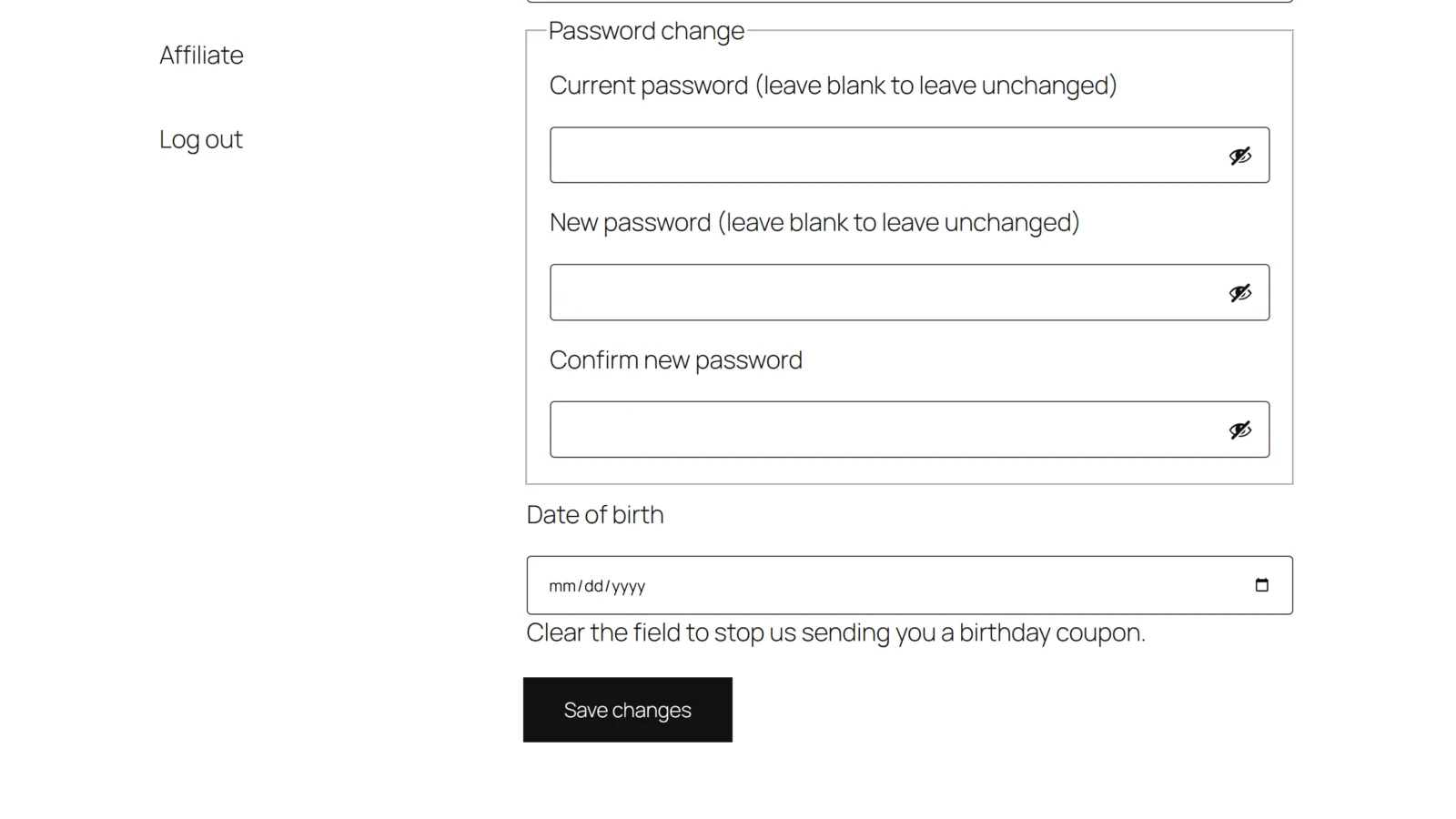
5. Check it works
- Log in as a test customer whose email you can read.
- Go to My Account → Account details, enter a date of birth exactly 7 days from today (any past year), and save. In the full edition, use your own head start instead of 7.
- With a cron viewer such as WP Crontrol, confirm the
gmbdf_dailyevent (free) orgmbd_dailyevent (full) is scheduled. - Wait for the next run just after midnight store time — or run the event by hand from a cron management plugin.
- Check the inbox: the email contains the code (
BDAY-and eight random characters), what it is worth and the last day it can be used. - Under Marketing → Coupons, find the coupon. It is restricted to the customer's email, limited to one use and marked "Individual use only".
Running the event a second time the same day sends nothing — that is the one-coupon-a-year rule at work. See How it works.
Next
- Settings — every setting, key and default.
- FAQ and troubleshooting
- Developer reference