
Gatemi Address Autocomplete puts a Google address search box above the first address line on your checkout. A shopper starts typing, picks their address from Google's list, and the plugin fills in the street, town, postcode, state and country fields for them.
It runs on your own Google Maps Platform key. Google bills your account for what your shoppers type; nothing goes through Gatemi.
These docs cover both editions:
- Gatemi Address Autocomplete — the free edition, on wordpress.org.
- Gatemi Address Autocomplete for WooCommerce — the full edition, sold on gatemi.com.
Both have the same five settings and the same storefront behaviour. What the full edition adds is for developers — changing the field map, pinning a Maps version or region, and deciding per request whether autocomplete runs — and is marked Full edition.
Requirements
| Free edition | Full edition | |
|---|---|---|
| WordPress | 6.4 or later | 6.4 or later |
| PHP | 7.4 or later | 7.4 or later |
| WooCommerce | 8.0 or later | 8.0 or later |
| A Maps Platform key with the Maps JavaScript API and the Places API enabled, on a project with billing | Same |
1. Install
Free edition: go to Plugins → Add New, search for "Gatemi Address Autocomplete", install and activate. Or download it from wordpress.org.
Full edition: download the zip from your gatemi.com account, go to Plugins → Add New → Upload Plugin, upload and activate. Open WooCommerce → Address Autocomplete and enter your licence key in the License & updates card. The key switches on one-click updates and support; the plugin works without it.
Use one edition. If both are active, the free edition stands down (and says so in a row under its entry on the Plugins screen), so a shopper never gets two search boxes on one field or two Maps requests billed for one visit.
2. Create the Google key
- In the Google Cloud console, create or pick a project with billing enabled.
- Enable the Maps JavaScript API and the Places API.
- Create an API key.
- Restrict it: Application restrictions → HTTP referrers, with your own domain (for example
https://www.example.com/*), and API restrictions to the Maps JavaScript API and the Places API.
The restriction matters. A Maps JavaScript key is sent to every shopper's browser — that is how Google's script works, and there is nowhere to hide it. The referrer restriction is what stops somebody else using it on their site. This is why the plugin does not mask the key on its settings screen: masking it would suggest it was secret.
3. Paste the key in
- Go to WooCommerce → Address Autocomplete.
- Paste the key into Maps JavaScript API key.
- Leave Use address autocomplete, On the billing address and On the shipping address ticked (the defaults), or untick the address you do not need.
- Optionally type up to five country codes into Only suggest addresses in these countries, for example
GB, IE. - Press Save Changes.
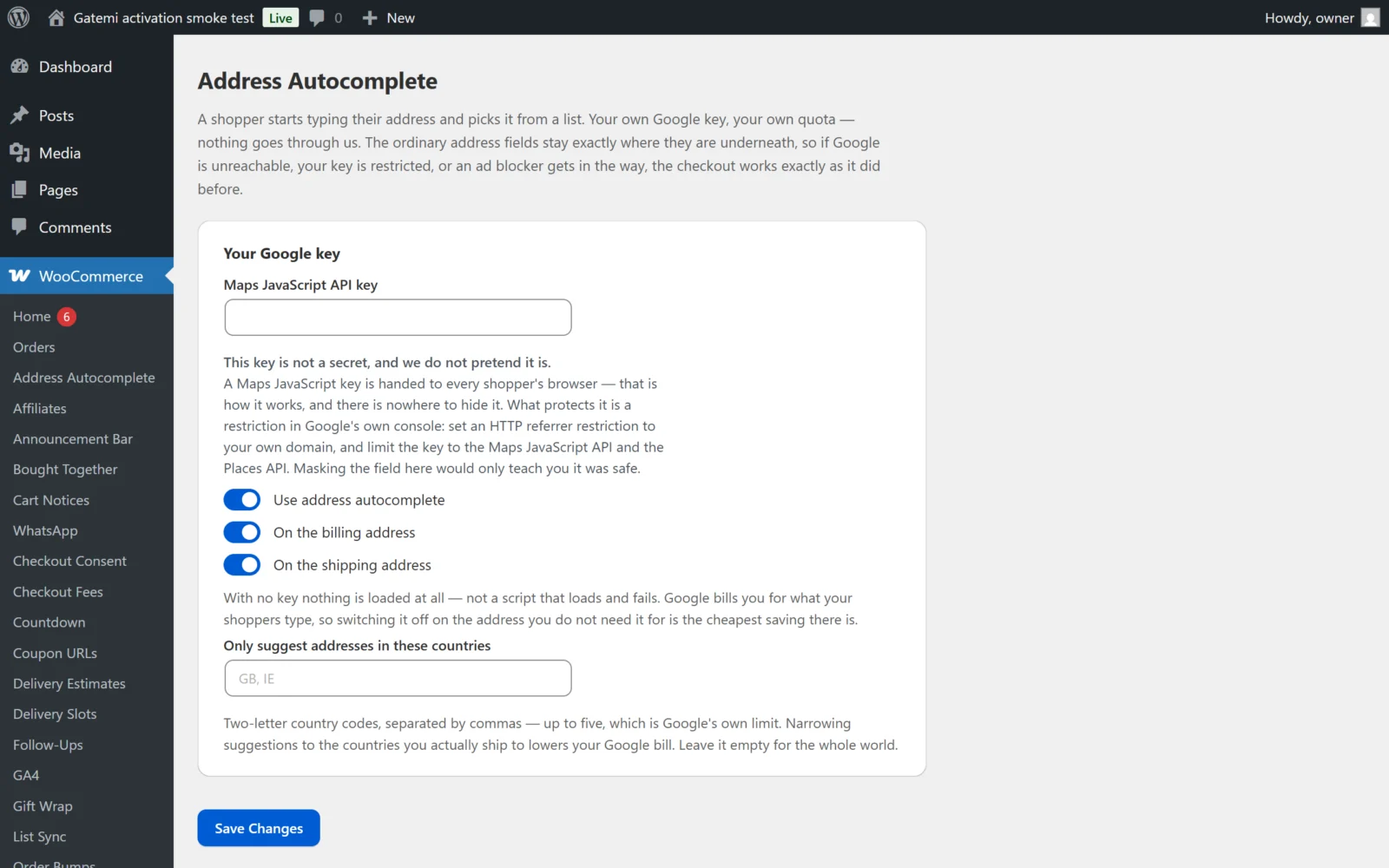
If what you pasted does not look like a Google key (letters, digits, _ and -, at least 20 characters), the screen says so under the field. It is saved either way — only Google can say whether a key works.
4. Test it
- Add a product to the cart in a private window and open the checkout.
- Above Street address you should see a search box with the placeholder "Start typing your address…".
- Type the start of a real address and pick one from the list.
- The street, apartment (when Google has one), town, postcode, country and state fields fill in. WooCommerce recalculates shipping as it would if you had typed them.
- The ordinary fields stay visible and editable underneath, so a shopper whose address Google does not know simply types it.
The search box also appears on My Account → Addresses when a customer edits their saved billing or shipping address, and on the Checkout block as well as the classic checkout.
If no search box appears, see FAQ and troubleshooting — almost always the key, its restrictions, or the APIs not being enabled.