
Gatemi Store Events posts a one-line message to the Slack or Telegram channel your team already reads: "New order #1481 — GBP 42.50 · Sarah Jones", with a link to the order.
These docs cover both editions:
- Gatemi Store Events — the free edition, coming to wordpress.org. New orders, to one channel.
- Gatemi Store Events for WooCommerce — the full edition, sold on gatemi.com. It adds orders changing status, cancellations and refunds, low and out-of-stock products, new customers and new reviews — and several channels, each hearing about different things.
Anything marked Full edition is only in the paid plugin.
Requirements
| Free edition | Full edition | |
|---|---|---|
| WordPress | 6.4 or later | 6.4 or later |
| PHP | 7.4 or later | 7.4 or later |
| WooCommerce | 8.0 or later | 8.0 or later |
Your server must be able to make outgoing HTTPS requests to hooks.slack.com or api.telegram.org, and WordPress cron must run: messages are sent by a cron event a moment after the order, not inside the checkout.
1. Install
Free edition: coming to wordpress.org. Until it is listed, install the zip through Plugins → Add New → Upload Plugin and activate it.
Full edition: download the zip from your gatemi.com account, go to Plugins → Add New → Upload Plugin, upload and activate. Then open WooCommerce → Store Events and enter your licence key in the License & updates card. The plugin works without a key; the key switches on one-click updates and support. The full edition also lists its screen under the top-level Gatemi menu (Gatemi → Store Events).
Use one edition at a time. Both store their channels and settings the same way, so upgrading keeps them.
2. Get a destination
Slack
- In Slack, create an app for your workspace (or use an existing one) and switch on Incoming Webhooks.
- Add New Webhook to Workspace, pick the channel (say
#orders) and copy the webhook URL. It startshttps://hooks.slack.com/services/.
Telegram
- Talk to @BotFather in Telegram, create a bot and copy its token (it looks like
123456789:AA…). - Add the bot to the group or channel that should receive the messages.
- Find that chat's chat id (a number; groups usually start with
-).
3. Connect the channel
Go to WooCommerce → Store Events (capability manage_woocommerce).
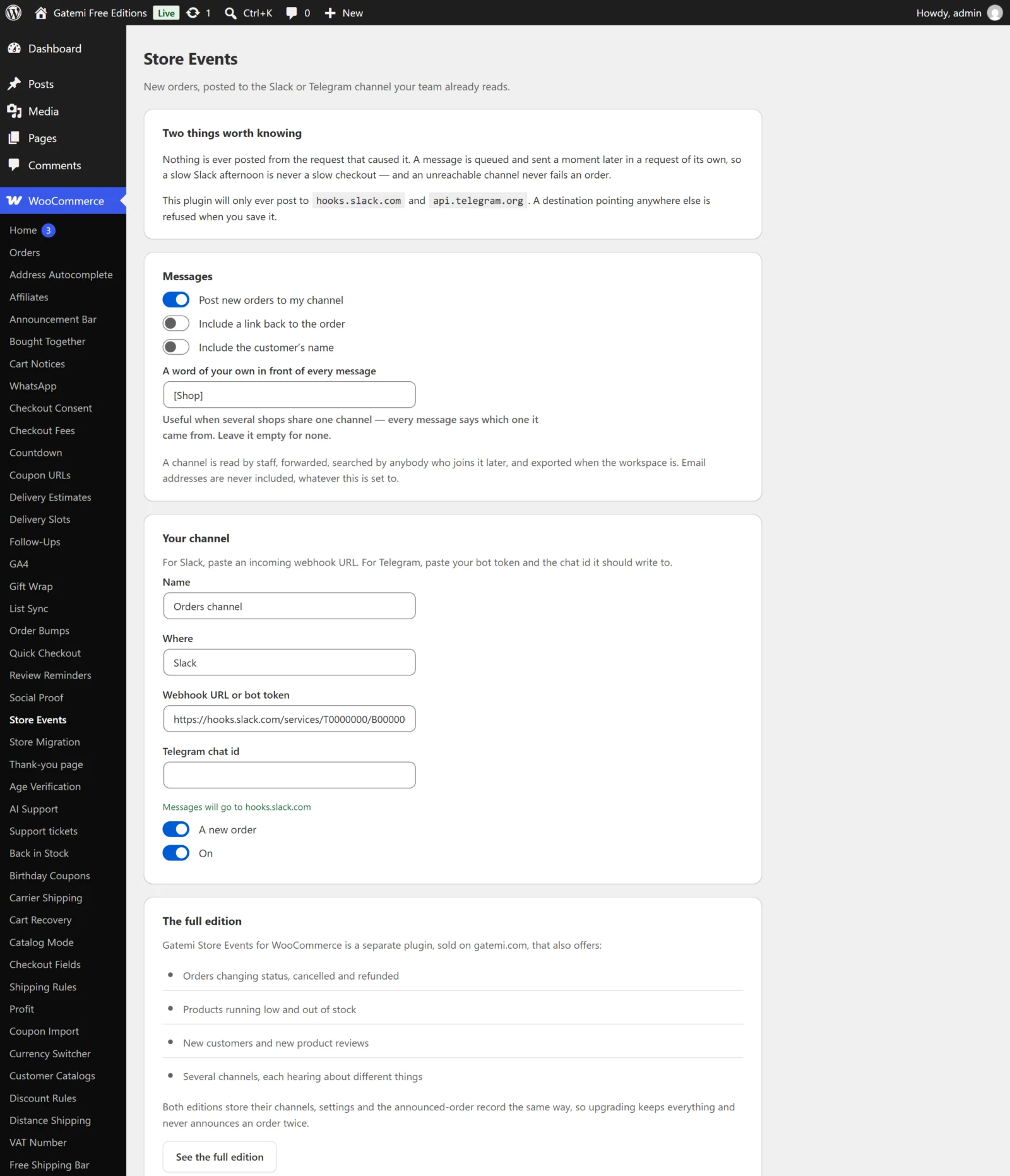
- Under Your channel, give it a Name (for your own reference, e.g.
#orders). - Choose Where: Slack or Telegram.
- Paste the Slack webhook URL — or the Telegram bot token — into Webhook URL or bot token.
- For Telegram, enter the Telegram chat id.
- Make sure A new order and On are ticked.
- Press Save changes.
Under the field, the screen confirms "Messages will go to hooks.slack.com" (or api.telegram.org). If you pasted anything else, it says the address is not one the plugin will post to, and nothing is sent.
4. Test it
- Place a test order on your store through the checkout.
- Within a few seconds — or on the next page visit, which is when WordPress runs cron — the channel shows:
New order #1234 — GBP 25.00 · Jane Smith https://…/wp-admin/… - If nothing arrives, reload WooCommerce → Store Events. Under Waiting to go out you will see the message if it is still queued; press Send these now to try it immediately.
The order is marked as announced, so if WooCommerce fires its order hooks again the channel does not get a second message.
Block checkout: the new order event listens to both the classic checkout and the Checkout block. Orders created in wp-admin are not announced as new orders. See the FAQ.
Full edition: more events and channels
On the full edition's screen each channel has a list of events to tick. Press Add another to add a second channel — for example #warehouse for stock alerts and #orders for orders.