
These docs cover both editions:
- Gatemi Cost of Goods — the free edition, coming to wordpress.org. A cost on every product, frozen onto each order as it is placed, and a profit report for any date range with the ten most profitable products.
- Gatemi Profit Reports for WooCommerce — the full edition, sold on gatemi.com. It adds a cost per variation, an extra cost per order, a choice of what counts as a sale and as revenue, the whole product breakdown, a CSV download and the profit on each order screen.
Anything marked Full edition is only in the paid plugin.
Requirements
| Free edition | Full edition | |
|---|---|---|
| WordPress | 6.4 or later | 6.4 or later |
| PHP | 7.4 or later | 7.4 or later |
| WooCommerce | 8.0 or later (tested up to 10.9) | 8.0 or later (tested up to 10.9) |
Both editions declare HPOS compatibility and add nothing to the storefront.
Install
Free edition: coming to wordpress.org. Once it is listed, go to Plugins → Add New, search for "Gatemi Cost of Goods", install and activate.
Full edition: download the zip from your gatemi.com account, upload it at Plugins → Add New → Upload Plugin and activate. On WooCommerce → Profit, paste your licence key into License & updates and press Activate.
Both editions store costs under the same keys, so moving from one to the other keeps every cost and every order's frozen cost. While the full edition is active, the free edition stands down.
1. Enter costs
- Open a product: Products → (product) → Product data → General.
- Under the price, fill in Cost of goods — what one unit costs you.
- Update the product.
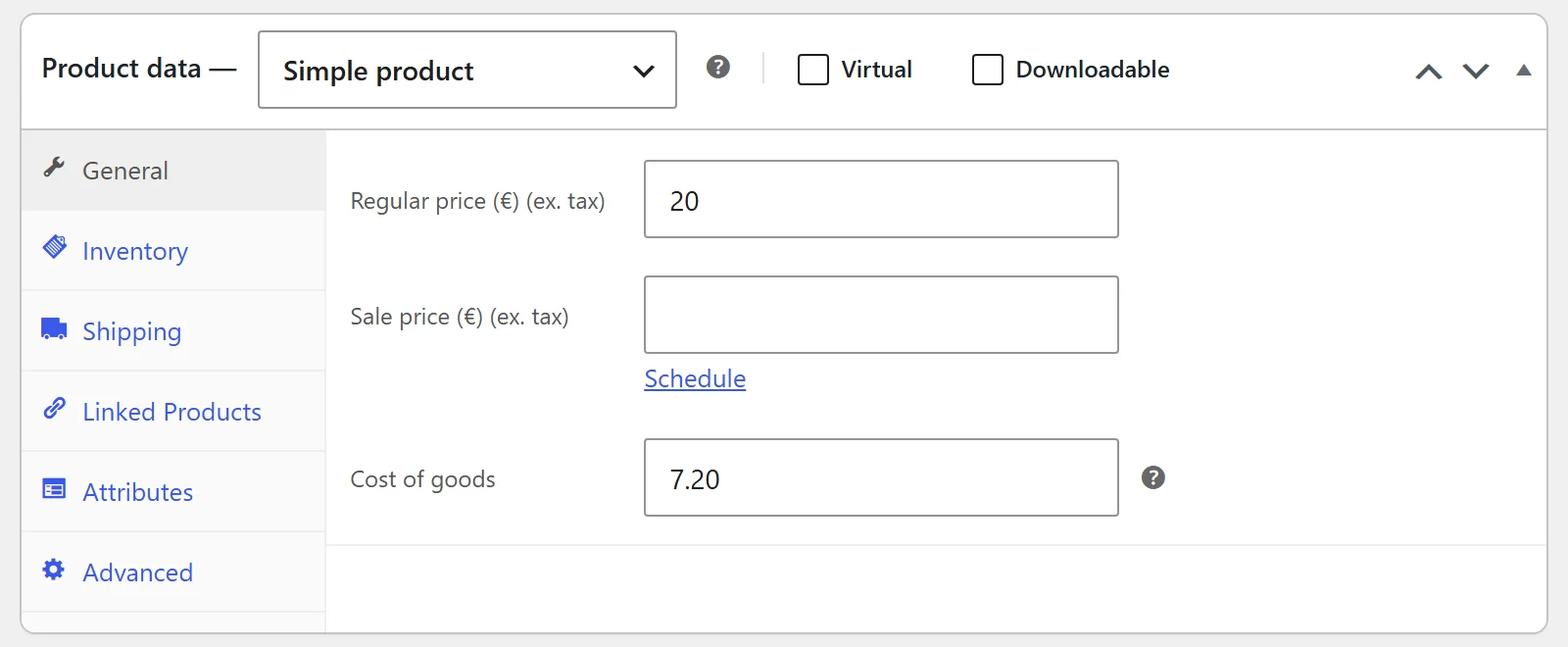
Leave the box empty if you do not know the cost. An empty box is "unknown", not "free": the report counts those sales apart rather than as pure profit. Type 0 only for something that really costs you nothing.
Full edition: each variation has its own Cost of goods under its price. Leave it empty to use the product's cost.
The Products list gets a Cost column (on by default) showing each cost, or "Not set", so you can see what is missing at a glance.
2. Take some orders
Costs are copied onto each order line when the order is placed. Orders placed before you entered a cost have no cost on them and show as "no cost recorded" in the report — a cost entered today is never applied to last month's sales.
3. Read the report
Go to WooCommerce → Profit. The report opens on the current month to today. Change From and To and press Show for another range.
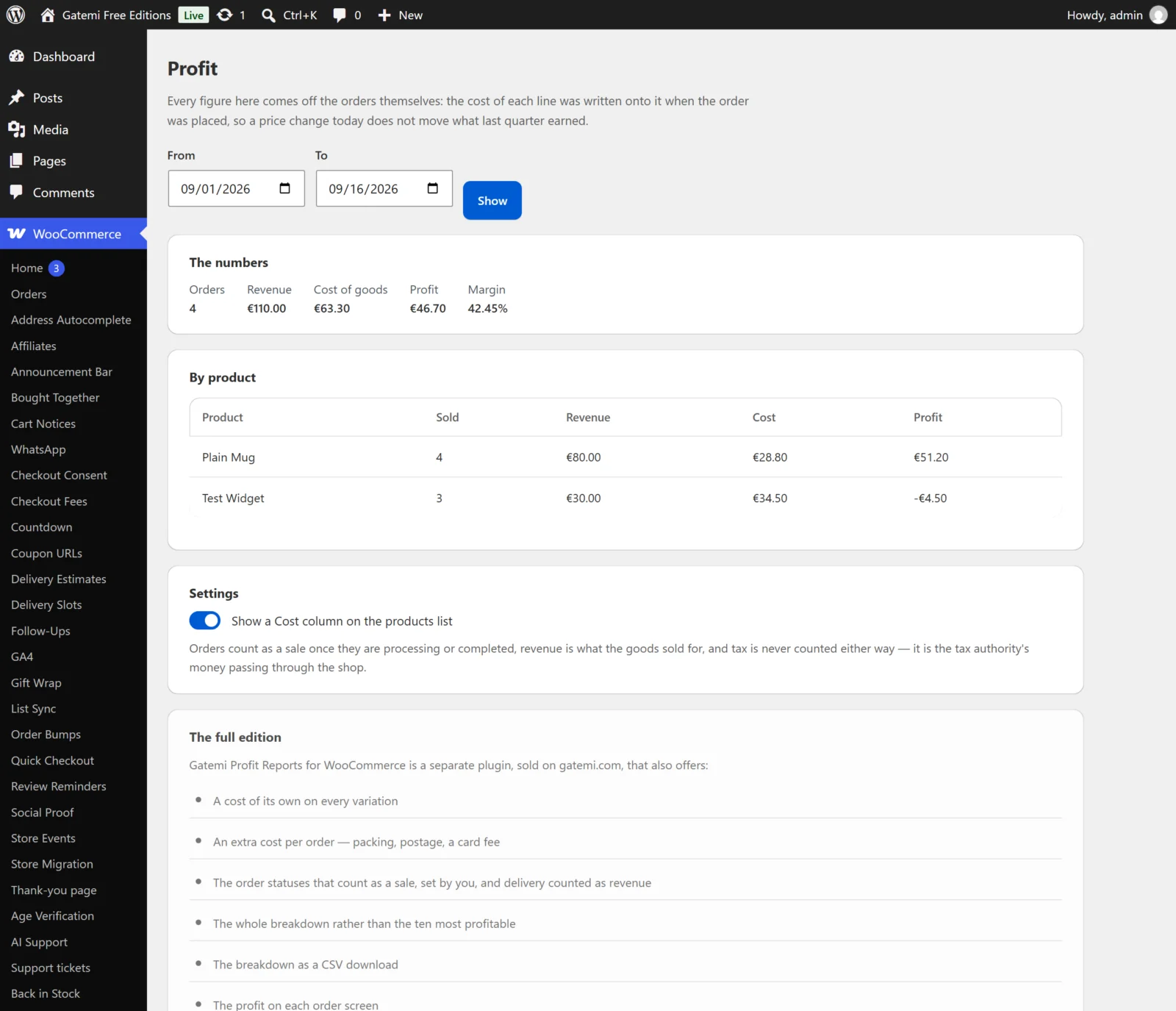
You see:
- Orders, Revenue, Cost of goods, Profit and Margin, and, in the full edition, Other costs.
- A line saying how many order lines have no cost recorded and what they were worth, if any.
- By product — the most profitable first. The free edition lists ten and says how many more there are; Full edition: as many as Products listed in the breakdown (25 by default), plus Download CSV.
Check it works
- Give a product a cost of 6.00 and sell one at 10.00 (excluding tax) in a test order; mark it Processing.
- Open WooCommerce → Profit for today: Revenue 10.00, Cost of goods 6.00, Profit 4.00, Margin 40%.
- Change the product's cost to 8.00 and reload the report. It still says 6.00 — the cost was frozen onto the order.
Next
- Settings — every setting.
- How it works — the frozen-cost, honesty and money rules.
- Developer reference — filters and meta keys.