
Everything is on WooCommerce → Order Bumps. Only users who can manage WooCommerce (manage_woocommerce) can open or save it.
Two options hold the configuration, shared by both editions:
gmob_settings— the switches;gmob_bumps— the offers, as a list.
The free edition shows the first two offers. Offers beyond those are kept exactly as they are when you save. On the offers it does show, anything only the full edition can set — a percentage, a placement other than above the pay button, conditions — is kept and not used. See How it works for what the free edition does with such an offer.
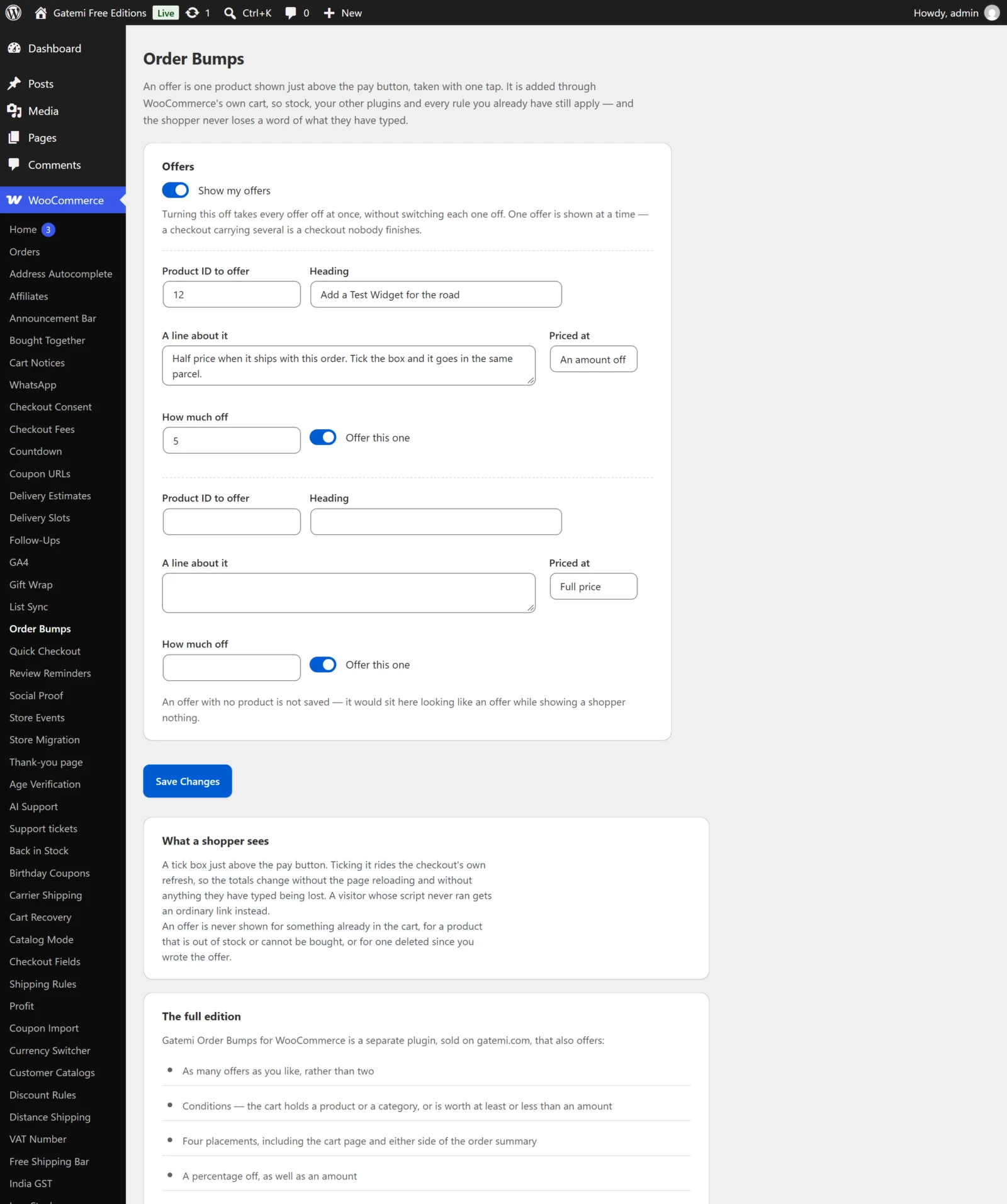
Offers (the switches)
Show my offers / Offer my bumps
- Key:
enabled(ingmob_settings) · Default: on (yes) - Turns every offer off at once without switching each one off, so putting them back does not mean remembering which were on.
- Already-accepted lines in a cart keep their offer price.
How many to show at once — Full edition
- Key:
max_shown· Default:1· Range: 1–5 - The most offers shown in one place. The first offers in your list that apply win. A checkout carrying five offers is a checkout nobody finishes; one is the default because one decision is what a bump is for.
- The free edition always shows one.
Each offer
Each offer is one entry in gmob_bumps. An offer with no product id is not saved.
Product ID to offer
- Field:
product_id - The product's id. Use a simple product: the offer adds the product with one tick, which a variable product (which needs a size or colour chosen) cannot be.
Heading
- Field:
heading· Default: empty — the product's name is used - The text beside the tick box, and the "Added as" note on the cart line and the order line.
A line about it
- Field:
description· Default: empty - One short line under the heading. Plain text.
Priced at and How much off
- Fields:
discount_kindanddiscount - Full price (
none) — the default. - An amount off (
amount) — the product's price minus this amount, never below zero. - A percentage off (
percent) — Full edition. A percentage over 100 is treated as 100 (free), never a negative price. - Typed amounts accept a comma:
2,50is 2.50. - Any other stored kind is treated as full price.
Shown — Full edition
- Field:
placement· Default:before_pay - Above the order summary (
before_review), Below the order summary (after_review), Just above the pay button (before_pay) or On the cart page (cart). - The free edition shows offers just above the pay button only.
Offer this one
- Field:
enabled· Default: off for a new row - Untick to keep an offer without showing it.
Only when — Full edition
- Field:
conditions— a list oftypeandvalue - Click Add a condition for each. Every condition must hold for the offer to show:
| Condition | Type | Value |
|---|---|---|
| Every checkout | always |
Nothing |
| The cart holds one of these products | has_product |
Product ids, separated by commas. A variable product's id covers its variations. |
| The cart holds something from these categories | has_category |
Category ids. Sub-categories count. |
| The cart is worth at least | min_total |
An amount. Compared with the cart subtotal as displayed. |
| The cart is worth less than | max_total |
An amount. |
| There are at least this many things in it | min_items |
A whole number (total quantity). |
An offer with no conditions is shown on every checkout where it can be.
What is never shown
Whatever the settings, an offer is not shown when:
- its product is already in the cart (as itself or as one of its variations);
- its product is out of stock, cannot be bought, or has been deleted.
License & updates — Full edition
Enter your licence key and click Activate; Deactivate on this site frees it. The licence lives in gmob_license.
For developers — Full edition
A table of the plugin's filters; see the developer reference.