
Gatemi AI Support adds a chat assistant to your WooCommerce shop. It answers only from an index built out of your own products and pages, plus any text you type into its settings. Prices and stock are never stored in that index: they are read live from WooCommerce at the moment a customer asks, and formatted by WooCommerce. When the shop's own content does not answer a question, the assistant says so and offers to open a support ticket, which reaches you as an ordinary email you can reply to.
It runs on your own OpenAI API key. You pay OpenAI directly; there is no Gatemi account or markup in between.
These docs cover both editions:
- Gatemi AI Support — the free edition, coming to wordpress.org.
- Gatemi AI Support for WooCommerce — the full edition, sold on gatemi.com. It adds order lookup in chat, licence keys and downloads behind an emailed code, semantic search, a house-style instruction and visitor location. These are marked Full edition.
Requirements
| Free edition | Full edition | |
|---|---|---|
| WordPress | 6.4 or later | 6.4 or later |
| PHP | 7.4 or later | 7.4 or later |
| WooCommerce | 8.0 or later | 8.0 or later |
| OpenAI | An API key from platform.openai.com | Same |
The site must be able to send email (tickets and, in the full edition, verification codes go through wp_mail()) and run WordPress cron (the index is kept up to date in the background).
1. Install
Free edition: coming to wordpress.org. Until it is listed, upload the zip under Plugins → Add New → Upload Plugin and activate.
Full edition: download the zip from your gatemi.com account, upload and activate it, then open WooCommerce → AI Support → License and enter your licence key for updates and support.
Activation creates four tables (wp_gmai_conversations, wp_gmai_messages, wp_gmai_index, wp_gmai_usage) and a private post type for tickets. If both editions are active, the free one stands down; they share every table, option and ticket.
2. Add your OpenAI key
The safest place is wp-config.php, which keeps the key out of the database and out of every backup:
define( 'GMAI_OPENAI_KEY', 'sk-...' );
Or go to WooCommerce → AI Support and paste it into OpenAI API key. Once saved it is never shown again; the field shows a mask.
Model defaults to gpt-4o-mini. A small, fast model is usually right: the answers come from your shop, not from the model's own knowledge.
3. Build the knowledge index
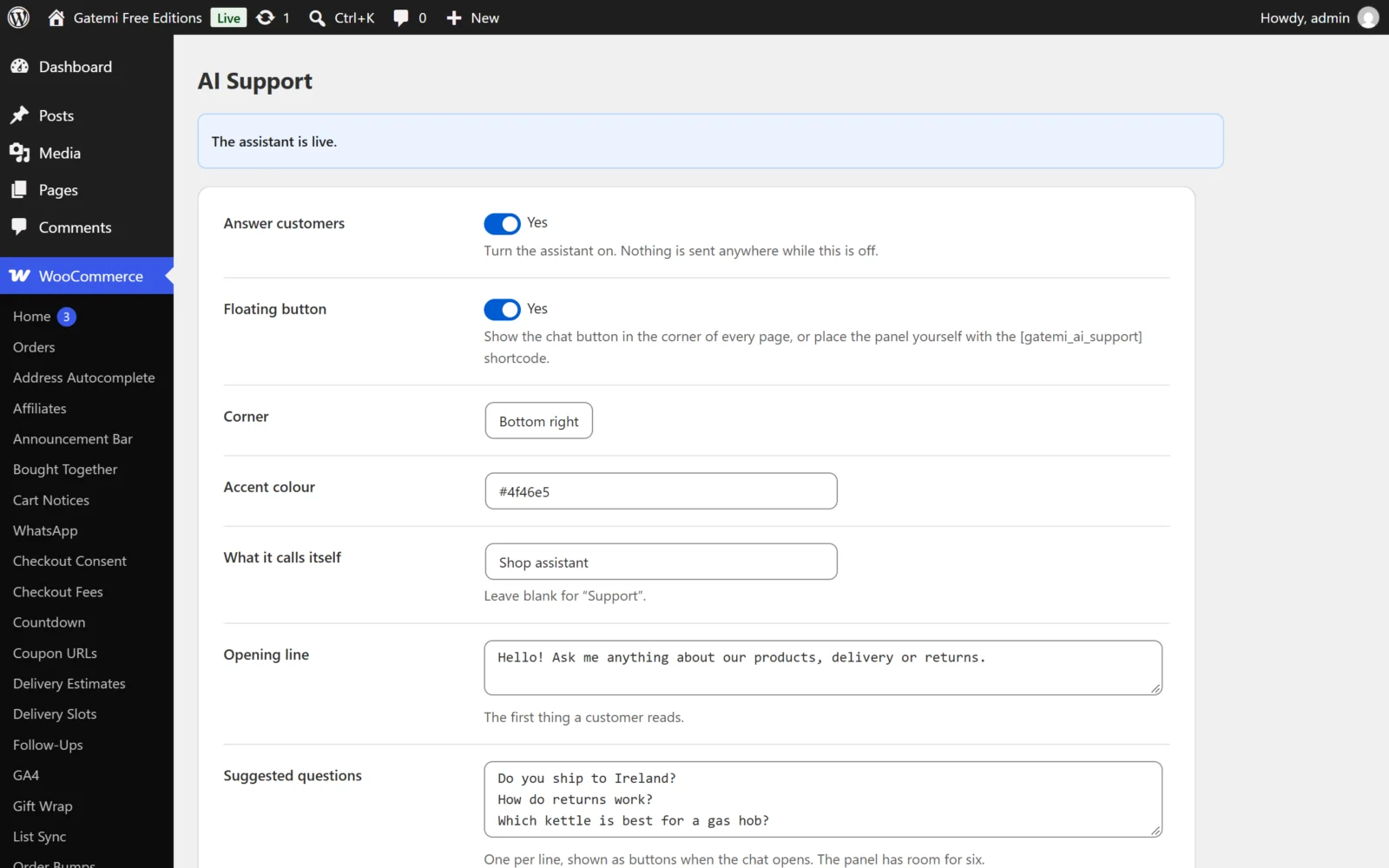
- On WooCommerce → AI Support, check Index products is ticked and Also index says
page(add other public post types, comma-separated). - Optionally write what lives in your head rather than on a page in Anything else it should know — delivery times, what happens to a damaged parcel, who to escalate to.
- Press Rebuild the index now. The screen reports how many passages from how many products and pages are indexed.
After that, a product or page you save is re-indexed automatically within about a minute.
4. Switch it on
- Tick Answer customers. Nothing is sent to OpenAI while this is off.
- Leave Floating button ticked to show the chat button in a corner of every page, or untick it and place the panel yourself with the
[gatemi_ai_support]shortcode. - Check Send tickets to (blank means the site admin email).
- Press Save changes. The top of the screen says "The assistant is live."
5. Test it
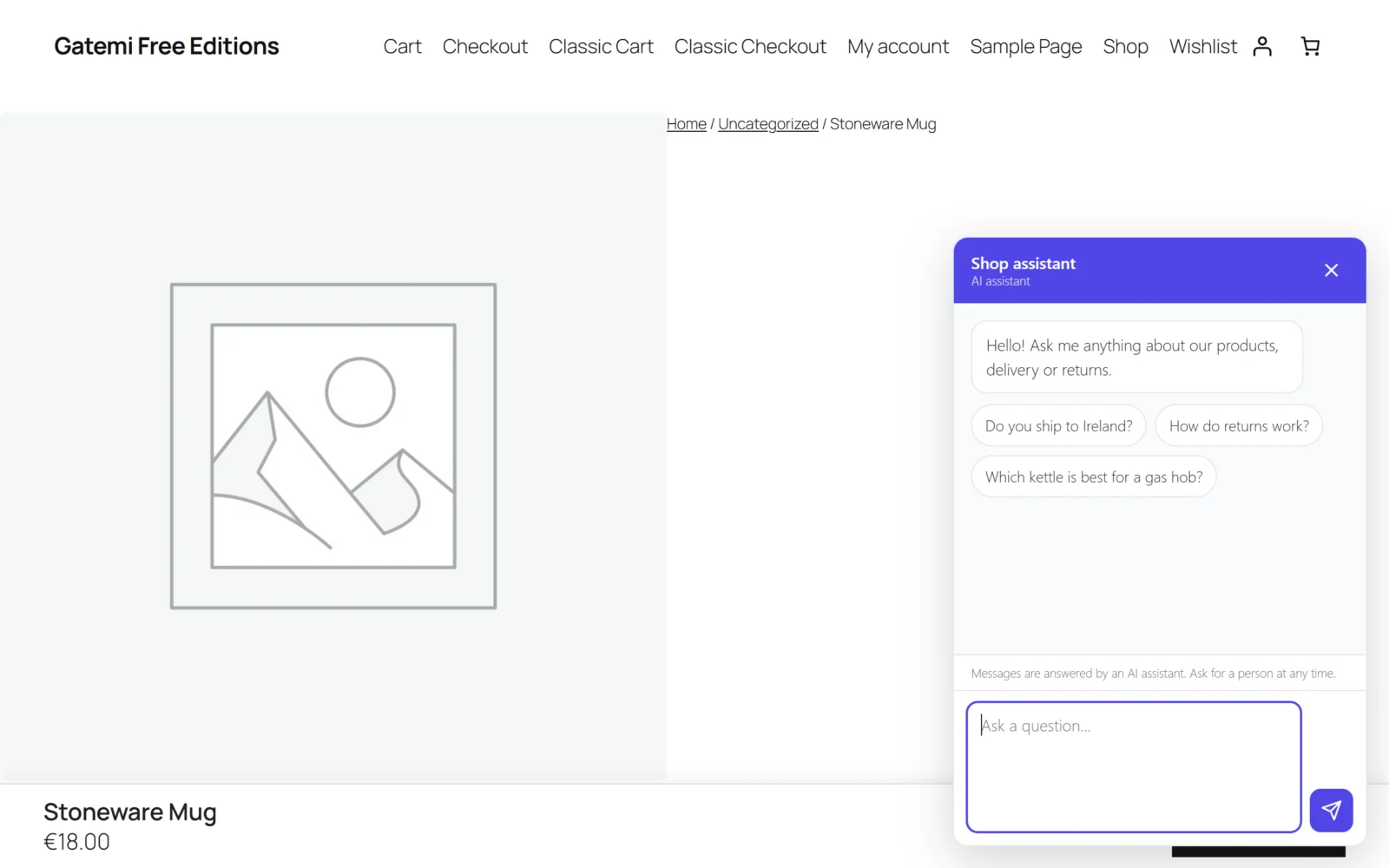
- Open your shop in a private window and press the chat button.
- The panel shows your opening line, the suggested questions and the notice that messages are answered by an AI and sent to OpenAI.
- Ask about a product you sell: "How much is the blue kettle and is it in stock?" The price and stock come back in your shop's own format.
- Ask something your content does not cover. The assistant should say it does not know and offer a ticket.
- Say "I'd like to talk to a person". Give a name, an email, a subject and a description. You get a reference like
GM-7KD2XQ, the shop gets an email with[GM-7KD2XQ]in the subject, and the ticket appears under WooCommerce → Support tickets.
Full edition: also ask "Where is my order?" — the assistant asks for the order number and the email it was placed with, or offers to email a code to prove the address. See How it works.