
Gatemi Wholesale Pricing lets you sell to the trade from the same shop you sell to the public from. A customer with a wholesale role signs in and sees their own price everywhere — the shop page, the product page, the cart, the checkout and the order — and it is the same number in every one of them.
These docs cover both editions:
- Gatemi Wholesale Pricing — the free edition, coming to wordpress.org.
- Gatemi Wholesale Pricing for WooCommerce — the full edition, sold on gatemi.com.
Anything marked Full edition is only in the paid plugin. Everything else is in both.
Requirements
| Free edition | Full edition | |
|---|---|---|
| WordPress | 6.4 or later | 6.4 or later |
| PHP | 7.4 or later | 7.4 or later |
| WooCommerce | 8.0 or later | 8.0 or later |
Both editions declare compatibility with High-Performance Order Storage (HPOS) and with the Cart and Checkout blocks. Neither loads any storefront JavaScript, and neither makes any external request except the full edition's licence check with gatemi.com.
1. Install
Free edition: coming to wordpress.org. Until it is listed, install the zip through Plugins → Add New → Upload Plugin and activate it.
Full edition: download the zip from your gatemi.com account, go to Plugins → Add New → Upload Plugin, upload and activate. Then open WooCommerce → Wholesale Pricing and enter your licence key in the License & updates card. The plugin works without a key; the key switches on one-click updates and support.
On activation, either edition creates a Wholesale customer role (wholesale_customer) as a copy of WooCommerce's customer role, so a trade customer can still reach My Account. If the role already exists it is left alone.
You only need one edition. If both are active, the free edition stands down and says so in a row under its entry on the Plugins screen.
2. Set the trade discount
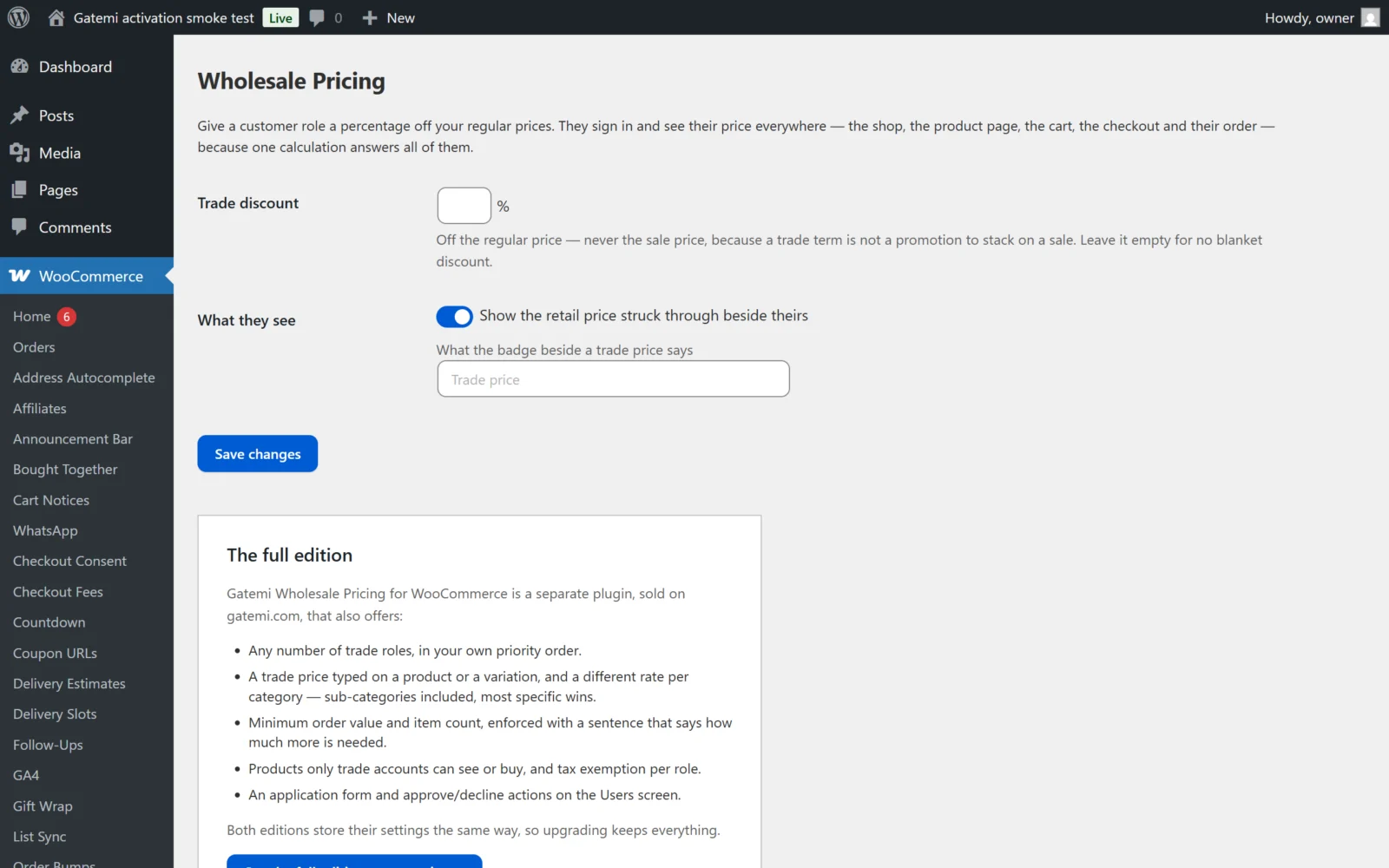
- Go to WooCommerce → Wholesale Pricing. You need the
manage_woocommercecapability. - In Trade discount, type
20for 20% off. - Leave Show the retail price struck through beside theirs ticked.
- Optionally type your own wording in What the badge beside a trade price says — leave it empty for "Trade price".
- Press Save changes.
The percentage always comes off the product's regular price, never its sale price.
Full edition: the screen is a table of roles instead — each with its own percentage, minimum order value, minimum items and tax exemption — plus rates by category. See Settings.
3. Make a customer a trade customer
- Go to Users and edit the customer.
- Give them the Wholesale customer role and save.
WordPress' own user screen sets one role at a time. That is fine: the plugin reads every role a user holds, so a customer who has both customer and wholesale_customer (for example through a role-editor plugin, or an approval in the full edition) still buys at trade prices.
Full edition: you can also put the [gatemi_wholesale_form] shortcode on a page so customers apply themselves, then approve them from the Users screen with Approve trade account. See How it works.
4. Check it
- Open a private browser window and sign in as the trade customer.
- Open a product with a regular price of, say, 50.00. The price reads
50.0040.00 with the badge "Trade price". - Add it to the cart. The cart line is 40.00, and so is the checkout and the order.
- Sign out. The same product shows 50.00 to everybody else.
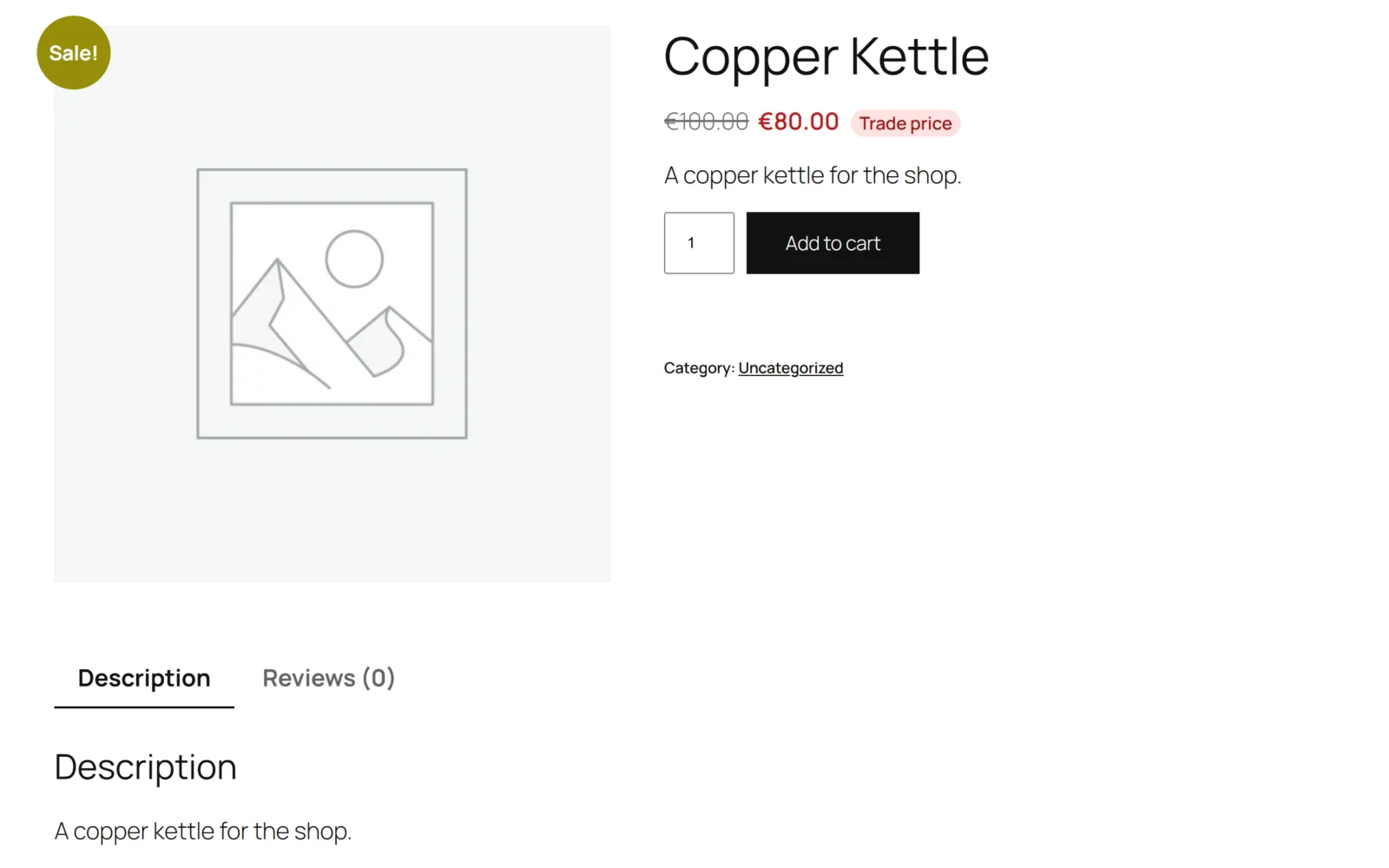
A product with no regular price has nothing to take a percentage from, so it keeps its ordinary price for everybody.
A note on caches
Trade customers are signed in, and page caches normally skip signed-in visitors, so a trade customer is not served a cached retail page. The plugin also adds the trade role to WooCommerce's own cache of variable product price ranges, so two customers on different terms never share one.
Next steps
- Settings
- How it works — the one-seam rule, multiple roles, trade-only products.
- FAQ and troubleshooting
- Developer reference