
The rule: decorate the select, never replace it
WooCommerce's variation form is a set of dropdowns plus a script that knows which combinations exist, what each costs, which are in stock and which image to show. Swatch plugins that remove the dropdowns have to rebuild all of that, and the rebuilt version drifts from WooCommerce's the first time a store has an unusual product.
This plugin keeps WooCommerce's <select> in the page and adds the swatches beside it:
- WooCommerce builds each attribute's dropdown and passes it through its
woocommerce_dropdown_variation_attribute_options_htmlfilter. - The plugin, at priority 20, checks the attribute. If it is a global attribute set to a swatch type, it wraps the dropdown and adds one swatch button per option the product actually uses.
- The swatch script runs. It marks the wrapper active, which visually hides the dropdown, and keeps the swatches in step with it.
- A shopper clicks a swatch. The script sets the dropdown to that option and fires its
changeevent. - WooCommerce reacts to the change exactly as if the shopper had used the dropdown: it finds the variation, shows its price and image, and enables Add to cart.
- When WooCommerce disables an option in the dropdown (no matching variation), the script marks that swatch unavailable and ignores clicks on it.
If the script never runs — blocked, broken by another plugin, or simply not loaded yet — the dropdown is still there and still works. Nothing about choosing a variation depends on this plugin's JavaScript.
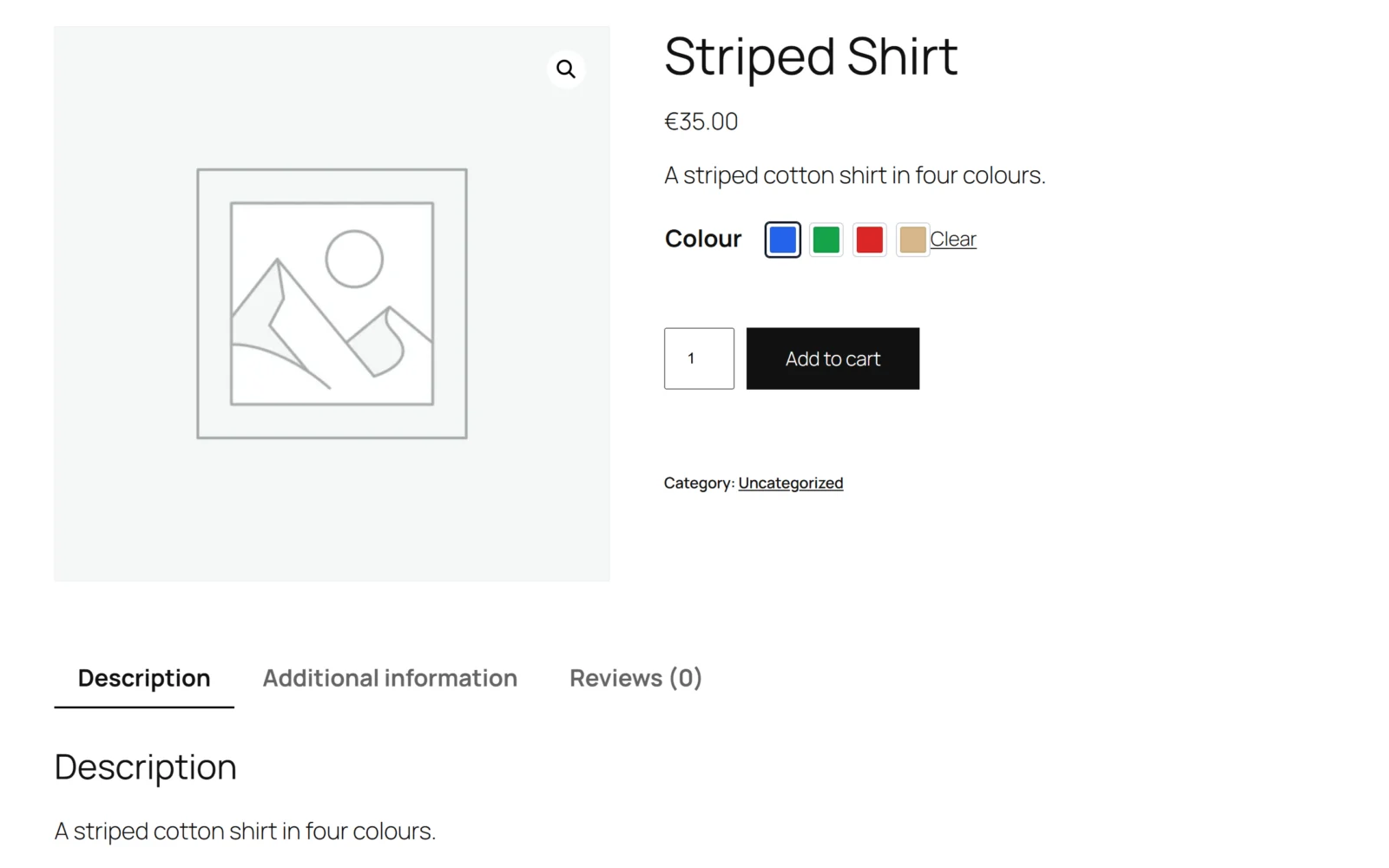
Which options get a swatch
Only options the product actually uses, in the order WooCommerce returns the product's terms. A Colour attribute with twelve terms on a product offering three gets three swatches.
The name on a swatch — its aria-label, and the text of a label swatch — is read through WooCommerce's own woocommerce_variation_option_name filter, the one that names the <option>. A translation plugin or a store that renames options through that filter therefore shows the same name on the swatch as in the dropdown.
The swatch that starts out selected is the one WooCommerce selects: the product's default variation, or the option in the address (?attribute_pa_colour=blue).
Where it works
Swatches appear wherever WooCommerce draws its variation dropdowns:
- the single product page on any classic theme,
- the single product page on a block theme whose template uses the Add to Cart Form block (WooCommerce's default Single Product template),
- a
[product_page]shortcode or a quick-view window that renders the standard form — the stylesheet and script are loaded the moment a swatch is drawn, wherever that is.
WooCommerce's newer Add to Cart + Options block draws its own variation selector without those dropdowns, so a template switched to that block shows WooCommerce's own selector instead of swatches.
What loads
- On product pages (and, in the full edition, shop and category pages while archive swatches are on), one small stylesheet and one small script, both without dependencies.
- Anywhere else, only when a swatch is actually drawn.
- No external requests of any kind.
Shop and category pages — Full edition
The archive row is deliberately simpler than the product page:
- For each variable product in the loop, the plugin finds the first of its variation attributes that is set to a swatch type.
- It lists the options the product uses, up to five (filterable), plus a +N counter for the rest.
- Each swatch is an ordinary link to the product page with the option in the address,
?attribute_pa_colour=red. WooCommerce preselects it on arrival.
Because the row is links rather than a mini add-to-cart form, it needs no JavaScript, a page cache can serve the archive to everyone, and a shopper lands on a product page where the full variation logic runs.
Appearance — Full edition
The wrapper carries classes for the shape (gmvs--square, gmvs--round), the size (gmvs--small, gmvs--medium, gmvs--large) and what to do with an unavailable option (gmvs--fade-disabled, gmvs--hide-disabled). With tooltips on, each swatch carries its name in data-gmvs-tooltip, which the stylesheet shows on hover.
Data
- Attribute types: an option (
gmvsf_settingsin the free edition,gmvs_attribute_typesin the full edition). - Colours, images and labels: term meta on each attribute term, the same keys in both editions.
- Nothing on products, variations or orders.