
There is one settings screen for every Stripe payment method: WooCommerce → Stripe (slug gmstripe-settings, capability manage_woocommerce). Everything is stored in one option, gmstripe_settings. Each payment method also has a small page of its own under WooCommerce → Settings → Payments, described at the end.
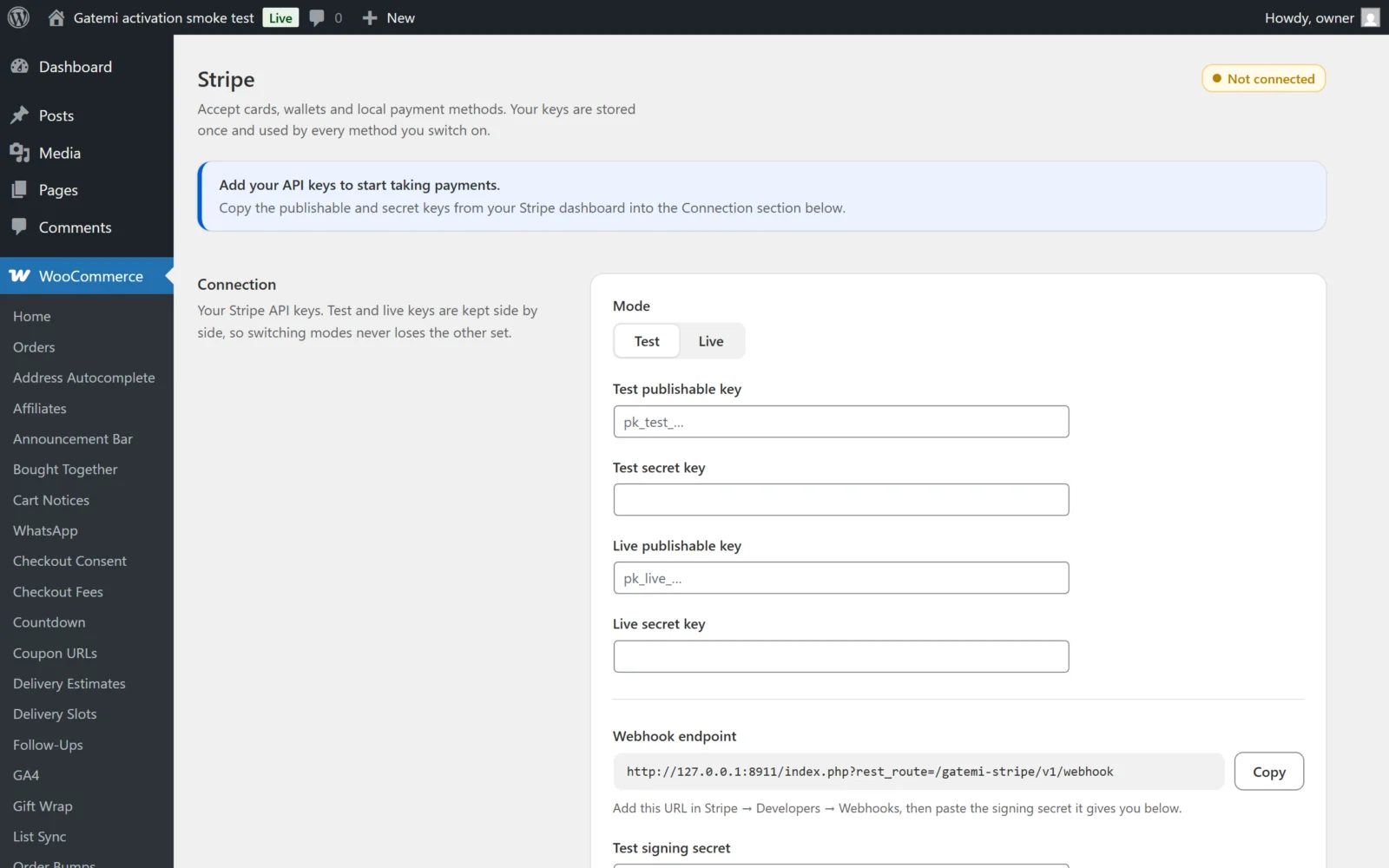
Banners at the top
The screen tells you what is wrong before a failed order does:
- Add your API keys to start taking payments. — no keys for the current mode.
- These keys are for the other Stripe mode. — a key's prefix (
pk_test_,sk_live_…) does not match Mode. - Webhooks are not set up yet. — no signing secret for the current mode.
- This site is not served over HTTPS. — live mode on a non-HTTPS site.
The status pill reads Connected — Test mode, Connected — Live mode or Not connected.
Connection
| Label | Key | Default |
|---|---|---|
| Mode | mode (test / live) |
test |
| Test publishable key | test_publishable_key |
empty |
| Test secret key | test_secret_key |
empty |
| Live publishable key | live_publishable_key |
empty |
| Live secret key | live_secret_key |
empty |
| Webhook endpoint | — (read only, with Copy) | your /wp-json/gatemi-stripe/v1/webhook |
| Test signing secret | test_webhook_secret |
empty |
| Live signing secret | live_webhook_secret |
empty |
- Mode decides which pair of keys and which signing secret are used for new payments. Both sets stay saved when you switch.
- Secret keys and signing secrets are never shown. After saving, the field holds a mask and says Saved. Leave as it is to keep the stored key. Submitting the mask keeps the key; anything else replaces it, and an empty field clears it.
- The plugin is "connected" for a mode when both its publishable and secret key are present. Payment methods are not offered until it is.
See Getting started for which webhook events to select.
Payment methods
| Key | Default |
|---|---|
enabled_methods |
card only |
One switch per method. Beside each, the screen lists its limits — the currencies and countries Stripe accepts it in — and can be saved for methods that can be charged again later. A method appears at checkout only when the store's currency (and, where it has a country limit, the customer's billing country) fits.
| Method | Currencies | Countries |
|---|---|---|
| Credit / debit card | any | any |
| Apple Pay, Google Pay | any | any |
| Link | any | any |
| SEPA Direct Debit | EUR | any |
| Bank account (ACH) | USD | US |
| BECS Direct Debit | AUD | AU |
| iDEAL | EUR | NL |
| Bancontact | EUR | BE |
| Przelewy24 | EUR, PLN | PL |
| EPS | EUR | AT |
| BLIK | PLN | PL |
| Multibanco | EUR | PT |
| MB WAY | EUR | PT |
| Klarna | any | any |
| Afterpay / Clearpay | AUD, CAD, EUR, GBP, NZD, USD | any |
| Affirm | CAD, USD | any |
| Zip | AUD | AU |
| Scalapay | EUR | BE, ES, FI, FR, IT, NL, PT |
| Billie | EUR | AT, DE, NL |
| Amazon Pay | any | any |
| Cash App Pay | USD | US |
| Revolut Pay | EUR, GBP | any |
| MobilePay | DKK, EUR, NOK, SEK | any |
| TWINT | CHF | CH |
| Swish | SEK | SE |
| Satispay | EUR | IT |
| Pay by Bank | GBP | GB |
| Alipay, WeChat Pay | any | any |
| GrabPay | MYR, SGD | any |
| FPX | MYR | MY |
| PayNow | SGD | SG |
| PromptPay | THB | TH |
| Konbini | JPY | JP |
| OXXO | MXN | MX |
| Boleto | BRL | BR |
A method also has to be enabled in your Stripe Dashboard (Settings → Payment methods). giropay and Sofort are deliberately not in the list: Stripe has retired both.
Methods that can be saved and reused: card, Apple Pay, Google Pay, Link, SEPA, ACH, BECS, Amazon Pay and Cash App Pay. Only cards (and the card wallets) can be authorised now and captured later.
Payments
Capture
| Key | Values | Default |
|---|---|---|
capture |
automatic — Take payment immediately; manual — Authorise now, capture later |
automatic |
With Authorise now, capture later, a card payment is only authorised. The order arrives On hold with the note Payment authorised by Stripe and awaiting capture. — never Processing, because a shop that ships on Processing would ship against money it has not taken. Capture or void it from the order's Order actions menu. Authorisations expire after about a week. Methods that cannot be authorised separately are always captured immediately.
Let shoppers save payment methods
| Key | Default |
|---|---|
saved_cards |
yes |
Lets signed-in shoppers save a reusable method at checkout and in My Account → Payment methods. Required for WooCommerce Subscriptions. Only methods that can be charged again are ever offered for saving.
Offer card instalments
| Key | Default |
|---|---|
installments |
no |
For orders in Mexican pesos or Brazilian reais, asks Stripe to show the card instalment plans available for that card.
Offer Link
| Key | Default |
|---|---|
link_autofill |
yes |
Stripe's Link recognises a returning shopper by email and fills in their saved card. Separate from switching on Link as a payment method.
Show instalment messaging on products
| Key | Default |
|---|---|
bnpl_messaging |
yes |
When Klarna, Afterpay / Clearpay or Affirm is switched on, shows Stripe's own instalment message under the product price (product page) and above the order total (classic cart). Their terms are supplied by Stripe.
Statement descriptor
| Key | Default |
|---|---|
statement_descriptor |
empty (your Stripe account's default) |
What the shopper sees on their bank statement, up to 22 characters. For card payments it is sent as a suffix to your account's descriptor; for other methods as the full descriptor — that is how Stripe treats each.
Express checkout
| Label | Key | Default |
|---|---|---|
| Product pages / Cart / Top of checkout | express_locations |
all three |
Where the Apple Pay and Google Pay buttons appear on classic pages (Apple Pay or Google Pay must also be switched on under Payment methods). On the Cart and Checkout blocks the buttons are registered with the blocks' own express area instead, whenever a wallet is switched on.
Apple Pay domain verification
| Label | Key |
|---|---|
| Association file contents | apple_pay_domain_file |
Paste the file Stripe gives you under Settings → Payment method domains. It is stored exactly as pasted (only surrounding whitespace removed) and served at /.well-known/apple-developer-merchantid-domain-association. Register this domain with Stripe saves first, then asks Stripe to fetch and validate it.
Advanced
| Label | Key | Default |
|---|---|---|
| Log Stripe requests | logging |
no |
Records what was sent to Stripe and what came back, with keys and card numbers stripped out, under WooCommerce → Status → Logs. Errors are always logged, whether or not this is on.
For developers
The last section lists every filter the plugin applies, with what it changes. See the Developer reference.
Per-method settings in WooCommerce → Settings → Payments
Each method is its own WooCommerce payment gateway, named Stripe — {method} (gateway id gmstripe_{method}). Its page has three settings only:
| Label | Default |
|---|---|
| Title | The method's name, e.g. Credit / debit card |
| Description | e.g. Pay securely by card. 3-D Secure is applied when your bank asks for it. |
| Order status after payment | Let WooCommerce decide (recommended); or Processing, Completed, On hold |
Keys, capture and saving are store-wide, on WooCommerce → Stripe, and are deliberately not asked again on each method. Switching a method on or off is done on WooCommerce → Stripe under Payment methods; the plugin decides each gateway's enabled state from there.
Product rules
Each product gets a Payments tab in its Product data box with Stripe payment methods: Never offer these methods and Offer only these methods. Leave both empty to offer whatever the store offers. Blocking wins over allowing, and a rule on any item applies to the whole cart.