
These docs cover both editions:
- Gatemi Shipping — the free edition, coming to wordpress.org. It adds a Table rates (Gatemi) method to your shipping zones: price bands by cart subtotal or weight, typed one per line.
- Gatemi Shipping for WooCommerce — the full edition, sold on gatemi.com. It adds a Shipping rules method built from a table of rules with conditions, stacking costs and four calculation modes, and a Rules screen that hides or keeps shipping and payment methods.
Anything marked Full edition is only in the paid plugin.
The two editions are separate shipping methods with separate settings. On upgrading, the full edition adds a Shipping rules method beside each free one and turns its bands into rule rows, once — see FAQ.
Requirements
| Free edition | Full edition | |
|---|---|---|
| WordPress | 6.4 or later | 6.4 or later |
| PHP | 7.4 or later | 7.4 or later |
| WooCommerce | 8.0 or later (tested up to 10.9) | 8.0 or later (tested up to 10.9) |
Both editions declare compatibility with HPOS and the Cart and Checkout blocks, and both carry Requires Plugins: woocommerce.
Install
Free edition: coming to wordpress.org. Once it is listed, go to Plugins → Add New, search for "Gatemi Shipping", install and activate.
Full edition:
- Download the zip from your gatemi.com account.
- Go to Plugins → Add New → Upload Plugin, upload it and activate. Activation creates two tables,
{prefix}gmship_ratesand{prefix}gmship_restrictions. - Go to WooCommerce → Settings → Shipping → Rules, paste your licence key in License & updates and press Activate. The key switches on updates and support; the plugin works without it.
While the full edition is active the free edition stands down (it says so in a line under its row on the Plugins screen), so you can deactivate it.
First setup — free edition
- Go to WooCommerce → Settings → Shipping and open a zone (or create one).
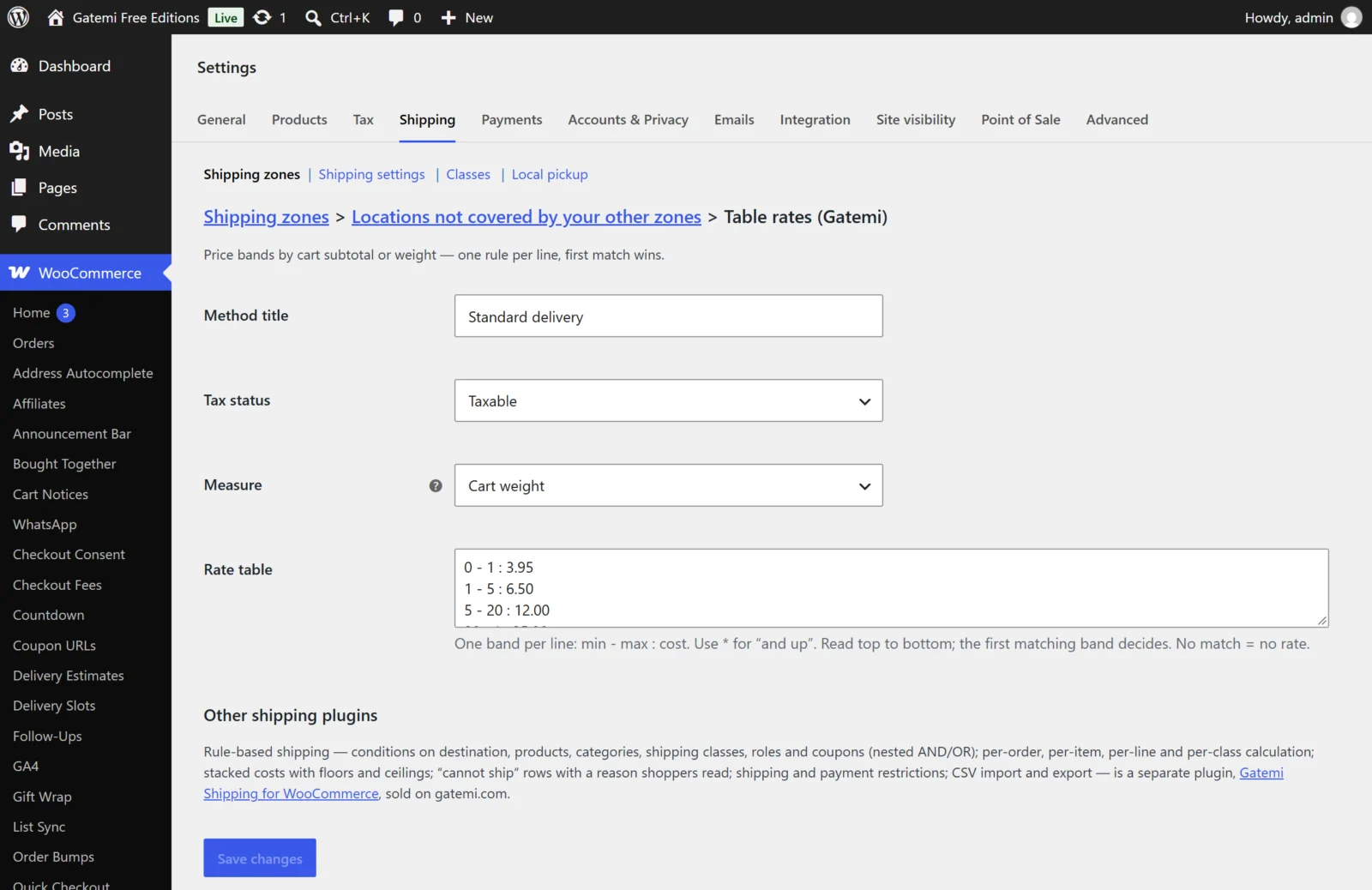
- Press Add shipping method, choose Table rates (Gatemi) and add it.
- Edit the new method and set:
-
Method title — what the shopper sees, for example "Standard delivery".
-
Measure — Cart subtotal or Cart weight.
-
Rate table — one band per line,
min - max : cost. The default is:0 - 49.99 : 7.95 50 - * : 0which charges 7.95 below 50 and nothing from 50 up.
-
- Save.
First setup — Full edition
- Go to WooCommerce → Settings → Shipping, open a zone, press Add shipping method and choose Shipping rules.
- Edit it. Give it a Name — "Standard delivery".
- Under Rules, press Add rule. In the new row:
- type a rule name (shown at checkout in per-order mode), for example "Standard";
- under Applies when, add a condition: Weight — is at most —
5; - under And charges, type
4.95in Flat.
- Add a second rule: Weight is more than
5, Flat4.95and Per weight unit0.80. - Leave Calculate rates on Per order — one charge for the whole delivery and save.
Rules are read from the top down; the first that matches decides the rate unless you untick Stop here when this rule matches. See Settings.
Check it works
- Open your shop in a private window, add a product with a weight (or a price, for the free edition's subtotal measure) and go to the cart.
- Enter an address inside the zone. The method's rate appears in the shipping options.
- Change the cart so another band or rule applies, and check the rate follows.
- Make the cart match nothing — for example more than your highest band, if the last line is not
*. The method offers no rate rather than a guess.
If nothing appears at all, see FAQ and troubleshooting.
Next
- Settings — every field of both methods and the Rules screen.
- How it works — the order of operations, the calculation modes and restrictions.
- Developer reference — filters, the tables and the CSV format.
- Need only restrictions? The free Gatemi Conditional Shipping writes into the same restrictions table.