
Gatemi Review Reminders asks your customers for a review a while after their order, and lets them add a photo to it. The email carries one link, signed for that order, that opens a short page listing the products the order bought; each one links to that product's own review form, where the photo field sits beside the text.
Before a reminder goes, the plugin looks at the order again. An order that has been refunded or cancelled in the meantime is not asked, a line that was refunded in full drops out, and a product the customer has already reviewed is left out.
There are two editions:
- Gatemi Review Reminders — the free edition. One reminder, one photo per review.
- Gatemi Review Reminders for WooCommerce — the full edition, sold on gatemi.com. A sequence of reminders, up to ten photos per review, products and categories you never ask about, a thank-you coupon when a review is approved, and your own sender name and unsubscribe wording.
Both editions store their settings, claims and photos in the same places, so upgrading keeps everything and a link already emailed still works.
Requirements
| Minimum | |
|---|---|
| WordPress | 6.4 |
| PHP | 7.4 |
| WooCommerce | 8.0 (tested up to 10.9) |
Both editions declare compatibility with WooCommerce's High-Performance Order Storage (HPOS) and the Cart and Checkout blocks. The free edition makes no HTTP request of any kind; the full edition contacts gatemi.com only to check its licence and offer updates, once a key is entered.
Reviews themselves are WordPress comments on the product, so the product's Reviews must be enabled (WooCommerce → Settings → Products → Enable product reviews).
Install the free edition
The free edition is coming to wordpress.org. Until then:
- Go to Plugins → Add New → Upload Plugin, choose
gatemi-review-reminders.zipand press Install Now. - Press Activate.
Install the full edition
- Download
gatemi-review-reminders-for-woocommerce.zipfrom your gatemi.com account. - Upload it at Plugins → Add New → Upload Plugin and activate it.
- Go to WooCommerce → Review Reminders, paste your
GM-XXXXX-…key in the License & updates card and press Activate.
If the free edition is still active, it stands down completely while the full edition runs — no hooks, no cron, no email — and says so under its row on the Plugins screen. Delete it whenever you like.
First setup
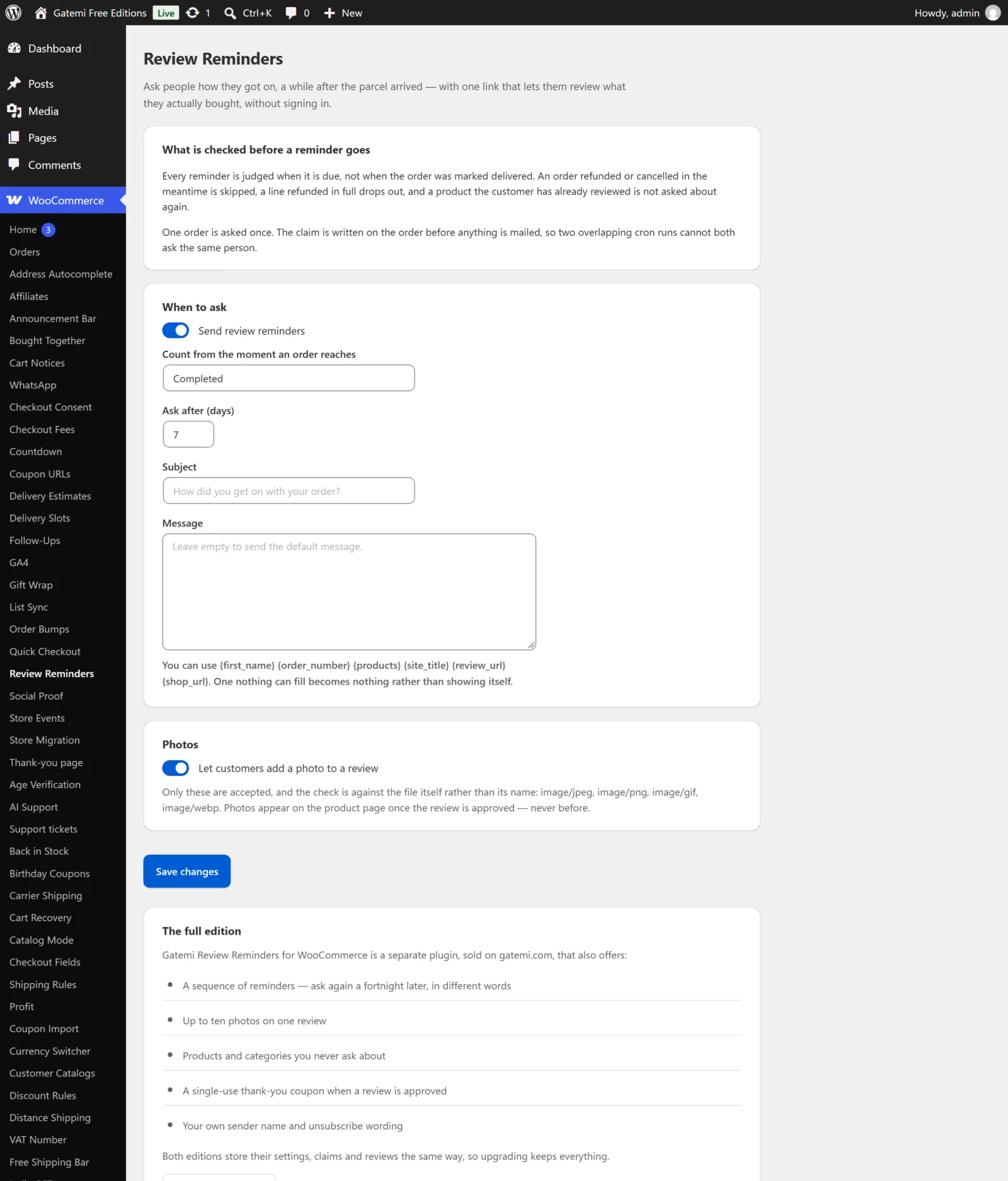
- Go to WooCommerce → Review Reminders.
- Leave Send review reminders ticked.
- In Count from the moment an order reaches, choose the status you mark when an order has gone out — usually Completed.
- Set Ask after (days). The default is 7.
- Leave Subject and Message empty to send the default wording, or write your own using the placeholders listed under the box.
- Leave Let customers add a photo to a review ticked if you want photo reviews.
- Full edition: add more reminders with Add another reminder, list products or categories to leave alone, and decide on a thank-you coupon. See Settings.
- Press Save changes.
Check it works
- Place a test order with your own email address as the billing email and mark it Completed.
- Set Ask after (days) to
0for the test and save. - Reminders are sent by an hourly WordPress cron event (
gmrrf_send_remindersin the free edition,gmrr_send_remindersin the full edition). Load a few pages of the site, or run cron from a tool such as WP Crontrol, and the email arrives. - Open the Leave a review link. The page lists the order's products; follow one to its review form.
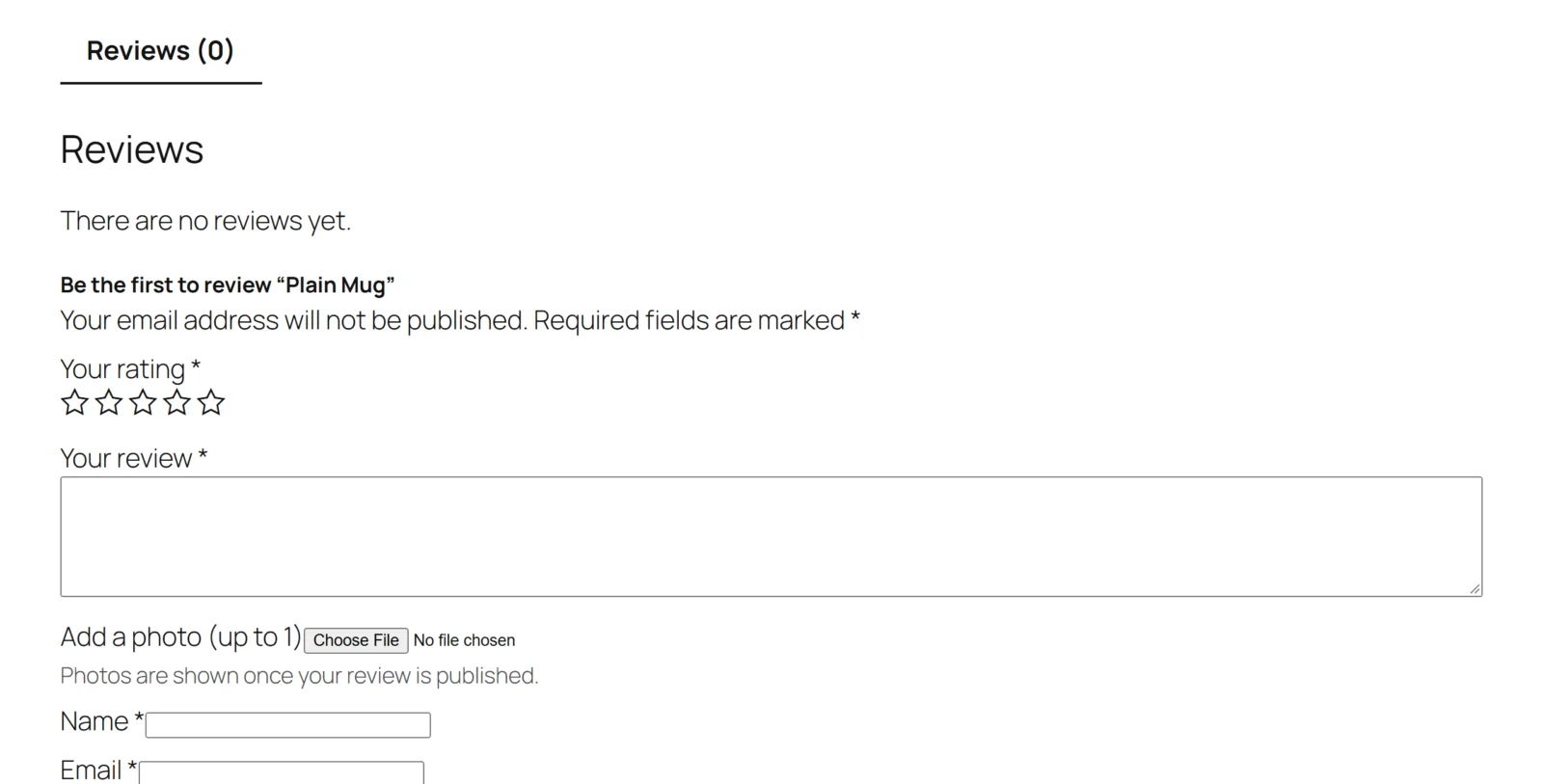
- Write a review and attach a JPG or PNG. Approve it under Comments (or Products → Reviews) and the photo appears with the review.
Set Ask after (days) back to your real value afterwards.
Next
- Settings — every setting with its key and default.
- How it works — the link, photo, ask and claim rules.