
Gatemi Per-Product Shipping lets you write what it costs to send a product on the product itself. At the cart, the costs of everything in the box are added up and offered as one shipping rate, alongside whatever else your shipping zone offers.
These docs cover both editions:
- Gatemi Per-Product Shipping — the free edition, coming to wordpress.org.
- Gatemi Per-Product Shipping for WooCommerce — the full edition, sold on gatemi.com.
Anything marked Full edition is only in the paid plugin. Everything else is in both.
Requirements
| Free edition | Full edition | |
|---|---|---|
| WordPress | 6.4 or later | 6.4 or later |
| PHP | 7.4 or later | 7.4 or later |
| WooCommerce | 8.0 or later | 8.0 or later |
Both editions declare compatibility with High-Performance Order Storage (HPOS) and with the Cart and Checkout blocks. The plugin creates no database tables and loads no JavaScript on your storefront.
1. Install
Free edition: coming to wordpress.org. Until it is listed, install the zip through Plugins → Add New → Upload Plugin and activate it.
Full edition: download the zip from your gatemi.com account, go to Plugins → Add New → Upload Plugin, upload and activate. Then open WooCommerce → Per-Product Shipping and enter your licence key in the License & updates card. The key switches on one-click updates; the plugin works without one.
You only need one edition. If both are active, the free edition stands down and says so in a row under its entry on the Plugins screen. Both editions use the same settings, the same product costs and the same shipping method, so nothing changes for your shoppers.
2. Write a cost on a product
- Go to Products, open a product and scroll to Product data → Shipping.
- Fill in Shipping cost — what it costs to send the first one.
- Fill in Each additional — what each one after the first adds. Leave it empty to charge the same again for every unit; type
0if extra units go in the same box for nothing. - Update the product.
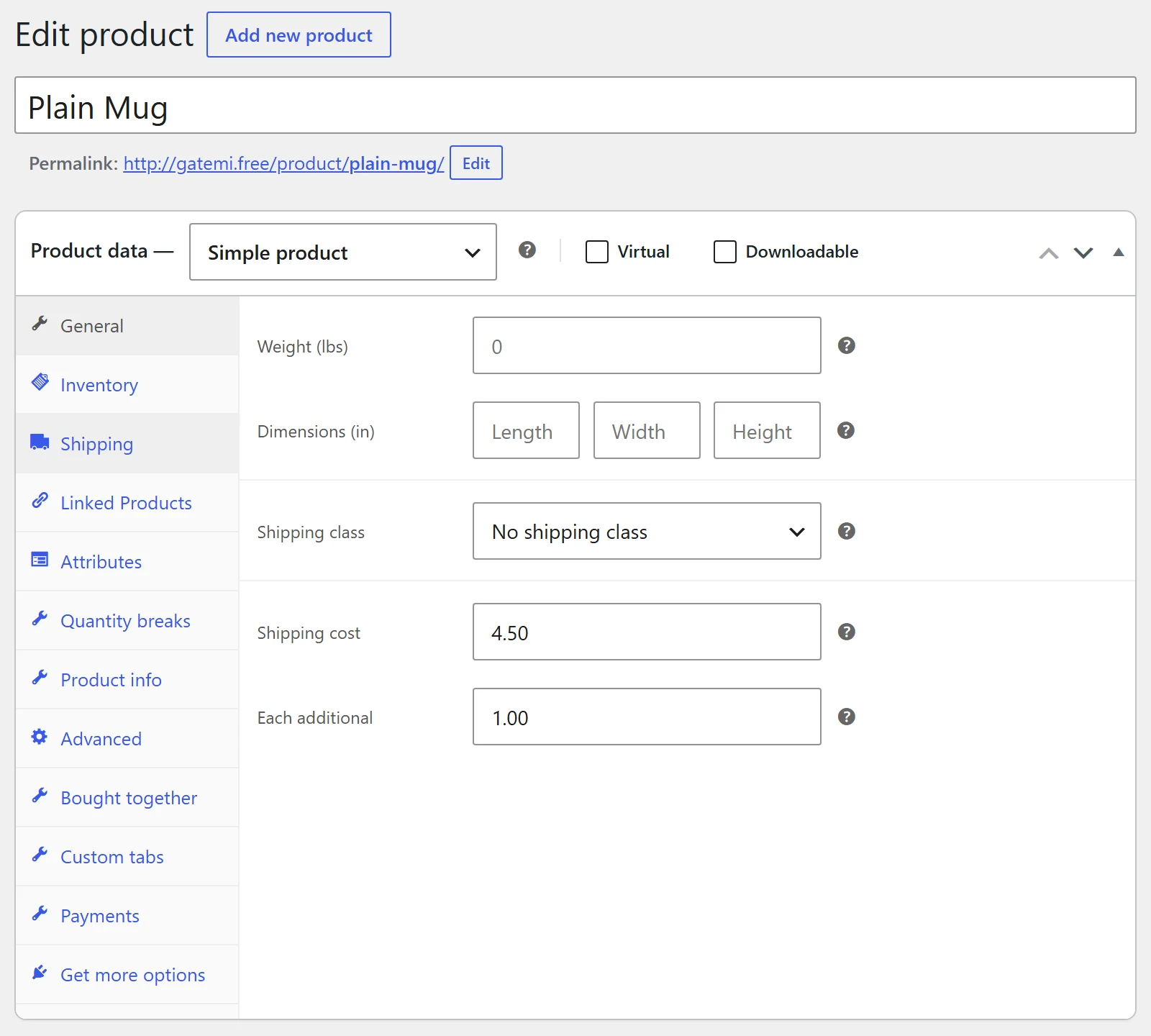
Full edition: a variation has the same two boxes, below its dimensions, for the colour or size that costs more to send. A shipping class has them too, under Products → Shipping classes.
3. Decide on the shop-wide fallback
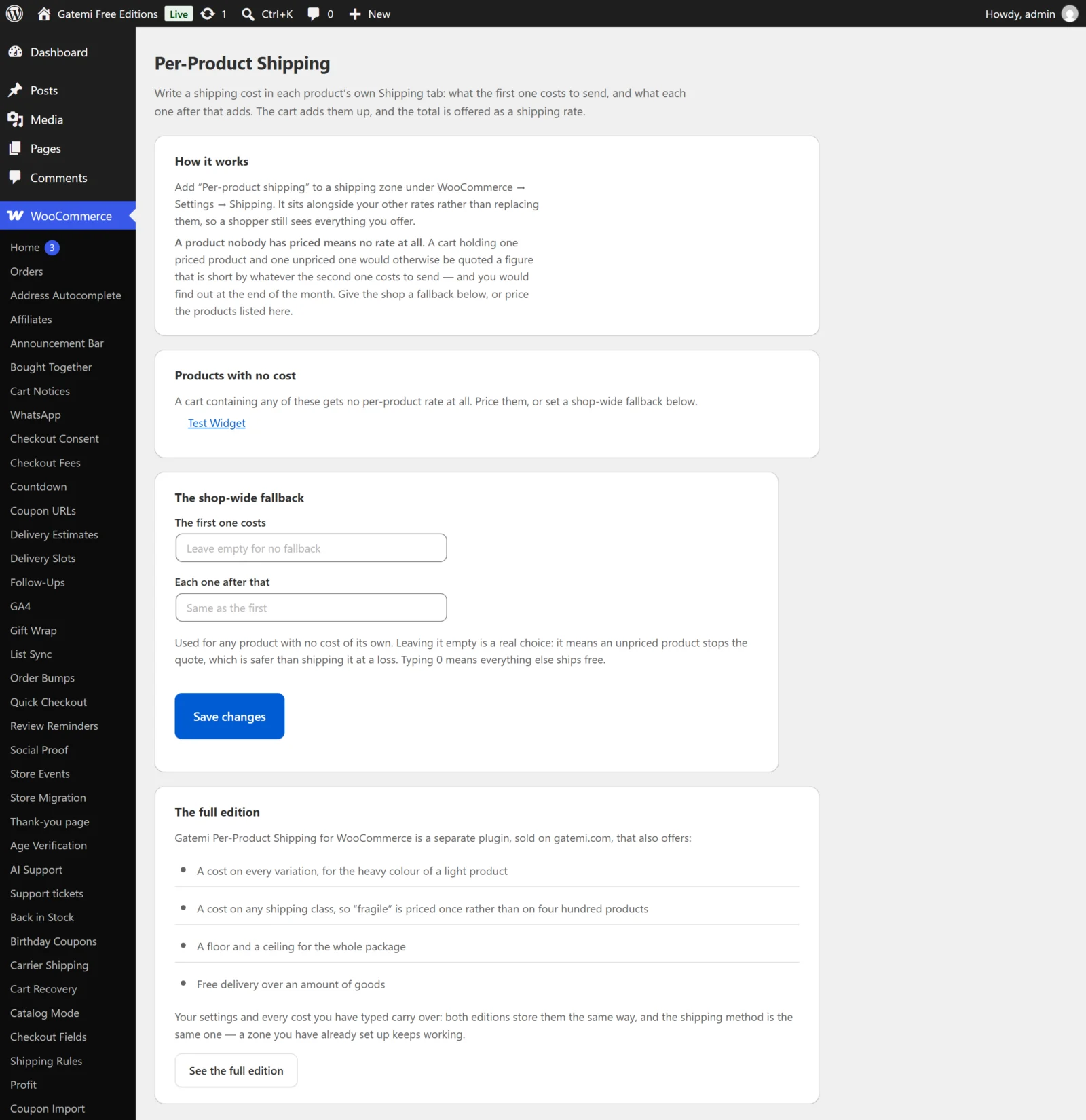
Open WooCommerce → Per-Product Shipping. The Products with no cost card lists products that would stop a quote (see below). Under The shop-wide fallback you choose what happens to a product that has no cost:
- Leave it empty — a cart holding an unpriced product gets no per-product rate. This is the safe default.
- Type an amount — unpriced products ship at that amount.
- Type
0— unpriced products ship free. That is your decision, made on purpose.
4. Add the method to a shipping zone
- Go to WooCommerce → Settings → Shipping and open a zone.
- Press Add shipping method and choose Per-product shipping.
- Optionally edit it: Name (what the shopper sees, default "Shipping") and Tax status (Taxable or None).
- Save. Repeat for every zone the method should be offered in.
The method sits beside your other methods. It does not replace them.
5. Check it works
- Add a product with a cost to the cart, in a private window.
- Go to the cart and enter an address in the zone you set up.
- The rate appears under the name you gave it, with the cost of the first unit plus each additional unit.
- Now add a product with no cost and no fallback. The per-product rate disappears — that is the completeness rule at work, explained in How it works.
Worked example: a mug with Shipping cost 4.00 and Each additional 1.50, three in the cart: 4.00 + 1.50 + 1.50 = 5.50.
Next steps
- Settings — every box, its key and its default.
- How it works — where a cost comes from and why a missing one stops the quote.
- FAQ and troubleshooting
- Developer reference