
Gatemi Order Approval holds orders until somebody in your shop says yes. The customer places the order as normal, but no money is taken. The order waits in an Awaiting approval status. Approve it and the customer is emailed a link to pay; decline it and the order is cancelled and the customer is told why.
There are two editions, and this manual covers both:
- Gatemi Order Approval — the free edition. Every order is held for approval, with the same checkout guarantee and the same Approve and Decline buttons.
- Gatemi Order Approval for WooCommerce — the full edition, sold on gatemi.com. It holds only the orders you choose — over an amount, from chosen customer roles, or containing chosen products or categories — and lets you write the checkout wording and both emails.
Requirements
Both editions need:
- WordPress 6.4 or later
- PHP 7.4 or later
- WooCommerce 8.0 or later (tested up to 10.9)
Both declare compatibility with High-Performance Order Storage (HPOS) and the Cart and Checkout blocks. The approval step is a payment method, so it appears on the classic checkout and on the Checkout block alike.
Install the free edition
The free edition is coming to wordpress.org. Once it is listed there:
- Go to Plugins → Add New.
- Search for "Gatemi Order Approval".
- Click Install Now, then Activate.
Install the full edition
- Sign in to your gatemi.com account and download the plugin zip.
- Go to Plugins → Add New → Upload Plugin, choose the zip, then Install Now and Activate.
- Go to WooCommerce → Order Approval and find License & updates.
- Paste your licence key (
GM-XXXXX-XXXXX-XXXXX-XXXXX-XXXXX) and click Activate.
The key switches on one-click updates. Without one the plugin works and makes no requests to gatemi.com. If the free edition is installed, it stands down on its own when the full edition is active.
First setup
- Go to WooCommerce → Order Approval.
- Make sure Hold orders for approval is ticked (it is on from the moment the plugin is activated).
- Full edition: choose Which orders — Every order, Orders over an amount, Orders from chosen customer roles or Orders containing chosen products or categories — and fill in the field that goes with it.
- Full edition: optionally write the payment method's name and description, and the subject and message of the two emails.
- Click Save changes.
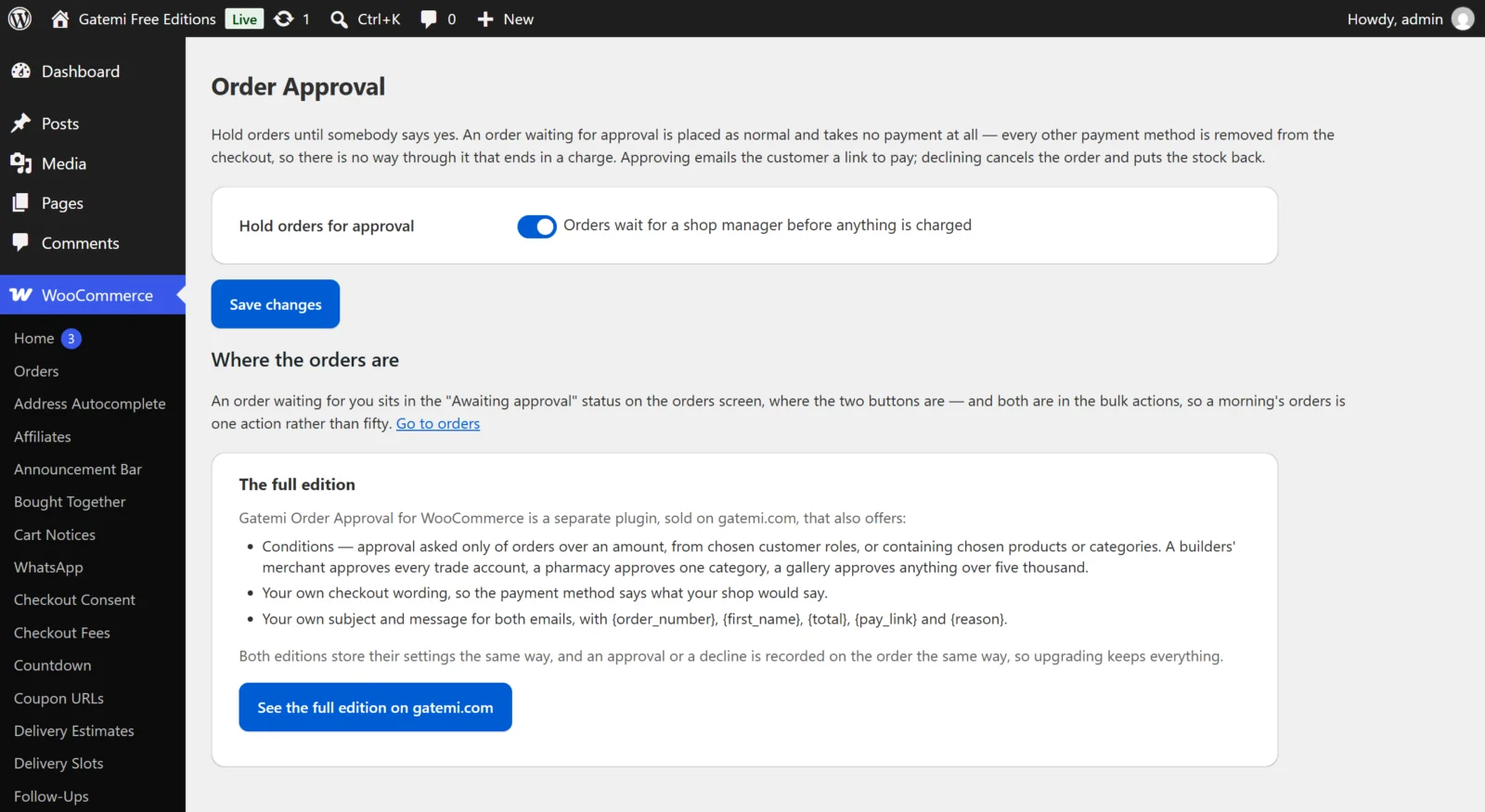
There is nothing to configure under WooCommerce → Settings → Payments. The plugin adds a payment method called Order approval there; leave it enabled. Its wording is set on the plugin's own screen.
WooCommerce's "Hold stock" setting
An approved order is moved to Pending payment while the customer pays. WooCommerce normally cancels unpaid Pending payment orders once they are older than Hold stock (minutes) under WooCommerce → Settings → Products → Inventory; the plugin keeps approved orders out of that sweep, so you do not need to change the setting. A waiting order holds its stock from the moment it is placed until you decide. See the FAQ.
Check it works
- In a private window, add a product to the cart and go to the checkout.
- The only payment method offered is Submit for approval, with the line "We will review your order and email you a link to pay once it is approved. Nothing is charged now."
- Place the order. You land on the order-received page and the cart is empty.
- In WooCommerce → Orders, the order shows Awaiting approval.
- Open it. An Awaiting approval box in the side column has Approve, Decline and a box for the reason.
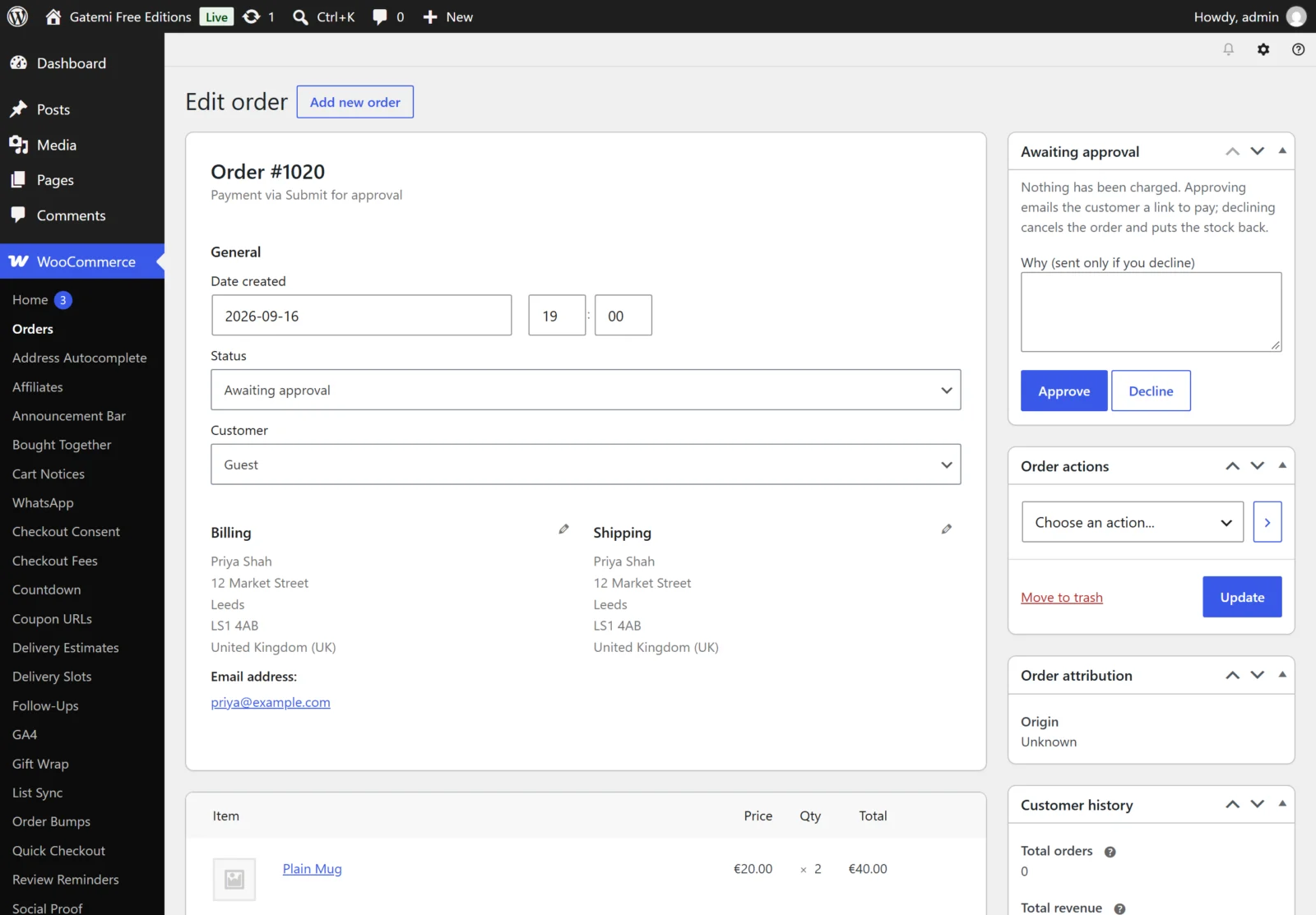
- Approve it. The order moves to Pending payment and the customer is emailed "Your order 1042 is approved — please complete your payment" with a link to pay.
- Open the link as the customer: WooCommerce's own pay page offers your normal payment methods.
Full edition: with a condition set, check an order that does not meet it — the checkout shows your normal payment methods and the approval method is gone.