
Gatemi Customer Catalogs lets you keep some products for some customers. A catalog is a set of products and categories, and an audience — the customer roles (and, in the full edition, the individual customers) it is for. A product in a catalog is shown to and sold to that catalog's audience, and hidden from everybody else.
There are two editions, and this manual covers both:
- Gatemi Customer Catalogs — the free edition. One catalog, for the roles you choose (including visitors who are not signed in), holding products and categories.
- Gatemi Customer Catalogs for WooCommerce — the full edition, sold on gatemi.com. As many catalogs as you need, named customers as well as roles, a percentage off for a catalog, per-product price lists, a "Your price" badge, and catalog prices kept out of search engines' structured data.
Both editions store catalogs in the same option, so upgrading keeps everything.
Requirements
| Free edition | Full edition | |
|---|---|---|
| WordPress | 6.4 or later | 6.4 or later |
| PHP | 7.4 or later | 7.4 or later |
| WooCommerce | 8.0 or later (tested up to 10.9) | 8.0 or later (tested up to 10.9) |
Both declare compatibility with High-Performance Order Storage (HPOS) and the Cart and Checkout blocks.
Install
Free edition: coming to wordpress.org. Once it is listed, go to Plugins → Add New, search for "Gatemi Customer Catalogs", install and activate.
Full edition:
- Buy it on the Customer Catalogs product page.
- Download the zip from your gatemi.com account.
- Plugins → Add New → Upload Plugin, upload, Activate.
- Go to WooCommerce → Customer Catalogs, find License & updates, paste your licence key and press Activate. The plugin works without a key; the key switches on one-click updates and support.
If both editions are active, the free edition stands down and says so in a row under its entry on the Plugins screen.
The one rule to know first
A product in no catalog stays visible to everybody. Putting a product in a catalog is what restricts it. Activating the plugin hides nothing; your shop looks exactly as it did until you put something in a catalog.
Your first catalog — free edition
You need the role your trade customers have. WordPress' own roles are customer, subscriber and so on; a wholesale plugin may add one such as wholesale_customer. Use guest for visitors who are not signed in.
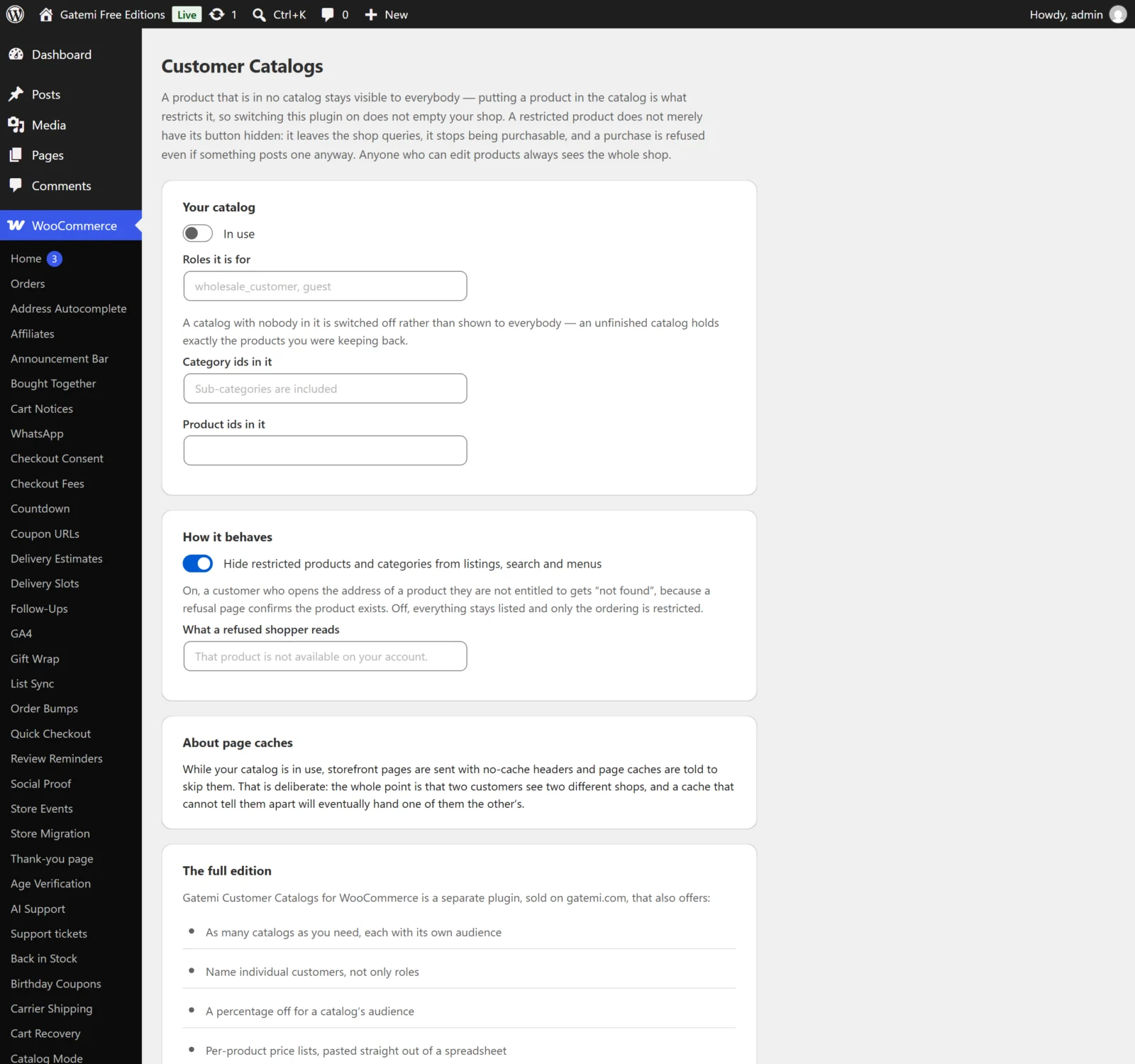
- Go to WooCommerce → Customer Catalogs.
- Under Your catalog, tick In use.
- In Roles it is for, type the roles, separated by commas — for example
wholesale_customer. - In Category ids in it, type the ids of the categories to keep back. Sub-categories are included. (Find an id by hovering over the category under Products → Categories; it is the
tag_IDin the address.) - In Product ids in it, type any single products to keep back.
- Leave Hide restricted products and categories from listings, search and menus ticked.
- Press Save changes.
Your first catalog — Full edition
- Go to WooCommerce → Customer Catalogs and press Add a catalog.
- Give it a Name (for example "Trade accounts"), tick In use.
- Fill in Roles it is for and/or Customer ids it is for.
- Fill in Category ids in it and/or Product ids in it.
- Optionally set a Percentage off, and Prices of its own — one line per product:
142: 18.50. - Press Save changes.
Check it works
You are a shop manager, so you see everything: anyone who can edit products is never restricted. Check from a customer's side instead:
- Open a private browser window (you are now a guest).
- Open the shop. The restricted products and categories are gone from the listings, search and category menus.
- Paste the address of a restricted product. You get "page not found".
- Sign in as a customer with one of the catalog's roles. The products are back and can be bought.
- Full edition: with a percentage or a price of its own, that customer sees the catalog price, with a Your price badge beside it.
If a page cache serves a guest a page meant for a trade customer, see FAQ and troubleshooting.