
These docs cover both editions:
- Gatemi Cart Recovery — the free edition, coming to wordpress.org: one recovery email per cart.
- Gatemi Cart Recovery for WooCommerce — the full edition, sold on gatemi.com: a sequence of as many emails as you like, a recovery report and a configurable give-up limit.
Anything marked Full edition is only in the paid plugin.
How it works in one paragraph: when a shopper types their email address on the checkout, their cart is kept. If they leave without ordering, an email goes out after the delay you choose, with a link that puts the cart back exactly as it was — at today's prices. When they (or anyone with the same email) order, every open cart for that address is closed, so nobody is chased after paying.
Requirements
| Free edition | Full edition | |
|---|---|---|
| WordPress | 6.4 or later | 6.4 or later |
| PHP | 7.4 or later | 7.4 or later |
| WooCommerce | 8.0 or later (tested up to 10.9) | 8.0 or later (tested up to 10.9) |
| Checkout | the classic (shortcode) checkout or the Checkout block | the classic (shortcode) checkout or the Checkout block |
| Cron | working WP-Cron | working WP-Cron |
Carts are captured on the classic checkout ([woocommerce_checkout]) and on the Checkout block alike.
Emails are sent with wp_mail(), so your site needs working email (an SMTP plugin is a good idea on most hosts).
1. Install
Free edition: coming to wordpress.org; until then not available from Plugins → Add New.
Full edition: download the zip from your gatemi.com account, go to Plugins → Add New → Upload Plugin, upload and activate. Enter your licence key in the License & updates card on WooCommerce → Cart Recovery.
On activation the plugin creates its table(s) and schedules an hourly job.
2. Set it up
Go to WooCommerce → Cart Recovery.
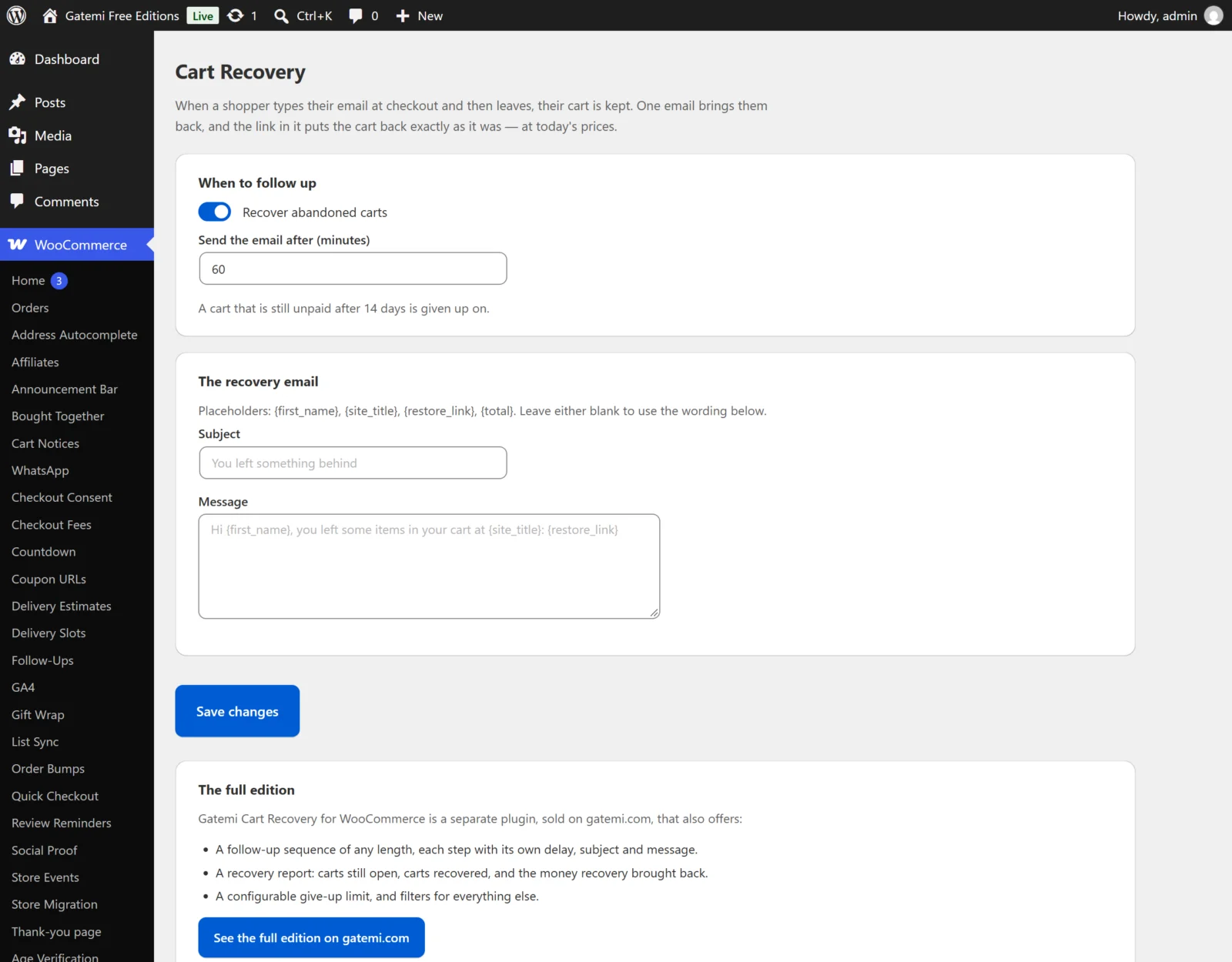
Free edition:
- Keep Recover abandoned carts ticked.
- Send the email after (minutes) — how long after the shopper's last activity the email goes out. The default is 60.
- Under The recovery email, write a Subject and Message, or leave them blank for the default wording. Use
{first_name},{site_title},{restore_link}and{total}. - Click Save changes.
Full edition: set A cart counts as abandoned after (minutes) and Stop chasing after (days), then build The follow-up sequence: each step has Send after (minutes from abandonment), a Subject and a Message. Add a step for more. See Settings.
Always include {restore_link} in the message — it is the one-click way back.
3. Check it works
- In a private window, add a product to the cart and go to the checkout.
- Type an email address you can read into the billing email field, and a first name, then click elsewhere so the checkout updates. Leave without ordering.
- Wait for the delay to pass and for WP-Cron to run (the job runs hourly — a cron viewer such as WP Crontrol can run
gmcrf_process(free) orgmcr_process(full) now). - The email arrives. Open the link in a fresh browser: the cart is filled and you land on the checkout with "Welcome back — your cart is just as you left it."
- Place the order. That cart is closed and no further email is sent.
Full edition: the How recovery is going card shows carts still open, recovered, the value recovered and carts given up on.