
Gatemi Age Verification asks a visitor to confirm their age before they can see — and, more importantly, buy — what you sell. It can gate the whole site, every shop page, or only the products you mark as restricted.
The gate is more than a panel over the page. Until the age is confirmed, a restricted product is not purchasable as far as WooCommerce is concerned: adding it to the cart is refused, and a cart that already holds one cannot be paid for. That covers the classic cart, the Cart and Checkout blocks and the Store API, because they all ask WooCommerce the same question.
These docs cover both editions:
- Gatemi Age Verification — the free edition, on wordpress.org.
- Gatemi Age Verification for WooCommerce — the full edition, sold on gatemi.com.
Anything marked Full edition is only in the paid plugin.
An age gate is a declaration, not an identity check. The plugin records what a visitor declared and when.
Requirements
| Free edition | Full edition | |
|---|---|---|
| WordPress | 6.4 or later | 6.4 or later |
| PHP | 7.4 or later | 7.4 or later |
| WooCommerce | 8.0 or later | 8.0 or later |
Both editions declare compatibility with HPOS and the Cart and Checkout blocks.
1. Install
Free edition: go to Plugins → Add New, search for "Gatemi Age Verification", install and activate.
Full edition: download the zip from your gatemi.com account, upload it under Plugins → Add New → Upload Plugin and activate. Open WooCommerce → Age Verification and enter your licence key in License & updates to switch on updates and support.
Use one edition. If both are active, the free edition stands down and says so in a row under its entry on the Plugins screen.
The gate is off after installing. Nothing changes on your shop until you switch it on.
2. Switch it on
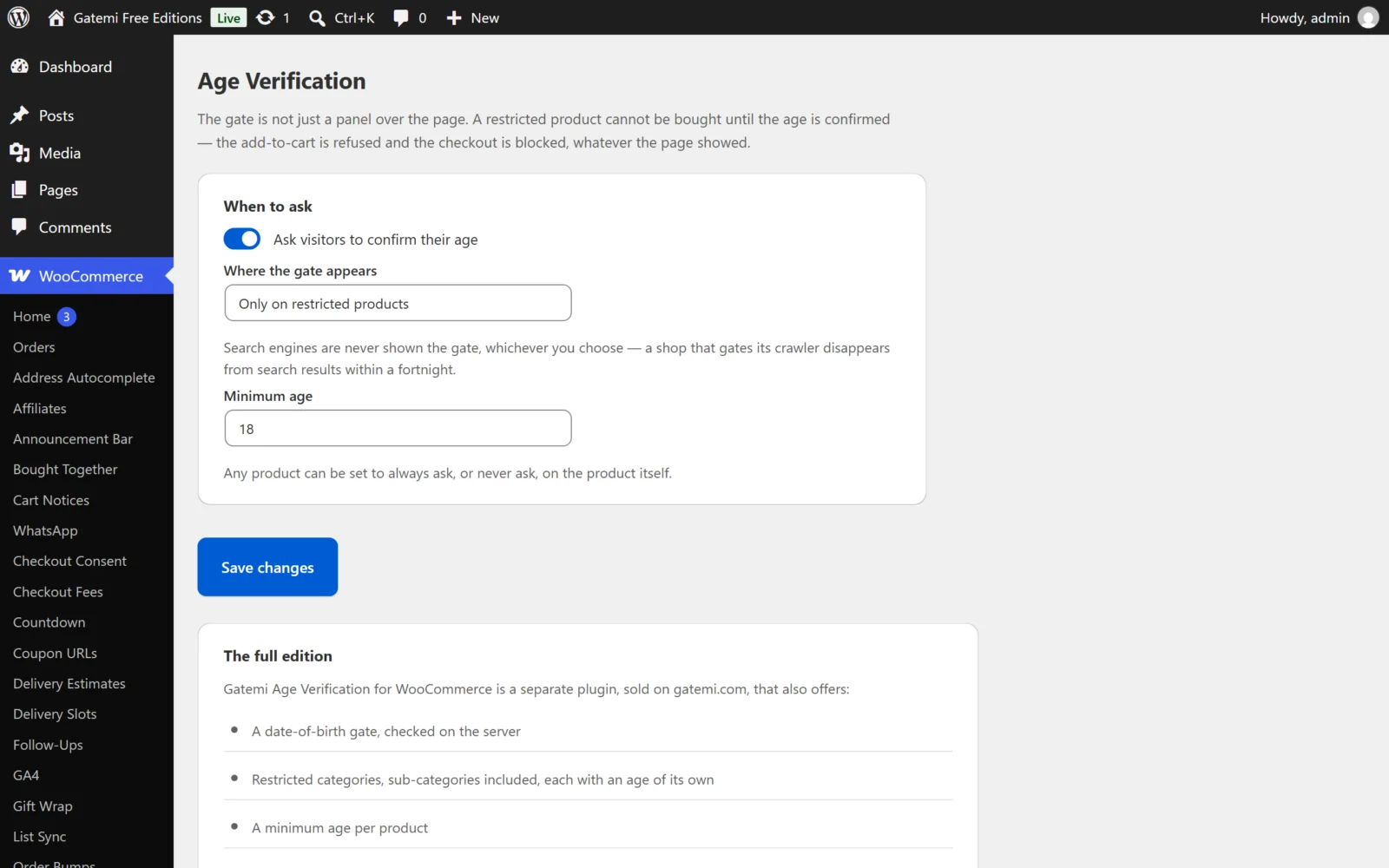
- Go to WooCommerce → Age Verification.
- Tick Ask visitors to confirm their age.
- Choose Where the gate appears:
- Only on restricted products — the default. Nothing is gated until you mark a product (step 3).
- On every shop page — the shop, product, category, cart, checkout and My Account pages, and every product.
- On the whole site — every front-end page, and every product.
- Set Minimum age (default 18).
- Press Save changes.
3. Mark restricted products
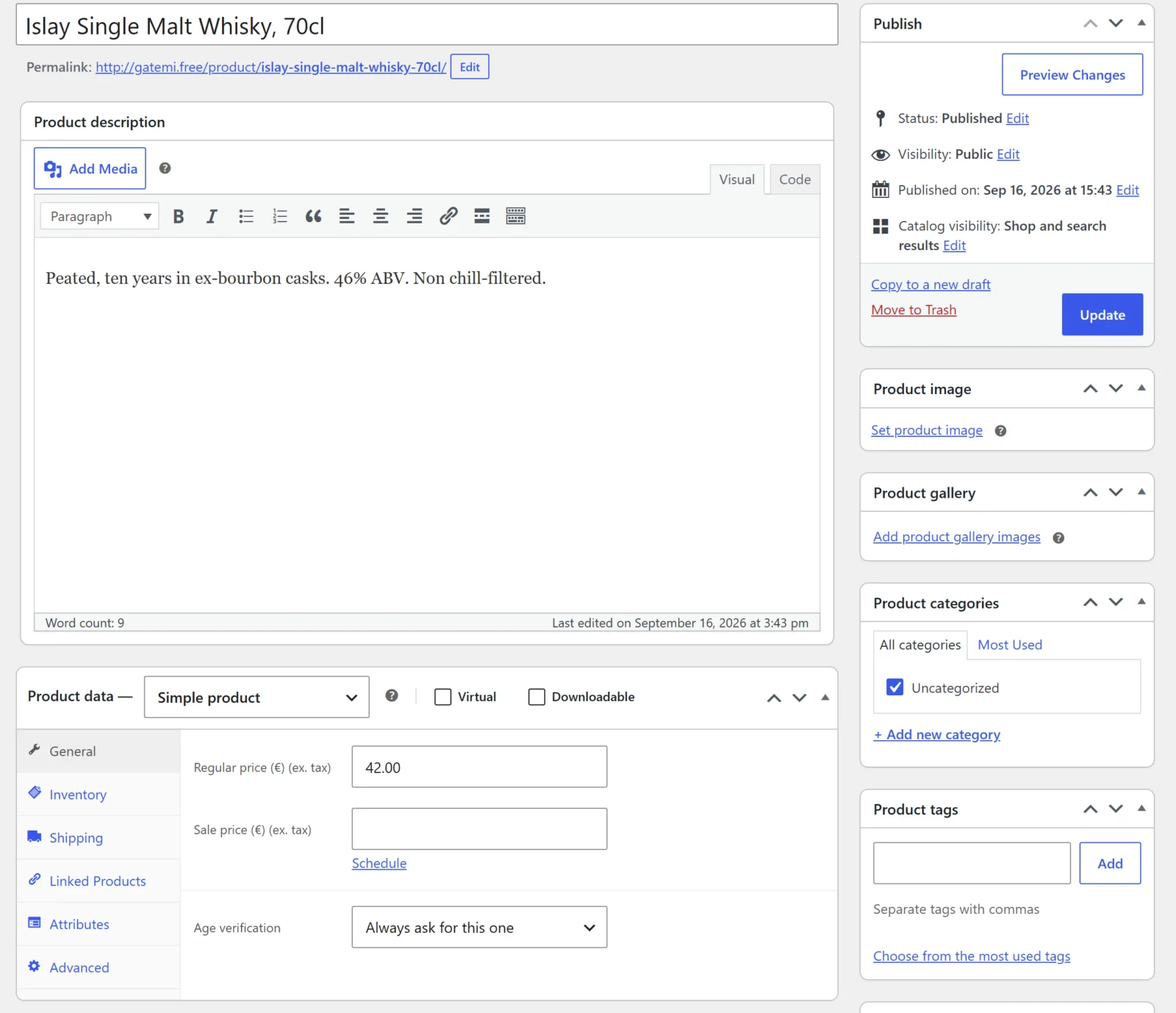
With Only on restricted products, open each product that needs a gate:
- Products → Edit product → Product data → General.
- Set Age verification to Always ask for this one.
- Update the product.
The same field can say Never ask for this one, which exempts a product even when the whole shop is gated — useful for gift cards or merchandise. Follow the store setting is the default.
Full edition: you can also restrict whole categories (sub-categories included), give a category or a product its own minimum age, and exempt user roles. See Settings.
4. Test it
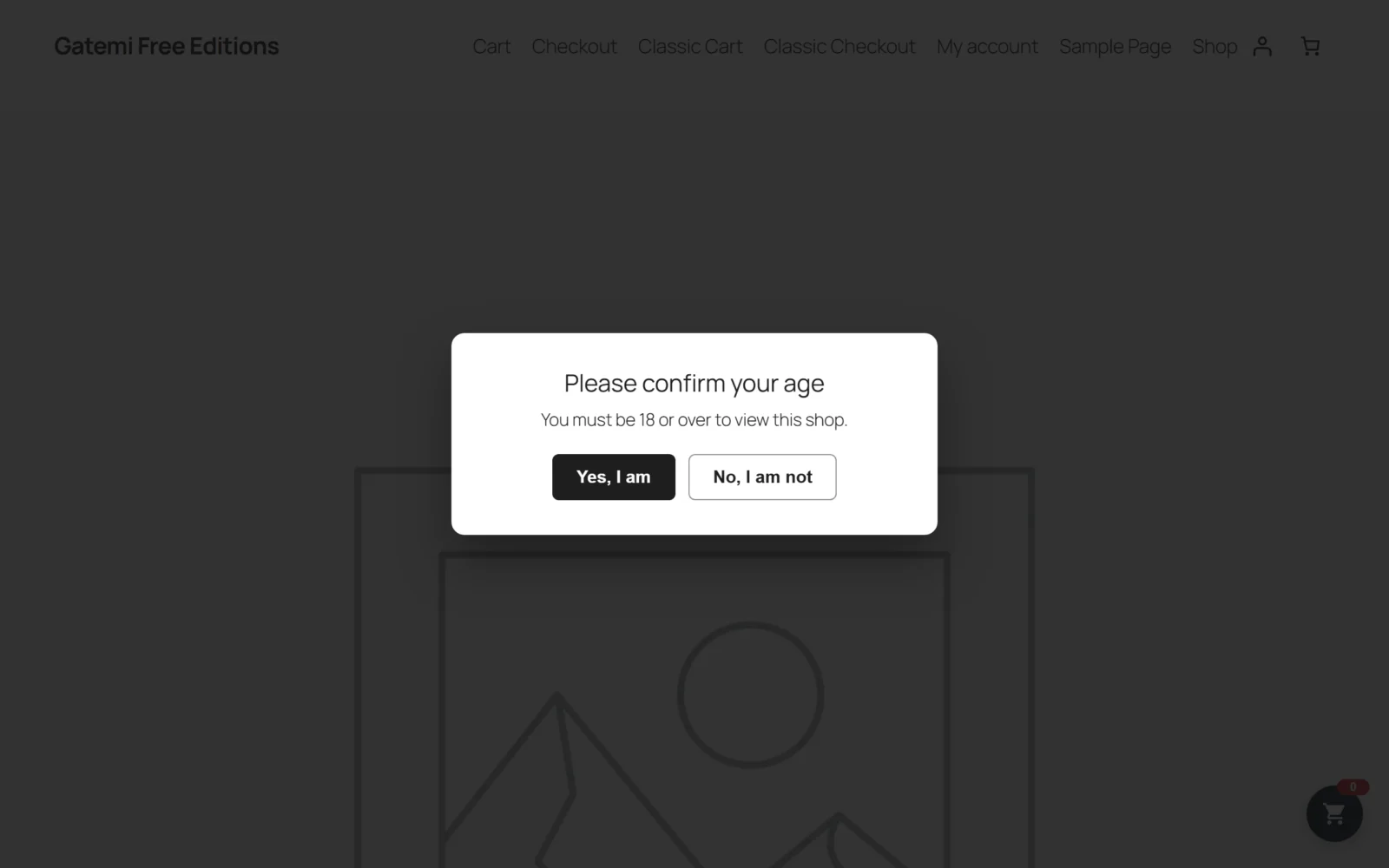
- Open a restricted product in a private window.
- The gate covers the page: "Please confirm your age — You must be 18 or over to view this shop", with Yes, I am and No, I am not.
- Without answering, try
https://your-shop.example/?add-to-cart=<product id>. WooCommerce refuses: "You must confirm you are 18 or over before buying this." - Press Yes, I am. The page reloads without the gate, and the product can be added to the cart. The answer is remembered for 30 days (Full edition: the days you set).
- Press No, I am not in another private window. The gate says "You need to be 18 or over to shop here", with a Try again link.
After an order containing a restricted product, the order screen has an Age confirmation box with the age, the wording and the time.
Next steps
- Settings
- How it works — enforcement, the no-flash snippet and the crawler rule
- FAQ and troubleshooting