
There are two places to configure:
- WooCommerce → Variation Swatches — which attributes become swatches, and how they display. Needs
manage_woocommerce. - Products → Attributes → Configure terms → edit a term — each option's colour, image or label. Needs
manage_product_terms.
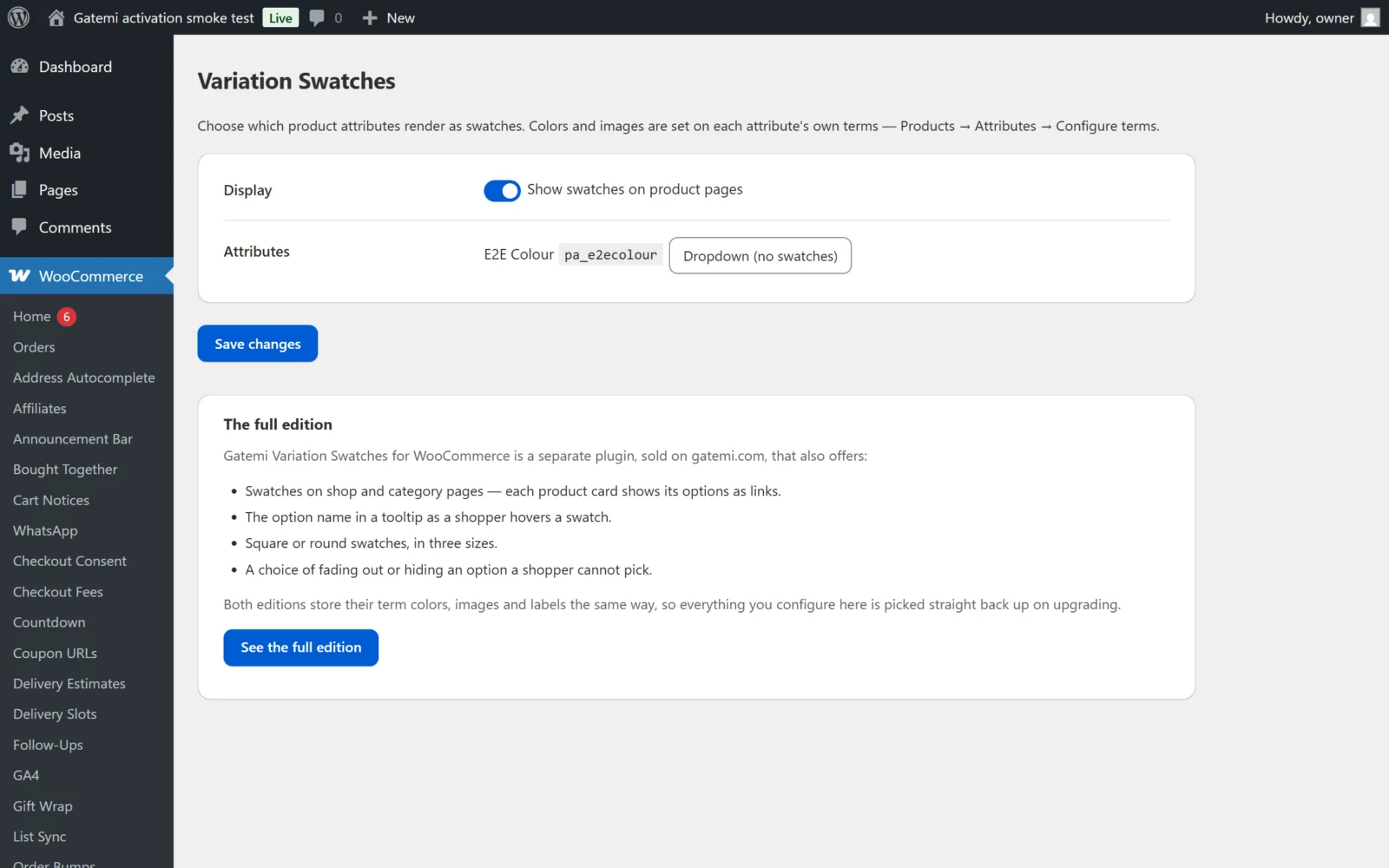
Attributes
Every global attribute is listed with its taxonomy name (pa_colour) and a Shows as choice:
| Choice | Value | Renders |
|---|---|---|
| Dropdown (no swatches) | select |
WooCommerce's dropdown, untouched. The default. |
| Color swatches | color |
A coloured chip per option |
| Image swatches | image |
The term's image, thumbnail size |
| Label swatches | label |
A button with the option's name or label |
Where it is stored:
- Free edition: inside
gmvsf_settings, undertypes(['pa_colour' => 'color']). - Full edition: in its own option,
gmvs_attribute_types.
These are different options, so after moving from the free edition to the full edition, choose each attribute's type once more on the full edition's screen. The colours, images and labels on your terms are shared and carry over unchanged.
An attribute with no terms used by a product, or a type that is not one of the four, falls back to the dropdown.
Display
| Label | Key | Default | Edition | What it does |
|---|---|---|---|---|
| Show swatches on product pages | enabled |
on (yes) |
Both | The master switch. Off, every dropdown is left alone. |
| Show swatches on shop and category pages | archive |
on (yes) |
Full edition | Adds a swatch row under each variable product in the shop loop. Only works while the master switch is on. |
| Show the option name in a tooltip on hover | tooltip |
on (yes) |
Full edition | Adds the option name as a tooltip on product-page and archive swatches. |
Free edition keys live in gmvsf_settings; full edition keys in gmvs_settings.
Appearance — Full edition
| Label | Key | Choices | Default |
|---|---|---|---|
| Swatch shape | shape |
Square (square), Round (round) |
Square |
| Swatch size | size |
Small, Medium, Large | Medium |
| When an option is unavailable | disabled_behavior |
Fade it out (fade), Hide it (hide) |
Fade it out |
The free edition draws square, medium swatches and fades an unavailable option.
"Unavailable" means WooCommerce has disabled that option in its own dropdown, because no variation matches it with the choices already made. The swatch follows WooCommerce's decision; it never works it out itself.
The term fields
Open a term of an attribute set to a swatch type. Which fields appear depends on the type:
| Field | Shown for | Term meta key | Notes |
|---|---|---|---|
| Swatch color | Color swatches | gmvs_color |
A hex colour (#c0392b). |
| Choose swatch image / Remove image | Image swatches | gmvs_image_id |
A media library attachment id; drawn at thumbnail size. |
| Swatch label (optional — stands in for the term name) | All three | gmvs_label |
Text shown instead of the term name on a label swatch, or when a colour or image is missing. |
The same three meta keys are used by both editions, so a term set up in one is read by the other.
Saving a term changes only the fields its type shows. Switching an attribute from colour to label and saving a term does not wipe the colour it had.
Note: the colour picker always submits a value. A term of a colour attribute that you save without touching the picker is stored as white (#ffffff).
When a swatch has nothing to draw
- A colour swatch with no valid colour,
- an image swatch with no image (or a deleted one),
falls back to a label chip showing the swatch label, or the term name if there is no label. You never get an empty square.
Shop and category pages — Full edition
With Show swatches on shop and category pages on, each variable product in the shop loop gets one row of swatches, printed after the product's loop item:
- Only the first attribute of the product that is set to a swatch type is shown — one row per card.
- At most 5 swatches are shown; the rest are summed up as +N. The number is filterable (
gmvs_archive_limit). - Each swatch is a plain link to the product page with that option preselected (
?attribute_pa_colour=red), which WooCommerce honours by itself. No JavaScript, so a page cache can serve the archive.
License & updates — Full edition
The card takes your gatemi.com licence key (GM-XXXXX-XXXXX-XXXXX-XXXXX-XXXXX), shows its status and offers Deactivate on this site. An expired licence keeps the plugin working; it only stops updates. A check that could not reach gatemi.com never changes the status.
The full edition's screen also lists every filter it applies under For developers — see the Developer reference.