
Gatemi Stock Valuation answers the question a shop owner asks a spreadsheet every month: how much money is sitting in the stockroom? Put a cost on each product, and one screen adds up what the shelf is worth at cost and at the prices you are asking, with the margin you are holding in stock.
These docs cover both editions:
- Gatemi Stock Value — the free edition, coming to wordpress.org. The valuation, the uncosted count and a per-product table of up to 25 rows.
- Gatemi Stock Valuation for WooCommerce — the full edition, sold on gatemi.com. It adds stock aging measured from the last real sale, a dead-stock list, the value in each product category, a CSV of the whole shelf, and a list of up to 500 rows.
Anything marked Full edition is only in the paid plugin.
Requirements
| Free edition | Full edition | |
|---|---|---|
| WordPress | 6.4 or later | 6.4 or later |
| PHP | 7.4 or later | 7.4 or later |
| WooCommerce | 8.0 or later | 8.0 or later |
Both editions declare compatibility with High-Performance Order Storage. Neither adds anything to your storefront.
1. Install
Free edition: coming to wordpress.org. Until it is listed, install the zip through Plugins → Add New → Upload Plugin and activate it.
Full edition: download the zip from your gatemi.com account, go to Plugins → Add New → Upload Plugin, upload and activate. Then open WooCommerce → Stock value and enter your licence key in the License & updates card. The plugin works without a key; the key switches on one-click updates and support. The full edition also lists its screen under the top-level Gatemi menu (Gatemi → Stock Valuation), beside your other Gatemi plugins.
Use one edition at a time. Both read the same costs and the same settings option, so upgrading keeps everything.
2. Make sure your stock is counted
Only products that manage stock are valued. A product that does not count its stock has no quantity — not nought — so there is nothing to value, and guessing a number would be worse.
For each product you want valued: Products → Edit → Inventory, tick Track stock quantity for this product (Manage stock), and enter the quantity.
3. Record what each product costs you
- Edit a product. On the General tab, beside WooCommerce's own price fields, there is Cost per unit.
- Type what one unit costs you, for example
4.20. Both4.20and4,20are read as four pounds twenty;1.250,00and1,250.00are both one thousand two hundred and fifty. - Leave it empty if you do not know. Do not type
0unless the product really costs you nothing: empty means unknown, and0means free. - Update the product.
Variations have their own Cost per unit box. Left empty, a variation costs what its product costs, so a product with fifty sizes needs one number, not fifty.
The Products list gains a Cost column, showing Not set where nothing is recorded.
The cost is stored in the same place Gatemi Profit Reports and Gatemi Cost of Goods use (_gmcg_cost). If you already run one of them, your costs are already here.
4. Read the screen
Go to WooCommerce → Stock value (capability manage_woocommerce).
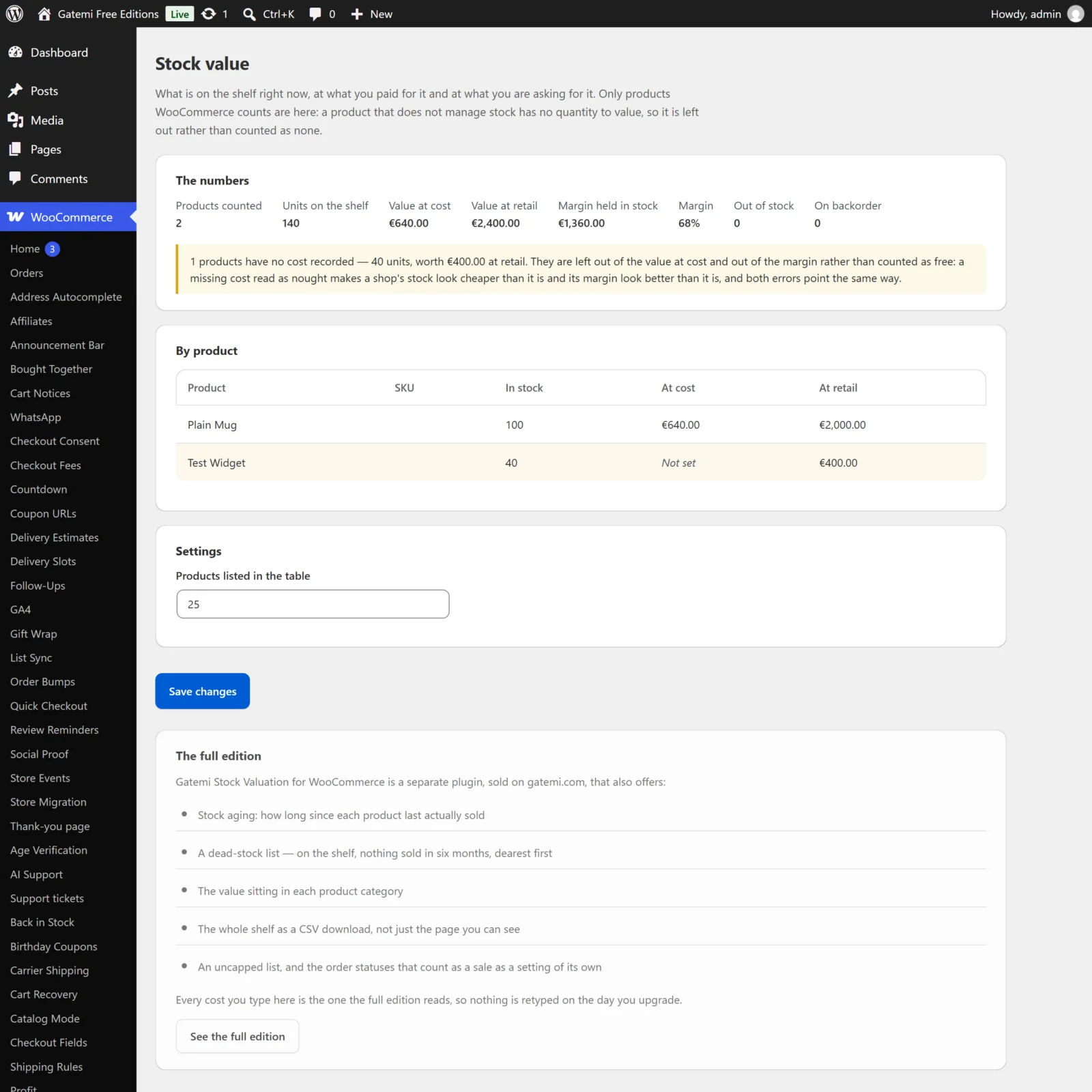
At the top, The numbers:
- Products counted and Units on the shelf
- Value at cost — only products with a cost
- Value at retail — every counted product, at its current price
- Margin held in stock and Margin (%) — measured only over the stock that has a cost
- Out of stock and On backorder
If some products have no cost, a sentence says how many, how many units and what they are worth at retail. They are left out of the cost figure rather than counted as free.
Below that, By product: name, SKU, quantity, value at cost and value at retail, dearest shelf first.
Check it with one product
- Take a product with stock management on, 10 in stock, price £20 and cost £8.
- Its row shows 10, £80.00 at cost and £200.00 at retail.
- Clear its cost and reload: Value at cost drops by £80 and the sentence now counts one uncosted product worth £200 at retail.
Next steps
- Settings
- How it works — the cost, count and age rules.
- FAQ and troubleshooting
- Developer reference