
All settings are on WooCommerce → List Sync and need the manage_woocommerce capability. Both editions store them in one WordPress option, gmsy_settings, in the same shape. When the free edition saves, it writes its six settings and puts every other stored key back exactly as it was, so nothing the full edition wrote is lost.
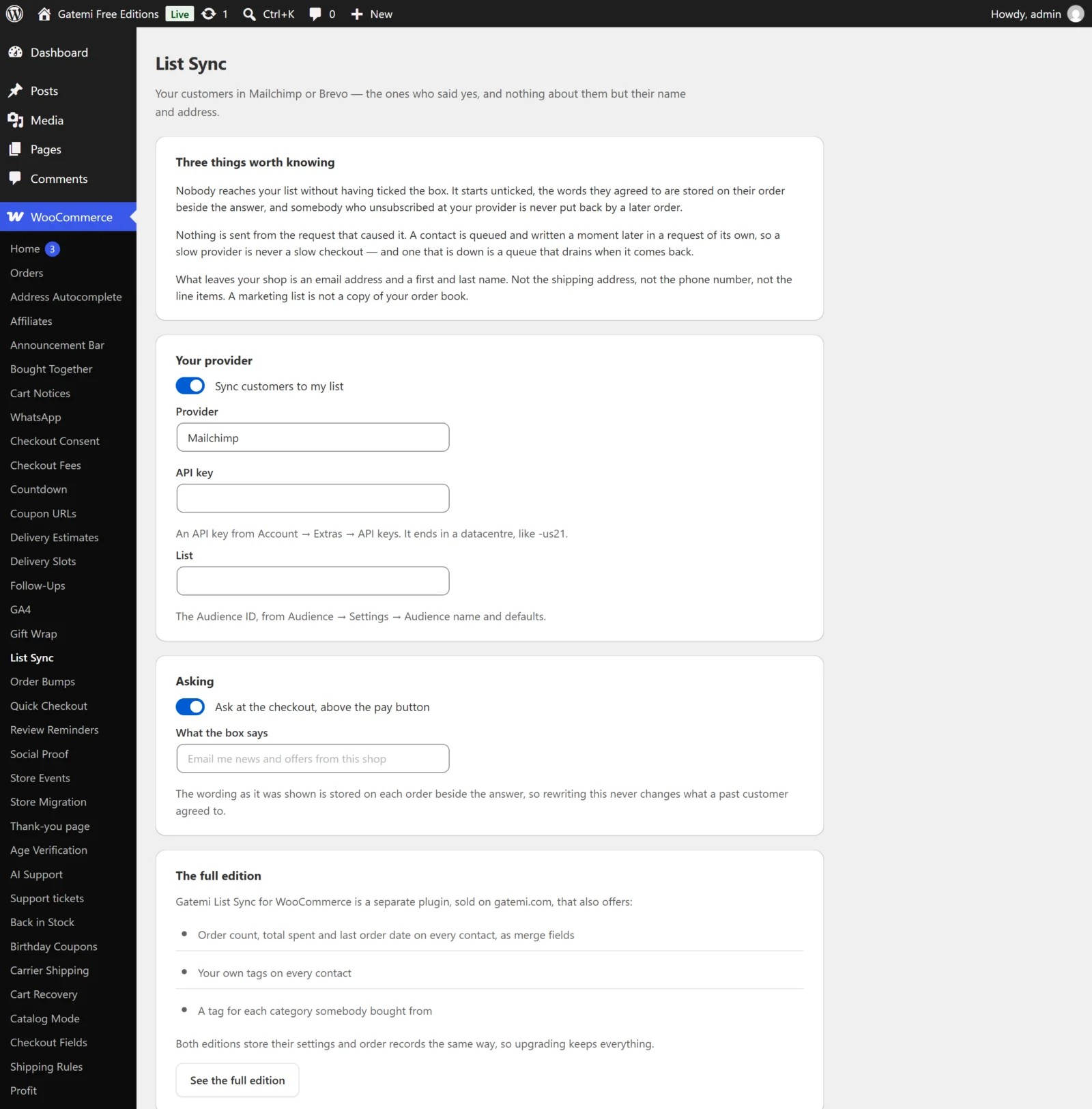
Your provider
Sync customers to my list
- Key:
enabled· Default: on (yes) - The master switch. Off, no consent box is shown and nothing is queued. Contacts already waiting in the queue are still written.
Provider
- Key:
provider· Default:mailchimp - Mailchimp or Brevo. Both are in both editions. An unknown stored value is read as Mailchimp.
API key
- Key:
api_key· Default: empty - Mailchimp: a key from Account → Extras → API keys. It ends in a datacentre such as
-us21; the plugin builds the address it writes to,us21.api.mailchimp.com, from that ending. A key without a recognisable datacentre gives no address, and nothing is written. - Brevo: a v3 key from SMTP & API → API keys. Brevo is always written to
api.brevo.com. - The key is never shown again. Once saved, the box shows a row of dots. Saving with the dots untouched keeps the stored key; typing a new one replaces it. A screenshot of the screen is therefore not a copy of your key.
List
- Key:
list_id· Default: empty - Mailchimp: the Audience ID (Audience → Settings → Audience name and defaults).
- Brevo: the numeric list id (Contacts → Lists).
Under the list, the screen tells you where contacts will go: "Contacts will be written to host, and nowhere else." If the key and list are not enough to build that address, it says so instead — and nothing is queued until they are, so a half-configured store does not fill a queue with rows that can only fail.
Asking
Ask at the checkout, above the pay button
- Key:
optin· Default: on (yes) - Shows the consent checkbox just above the place-order button on the classic checkout, and as an order field on the Checkout block (WooCommerce 8.9 or later). The box is never ticked for the customer.
- Off means every customer who reaches the sync status is synced without being asked. The full edition's screen says this in as many words. Switch it off only if you collect marketing consent somewhere else.
What the box says
- Key:
optin_label· Default: empty, shown as "Email me news and offers from this shop" - Plain text. The wording as it was shown is saved on each order beside the tick, so changing it later never changes what a past customer agreed to.
What goes with them — Full edition
Their order count, total spent and last order date — Full edition
- Key:
history· Default: on (yes) - Adds three fields to each contact: how many orders this email address has placed (Processing and Completed orders, up to 200), their total, and the date of the order being synced. See the field names — create them at your provider before turning this on.
- Off, the three fields are left out of the request altogether, so the values already at your provider are kept rather than overwritten with zeros.
- The free edition sends only the email address and the first and last name.
A tag for each category they bought from — Full edition
- Key:
category_tags· Default: off (no) - Adds the name of every product category in the order as a tag.
Tags on every contact — Full edition
- Key:
tags· Default: empty - One tag per line, or separated by commas. Spaces are kept, so "Repeat customer" is one tag.
Sync when an order reaches — Full edition
- Key:
status· Default:processing - The order status at which the customer is synced. The list holds every status WooCommerce knows, including custom ones. Processing is the default because a customer is somebody who has paid — an unpaid bank transfer reaches the thank-you page too.
- The free edition syncs when an order reaches Completed and does not read this key.
Waiting to be written
Not a setting: the queue. Each waiting contact is listed by email address, with how many times it has been tried and the reason the provider gave.
- Write these now sends the due rows immediately rather than waiting for the next scheduled run.
- When a contact has failed five times it stops being retried and is listed as stuck. Try these again resets their tries after you have fixed the cause (usually a rotated key or a deleted list).
License & updates — Full edition
Paste your gatemi.com licence key and press Activate for one-click updates and support. The card shows the licence status, the masked key and how many sites use it, and a Deactivate on this site button. The plugin works without a key, and makes no request to gatemi.com until one is entered.
For developers — Full edition
The screen ends with a table of every filter the plugin applies. They are documented in the developer reference.