
Gatemi Delivery Slots adds a delivery date to your checkout: a list of the days you can actually deliver, worked out from your own calendar. The customer picks one, it is checked again when the order is placed, and it is saved on the order for you and for them.
There are two editions, and this manual covers both:
- Gatemi Delivery Slots — the free edition. A delivery date, from the days you deliver, your cutoff time, the notice you need, how far ahead people may book, and the days you are closed.
- Gatemi Delivery Slots for WooCommerce — the full edition, sold on gatemi.com. It adds time slots (morning, afternoon, evening) with their own hours, a limit on how many deliveries each slot takes, the days each slot runs, a day sheet of what is booked, a delivery box on the order screen, your own wording and your own date format.
Both editions store the calendar and the date on the order the same way, so upgrading keeps everything.
Requirements
| Free edition | Full edition | |
|---|---|---|
| WordPress | 6.4 or later | 6.4 or later |
| PHP | 7.4 or later | 7.4 or later |
| WooCommerce | 8.0 or later (tested up to 10.9) | 8.0 or later (tested up to 10.9) |
The date field works on the classic checkout and on the Checkout block. On the block it is added through WooCommerce's own Additional Checkout Fields API (WooCommerce 8.9 or later).
Install
Free edition: coming to wordpress.org. Once it is listed, go to Plugins → Add New, search for "Gatemi Delivery Slots", install and activate.
Full edition:
- Buy it on the Delivery Slots product page.
- Download the zip from your gatemi.com account.
- Plugins → Add New → Upload Plugin, upload, Activate.
- Go to WooCommerce → Delivery Slots, paste your licence key in License & updates and press Activate.
If both editions are active, the free edition stands down and says so in a row under its entry on the Plugins screen.
Before you start: your time zone
Every day offered is worked out on your site's clock. Check Settings → General → Timezone is your warehouse's time zone, so a 14:00 cutoff means 14:00 where the van leaves.
First setup
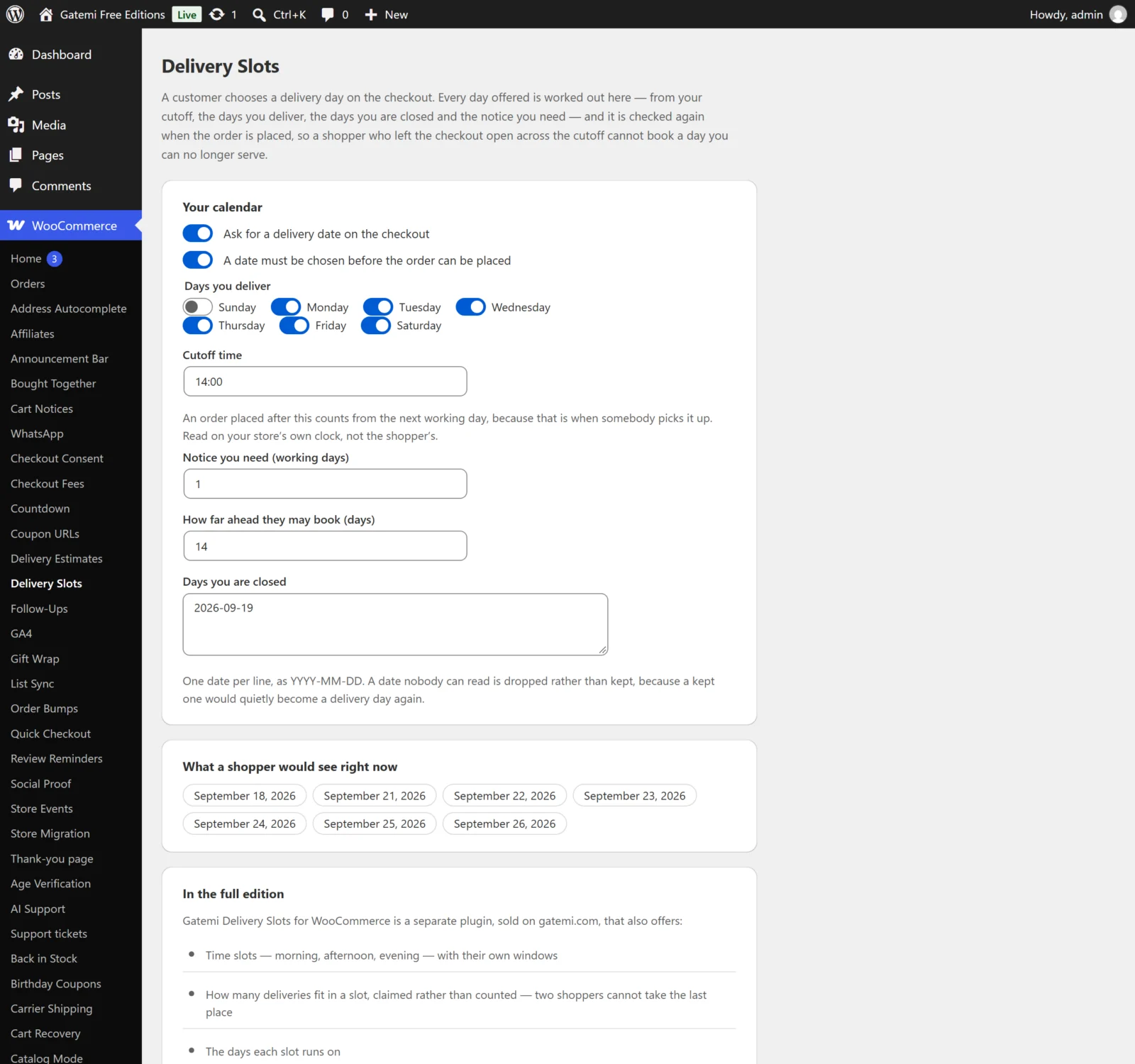
- Go to WooCommerce → Delivery Slots.
- Leave Ask for a delivery date on the checkout ticked. Untick A date must be chosen before the order can be placed if a date is optional for you.
- Under Days you deliver, tick your delivery days.
- Set Cutoff time — for example
14:00. Orders after this count from the next working day. - Set Notice you need (working days) —
1means the earliest day offered is the working day after the start day. - Set How far ahead they may book (days) —
21by default. - List Days you are closed, one per line as
2026-12-25. - Press Save changes.
Under What a shopper would see right now, the screen lists the days the checkout would offer at this moment. Check it before you go live.
Time slots — Full edition
- Under Delivery times, press Add a time.
- Fill in What it is called (for example "Morning"), From and To (
08:00and12:00), and How many fit —0for no limit. - Tick the Days it runs, or tick none for every delivery day.
- Press Save changes.
Leave Delivery times empty to ask for a day only.
Check it works
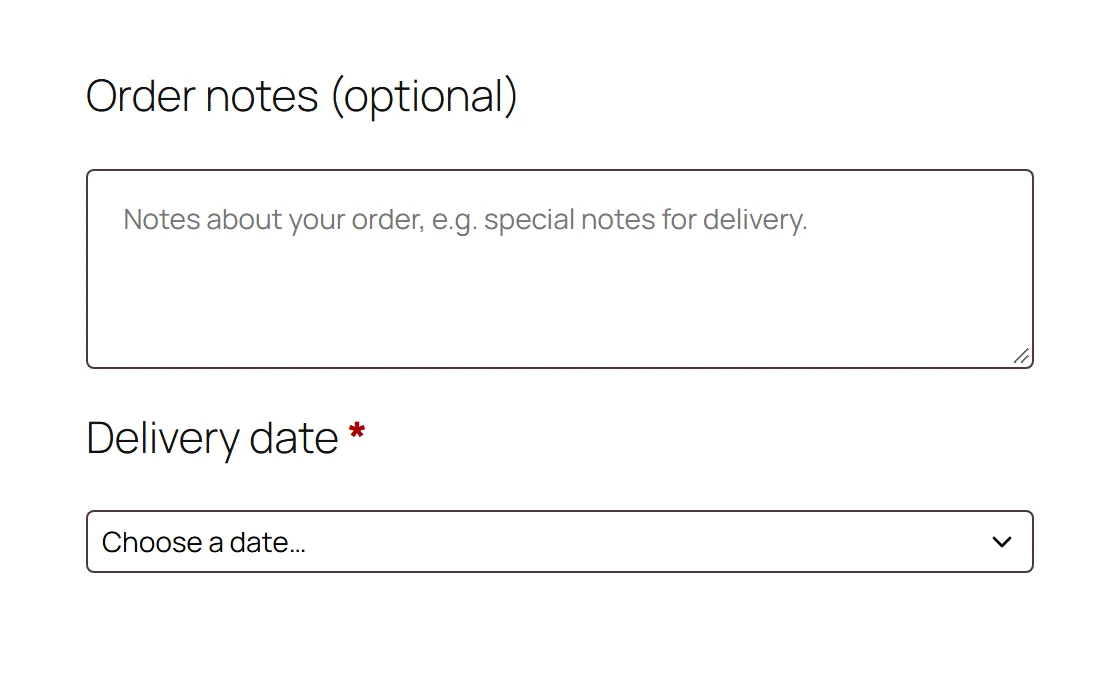
- Add a product to the cart and open the checkout.
- Below the order notes (classic checkout) or in the order information step (Checkout block), you see Delivery date with a list of days. Full edition: a Delivery time list too, narrowed to the times that run on the chosen day.
- Choose a day and place a test order.
- The order confirmation page, My Account → Orders and the order emails show the delivery day (and time).
- Full edition: the order's edit screen has a Delivery box, and the settings screen's Booked deliveries lists the booking.
If no field appears, see FAQ and troubleshooting.