
Both editions have one screen: WooCommerce → Customers (capability manage_woocommerce). The settings are in the Settings card below the segments. Both editions store them in one option, gmca_settings; the free edition saves only its two keys and keeps the rest exactly as the full edition left them.
Settings in both editions
Keep the snapshot up to date
- Key:
enabled· Default: on (yes) - On, a WordPress cron event rebuilds the snapshot on a schedule. Off, the event is removed and the snapshot stays as it was last built — the screen will say how old it is.
- Save and rebuild now works whether this is on or off.
Which order statuses count as a sale
- Key:
statuses· Default: Processing and Completed (processing,completed) - A tick box for every order status on your store. Only orders in a ticked status are read. Ticking none falls back to the default.
- This is your decision because shops mean different things by "bought": one that ships on Processing counts it, one that only counts a sale once it is delivered ticks Completed alone. Refunds are always taken off.
The free edition's fixed numbers
The free edition does not offer these as settings. It uses its own values, and says so on its screen:
| Free edition | |
|---|---|
| Rebuild | Once a day |
| Rows on the screen | 50 |
| Snapshot called stale after | 48 hours |
Full edition settings
Rebuild — Full edition
- Key:
frequency· Default:daily - once a day (
daily), twice a day (twicedaily) or every hour (hourly). Changing it reschedules the cron event rather than leaving the old one in place. The first scheduled run is an hour after the schedule is set.
Rows on this screen — Full edition
- Key:
rows· Default:50· Range: 10–500 - How many customers the list shows. The CSV always contains everyone in the segment.
Call the snapshot stale after (hours) — Full edition
- Key:
stale· Default:48· Range: 1–720 - When the snapshot is older than this, a warning replaces "Built N hours ago": "These figures are N hours old. Everything below is out of date — check that WP-Cron is running before acting on it."
The buttons
- Save changes stores the settings.
- Save and rebuild now stores them and rebuilds the snapshot at once, in that request. On a very large shop this can take a while; the scheduled rebuild does the same work in the background.
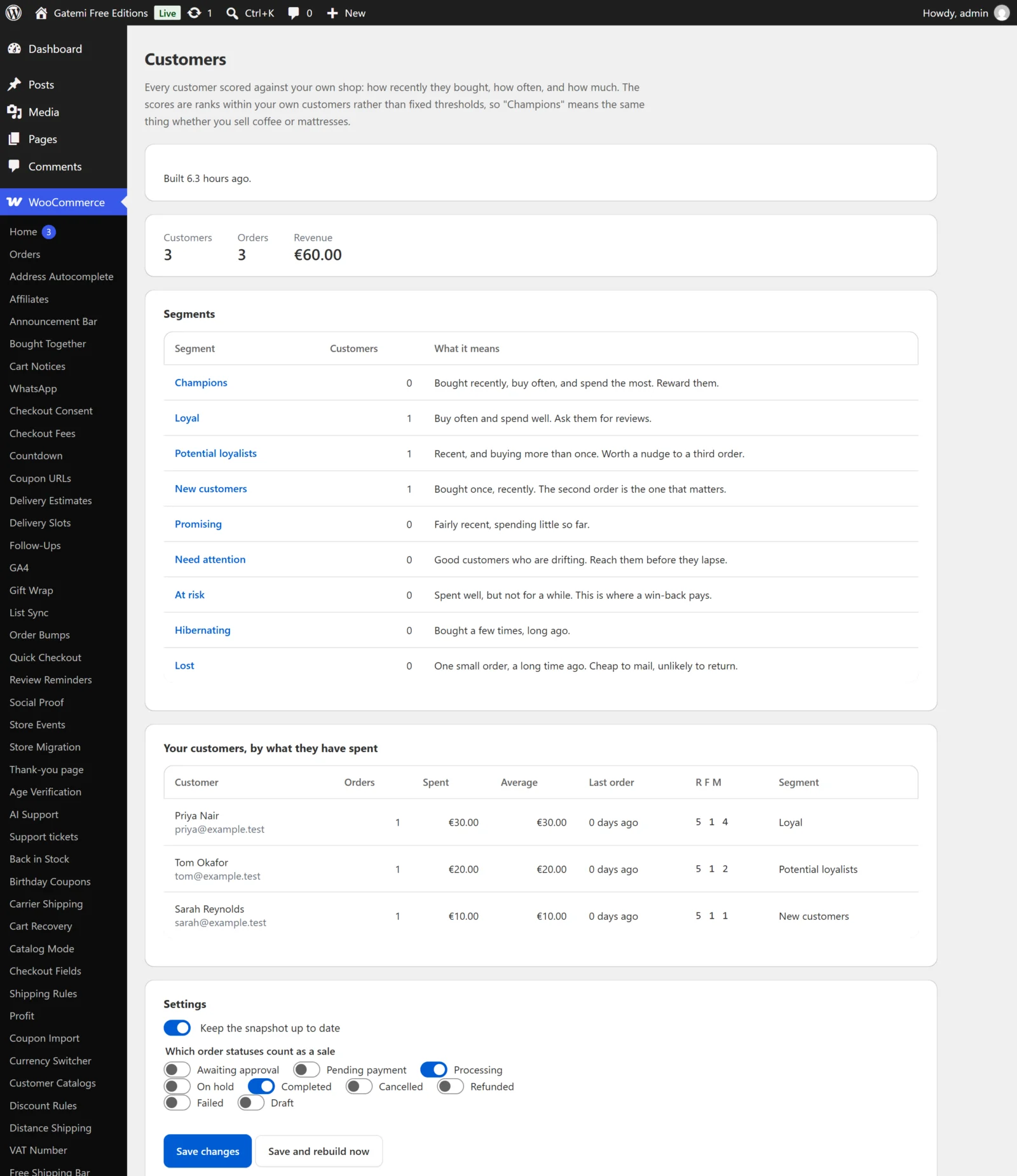
What the screen shows
- Totals: Customers, Orders, Revenue, and Lifetime value (Full edition) — the revenue divided by the number of customers.
- Segments: each segment's name (click to list its customers), how many customers are in it, What it means, and (Full edition) a CSV link under Take it away. Everyone else counts scores no segment covers.
- The customer list: Customer, Orders, Spent, Average, Last order, R F M and Segment, sorted by what they have spent. "← every customer" goes back from a single segment.
- How many came back — Full edition: the cohort grid, explained in How it works.
License & updates — Full edition
Enter your GM-XXXXX-… key and press Activate. The card shows the status, the renewal date and how many sites use the key; an expired licence keeps working and only stops updates. Deactivate on this site frees the key. A failed connection never changes your licence state.
For developers — Full edition
The full edition's screen ends with For developers: the query service and the filters. See the developer reference.