
Gatemi Customer Analytics scores every customer on three things — how recently they bought (Recency), how often (Frequency) and how much (Monetary) — and files them into nine segments: Champions, Loyal, Potential loyalists, New customers, Promising, Need attention, At risk, Hibernating and Lost. Each segment comes with a sentence about what to do with it.
The scores are ranks within your own customers, not fixed thresholds, so "Champions" means your best customers whether you sell coffee or mattresses. A customer is an email address, so guests count.
There are two editions:
- Gatemi RFM Segments — the free edition. The nine segments and the customer list, rebuilt once a day.
- Gatemi Customer Analytics for WooCommerce — the full edition, sold on gatemi.com. Adds a CSV download of any segment, a query service other plugins can ask, lifetime value, a cohort grid of how many customers came back, rebuilding twice a day or every hour, more rows on the screen and a staleness threshold of your own.
Both editions write the same table, so moving to the full edition finds the segments already there.
Requirements
| Minimum | |
|---|---|
| WordPress | 6.4 |
| PHP | 7.4 |
| WooCommerce | 8.0 (tested up to 10.9) |
Both editions declare compatibility with WooCommerce's High-Performance Order Storage (HPOS). Nothing runs on a storefront page, and no customer data leaves your store: the free edition makes no external request at all, and the full edition talks to gatemi.com only to check its licence and offer updates.
Install the free edition
The free edition is coming to wordpress.org. Until then:
- Go to Plugins → Add New → Upload Plugin, choose
gatemi-rfm-segments.zip, and press Install Now. - Press Activate. The plugin creates its table the first time it runs.
Install the full edition
- Download
gatemi-customer-analytics-for-woocommerce.zipfrom your gatemi.com account. - Upload it at Plugins → Add New → Upload Plugin and activate it.
- Go to WooCommerce → Customers, paste your
GM-XXXXX-…key in the License & updates card and press Activate.
The free edition stands down while the full edition is active, and says so under its row on the Plugins screen. You can delete it afterwards — but read what uninstalling removes first.
First setup
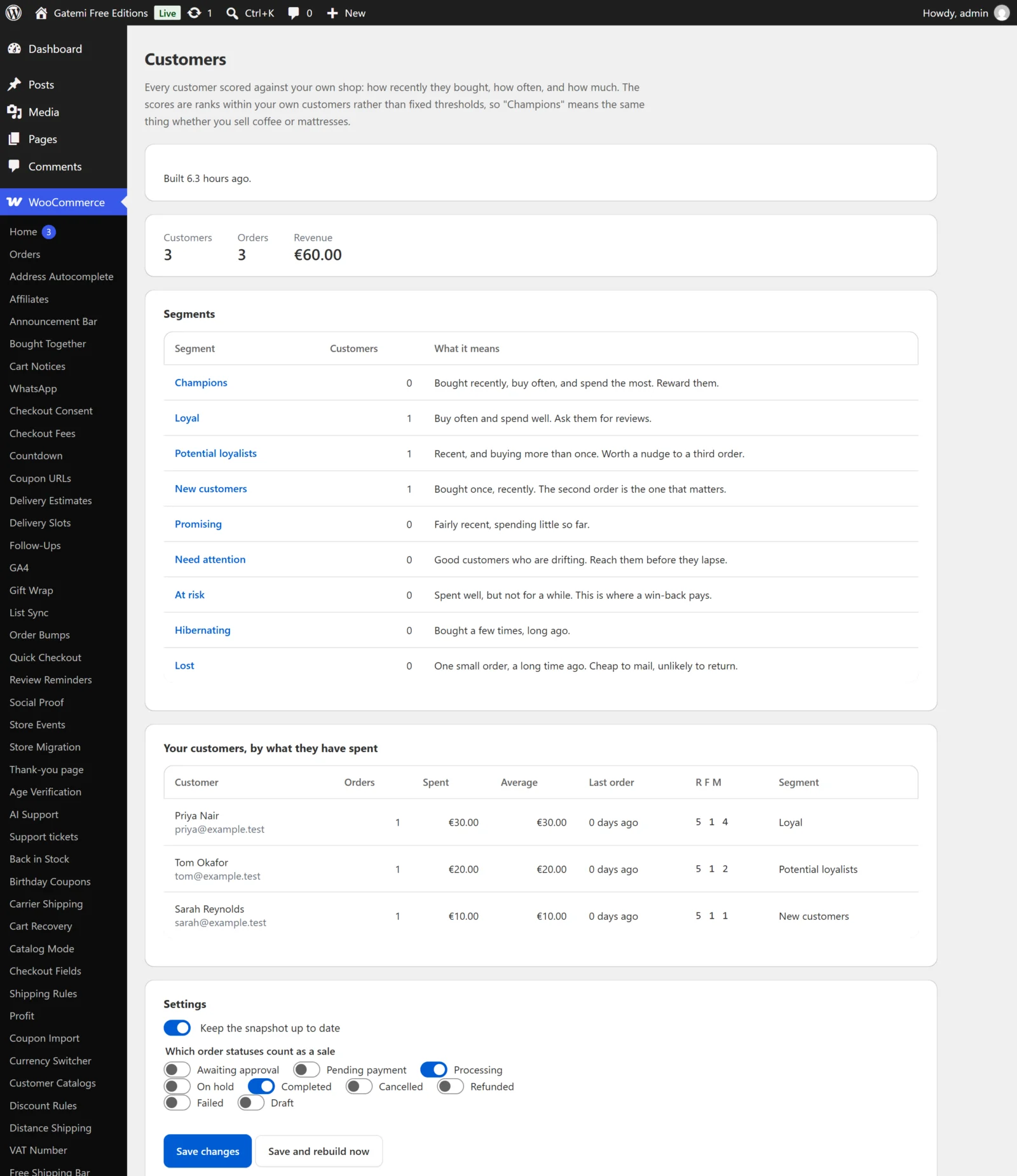
- Go to WooCommerce → Customers. Before the first build the screen says "No snapshot has been built yet."
- In Settings, tick the order statuses that mean "this customer bought" under Which order statuses count as a sale. The default is Processing and Completed — keep Completed only if you count a sale when it ships.
- Leave Keep the snapshot up to date ticked, so the snapshot is rebuilt on a schedule.
- Full edition: choose how often to Rebuild, how many Rows on this screen, and when to Call the snapshot stale after (hours).
- Press Save and rebuild now. The snapshot is built in that request and the screen fills in.
Check it works
- At the top you see Customers, Orders and Revenue (and, full edition, Lifetime value), and "Built 0 hours ago."
- The Segments table lists the nine segments and how many customers are in each, plus Everyone else for scores no segment covers.
- Click a segment's name to list only its customers. The list shows each customer's orders, spend, average order, last order date, the three scores and the segment, biggest spenders first.
On a new shop with few orders the segments are thin; that is the arithmetic being honest, not a fault. See How it works.
Next
- Settings — every setting, its key and default.
- How it works — the score, identity, money and honesty rules.