
Everything is on WooCommerce → Checkout Fields, which needs the manage_woocommerce capability.
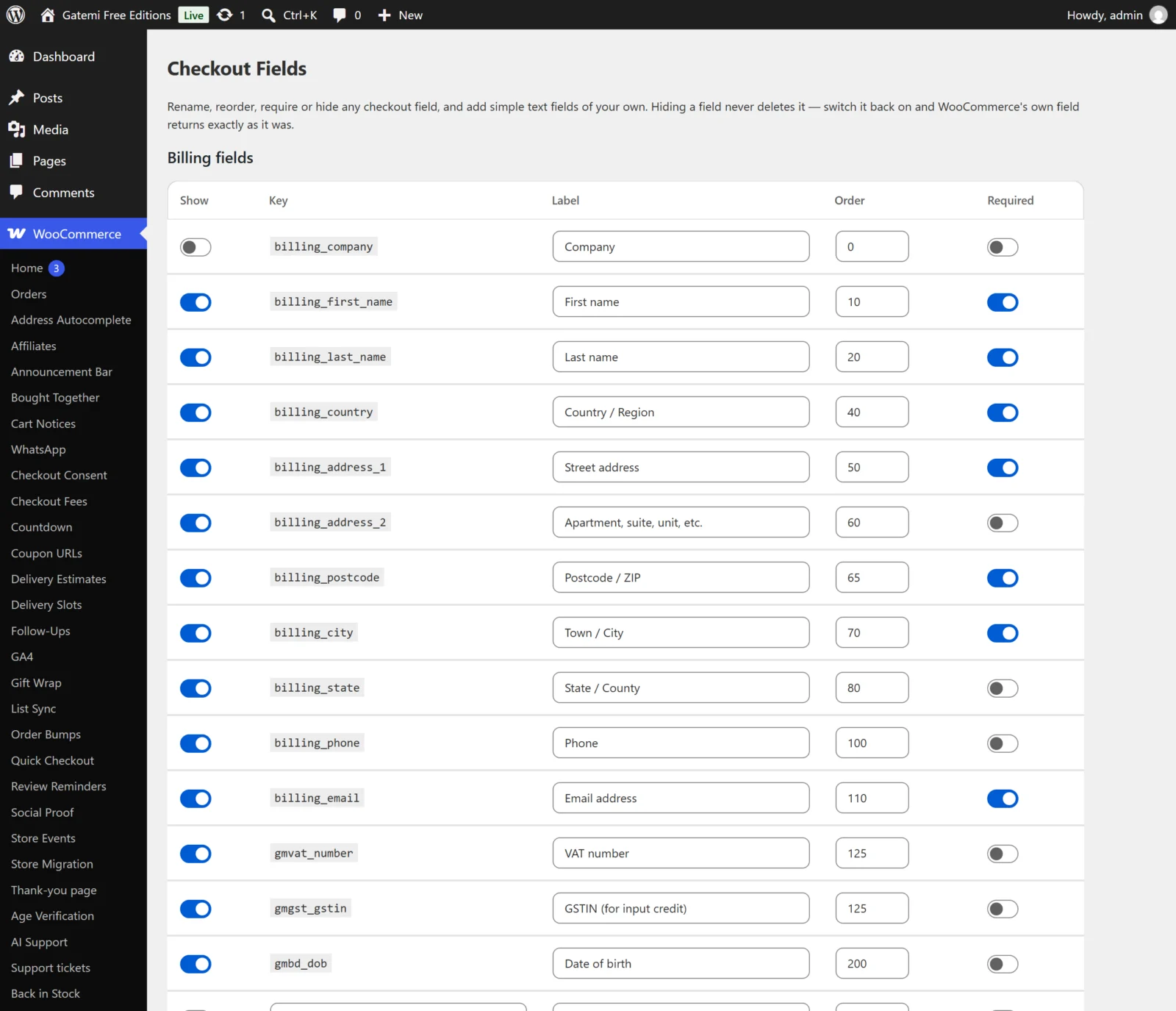
The three tables
| Table | Section key | What it holds |
|---|---|---|
| Billing fields | billing |
The billing address and contact fields |
| Shipping fields | shipping |
The shipping address fields |
| Additional fields | order |
The order notes area |
Each table lists the fields your checkout really has — WooCommerce's own and any another plugin added — plus fields you created, sorted by Order. An empty last row adds a new field.
All edits are stored in one option, gmcf_fields, per section and per field key. A field you have never touched is not stored: WooCommerce's own definition is used.
Columns
Show
- Key:
enabled· Default: on for an existing field, off for a new row - Unticked, the field is removed from the checkout. It is not posted, validated or saved, and it does not appear on the order. Ticking it again restores the field exactly as WooCommerce or the other plugin defines it.
Key
- Key:
key - For WooCommerce's own fields the key is shown and cannot be changed, for example
billing_company. - For a new field, type a key. It is made lower-case, letters, numbers, dashes and underscores only, and gets
gmcf_in front unless it already starts withgmcf_or with the section name (billing_,shipping_,order_).delivery_instructionsbecomesgmcf_delivery_instructions. - A row whose key ends up empty is not saved.
Label
- Key:
label· Default: empty - For a core field, empty keeps WooCommerce's own label; anything typed replaces it.
- For your own field, the label shown on the checkout and on the order.
Type — Full edition
- Key:
type· Default:text - Only for fields you created. WooCommerce's own fields show "WooCommerce's own" — their type is never changed, because core attaches its address formats and validation to it.
| Choice | Type | Value saved as |
|---|---|---|
| Text | text |
Plain text |
| Text area | textarea |
Plain text with line breaks |
| Dropdown | select |
The chosen option's key |
| Radio buttons | radio |
The chosen option's key |
| Checkbox | checkbox |
1 when ticked; shown as Yes / No |
| Email address | email |
A sanitised email address |
| Phone number | tel |
Plain text |
| Number | number |
Only if numeric |
| Date | date |
Only in YYYY-MM-DD form |
A type nobody recognises is treated as Text. Each type has its own sanitiser, so a value that does not fit its type is saved as nothing.
Under the type, a Choices box takes a dropdown's or radio group's options, one per line: key|Label (sm|Small), or just a label, whose key is then made from it (Extra large → extralarge). They are stored in the field's options key and shown back the same way.
Free edition: every field you create is a text field. A field the full edition created with another type is not put on the checkout at all — and a save on the free screen keeps its type, choices, placeholder, classes and display switches exactly as they were, so it is whole again after upgrading.
Order
- Key:
priority· Default: the field's current position - Fields are sorted by this number, lowest first. WooCommerce's own fields use steps of 10 (
billing_first_nameis 10,billing_last_name20 …), so 25 places a field between them. Negative numbers become 0.
Required
- Key:
required· Default: the field's current setting - Ticked, the checkout refuses to place the order while the field is empty, with the message "Label is a required field." For a core field this switches WooCommerce's own requirement on or off.
Show it on — Full edition
- Order — key
show_order, default off. Ticked, the field's label and value are shown to the customer under "Additional information" on the order-received page and in My Account → Orders → View. - Emails — key
show_email, default off. Ticked, the field's label and value are added to the order emails through WooCommerce's order meta fields.
Both editions show every one of your fields with a value in a block under the billing address on the order screen, whatever Order says.
Other stored keys
Each field is also stored with placeholder and class and custom (whether you created it). Full edition: the Label column has a Placeholder and a CSS classes box under the label; both apply on the classic checkout. The free edition does not edit or apply them, and keeps whatever the full edition stored.
Block checkout — Full edition
- Label: Register your custom fields with the block checkout too (through WooCommerce's own additional-fields API)
- Key:
block_checkoutin the optiongmcf_settings· Default: on - Your own fields are registered with the Checkout block. A field from the billing or shipping table goes into the address forms; one from the additional fields table goes into the order information step. Text, Dropdown and Checkbox keep their type there; every other type becomes a text box. See How it works.
License & updates — Full edition
Paste the key from your gatemi.com account and press Activate. It is stored in gmcf_license. An expired licence stops updates; the plugin keeps working.
For developers — Full edition
A table at the bottom of the screen lists the filters. They are documented in the developer reference.