
Rule 1: refusing the purchase is the feature, hiding the button is decoration
A shopper — or a bot, or an old tab — can request ?add-to-cart=123 whatever the page showed. A plugin that only removes the button leaves that door open until an order arrives for something you were not selling. So both editions enforce catalog mode in three places at once.
- The product is not purchasable. The plugin answers WooCommerce's
woocommerce_is_purchasable(andwoocommerce_variation_is_purchasable) with "no". Everything in WooCommerce asks that question — the classic cart, the Cart and Checkout blocks and the Store API — so they all refuse without the plugin having to know about each one. - Adding it to the cart is refused, with a reason. On
woocommerce_add_to_cart_validationthe shopper sees: "Product name is not available to buy on this site." - A product already in a cart is removed. If a cart was filled before you switched catalog mode on, WooCommerce's next cart check (
woocommerce_check_cart_items, on the cart and checkout pages) removes the product and says: "Product name is no longer available to buy, and has been removed from your cart."
What changes on the page
- Shop and category listings: the loop's add-to-cart link is replaced by your In place of the button text, or by nothing if that is empty.
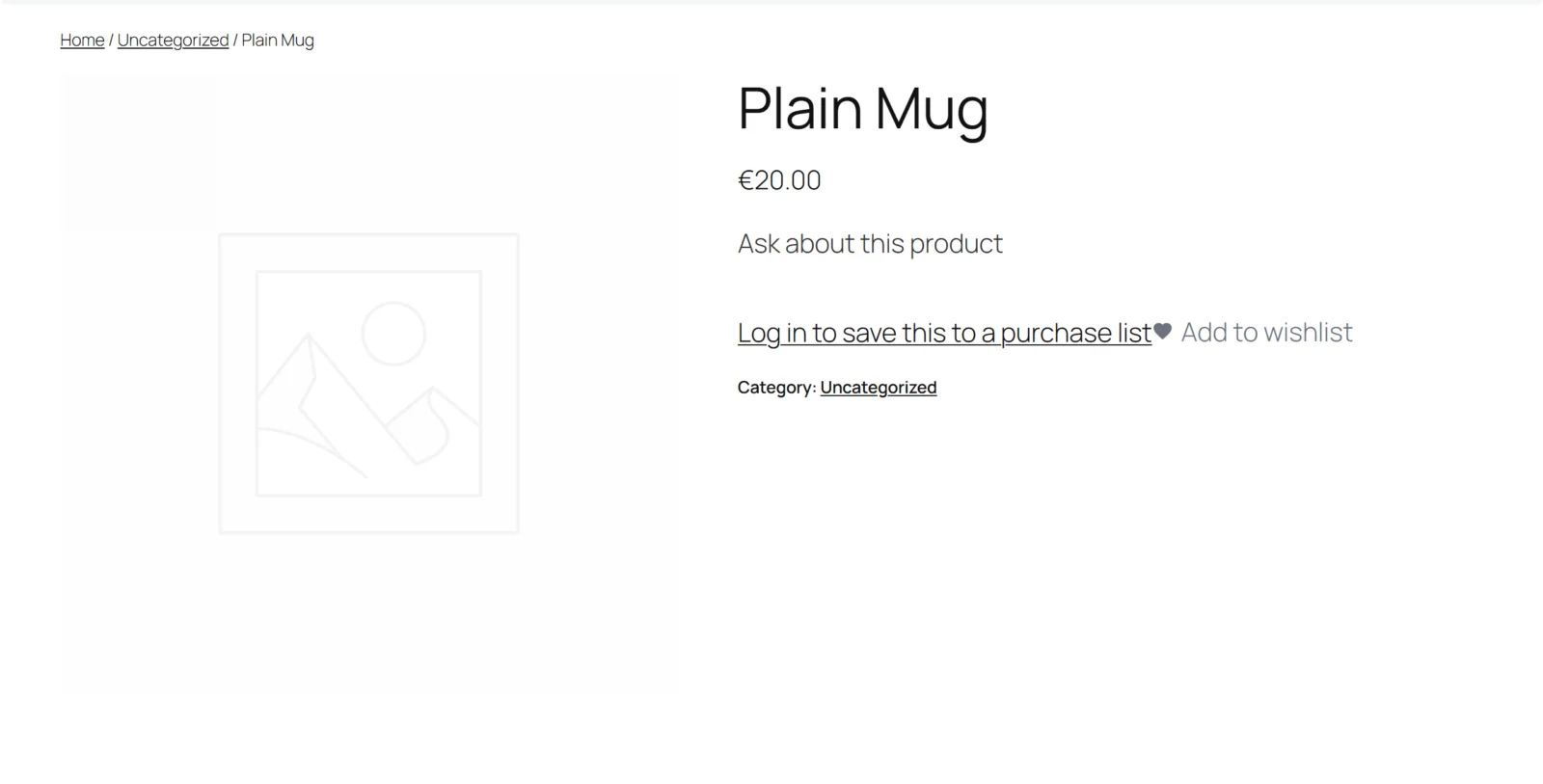
- Product page: WooCommerce's add-to-cart form (quantity box, variation selects and button) is taken off the summary, and your text is printed in the same place. On a classic theme this uses the
woocommerce_single_product_summaryhook; on a block theme the Add to Cart blocks (woocommerce/add-to-cart-formandwoocommerce/add-to-cart-with-options) are replaced with the same text. - Prices, when Hide prices as well is on: the price HTML is replaced by your In place of the price text (or nothing), wherever WooCommerce prints it through
woocommerce_get_price_html— including a variation's price once one is chosen. - Structured data: with prices hidden, the
offersblock is removed from the product's JSON-LD. A price hidden with CSS is still in the markup and still in what a search engine reads; this one is not.
The plugin loads no JavaScript on the storefront and one very small stylesheet on WooCommerce pages. Catalog mode works by not rendering things, so there is nothing for CSS to hide.
Free edition: the whole shop
In the free edition the decision is one question: is Turn the whole shop into a catalog on? If so, every product, for every visitor, is in catalog mode. There are no exceptions, deliberately: a product the full edition marked "Always sell this one" is not put back on sale by the free edition.
Full edition: rule 2 — one resolver decides, in the order a merchant would say it
The same decision is asked by the button, the price, the purchasable check, the add-to-cart check, the cart sweep and the admin. It goes:
- The product's own setting (Product data → General → Catalog mode). A variation uses its parent's.
- Always sell this one → sellable. Stop.
- Never sell this one → catalog mode, if this visitor matches Only for these roles (or no roles are set). Stop.
- The shop switch. If Turn the shop into a catalog is off → sellable.
- The roles. If roles are set and this visitor has none of them → sellable. A visitor who is not signed in counts as
guest. - The categories. If no categories are set → catalog mode (the whole shop). Otherwise catalog mode only when the product is in one of them or a sub-category of one.
The answer is worked out fresh each time, not remembered, so a request that changes the rules part-way never acts on a stale answer.
Worked example
A wholesale supplier wants the public to browse without prices, trade accounts to buy everything, and one display stand to be sold to anyone.
- Turn the shop into a catalog: on · Hide prices as well: on
- Only for these roles:
guest - In place of the price: "Trade prices after sign-in"
- In place of the button: "Open a trade account" · Where it goes:
https://example.com/trade-account/ - On the display stand: Always sell this one
A visitor who is not signed in sees no prices and an "Open a trade account" button linking to …/trade-account/?gmcm_product=…. A signed-in customer sees and buys everything. Anyone can buy the display stand.
The enquiry link (full edition)
With Where it goes set, the replacement is <a class="button gmcm-button">. The product id is added as gmcm_product, so your contact form can read it (for example with a hidden field filled from the URL). A mailto: address gets the product name as the subject instead, encoded once, so the subject reads "Industrial lathe" and not "Industrial%20lathe".