
These docs cover both editions:
- Gatemi Catalog Mode — the free edition. It is coming to wordpress.org.
- Gatemi Catalog Mode for WooCommerce — the full edition, sold on gatemi.com.
Anything marked Full edition is only in the paid plugin. Everything else is in both.
The free edition turns the whole shop into a catalog. The full edition can also do it for chosen roles (including visitors who are not signed in), for chosen categories, or product by product, and can put a link to your enquiry page where the button was.
Requirements
| Free edition | Full edition | |
|---|---|---|
| WordPress | 6.4 or later | 6.4 or later |
| PHP | 7.4 or later | 7.4 or later |
| WooCommerce | 8.0 or later | 8.0 or later |
Both declare compatibility with WooCommerce's High-Performance Order Storage (HPOS) and with the Cart and Checkout blocks. Neither edition loads any JavaScript on your storefront. The free edition makes no external requests at all; the full edition contacts gatemi.com only when you enter a licence key.
1. Install
Free edition: it is coming to wordpress.org. Once it is listed, go to Plugins → Add New, search for "Gatemi Catalog Mode", install and activate.
Full edition: download the zip from your gatemi.com account, then go to Plugins → Add New → Upload Plugin, upload it and activate. Enter your licence key in the License & updates card on the settings screen to switch on updates. The plugin works without a key; the key is for updates and support.
You only need one edition. If both are active, the free edition stands down and says so in a row under its entry on the Plugins screen. The full edition reads the same settings, so you can simply deactivate the free one.
2. Open the settings
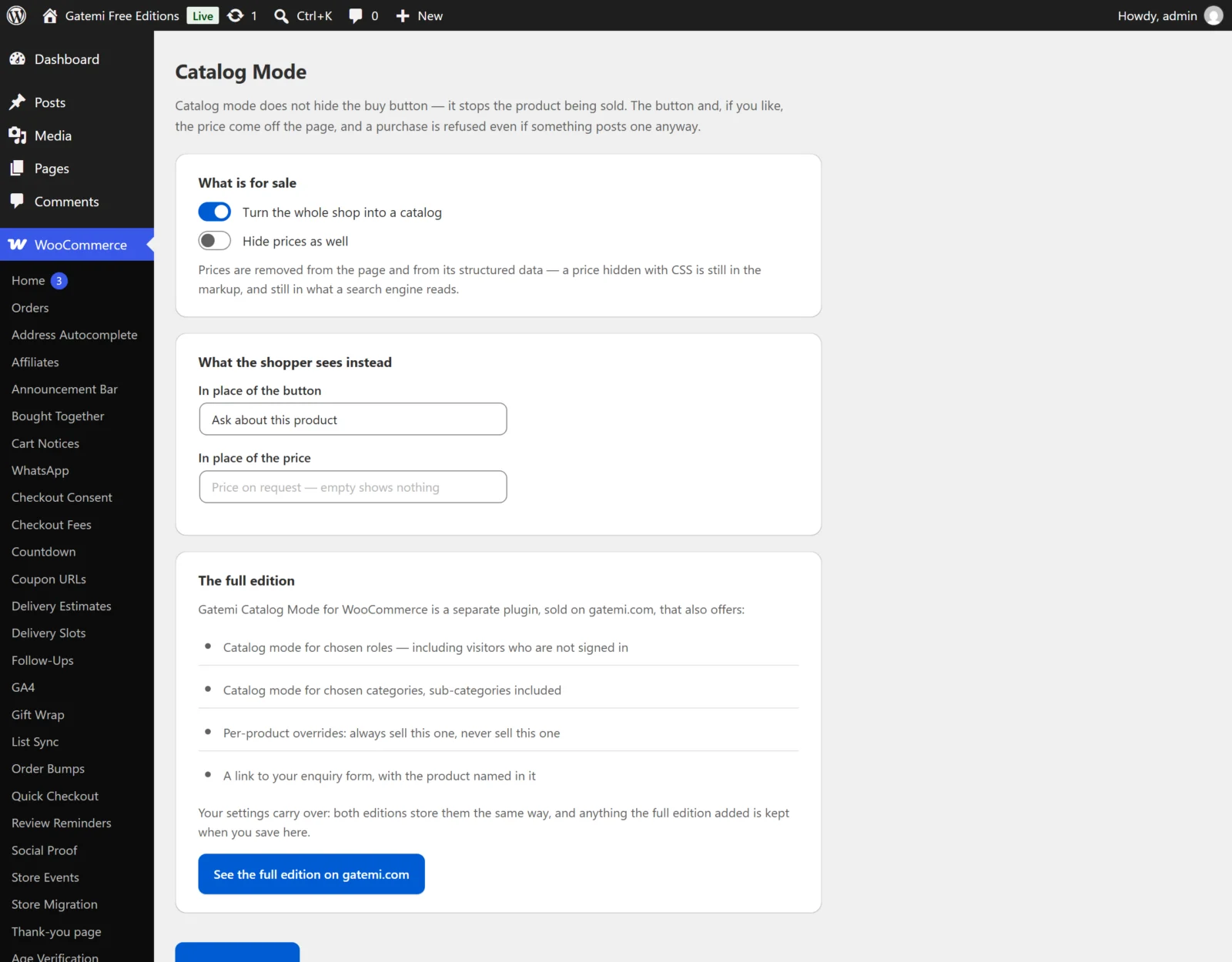
Go to WooCommerce → Catalog Mode. You need the manage_woocommerce capability (administrators and shop managers have it).
3. Switch it on
- Under What is for sale, tick Turn the whole shop into a catalog (in the full edition the label reads Turn the shop into a catalog).
- If you do not want prices shown either, tick Hide prices as well. Leave it unticked if you want shoppers to see what things cost but not buy them online.
- Under What the shopper sees instead, check In place of the button. The default is "Contact us about this product". Clear it if you want nothing at all where the button was.
- If you hide prices, you can type In place of the price, for example "Price on request". Empty shows nothing.
- Full edition: to send shoppers to your enquiry page, type its address in Where it goes. The product is added to the link, so the enquiry says what it is about.
- Click Save changes.
4. Check it works
Open your shop in a private window.
- On a shop or category page, the Add to cart buttons are replaced by your sentence (or, in the full edition with an address set, a button linking to your enquiry page).
- On a product page, the add-to-cart form is gone and your sentence stands in its place.
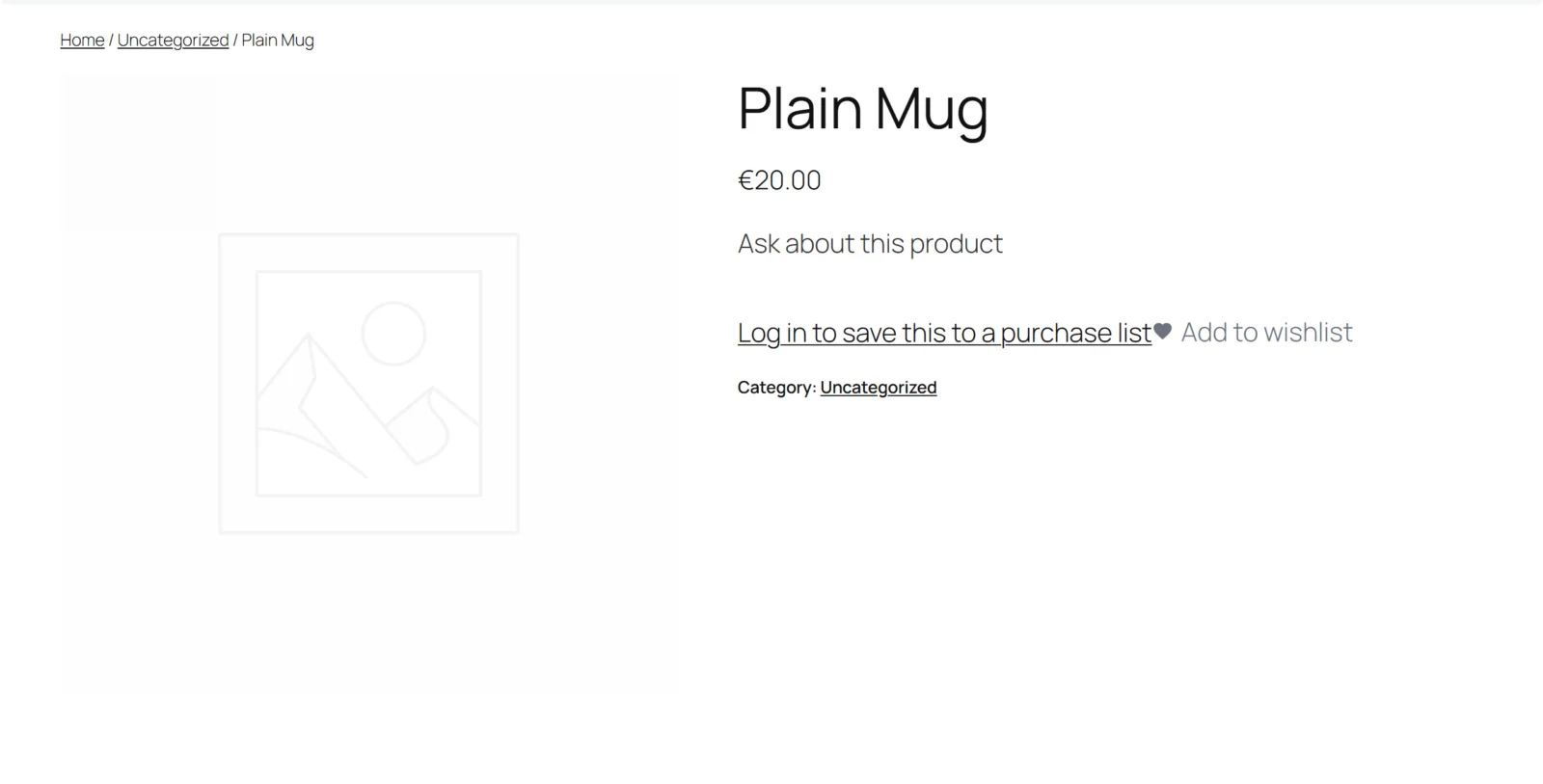
- If you ticked Hide prices as well, the price is gone — and so is the price in the page's structured data (view the page source and search for
"offers": it is not there). - Now try to buy anyway: visit
https://your-shop.example/?add-to-cart=123, using the ID of a real product. WooCommerce shows "Product name is not available to buy on this site." and nothing is added.
If a product was already in a cart before you switched catalog mode on, the next time that cart is checked it is removed, with the notice "Product name is no longer available to buy, and has been removed from your cart."
Next
- Settings — every setting, its key and default
- How it works — the enforcement and the order of decision
- FAQ and troubleshooting
- Developer reference