
All settings are on WooCommerce → Trust badges (capability manage_woocommerce) and are saved together in one option, gmtb_settings.
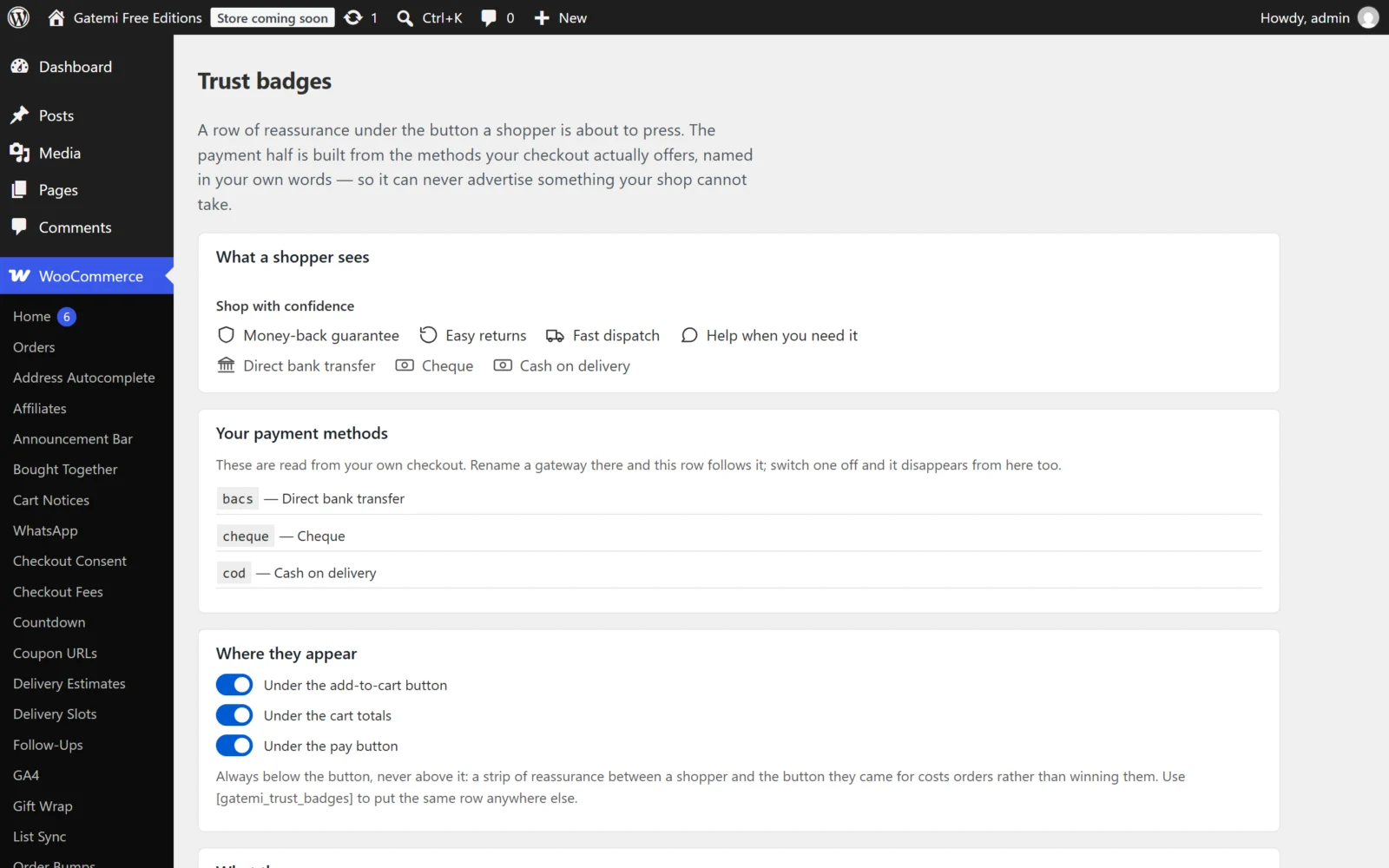
Read-only panels at the top
What a shopper sees
A live preview of the row, drawn with the same stylesheet the storefront uses. If nothing would be drawn, it says Nothing yet — choose at least one seal below, or switch the payment row on.
Your payment methods
The methods the payment row will name, read from your checkout. There is nothing to edit here, on purpose: change a gateway's title under WooCommerce → Settings → Payments and this list — and the row — follows. If no gateway is available the panel says so, and no payment row is drawn.
Where they appear
| Label | Value in placements |
Default |
|---|---|---|
| Under the add-to-cart button | product |
on |
| Under the cart totals | cart |
off |
| Under the pay button | checkout |
on |
Tick any combination. Untick all three and the row only appears where you place the [gatemi_trust_badges] shortcode.
The row is always below the button. On the classic cart and checkout it prints under the totals or the pay button through WooCommerce's own hooks. The Cart and Checkout blocks have no hook there, so on block pages the row is drawn directly beneath the block. See How it works.
What they say
Show the payment methods your checkout offers
| Key | payments (yes / no) |
| Default | yes |
Turns the payment row on or off. When it is on, the row lists every payment method your checkout currently offers, each with a neutral glyph and the gateway's own title.
The seals
Each seal has a tick box (stored in the seals list) and a text box for your own wording (stored in labels, keyed by seal). An empty text box keeps the default wording shown as its placeholder.
| Seal | Key | Default wording | Glyph | Ticked by default |
|---|---|---|---|---|
| Secure checkout | secure |
Secure checkout | padlock | yes |
| Money-back guarantee | guarantee |
Money-back guarantee | shield | no |
| Easy returns | returns |
Easy returns | returning arrow | yes |
| Fast dispatch | delivery |
Fast dispatch | van | no |
| Help when you need it | support |
Help when you need it | speech bubble | no |
Your wording is saved as plain text.
Secure checkout is only offered on HTTPS. If the site is not served over HTTPS, the seal is not listed on the screen, a warning explains why, and it is not drawn on the storefront even if it was ticked before. This is checked every time the row is drawn, not only when you save — a site that falls back to plain http stops claiming to be encrypted on the next page load.
Only tick a seal your shop actually keeps. The plugin deliberately has no third-party security seals ("Norton Secured", "McAfee SECURE", "PCI Compliant"); those marks belong to companies that certify a site.
How they look
A line above the badges (optional)
| Key | heading |
| Default | empty |
Plain text printed above the row, for example Shop with confidence. Leave it empty for no heading.
Accent colour
| Key | accent |
| Default | empty (your theme's text colour) |
A hex colour — #2f6f4f or the short form #fff. It colours the glyphs. Anything that is not a valid hex colour is saved as empty, so a typo falls back to your theme's colour rather than breaking the page.
Save changes
Press Save changes. The page reloads with Settings saved.
For developers
The last panel lists the filters the plugin applies — gmtb_settings, gmtb_gateways, gmtb_seals, gmtb_badges — and what each one tunes. They are documented in the Developer reference.
What is not a setting
- The list of payment methods. There is no tick list of card logos; the row is your checkout's own list. That is how it avoids advertising a method you cannot take.
- Brand logos. The glyphs are neutral shapes (card, bank, wallet, cash), not Visa or Mastercard marks.
- Position above the button. Not offered. A row between the shopper and the button they came for costs orders.