
Gatemi Smart Coupons lets a shop sell coupons as products. A shopper buys a gift certificate, the order is paid, and a fresh coupon code is created and emailed — one code per unit sold, worth what was paid for it.
These docs cover both editions:
- Gatemi Smart Coupons — the free edition, coming to wordpress.org. It sells gift certificates: one checkbox on a product, one single-use coupon per unit, emailed to the buyer.
- Gatemi Smart Coupons for WooCommerce — the full edition, sold on gatemi.com. It adds store credit with a running balance and a ledger, gifting to a recipient with a message and a delivery date, a condition engine, automatic coupons, coupons in links, a one-click coupon panel and reminder emails.
Anything marked Full edition is only in the paid plugin.
Requirements
| Free edition | Full edition | |
|---|---|---|
| WordPress | 6.4 or later | 6.4 or later |
| PHP | 7.4 or later | 7.4 or later |
| WooCommerce | 8.0 or later | 8.0 or later |
Both editions declare compatibility with High-Performance Order Storage (HPOS) and with the Cart and Checkout blocks. Codes are emailed with WordPress' wp_mail() (free) or as WooCommerce emails (full edition), so your site must be able to send mail.
1. Install
Free edition: coming to wordpress.org. Until it is listed, install the zip through Plugins → Add New → Upload Plugin and activate it.
Full edition: download the zip from your gatemi.com account, go to Plugins → Add New → Upload Plugin, upload and activate. Then open WooCommerce → Smart Coupons and enter your licence key in the License & updates card on the General tab. The plugin works without a key; the key switches on one-click updates and support. The full edition also lists its screen under the top-level Gatemi menu (Gatemi → Smart Coupons), beside your other Gatemi plugins.
You only need one edition. If both are active, the free edition stands down and says so in a row under its entry on the Plugins screen.
The full edition creates two tables on activation, {prefix}gmsc_issuance and {prefix}gmsc_credit_ledger.
2. Free edition: make a gift certificate
- Create a simple product called, say, "£25 gift certificate", priced £25. Mark it Virtual so it needs no shipping.
- In Product data → General, tick Gift certificate.
- Publish.
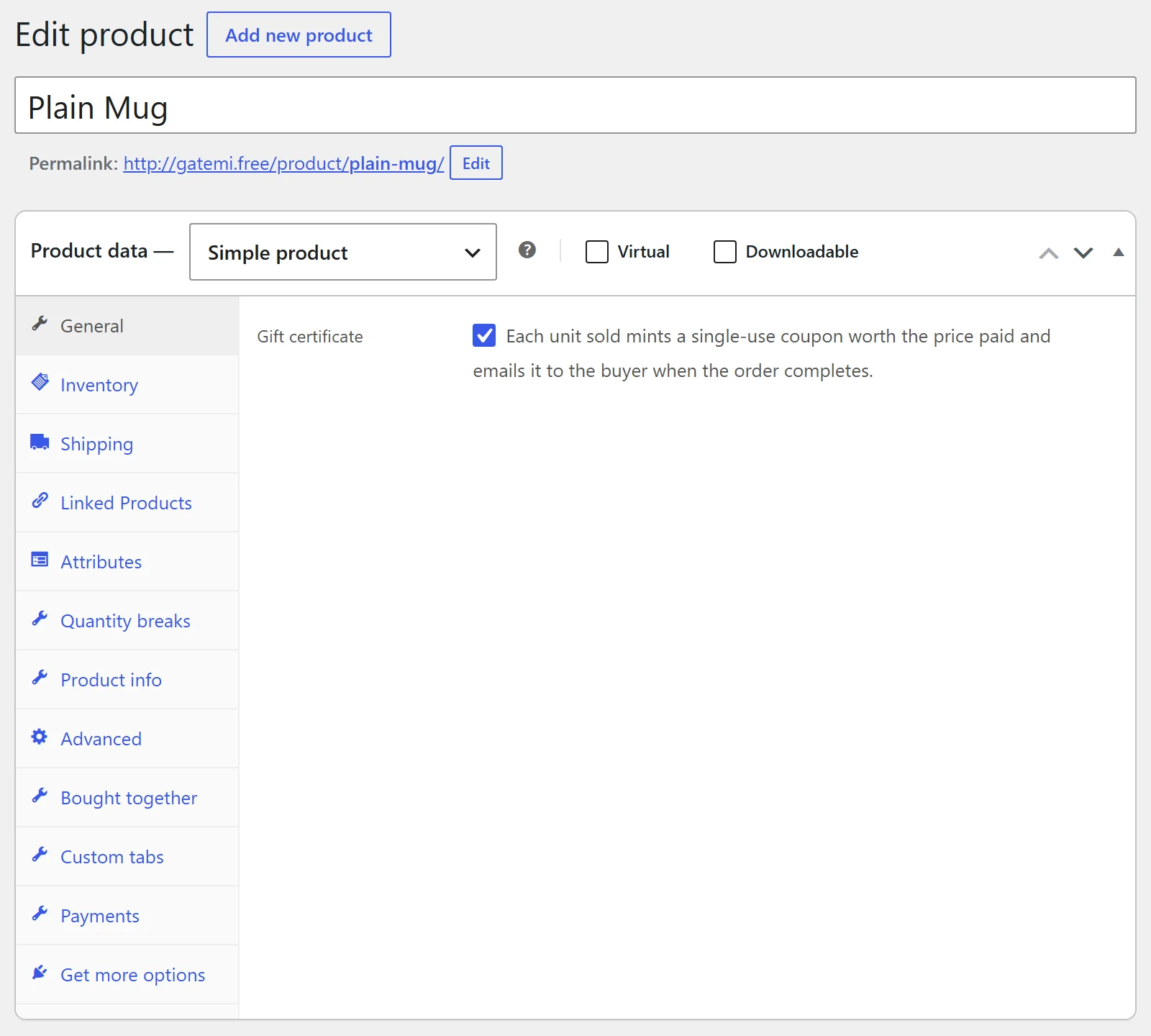
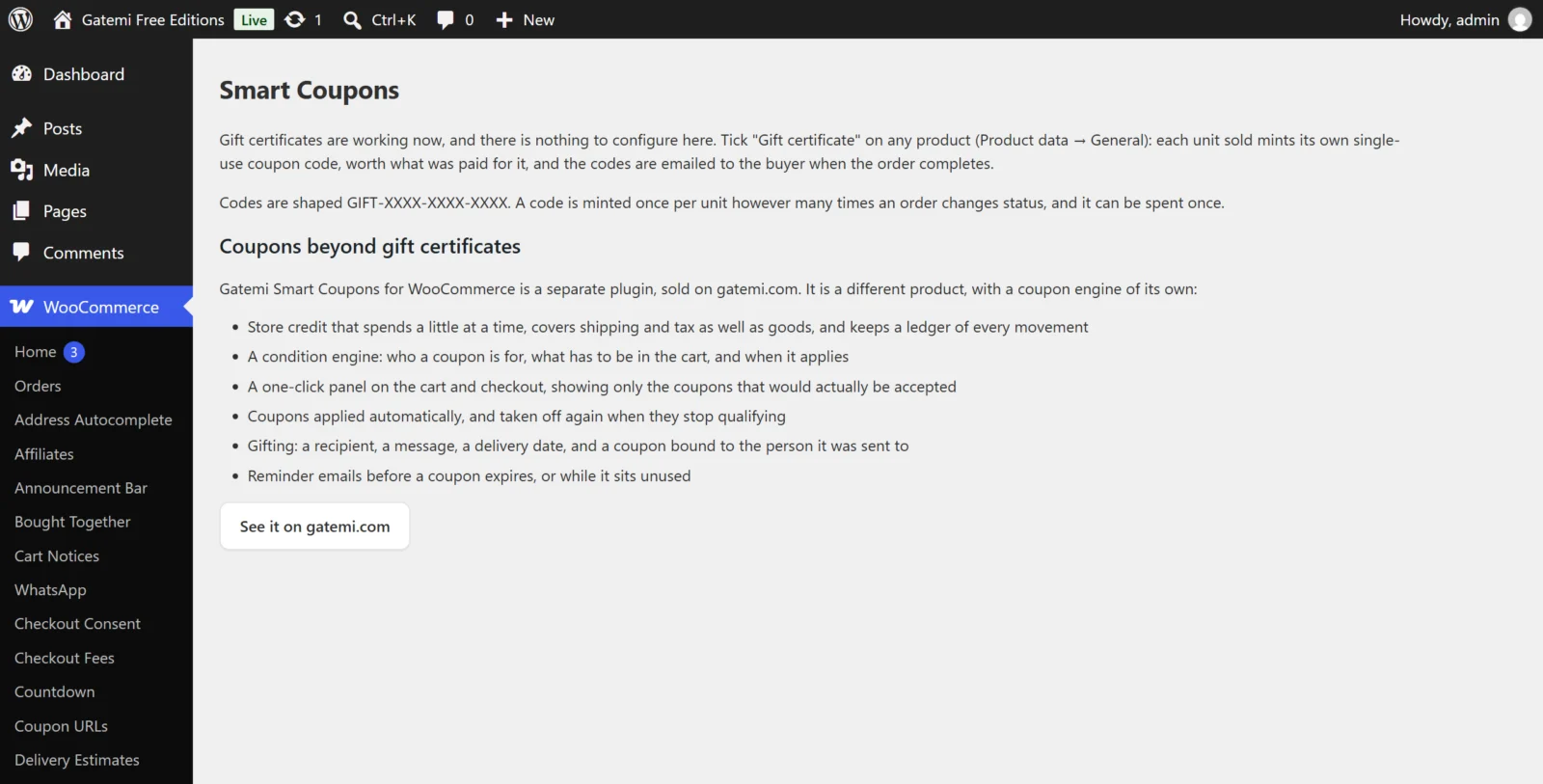
That is the whole setup. WooCommerce → Smart Coupons explains the behaviour and has nothing to save.
Test it
- Buy the product on your store (a test payment method or cash on delivery is fine). Use an email address you can read.
- In WooCommerce → Orders, mark the order Completed. The free edition issues certificates only when an order reaches Completed.
- The order gets a note "Gift certificate(s) issued: GIFT-…".
- The buyer receives "Your gift certificate", listing each code and its value.
- In Marketing → Coupons you will find the new coupon: fixed cart discount, the unit's value, usage limit 1.
- Add anything to the cart and enter the code. It takes off its full value once, and is then used up.
3. Full edition: sell a coupon
The full edition works from a template: you write one coupon, link it to a product, and every unit sold stamps a fresh copy of it with its own code, expiry and balance. The template itself is never handed out.
- Go to Marketing → Coupons → Add coupon. Give it any code (it is never used by a shopper). Choose a discount type:
- Store Credit / Gift certificate for credit that spends a little at a time and covers shipping and tax, or
- any of WooCommerce's own types (percentage, fixed cart, fixed product) for an ordinary coupon.
- Set the amount, and on the Smart Coupons tab optionally a Valid for (days after issue).
- Create or edit the product that sells it. In Product data → General, pick that coupon in Coupons to hand out.
- For a pick-your-own-amount gift card, fill in Customer chooses amount — minimum and maximum on the same tab.
- Check WooCommerce → Smart Coupons → Selling & delivery: by default coupons are issued when an order reaches Processing or Completed.
Test it
- Open the product page. Below the quantity you will see the gift form ("Sending this as a gift? Tell us who it is for…") with Recipient email, Recipient name, From, Message and Deliver on.
- Fill in a recipient address you can read and buy it.
- When the order reaches an issuing status, the coupon is created and the Coupon delivery email ("Sender sent you a coupon for site") goes to the recipient.
- WooCommerce → Coupon activity lists the coupon as Sent, with the value, the address and the order.
- Spend part of a store credit card: the order's coupon line takes what is needed, and the coupon's Smart Coupons tab shows the remaining Balance and a ledger row for the redemption.
Next steps
- Settings — the free edition's one checkbox and every full-edition setting.
- How it works — issuing, the ledger, conditions and the coupon panel.
- FAQ and troubleshooting
- Developer reference