
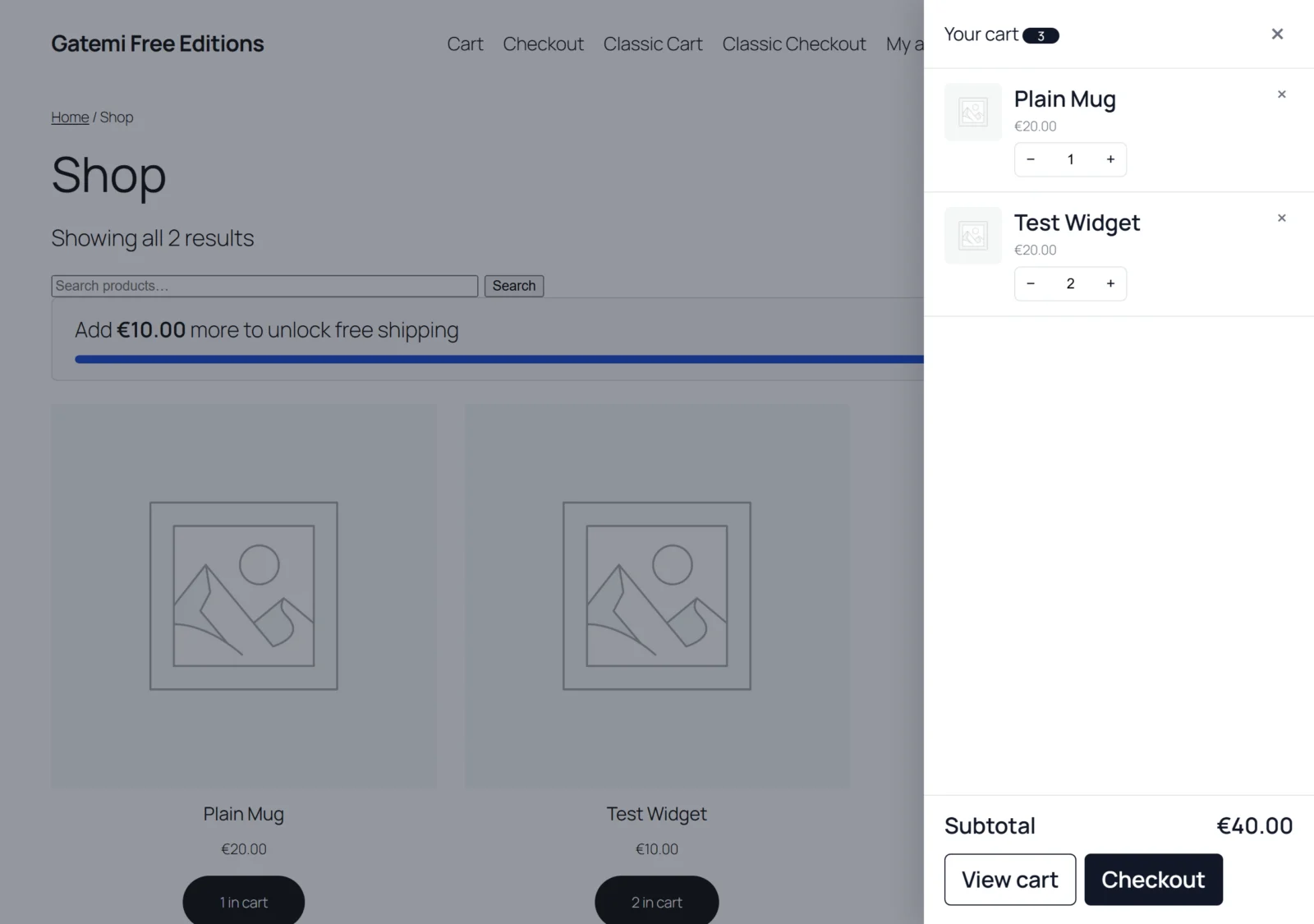
Gatemi Side Cart puts the cart one click away on every page. A slide-out panel opens when a product is added, or from a floating cart button, and shows what is in the cart with quantity steppers, a quantity box, a remove button, the subtotal and links to the cart and checkout — without leaving the page.
The panel is drawn on the server by one piece of code, and every change refreshes it through WooCommerce's own cart fragments, so what the panel shows always matches the next page load. On the cart and checkout pages the side cart steps aside: those pages are the cart.
There are two editions:
- Gatemi Side Cart — the free edition. The panel, quantity edits and removals, and the floating button.
- Gatemi Side Cart for WooCommerce — the full edition, sold on gatemi.com. Adds a free-shipping progress meter read from your own shipping zones, a coupon field in the panel, a choice of which side the floating button sits on (or no button), and your own accent colour.
Requirements
| Minimum | |
|---|---|
| WordPress | 6.4 |
| PHP | 7.4 |
| WooCommerce | 8.0 (tested up to 10.9) |
Both editions declare compatibility with WooCommerce's High-Performance Order Storage (HPOS) and the Cart and Checkout blocks. The free edition makes no external requests of any kind.
Install the free edition
The free edition is coming to wordpress.org. Until then:
- Go to Plugins → Add New → Upload Plugin, choose
gatemi-side-cart.zipand press Install Now. - Press Activate. The side cart is on straight away.
Install the full edition
- Download
gatemi-side-cart-for-woocommerce.zipfrom your gatemi.com account. - Upload it at Plugins → Add New → Upload Plugin and activate it.
- Go to WooCommerce → Side Cart, paste your
GM-XXXXX-…key in the License & updates card and press Activate.
The free edition stands down while the full edition is active; deactivate and delete it when you like.
First setup
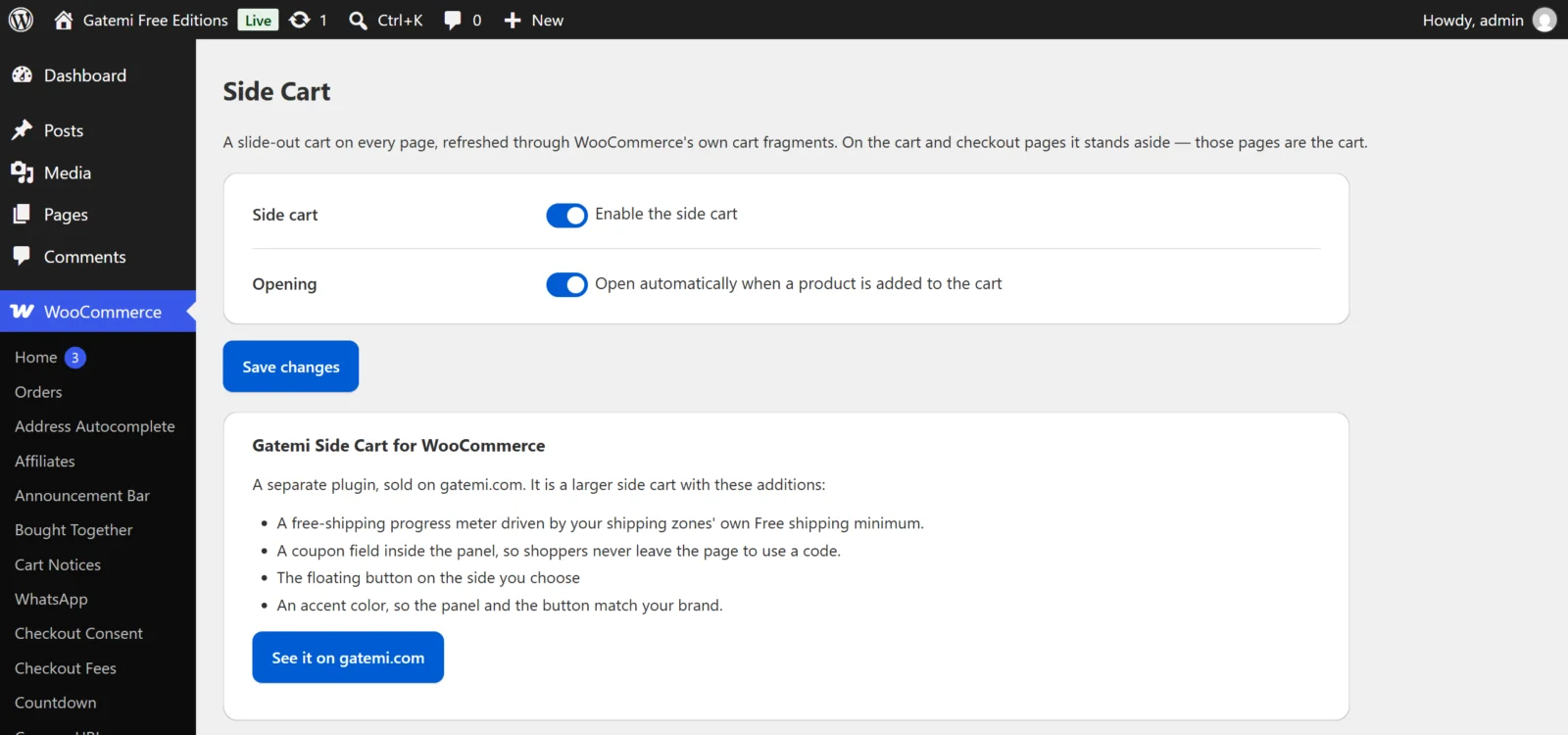
- Go to WooCommerce → Side Cart.
- Enable the side cart is ticked by default.
- Decide on Open automatically when a product is added to the cart. Ticked, the panel slides open each time a shopper adds something from a shop page; unticked, the floating button's count updates and the shopper opens the panel themselves.
- Full edition: choose whether to show the free-shipping meter and the coupon field, the floating button and its position, and an accent colour. See Settings.
- Press Save changes.
Check it works
- Open your shop page in a private window.
- Press Add to cart on a product. The panel slides open from the side with the product in it (or the floating button's count goes up, if you turned automatic opening off).
- Use + and −, or type a quantity, and the line and subtotal update. Set a quantity to 0 or press × to remove the line.
- Press Escape, the close button or the dark overlay to close the panel. The floating button in the corner opens it again.
- Go to the cart page. There is no side cart there, by design.
If the panel does not open, see FAQ and troubleshooting.
Next
- Settings — every setting, its key and default.
- How it works — the one-renderer design and the free-shipping meter.