
WooCommerce numbers orders by their database ID, so a shop's orders read 1503, then 1507, then 1512 — the gaps are other things stored in the same table. Accountants, tax offices and invoicing rules expect a sequence. Gatemi Sequential Order Numbers gives every new order the next number in an unbroken sequence: 1, 2, 3, or wherever you want to start.
Two rules make it safe to use on a live shop:
- The number is drawn in one database statement, so two orders placed in the same instant can never get the same number.
- A number is given once and never changes. It is written onto the order when the order is created. Changing a setting later only affects orders placed from then on, and orders placed before you installed the plugin keep the numbers they always had.
There are two editions:
- Gatemi Sequential Order Numbers — the free edition on wordpress.org. Sequential numbers and a start number.
- Gatemi Sequential Order Numbers for WooCommerce — the full edition, sold on gatemi.com. Adds a prefix and a suffix with
{YYYY}{YY}{MM}{DD}date variables, and zero-padding to a fixed width (42 → 00042).
Both editions draw from the same counter, so the full edition carries on exactly where the free one stopped.
Requirements
| Minimum | |
|---|---|
| WordPress | 6.4 |
| PHP | 7.4 |
| WooCommerce | 8.0 (tested up to 10.9) |
Both editions declare compatibility with WooCommerce's High-Performance Order Storage (HPOS) and the Cart and Checkout blocks. The free edition makes no external requests of any kind.
Install the free edition
- Go to Plugins → Add New and search for Gatemi Sequential Order Numbers.
- Press Install Now, then Activate.
Install the full edition
- Download
gatemi-sequential-order-numbers-for-woocommerce.zipfrom your gatemi.com account. - Go to Plugins → Add New → Upload Plugin, upload the zip and activate it.
- Go to WooCommerce → Order Numbers, paste your
GM-XXXXX-…licence key in the License & updates card and press Activate.
If the free edition is active too, deactivate it once the full edition is running. Your counter and every number already given are shared, so nothing is lost.
First setup
- Go to WooCommerce → Order Numbers.
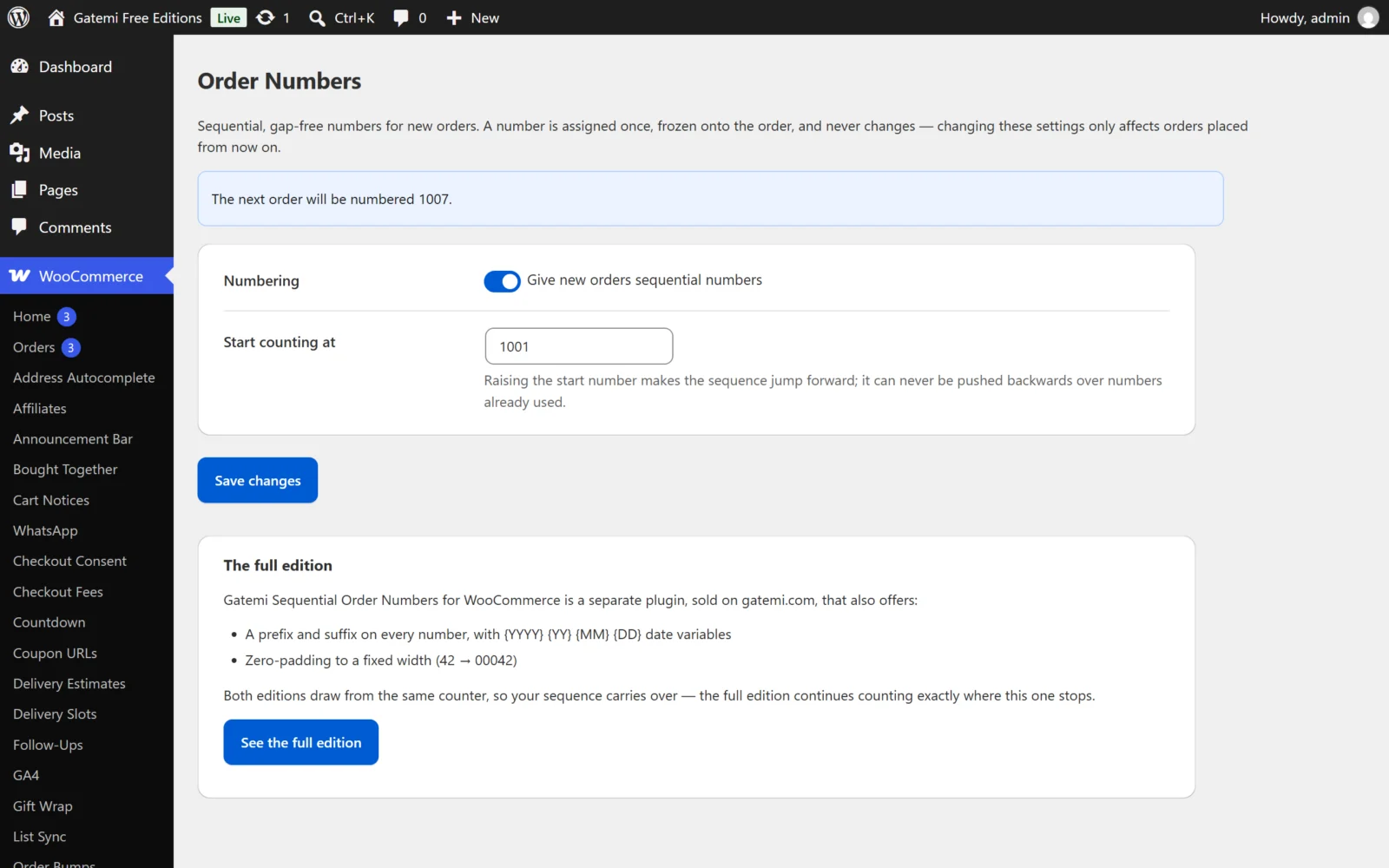
- Leave Give new orders sequential numbers ticked.
- In Start counting at, type the number the next order should have — for example
1001to continue from a previous system. The default is1. - Full edition: under Format, add a Prefix such as
{YYYY}-, a Suffix, and a width in Pad the number to a fixed width. - Press Save changes. The box at the top now reads "The next order will be numbered 1001."
Check it works
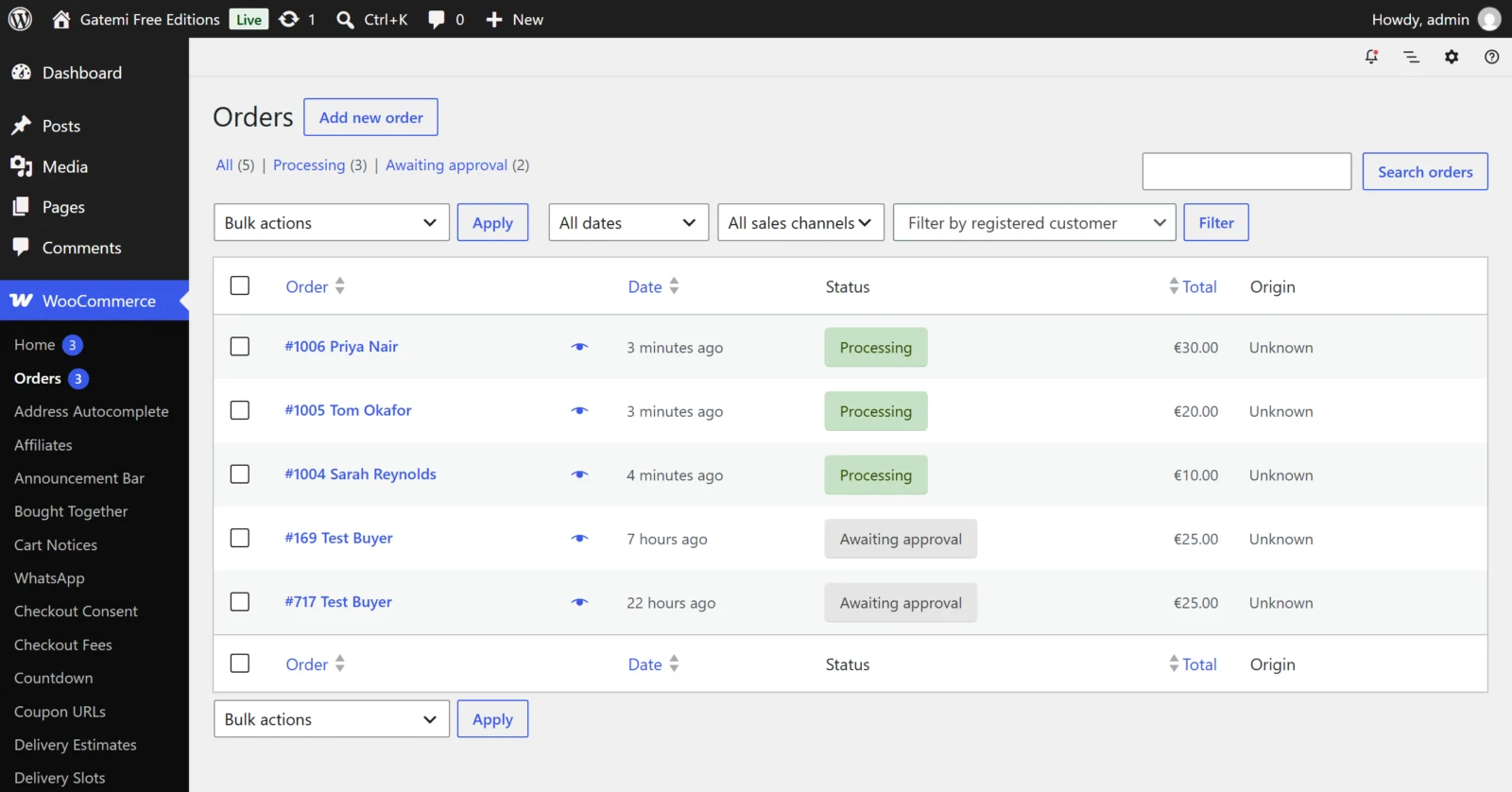
- Place two test orders, one after the other — from the checkout, or with WooCommerce → Orders → Add order.
- Open WooCommerce → Orders. The two orders carry consecutive numbers, and so do their emails and the customer's My Account.
- Back on WooCommerce → Order Numbers, the next number has moved on.
Next
- Settings — every setting, its key and default.
- How it works — how the counter stays unique and why a number never changes.