
Gatemi Request a Quote replaces Add to cart with Request a quote on the products you choose. A shopper collects products in a quote list, fills in who they are, and sends it. The request waits for you in the admin, with their contact details and what they asked about.
A quote-only product cannot be bought by accident: WooCommerce treats it as not purchasable, adding it to the cart is refused, and one already in a cart is taken out.
These docs cover both editions:
- Gatemi Request a Quote — the free edition, coming to wordpress.org. The quote list, the request form, every request on one admin screen, and an email to you for each one.
- Gatemi Request a Quote for WooCommerce — the full edition, sold on gatemi.com. You price each line and send the quote; the customer accepts it with one press and it becomes an order at exactly those prices. Plus category and role targeting, price hiding, an expiry and a required phone number.
Anything marked Full edition is only in the paid plugin.
Requirements
| Free edition | Full edition | |
|---|---|---|
| WordPress | 6.4 or later | 6.4 or later |
| PHP | 7.4 or later | 7.4 or later |
| WooCommerce | 8.0 or later | 8.0 or later |
Both editions declare compatibility with High-Performance Order Storage (HPOS) and with the Cart and Checkout blocks. Your site must be able to send email (the plugin uses WordPress' wp_mail()).
1. Install
Free edition: coming to wordpress.org. Until it is listed, install the zip through Plugins → Add New → Upload Plugin and activate it.
Full edition: download the zip from your gatemi.com account, go to Plugins → Add New → Upload Plugin, upload and activate. Then open WooCommerce → Quote settings and enter your licence key in the License & updates card. The plugin works without a key; the key switches on one-click updates and support.
You only need one edition. If both are active, the free edition stands down and says so on the Plugins screen. Both use the same tables (wp_gmrq_quotes, wp_gmrq_quote_items) and the same settings.
2. Make a quote list page
- Go to Pages → Add New. Call it "Quote list".
- Add a Shortcode block containing
[gatemi_quote_basket]. - Publish it, and note its page ID (the number after
post=in the editor's address bar).
This page shows the shopper's quote list and the request form. Full edition: it is also where a customer opens the quote you send them.
3. Switch quoting on
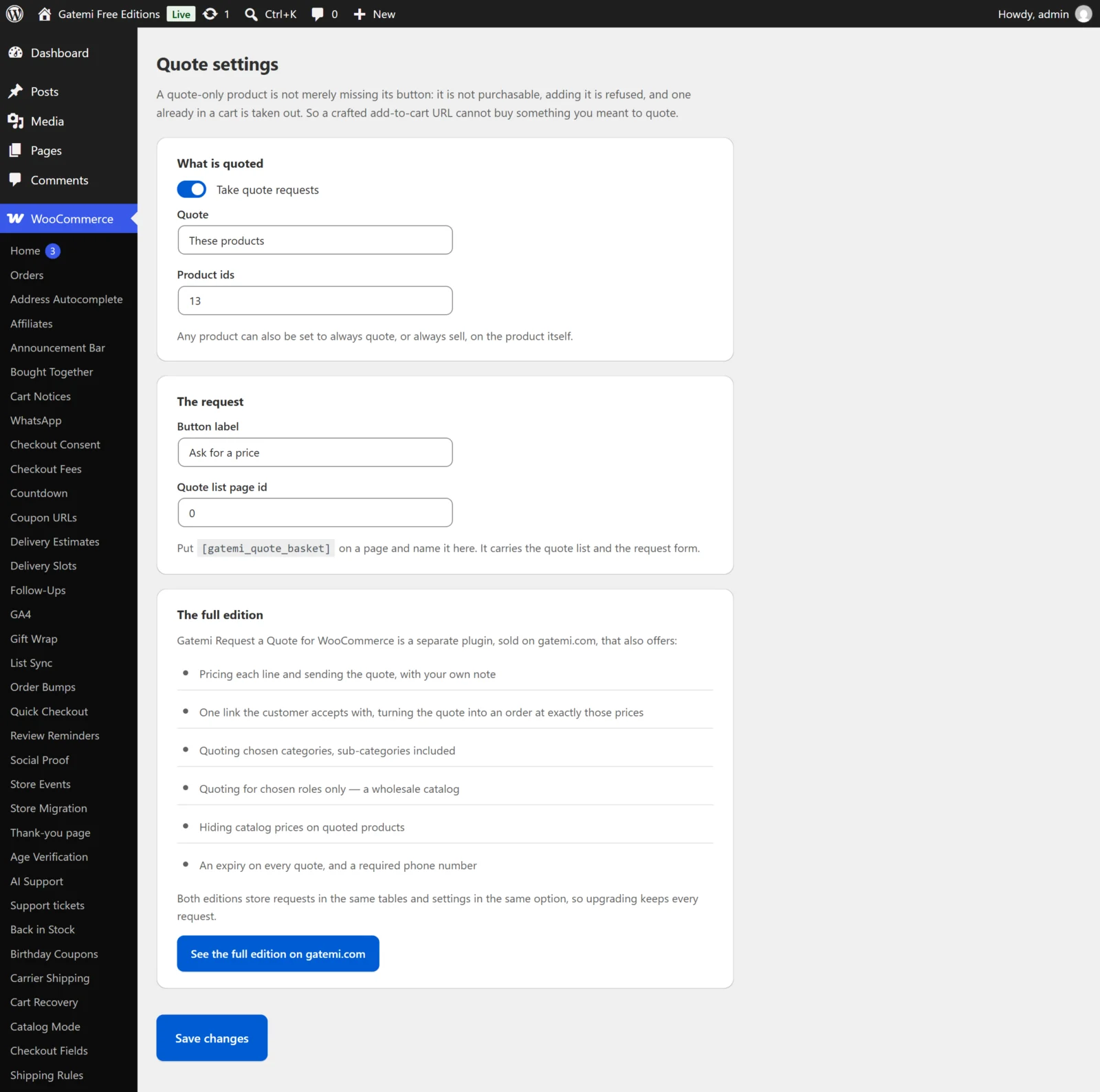
Quoting is off when the plugin is first activated, so nothing changes on your shop until you say so.
- Go to WooCommerce → Quote settings.
- Tick Take quote requests.
- Under Quote, choose Everything in the shop or These products. For These products, type the product IDs in Product ids, separated by commas.
- Optionally change the Button label (default "Request a quote").
- Type the page ID from step 2 in Quote list page id.
- Save.
You can also set one product to Always quote this one or Always sell this one: edit it, and in Product data → General use Quoting.
4. Test it
-
Open a quoted product in a private window. Instead of Add to cart you see a quantity box and Request a quote.
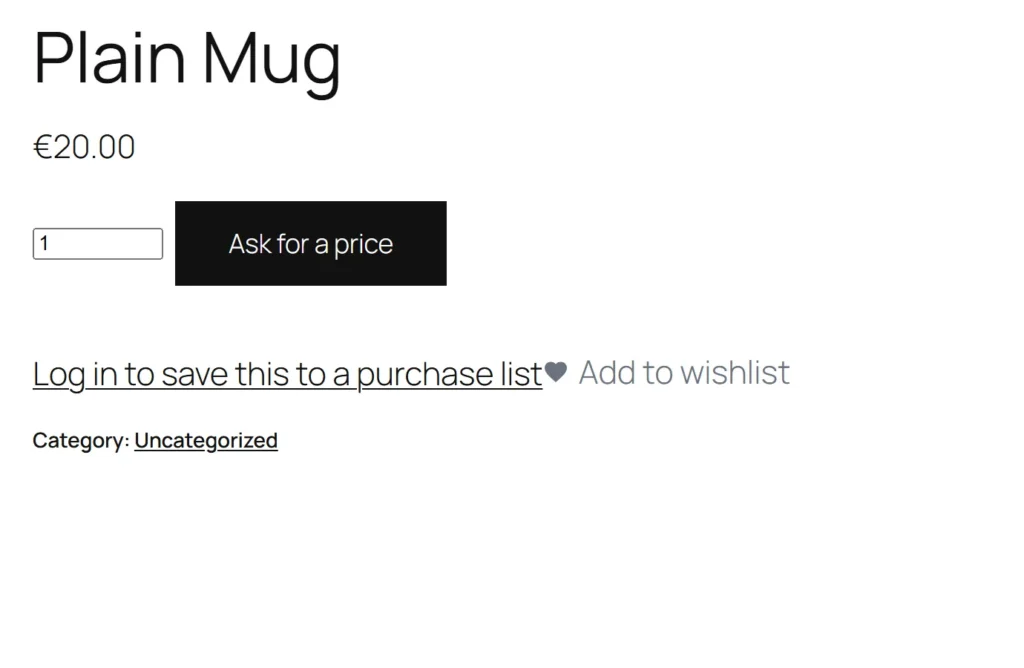
Request a quote in place of add-to-cart. -
Press it. The page reloads and shows Already on your quote list, linked to your quote list page.
-
Open the quote list page. Change a quantity and press Update, or Remove a line.
-
Fill in Your name and Email address (both required), and if you like Phone, Company and Anything we should know?. Press Send my request.
-
The page says "Thank you — we have your request and will be in touch with a price." The list empties.
-
Check the site admin's inbox for "New quote request", and open WooCommerce → Quote requests (full edition: WooCommerce → Quotes).
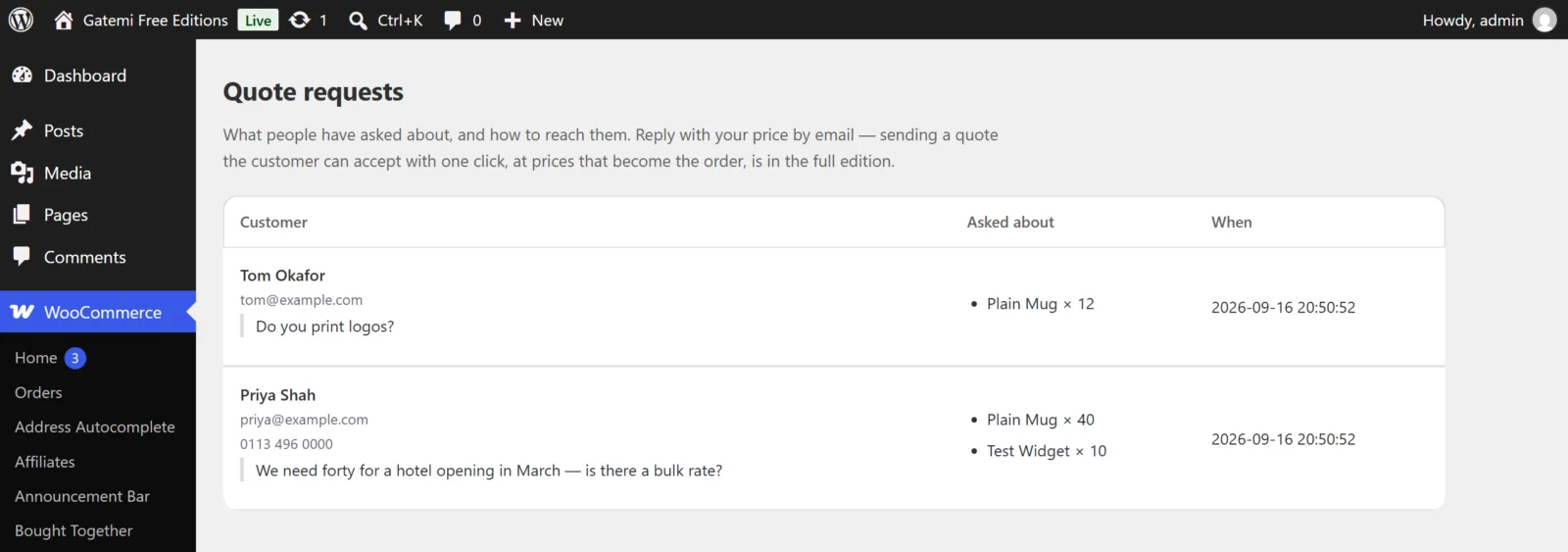
Free edition: reply to the customer with your price by email. Full edition: open the request, type a price on each line (and a delivery charge, if you charge for one) and press Send this quote — see How it works.