
Gatemi Private Store keeps part of your shop — or all of it — for the people you choose. A protected product is not merely missing its add-to-cart button: it leaves the shop's listings, it stops being purchasable, and a purchase is refused even if something posts one anyway.
These docs cover both editions:
- Gatemi Private Store — the free edition, coming to wordpress.org. Protects the whole shop or chosen categories for signed-in customers.
- Gatemi Private Store for WooCommerce — the full edition, sold on gatemi.com. Adds passwords, roles, chosen products and as many rules as you need.
Anything marked Full edition is only in the paid plugin. Everything else is in both.
Requirements
| Free edition | Full edition | |
|---|---|---|
| WordPress | 6.4 or later | 6.4 or later |
| PHP | 7.4 or later | 7.4 or later |
| WooCommerce | 8.0 or later | 8.0 or later |
Both editions declare compatibility with High-Performance Order Storage (HPOS) and with the Cart and Checkout blocks. No database tables and no storefront JavaScript.
1. Install
Free edition: coming to wordpress.org. Until it is listed, install the zip through Plugins → Add New → Upload Plugin and activate it.
Full edition: download the zip from your gatemi.com account, go to Plugins → Add New → Upload Plugin, upload and activate. Then open WooCommerce → Private Store and enter your licence key in the License & updates card. The key switches on one-click updates; the plugin works without one.
You only need one edition. If both are active, the free edition stands down and says so in a row under its entry on the Plugins screen.
Nothing is protected until you switch it on. Activating the plugin changes nothing on your shop.
2. Set it up — free edition
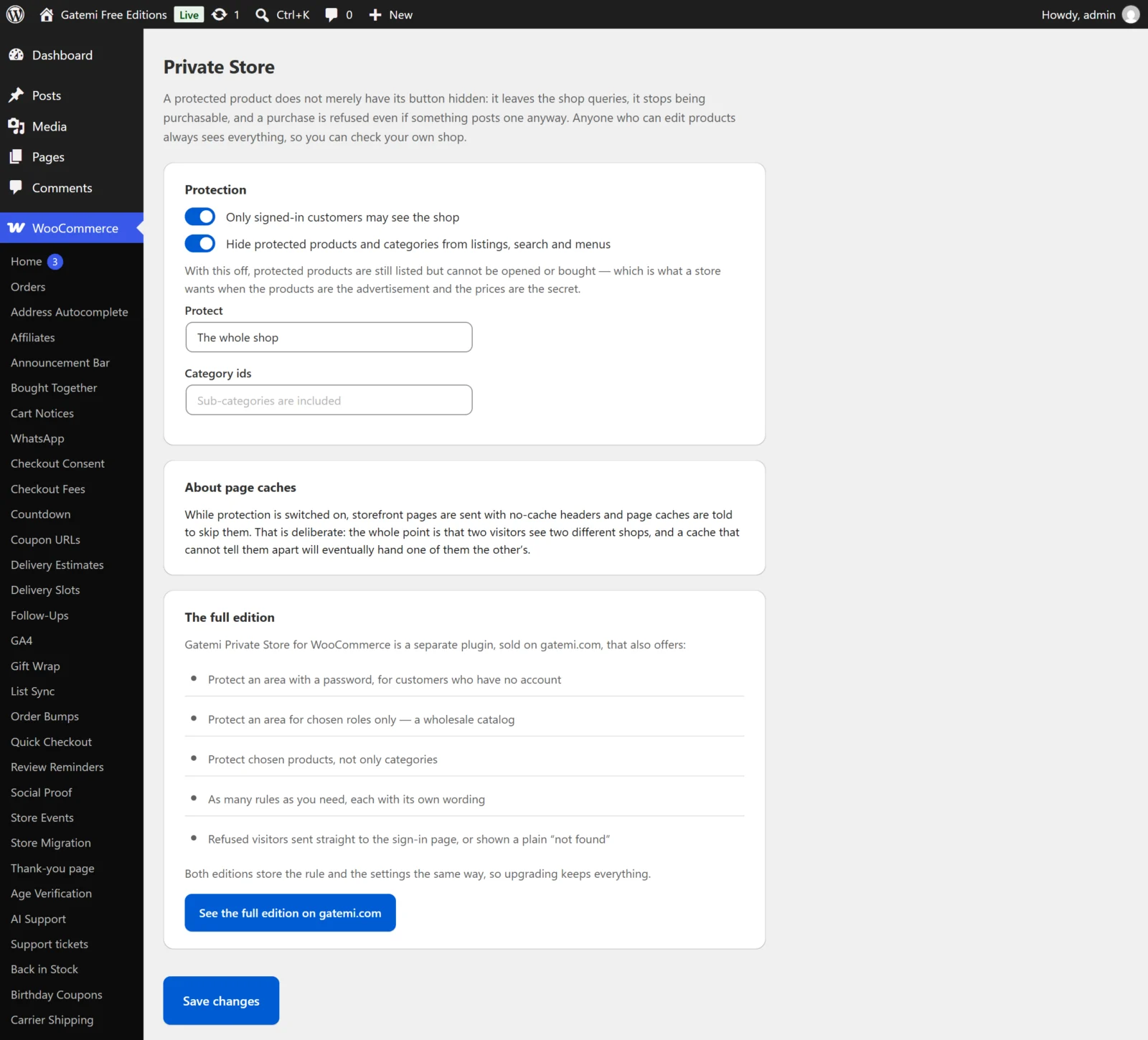
- Open WooCommerce → Private Store (capability
manage_woocommerce). - Tick Only signed-in customers may see the shop.
- Under Protect, choose The whole shop, or These categories and type the category ids, separated by commas. Sub-categories are included. (A category's id is shown in the address bar when you edit it under Products → Categories.)
- Decide on Hide protected products and categories from listings, search and menus (on by default — see below).
- Press Save changes.
2. Set it up — full edition
- Open WooCommerce → Private Store.
- Tick Enforce the rules below.
- Under Rules, press Add a rule and fill it in:
- Name — for you, for example "Trade only".
- Covers — The whole shop, These categories (category ids) or These products (product ids).
- Who may see it — Anyone signed in, These roles only (role slugs such as
wholesale_customer) or Anyone with the password. - Password — for a password rule.
- What a refused visitor reads — optional; empty uses a sensible sentence.
- Choose what happens When someone is refused.
- Press Save changes.
Every option is described in Settings.
Hide, or list but lock?
- Hide on (default): protected products and categories leave the shop pages, category pages, search and category menus.
- Hide off: they are still listed, but cannot be opened or bought. That suits a shop where the products are the advertisement and the prices are the secret.
In both cases the product page itself is refused and the product cannot be added to a cart.
3. Check it works
Shop managers and administrators always see everything (anyone with the edit_products capability), so test in a private window where you are not signed in.
- Open your shop page. With Hide on, protected products are gone.
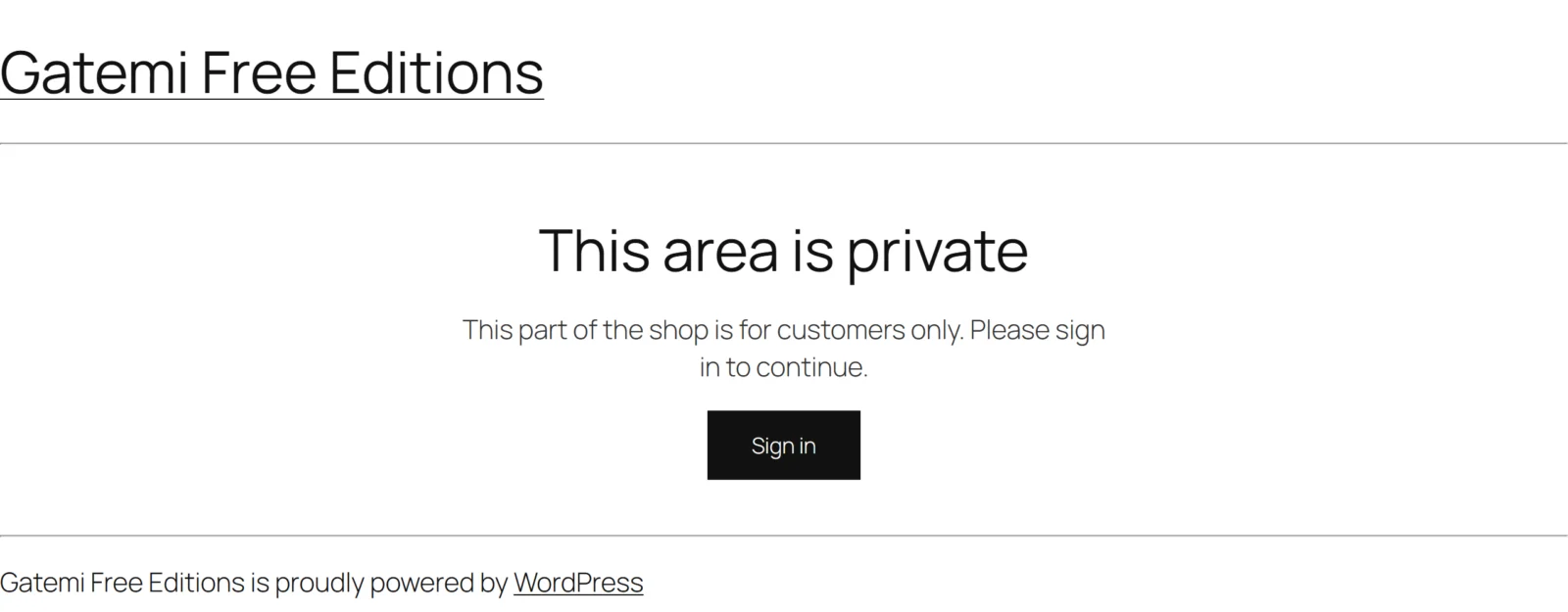
- Open a protected product's address directly. You see "This area is private", the reason, and a Sign in button (Full edition: or a password box for a password rule).
- Sign in as an ordinary customer. The product is back and can be bought.
A word on page caches
While protection is on, storefront pages are sent with no-cache headers and page caches are told to skip them (DONOTCACHEPAGE). Two visitors see two different shops, and a cache that cannot tell them apart would eventually hand one the other's.