
Everything is on WooCommerce → My Account. Both editions store the menu in two options, gmma_items and gmma_endpoints, in the same shape, so moving between editions keeps every change. When the free edition saves, it keeps every value only the full edition writes — icons, roles, page sources, extra tabs — exactly as they were.
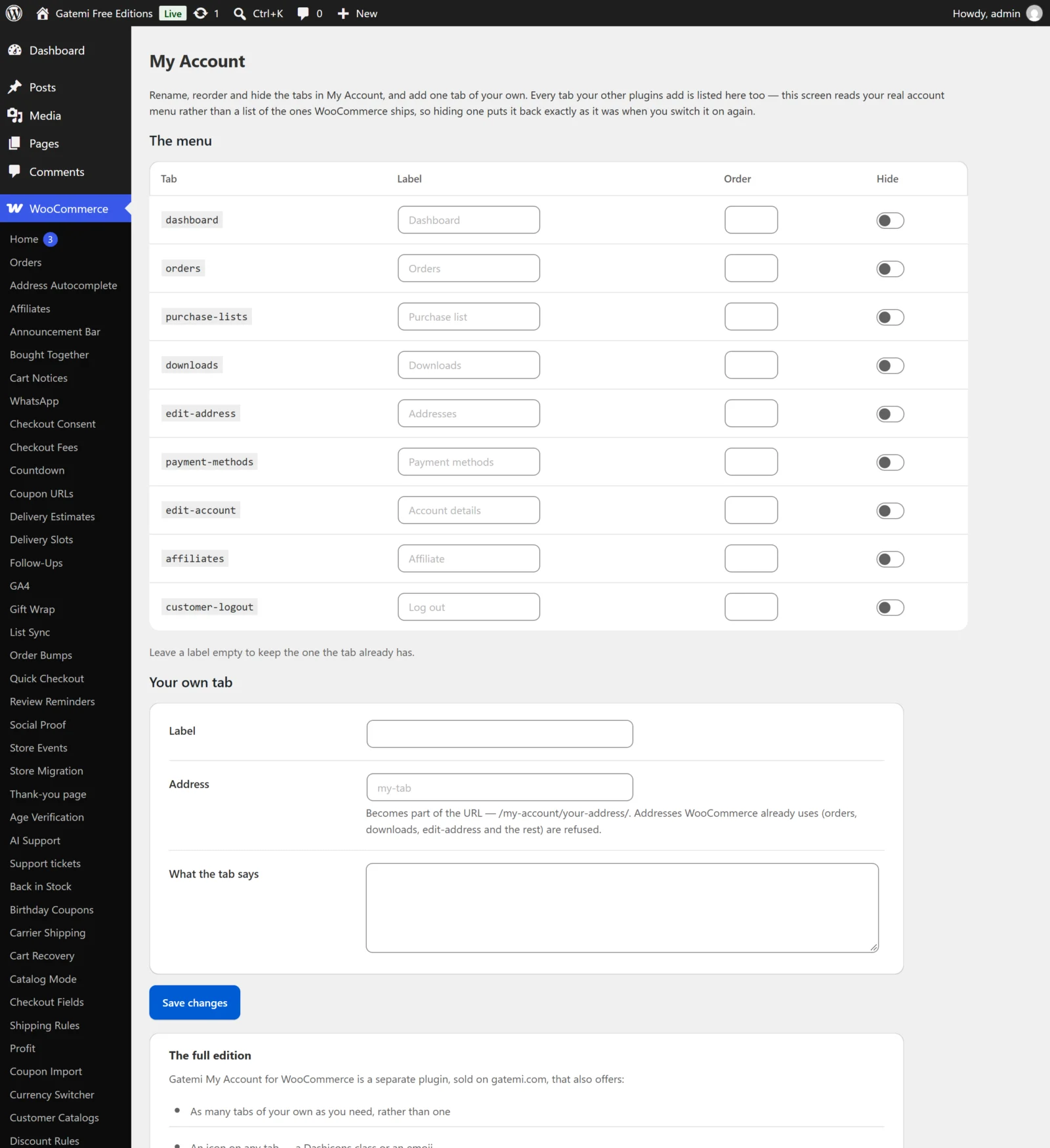
The menu
One row per tab in your store's real account menu. The screen reads the menu WooCommerce and your other plugins build (with this plugin's own changes taken out), so a tab another plugin adds appears here too. The tab's own key is shown in the Tab column.
Stored in gmma_items, one entry per tab key. A tab you have not changed has no entry: the absence of a row means "leave this tab alone".
| Column | Stored as | Default | What it does |
|---|---|---|---|
| Label | label |
empty | The tab's new name. Empty keeps the name the tab already has. |
| Order | position |
empty (0) | Lower numbers first. Unnumbered tabs keep WooCommerce's order, after the numbered ones. |
| Icon — Full edition | icon |
empty | A Dashicons class such as dashicons-cart, or up to four characters of text — an emoji. |
| Hide | hidden |
off | Removes the tab from the menu. It is removed from the menu array, not hidden with CSS. |
| Only these roles — Full edition | roles |
empty (everyone) | Comma-separated role keys, for example customer, wholesale_customer. The tab is listed only for users holding at least one of them. |
Hiding removes the menu link, not the page. A customer who already knows the address (for example /my-account/downloads/) can still open it. To stop a feature being used, switch it off in WooCommerce or the plugin that provides it.
Your own tab (free) / Your own tabs (full edition)
Stored in gmma_endpoints, a list of tabs. The free edition offers one; the full edition any number, with Add another tab and Remove this tab.
| Field | Stored as | What it does |
|---|---|---|
| Label | label |
The menu text. Required. |
| Address | slug |
The URL part: /my-account/{address}/. Lower-cased and made URL-safe, at most 64 characters. Required. |
| What the tab says | content |
The tab's content. HTML allowed in posts is kept; shortcodes run. |
| Order — Full edition | position |
Where the tab goes in the menu, when its menu row has no order of its own. |
| Icon — Full edition | icon |
As in the menu table. |
| Only these roles — Full edition | roles |
As in the menu table. |
| Or show a page instead — Full edition | page_id |
A page whose content is shown instead of the text above, rendered as it is on its own address, so blocks and shortcodes work. Only a published page without a password is shown; a draft, private, pending or password-protected page is not, and the text above is shown instead. |
A tab needs both a label and an address; a row with only one of them is not saved. Two tabs cannot share an address.
Addresses that are refused
An address WooCommerce already uses is refused: orders, view-order, downloads, edit-account, edit-address, payment-methods, add-payment-method, delete-payment-method, set-default-payment-method, order-pay, order-received, lost-password, customer-logout, and whatever your store has renamed those endpoints to under WooCommerce → Settings → Advanced. A tab on one of those addresses would silently take over the real page. The screen names the refused address after saving.
Settings — Full edition
Stored in gmma_settings.
Show icons in the account menu — Full edition
- Key:
menu_icons· Default: on (yes) - On, a Dashicons icon is added to its menu item and the plugin's small stylesheet is loaded on account pages (and Dashicons only if a tab actually uses one). Off, no icon is drawn — neither a Dashicons icon nor a text or emoji icon in front of the label.
A note at the top of the dashboard — Full edition
- Key:
dashboard_top· Default: empty - Shown above WooCommerce's own dashboard text ("Hello …"), never instead of it. HTML allowed in posts; shortcodes work. Empty shows nothing.
Capability required to edit this screen — Full edition
- Key:
capability· Default:manage_woocommerce - The WordPress capability a user needs to open and save this screen. Make sure your own account has it before you change it.
License & updates — Full edition
Paste your gatemi.com licence key and click Activate for one-click updates and support. The card shows the status, the masked key and sites in use, and a Deactivate on this site button.
For developers — Full edition
A table of the filters the plugin applies — see the developer reference.